
Blog updated: October 28, 2021

IGTV was originally introduced in 2018 and planned to be the mobile equivalent of YouTube. Currently, Instagram has changed its video focus into short video formats such as Reels, and now the new Video tab. Read on to find out how this changes your Instagram video content strategy.
What was IGTV?
IGTV or Instagram TV was a platform for creators to post long-form videos. Similar to YouTube, creators had channels that could be followed by users. The major difference between the two was Instagram’s vertical format.
Most basic video editors like iMovie only allow you to create videos in widescreen (landscape), so how do you create vertical videos for Instagram or adjust your existing videos to work on the platform? With Clipchamp’s free online video editor.
Can creators still upload an Instagram video?
Yes! Instagram videos can still be uploaded in the same way. Click on the + sign in the top right corner of the Instagram homepage. Creators can still post videos on their Stories, share via direct message, and upload Instagram Lives.

Where to find video content on Instagram
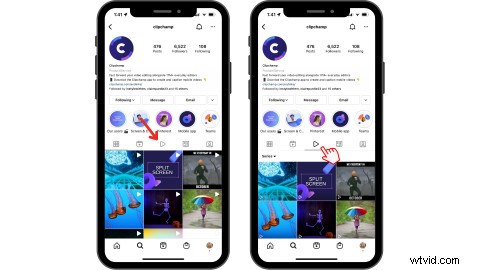
If you relied on IGTV for organic reach, you can still reach a wide range of audiences using the new Video tab and popular Reels feature. IGTV and feed videos are now in one format, making it easier for users to discover new video content. You can locate the Video tab on your Instagram profile homepage between Reels and News.
Instagram video specifications
Take a look at Instagram’s video length and resolution requirements.
Instagram video length
Instagram videos must be between 15 seconds and 10 minutes long, in MP4 file format. Larger accounts and verified accounts can upload videos up to 60 minutes long, but they must be uploaded from a computer. Video previews in-feed are now 60 seconds long, unless the video is eligible for ads, then it will decrease to 15 seconds.
Instagram video resolution and dimensions
Instagram in-feed videos can be made and uploaded in vertical 9:16 aspect ratio, square 1:1 aspect ratio, or landscape 16:9 aspect ratio. Storie uploads must be a vertical 9:16 aspect ratio. Easily rotate and resize Instagram videos with Clipchamp’s free rotate tool.
Instagram videos must have a minimum frame rate of 30 FPS and a minimum resolution of 720 pixels.
The maximum filesize for videos that are 10 minutes or less is 650MB. The maximum filesize for videos up to 60 minutes is 3.6GB.
How to create an Instagram video with Clipchamp
Follow our step-by-step guide on how to create an Instagram video with Clipchamp’s free online video editor.
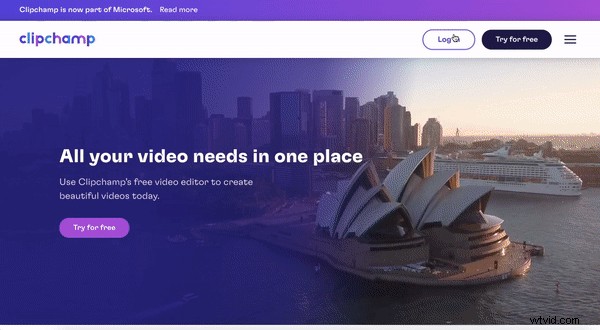
Step 1. Log in to your Clipchamp account
Create an account for free, or sign in to get started.
Step 2. Create a new Instagram video
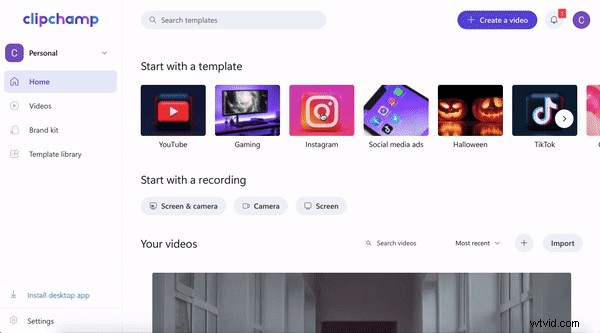
Either click on the Instagram template tab or click on Create a video button at the top right of your screen. Click on the 16:9 aspect ratio button and change your ratio to 9:16 vertical. Rename your video by clicking Untitled video.
Step 3. Select a ready-to-use Instagram template
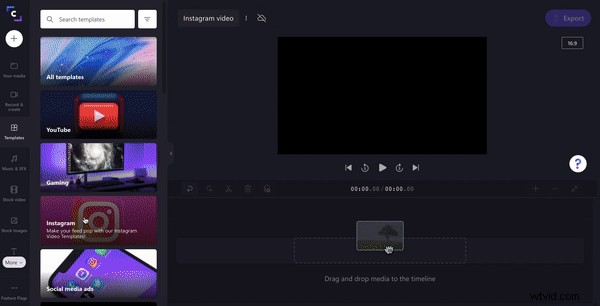
For this tutorial, we are using a ready-to-use template. Click on the Instagram template category. Scroll through the Instagram templates until you find your desired template. Hover over the videos to preview the templates. Click on the + symbol to add the template to your timeline. Your media will start importing automatically.
Step 4. Personalize video footage and text
Next, it’s time to add your footage to the editor. Click on the + symbol on the left toolbar. Drag and drop your video footage into the pull-out tab, browse files, or import using one of Clipchamp’s integrations.
Drag and drop each clip onto your timeline to replace the template stock footage.
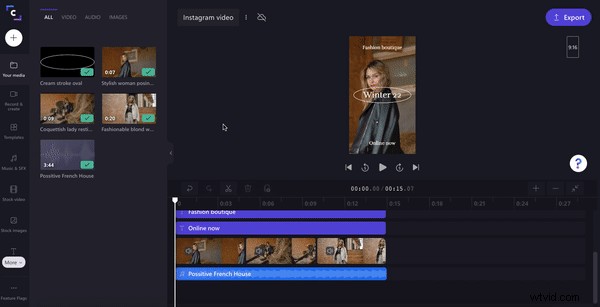
Click on the text on the timeline, personalize the text, color, and font to suit your Brand kit.
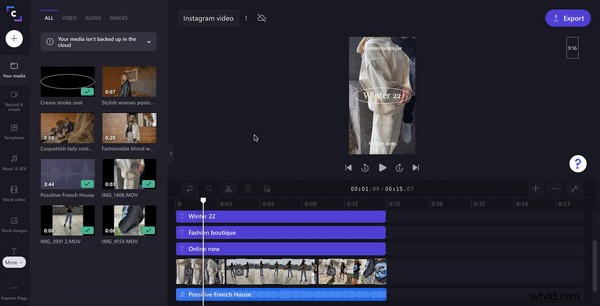
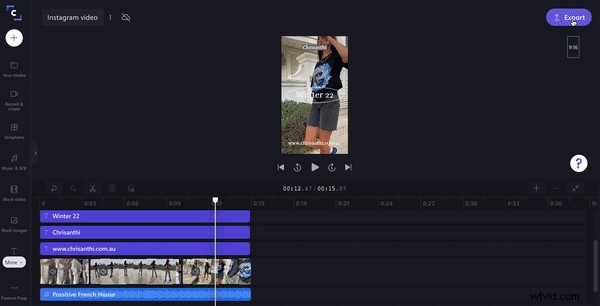
Step 5. Save your Instagram video
Once you are happy with your new Instagram in-feed video, click on the Export button at the top right corner of the editor. You’ll need to export your video in either 720p or 1080p to meet Instagram’s requirements. Click Continue when ready to save. Save or share your video via Box, Dropbox, Google Drive, OneDrive, Pinterest, or YouTube.
Easily create and upload a beautiful Instagram in-feed video
IGTV has retired, but that doesn’t mean you can’t keep posting awesome video content on Instagram.
Create engaging promo videos, lookbooks, explainer videos, and much more with Clipchamp’s free online video editor.