
Slow‑motion video captures action at a higher frame rate—usually 120 FPS, 240 FPS, or even 960 FPS—so when it plays back at the standard 24–30 FPS, every moment stretches into several seconds. This reveals details that are otherwise invisible in real time, making everything from a splash of water to a high‑speed jump look cinematic.

In this article
- Record slow‑motion on Android
- Record slow‑motion on iPhone
- Record slow‑motion with a professional camera
- Choosing the right frame rate
- Convert a normal clip to slow‑motion after recording
- Using Filmora’s Speed Ramping tool
- Conclusion
- FAQ
1. How to Record Slow‑Motion Video on Android
Most Android phones include a dedicated slow‑motion mode. Depending on the model, you can capture footage at 120 FPS, 240 FPS, or even up to 960 FPS. Here’s a quick workflow for Huawei and similar devices:
- Open the Camera app from your home screen or app drawer.
- Swipe left until you see the More option, then tap it to reveal additional shooting modes.
- Choose Slow‑Mo or Slow Motion. Pick the desired speed (often labeled as 32×, 64×, etc.) and enable motion detection if you want the camera to start recording automatically when movement is detected.
- Point the camera at your subject and press the record button.
- After recording, review the clip in your gallery. You can trim or adjust playback speed in the built‑in editor.

Note: The exact menu labels may differ by brand and model, but the process remains largely the same.
2. How to Record Slow‑Motion Video on iPhone
iPhones record slow‑motion in a straightforward way. They support 60 FPS, 120 FPS, and 240 FPS. Unlike Android, the iPhone records the footage normally and then applies the slow‑motion effect during playback. Follow these steps:
- Launch the Camera app from the home screen.
- Swipe left or right until you find the Slow‑Mo mode and tap to activate it.
- Frame your shot and tap the record button.
- Stop recording by tapping the button again.
- Open the Photos app, select the clip, tap Edit, and use the sliders at the bottom to set the start and end points of the slow‑motion effect.
Bonus tip: While recording, use the quick‑toggle menu on the screen to adjust resolution and frame rate, giving you finer control over file size and quality.
3. How to Record Slow‑Motion Video with a Professional Camera
Professional cameras such as the Sony Alpha series or Canon EOS offer greater flexibility: you can choose frame rates from 120 FPS to 240 FPS (and beyond), set resolutions, and manually control exposure. Follow these steps:
- Power on your camera and switch to video mode.
- In the menu, set the frame rate to 120 FPS (or higher if your model supports it).
- Adjust the resolution to match the chosen frame rate—for example, 1080p at 120 FPS.
- Set the shutter speed to roughly double the frame rate (e.g., 1/250 s for 120 FPS) to create smooth motion blur.
- Mount the camera on a tripod or use a gimbal to keep the footage steady.
- Press the record button to start, and press again to stop.
- Transfer the clip to a computer and fine‑tune it in editing software.
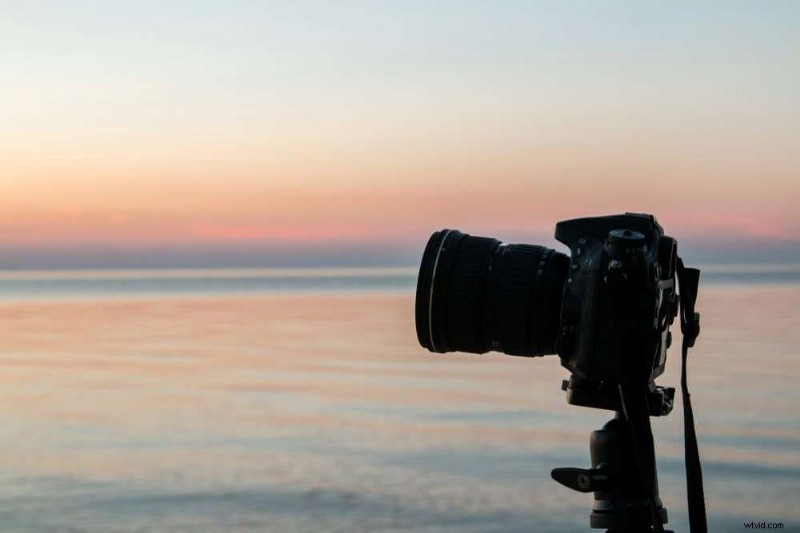
Always consult your camera’s manual for model‑specific instructions.
4. Choosing the Right Frame Rate for Slow‑Motion
The quality of slow‑motion depends on the frame rate. Use the following cheat sheet to decide which FPS best fits your project:
| Frame Rate | Playback Speed | Use Case | Detail Level |
|---|---|---|---|
| 60 FPS | 2× slower | Casual videos | Moderate |
| 120 FPS | 4× slower | Detailed action shots | High |
| 240 FPS | 8× slower | Fast‑moving subjects | Very high |
| 480 FPS | 16× slower | Ultra‑slow motion | Ultra‑high |
| 960 FPS | 32× slower | Scientific or artistic projects | Extremely high |
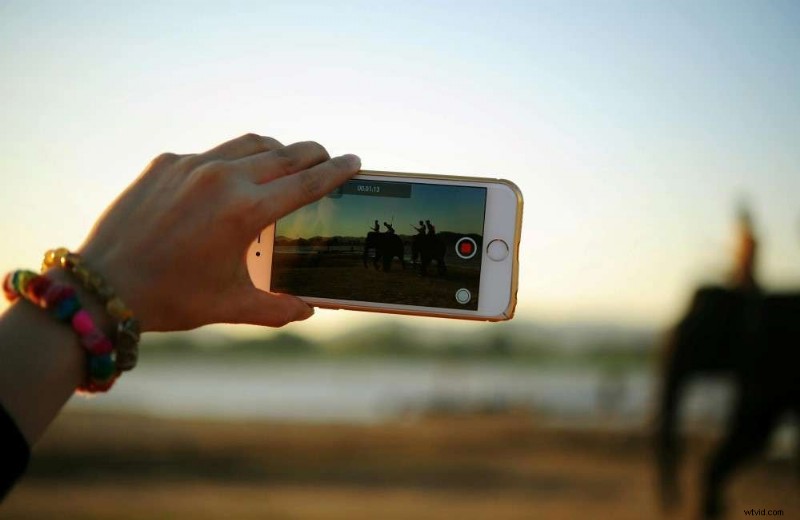
5. Convert a Regular Clip to Slow‑Motion After Recording
If you missed slow‑motion mode, you can still create the effect using editing tools. Popular options include Filmora, Wondershare Filmora, and other apps that support speed adjustments. Filmora’s Speed Ramping feature lets you apply dynamic slow‑motion or fast‑forward effects with precision.
How to Use Filmora’s Speed Ramping on Desktop
- Download and install Filmora, then create an account.
- Start a new project and import your video.
- Drag the clip onto the timeline.
- Open the Speed tab or click the speed icon in the toolbar.
- Select a preset (e.g., Hero Moment) or create a custom ramp by setting keyframes.
- Preview the effect and fine‑tune keyframe points.
- Export the final video.
Filmora also offers AI Frame Interpolation. Choose from Frame Sampling, Frame Blending, or Optical Flow to generate additional frames for smoother motion.
6. Conclusion
Slow‑motion videos can transform ordinary footage into visual storytelling masterpieces. Whether you use the built‑in camera modes on Android or iPhone, or the advanced settings on a professional camera, the key is to capture at a high frame rate and edit with care. With tools like Filmora’s Speed Ramping and AI interpolation, you can turn any clip into stunning slow‑motion footage.
FAQ
- Why did my iPhone video record in slow motion? You likely switched to the Slow‑Mo mode inadvertently. You can adjust playback speed in Photos or use a third‑party app to reverse the effect.
- What if I accidentally record a slow‑mo video on iPhone? Edit the clip in Photos or use Filmora to speed it up or fine‑tune the slow‑motion segment.
- How do I transform an ordinary video into slow motion? Import the clip into an editor that supports speed adjustment, set the desired FPS, and export.