
If you create tutorials, training materials, or any kind of educational video, you already know the power of dynamic visuals. Viewers face endless distractions, so keeping their attention means using movement, depth, and visual design that naturally draws the eye.
Motion is one of the simplest ways to turn a flat video into something engaging and professional. Yet for many creators, motion backgrounds seem like an advanced design skill that requires special software or plugins.
Camtasia makes it easy to create custom motion backgrounds that look polished and on-brand, even if you’ve never animated a thing. In this guide, you’ll learn how to use its built-in tools to add life to everything from instructional content to video montages to social media clips.
Why motion backgrounds make your videos more engaging
Motion backgrounds are animations that play behind other visuals, like slides, video footage, or lyrics. They add energy and dimension to projects that might otherwise feel static. Lyric slides, screencasts, slide decks, and training videos are all great candidates.
Even subtle movement helps hold attention and keep viewers engaged. That’s why nearly all online ads include some degree of motion: even when you try to tune them out, movement naturally draws your focus back.
Of course, balance matters. Too much activity in the background can distract from the main message or visuals on screen.
The key is subtlety; small, intentional motion that enhances your video without competing with it. Here are a few real-world examples of how to use motion backgrounds effectively:
- Subtle gradient shifts: Great choice for training videos
- Abstract shapes: Add motion to branded explainers
- Looping textures: Create seamless, engaging intro sequences
Whether you want to start from scratch or use something prebuilt, Camtasia offers plenty of options. The desktop app includes a variety of built-in motion backgrounds and customizable effects, while Camtasia online (free) includes dynamic backgrounds through Looks — perfect for experimenting before you dive into full production.
Static vs. motion backgrounds
Motion isn’t right for every situation. Static image backdrops are simpler; they’re just still images with no animation. They often work best for formal communication and minimalist presentations, where movement might feel distracting or unnecessary.
In other cases, like branded storytelling or instructional videos that benefit from energy and flow, subtle motion graphics can make content feel more dynamic and engaging.
And you don’t have to choose one or the other. Camtasia’s extensive library and easy background editing tools enables you to combine static and motion backgrounds seamlessly within the same video or presentation.
Best practices for creating professional motion backgrounds
The hardest part of designing motion backgrounds is striking the right balance — enough movement to add interest, but not so much that it draws attention away from what matters most.
Follow these design principles to make motion backgrounds that enhance your message and complement your main visuals.
Choose the right colors and movement
If you’re creating video content for a brand or organization, start with what you already have — your color palette and style guide. Use those guardrails to find colors and tones that fit.
For example, sharp geometric shapes in high-contrast grayscale might suit a tech brand but feel jarring for an outdoor or nature-focused one.
When it comes to motion, match the speed and style to your content. Instructional videos benefit from soft gradients and slower animations, while marketing intros or promos call for bolder, faster movement.
Camtasia’s Dynamic Backgrounds and Color Adjustment tools make it easy to experiment safely, adding motion and color that enhance your video without overwhelming it.
Keep contrast and readability in mind
If your video includes any text, readability should be your top priority. Text overlays, callouts, and screen captures all need to stay clear and easy to follow. Motion backgrounds can complicate that: color too close to your font or fast movement behind text can quickly strain the viewer’s eyes.
To maintain clarity, use tools like opacity layers or blur to create separation between your background and the main content. In Camtasia, you can apply these adjustments with just a few clicks to keep your text sharp and legible.
Loop for seamless playback
Your background animation should immerse viewers in the content, not disrupt them. That’s why smooth looping is key. A background that restarts awkwardly or jumps mid-motion can break the flow of your video.
If seamless looping sounds complicated, don’t worry: Camtasia’s clear timeline and animation keyframes make trimming and looping intuitive, even for beginners.
Still getting started with video production? Check out our professional glossary of video production terms!
Looking for professional screen recording software?
From simple screen captures to polished video editing, TechSmith has everything you need to create professional-quality content.
Learn More
How to make motion backgrounds in Camtasia
We’ve covered the why — now let’s look at the how. You can create motion backgrounds entirely within Camtasia, no extra software or plugins needed. The platform offers multiple approaches that are simple enough for beginners, yet flexible enough for advanced users who want to customize further.
Let’s start with the easiest option: using Camtasia’s prebuilt assets.
Option 1: Use built-in dynamic backgrounds
Camtasia includes numerous preloaded motion background templates, so you don’t have to start from scratch. Just drop one into your project and customize it to match your style. Here’s how:
- Open the Media tab in your Camtasia project.
- Select Camtasia Assets, then choose Dynamic Backgrounds.
- Click See All, or use the search bar to find what you need.
- Double-click a background to preview it.
- Drag your chosen background onto the project timeline, placing it below the track with your existing content.
You can adjust colors, motion speed, and layering to make the template your own.
For more guidance, explore our Dynamic Background tutorial.
Option 2: Create your own animated background from shapes and effects
If you’d rather build your own motion background, open Camtasia’s Behaviors or Animations panels. On the Animations panel, you can control where a shape appears, how it moves, and elements like rotation or size. Use these tools to animate shapes in any direction and create a custom motion background.
If that feels too complex to start with, try the Behaviors panel instead. Behaviors are prebuilt animations you can drag onto objects in your timeline to instantly add movement.
A few ideas to try:
- Moving diagonal lines
- Floating circles
- Gradient slides
Bonus tip: Experiment with transitions like Fade and Scale Up to add depth to any of these animations or behaviors.
Option 3: Import or edit stock footage
If you prefer starting with ready-made visuals from stock sites like Pexels or Pixabay, download your clips and import them into Camtasia. You can easily customize these assets to match your brand’s look using the chroma key (remove a color) and Colorize tools.
Want to take it further? Use Camtasia to remove video backgrounds entirely and replace them with the custom motion background you just created.
Option 4: Combine multiple layers for texture and depth
If your results from Option 2 feel a bit too simple, experiment with layering. Camtasia supports multiple tracks, allowing you to stack visuals and effects that move independently to create richer motion.
For example, combine a subtle gradient animation with a looping particle effect (like drifting smoke or softly moving dots). Place the gradient animation on a lower track so it stays in the background while the particle effect moves above it. The independent motion of each layer adds texture and depth.
Camtasia includes a wide range of Visual Effects to refine your design, including:
- Opacity layering
- Blend modes
- Motion adjustments
- Color effects
- Graphic display effects (frames, rounding, blur, CRT, and more)
By layering motion and effects across multiple tracks, you can create crisp, engaging, professional results — no extra software required.
Go from screen recording to polished video
A screen recording is just the start. Camtasia’s editor helps you add the callouts, animations, and edits you need to create a truly professional video.
Free Download
When to use motion backgrounds in your videos
Motion backgrounds are like seasoning: a little goes a long way. Used thoughtfully, they enhance your content; overdo it, and they can distract.
In corporate and business videos, these three areas are especially effective places to use motion backgrounds.
Video intros and outros
A simple motion background sets the tone and reinforces branding from the very first frame. Using company colors, logos, and light animation instantly signals that your video is part of your brand. It doesn’t have to be complex; simple motion often looks the most polished.
For instance, in our tutorial on animations, the first five seconds establish our branding, who we are, and what viewers will learn. (Fun fact: all our tutorial animations are made in Camtasia!)
Title screens, transitions, and lower thirds
For mostly static content like corporate training, adding subtle motion to title screens or transitions instantly elevates your video from a simple slide deck to something more professional. The same principle applies within your video — smooth transitions keep the experience cohesive and engaging.
Camtasia’s animation and transition tools let you add motion quickly and ensure a consistent look across every video.
Lower thirds — the text overlays that typically occupy the bottom portion of the frame — are also perfect for motion backgrounds. Keep them simple and understated to maintain readability and polish.
Tutorials and training content
With thoughtful design, tutorial and training videos can reinforce your brand while teaching viewers how to use a product or process. Subtle, on-brand motion behind screen recordings reminds people that your content is custom-built, not just another generic tutorial.
When designing motion backgrounds for this type of video, be mindful of other movements, such as cursor effects and callouts. Use softly animated backdrops to help these elements stand out without competing for attention.
Advanced techniques for polished results
Once you’re comfortable with the basics, take your motion backgrounds to the next level with these techniques for a sharper, more professional finish.
Customize motion speed and easing
In video communication, timing sets the tone, and the same principle applies to motion backgrounds. Slower motion creates a calm, relaxed feel, while faster movement adds energy and momentum.
Camtasia automatically creates keyframes when you move objects on the canvas or timeline, so adjusting speed is simple — just stretch or shorten the animation to control pacing. You can also fine-tune how motion feels using easing settings (which affect how an object moves, not just how fast). Right-click (PC) or Command+click (Mac) to access easing options and create smooth transitions.
Add depth with blur and parallax
To make your backgrounds feel more dimensional, try creating a parallax effect in Camtasia. Start by setting up a multi-track animation with separate background and foreground layers. Apply a Blur effect (found under Visual Effects) to the background layer and slow its movement slightly. Then, animate the foreground layer at a faster speed.
That contrast in motion creates the illusion of depth, adding subtle realism and polish to your video without overwhelming the viewer.
Enhance consistency with templates
Templates make maintaining brand consistency simple and save you production time. Once you’ve created a background you love, save it as a Camtasia template to reuse across future projects.
Starting new videos from that template speeds up your workflow and keeps your visuals consistent from one project to the next.
Faster video creation with Rev
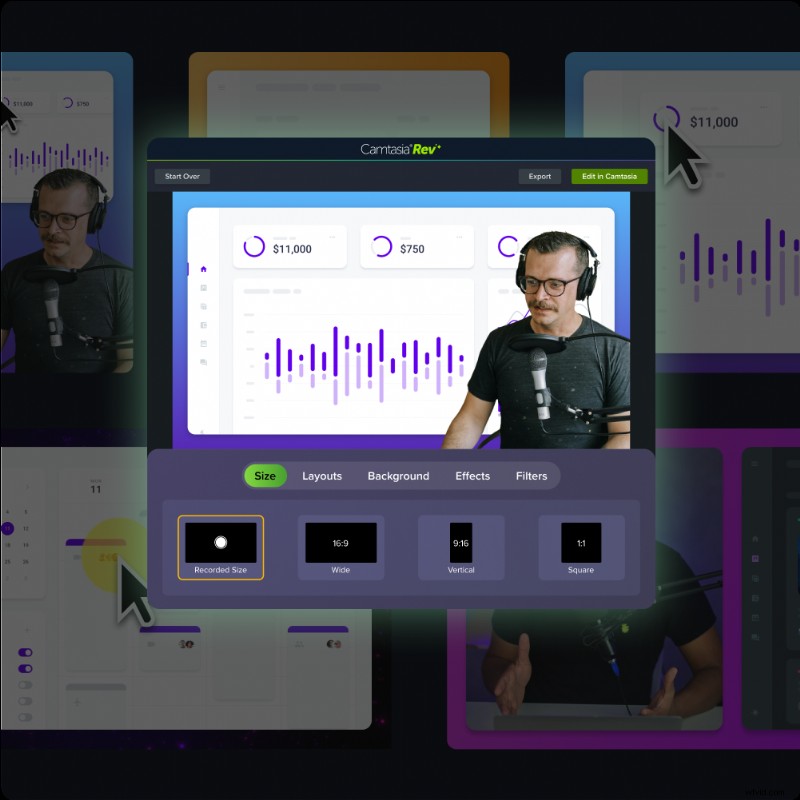
Make videos as easy as click, click, done! Camtasia Rev is so fast it’s like magic!
Learn More
Troubleshooting and optimization tips
Use these quick tips to smooth out your workflow and ensure your motion backgrounds look great everywhere.
- Keep file sizes manageable: Trim unnecessary motion or lower resolution for simple loops to reduce file size.
- Test readability: Before exporting, double-check any text overlays, UI elements, and title cards to make sure every word stays clear.
- Match frame rates: If your motion background and main footage run at different frame rates, you might see stuttering or artifacts. Export at a consistent frame rate to avoid this.
- Preview on multiple devices: Watch your final video on different screens and sizes to confirm that motion looks smooth across formats.
Elevate your videos with custom motion backgrounds
Motion backgrounds can transform your content creation, adding energy, focus, and a professional finish to every project. They bring life to tutorials, training videos, and presentations, helping your work look modern and high-quality without extra complexity.
With Camtasia, you don’t need to be an experienced video editor or motion designer to achieve that refined look. The all-in-one screen recording and video editing platform makes it simple to create animated videos using built-in dynamic backgrounds, animations, and effects — without the steep learning curve of video editing software like Adobe Premiere Pro or After Effects.
Ready to make your content stand out? Get started with Camtasia for free today.