Filter effects aren’t just for social media and selfies. Used intentionally, they’re a practical way to improve video quality, correct lighting and color, and shape how your audience experiences your content. Filters can also set tone and mood, keeping your visuals consistent and your message clear.
That’s why they’re valuable across professional settings. Teachers, trainers, marketers, and customer success teams can all use filters to add polish and clarity to their videos without deep editing experience. With the right tools, filters are one of the simplest ways to turn an ordinary recording into professional, on-brand content.
What are filter effects in video editing?
Filter effects are preset digital adjustments that change the look of video footage. Instead of manually tweaking brightness, contrast, saturation, or color balance, video editors can apply a filter that tweaks several of those values at once.
Filters serve a range of purposes: enhancing dull footage, correcting lighting or color imbalances, and adding a specific visual style. For instance, a video with an empathetic or emotional tone might use a soft or warm filter, while high-impact marketing content often benefits from a sharper, high-contrast look.
While most people associate filters with social media, where users apply dramatic effects to selfies or posts, professional video editors use filters for much more. They help correct raw footage issues like overexposure or washed-out colors and establish a cohesive, professional visual style.
In most editing workflows, filters act as a starting point. Editors can still fine-tune individual video elements beyond presets to achieve the exact tone, clarity, and balance they need.
How filters enhance video quality
Teams have more ways than ever to produce video content, even without professional equipment. Phones, laptops, and tablets all include cameras, but the quality of that footage can vary widely.
Filters give teams and editors a fast, effective way to enhance footage, no matter where it was recorded — whether it’s a well-lit studio or a dim office corner. Here are a few ways filters can improve your video output:
- Boost light levels in footage that’s too dark.
- Smooth out harsh or uneven overhead lighting.
- Sharpen text and UI elements so on-screen details stand out.
- Add color consistency across clips from different sources using color correction filters.
How filters shape mood and storytelling
Beyond improving quality, filters influence how viewers feel and interpret what they’re seeing. Hollywood uses this constantly: dystopian sci-fi films often look cold and sharp, while romances and dramas lean warm and soft.
In corporate, training, and marketing videos, filters can create the same kind of emotional framing. Cool tones convey professionalism and calm in instructional content, while warm tones create a more inviting, human feel for people-centered videos like customer success stories.
Essential types of video filter effects and how to use them
Sometimes a single filter effect will achieve the look you’re after, but combining different filters, or layering them with other video effects, can make an even bigger impact. Most video filter effects fall into four main categories:
Color correction and grading filters
Color correction filters fix issues in the original footage, such as exposure, white balance, or saturation. When combining clips from multiple contributors, those differences can stand out — varying lighting, locations, and camera hardware often create noticeable inconsistencies. Color correction filters help align everything into a unified visual style.
Color grading, on the other hand, goes beyond correction. It adjusts overall tones to create a specific mood or style. Once your footage is balanced, you can apply grading filters to give every video in a series a polished, professional finish.
Brightness, contrast, and exposure filters
These filters adjust the lighting and visual balance of your video. Turned all the way up, they can create exaggerated looks you might see on TikTok or Instagram. Used thoughtfully, they’re effective tools for improving clarity and focus in business content.
- Brightness filters can lighten underexposed footage, especially in training or instructional videos.
- Contrast filters can make on-screen elements, such as text or UI details, stand out so viewers can follow along more easily.
Blur and sharpening filters
Blur filters can add stylistic depth or guide viewers toward the right part of the screen (the area that stays in focus). Sharpening filters do the opposite, enhancing detail that may be slightly soft or out of focus.
Both have their place in business and instructional videos, but moderation is key. Overusing blur or sharpness can make your content feel distracting or overly dramatic instead of clean and refined.
Style-oriented filters can give your content real personality when applied with care. Monochrome (black and white) and sepia filters are classic options, while others — like Camtasia’s cinematic or glitch lookup tables (LUTs) — can add distinctive flair to your videos.
In business contexts, think of stylized filters as seasoning, not the main course. They’re great for intros, transitions, or brand storytelling moments, but they usually aren’t suited for full-length instructional videos.
Ready to take your skills up a notch? Check out 50 proven video editing tips!
Looking for professional screen recording software?
From simple screen captures to polished video editing, TechSmith has everything you need to create professional-quality content.
Learn More
Creative ways to use filters to enhance your video projects
No matter what kind of video content you’re creating, filters can elevate overall quality and give your visuals a more cohesive, professional look. They help align footage from different sources and reinforce your brand’s visual identity.
Here are a few ways filter effects add value to business videos. Feel free to experiment, but aim to maintain consistency within each project or across your brand.
Setting the tone for educational and training videos
Filter effects can enhance both the quality and engagement of instructional videos. These projects often combine multiple asset types, such as webcam footage, screen captures, and clips from different contributors, which can vary widely in look and lighting.
Because selfie cams and screen recordings come with different challenges, filters can help tie the footage together and make each element feel refined. Subtle color adjustments and soft filters go a long way in creating visual harmony.
For example, if your webcam recording has harsh or uneven lighting, try a light diffusion filter to soften bright spots and balance shadows. For the screen capture portion, use a high-contrast or brightness-adjusting filter to make text and UI elements clearer. Even small tweaks can noticeably improve readability and quality.
Elevating marketing and brand storytelling
Marketing teams can use creative filter effects to capture attention and evoke emotion. Filters also help tie multiple videos together under a single campaign style or visual identity.
A few examples:
- A warm, cinematic tonal filter can add life and depth to an otherwise flat or uninspired testimonial video.
- A high-contrast monochrome filter brings punch and sophistication to a luxury or tech product reveal video.
- A yellow or orange color grading filter could connect multiple ads and assets into a cohesive “summer vibes” campaign.
Enhancing product demos and software walkthroughs
When creating product demos or software tutorials, filters can make screen recordings clearer and more engaging. They help direct attention to key interface elements and improve overall visibility.
For example, some UI details that look fine during recording can appear muted in raw screen capture footage. Adjusting sharpness, clarity, and saturation with filters can bring those highlights forward and make on-screen actions easier to follow.
How to apply filters in Camtasia
Camtasia Editor makes applying filters nearly effortless. It’s designed for beginners and pros alike: you don’t need deep technical skills or advanced editing experience to get started, and seasoned editors will still find all the controls they need to customize every effect.
Here’s a quick step-by-step overview of the editing process, showing how easy it is to apply, adjust, and layer filters in Camtasia.
- Import your video and drag it to the timeline.
- Open the “Visual Effects” panel. Then click “Filters” and explore your options.
- Drag and drop filters onto your clip. Experiment with several until you find the right look.
- Bonus tip: After adding your first filter, click the Properties button. Here, you can switch between filters (LUTs) and preview them in real time.
- Adjust intensity and parameters using the built-in sliders under Properties. Every filter offers multiple customization options, including a delayed onset feature.
- Preview and fine-tune before exporting. Watch the full clip with filters applied to ensure everything appears as expected.
You can also combine multiple filter effects and place them on separate tracks for independent control.
To see the editing process in action, watch our video tutorial.
We also offer a free online tool for capturing video content and building collaborative products. If you’re using the free Camtasia online video editor, you can seamlessly move your projects into Camtasia Editor to apply advanced filters and effects for a cohesive, visually striking result.
Faster video creation with Rev
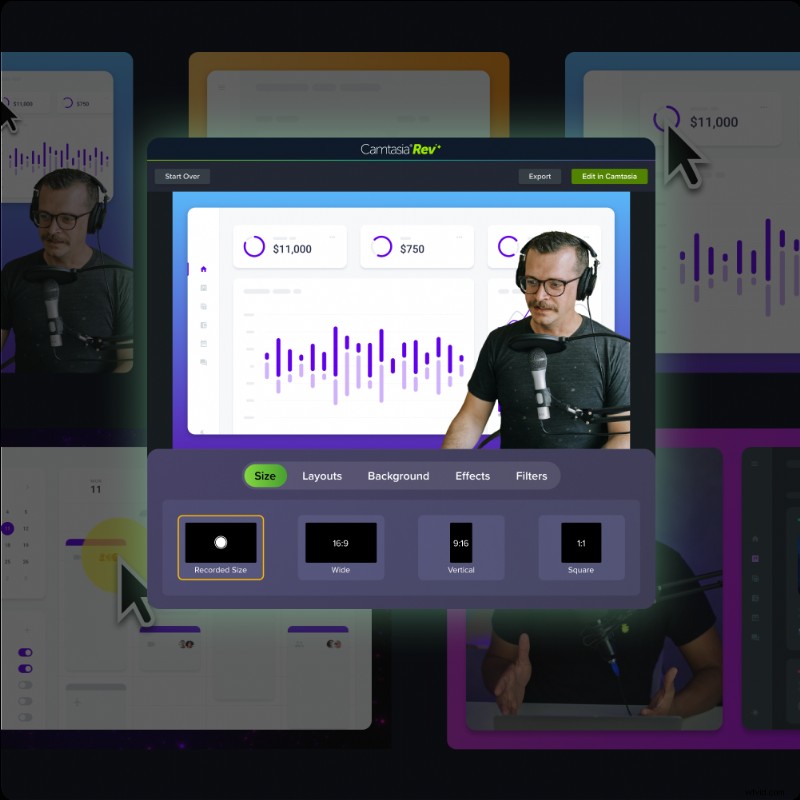
Make videos as easy as click, click, done! Camtasia Rev is so fast it’s like magic!
Learn More
In business and marketing videos, filters can add real value; but too much of a good thing can quickly backfire. Overusing filters can make footage feel more like an overprocessed Instagram reel than an engaging instructional video.
The best results come from balance. Be intentional, consistent, and thoughtful about when and how you apply filters. Use these best practices to keep your content polished and professional:
- Corrective before creative: Start with corrective filters to fix exposure or color first. Add creative filters afterward to define mood and tone.
- Apply sparingly: Subtle effects add interest without becoming distracting.
- Stay consistent: For brand cohesion, ensure videos in a series share a similar look and feel.
- Preview often: Screens vary, so test your video on multiple devices to confirm filters look right everywhere.
- Combine strategically: Layering two or more filters can create depth and a more refined final result.
Mastering filters leads to better video storytelling
Filters aren’t just fun visual decorations. They’re storytelling tools that guide focus, set tone, and strengthen connection. Used with intention, they can add effects that clarify key moments, enhance emotion, and give your video looks a crisp, memorable edge.
With Camtasia, you get professional-grade video editing tools designed for simplicity and power. You can edit video files, fine-tune color and tone, and add filters to any video clip to achieve a high-quality finish that fits your brand’s style. From quick screen recordings to full training modules, Camtasia makes it easy to produce professional results without a steep learning curve.
Create videos that look sharp, cohesive, and engaging. Try Camtasia for free today and see how much better your next project can look.
Go from screen recording to polished video
A screen recording is just the start. Camtasia’s editor helps you add the callouts, animations, and edits you need to create a truly professional video.
Free Download