
Hulu, a prominent US streaming service, offers an extensive library of TV shows, movies, and documentaries. While the platform isn’t natively available in every country, users worldwide can access it through a reliable VPN.
As more viewers look to capture Hulu content for offline viewing or sharing, this guide provides three straightforward methods to screen record Hulu on any platform—Windows, Mac, iOS, and Android. Follow the steps that best fit your setup and enjoy your favorite shows wherever you go.

Note: Hulu videos are protected by copyright. Recordings should not be used for any form of infringement.
In this article
- How to Record Hulu on Windows?
- How to Record Hulu on Mac?
- Screen recording on desktop using dedicated software
- DemoCreator
- Camtasia
- OBS Studio
- Recording Hulu on iOS and Android
- Subscribe to Hulu and download directly via the cloud DVR feature
- Use the built‑in recorder on mobile devices
- Employ third‑party recorder apps
Part 1. How to Record Hulu on Windows?
While Hulu can be streamed on a PC, the service does not offer a cloud DVR in its lower‑tier plans. Windows users can still capture streams locally using dedicated software. Among the options, Wondershare Filmora provides a balanced blend of recording and editing features that make it a top choice.
Why Filmora Screen Recorder?
- Compatible with both Windows and macOS
- Intuitive, user‑friendly interface
- All‑in‑one: record and edit in a single application
- Three recording modes—Screen, Webcam, and Voiceover
- Advanced settings for frame rate, quality, audio, and storage
Step‑by‑Step Guide
1. Download and install Wondershare Filmora from the official website. Launch the app and click “Create New Project” on the main screen.
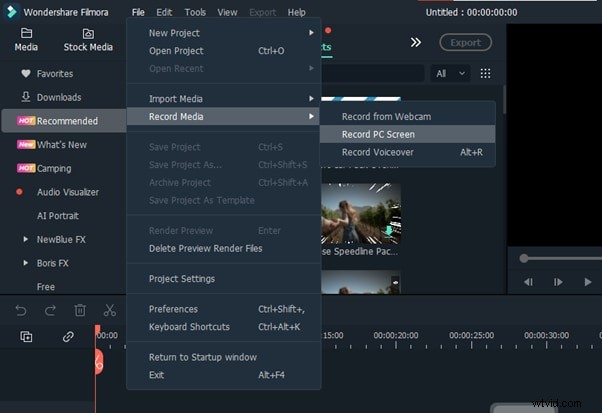
2. From the top toolbar, select File > Record Media. Choose Record PC Screen to capture the Hulu playback.
3. In the Wondershare Screen Recorder window, configure your preferences—frame rate, quality, microphone, speaker, mouse pointer, and destination folder—by clicking the drop‑down Settings icon.
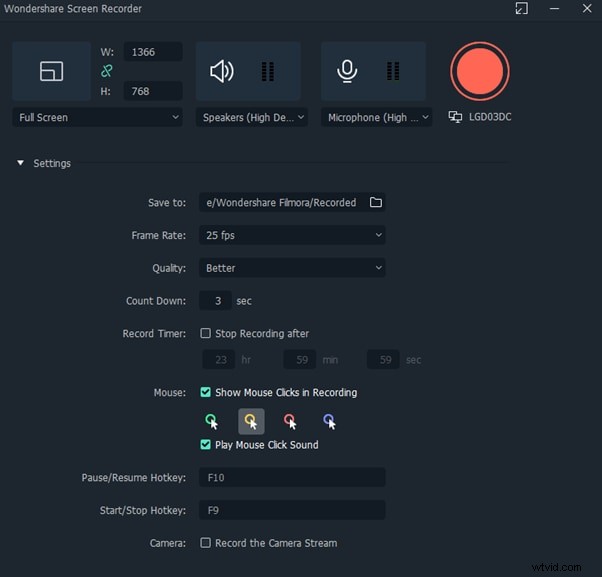
4. Start your Hulu show or movie, then click Start in the recorder. When finished, click Stop (or press F9) to save the file to your chosen location. You can then edit the clip directly within Filmora if desired.
Part 2. How to Record Hulu on Mac?
Mac users can follow a similar workflow, thanks to Filmora’s macOS support.
1. Install Filmora from the official site and open the application. Click New Project.
2. Navigate to File > Record Media and select Record Screen.
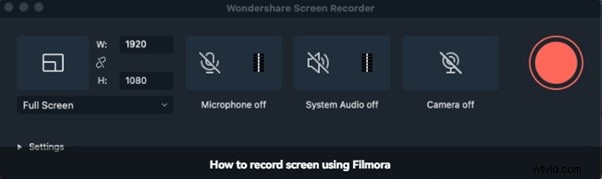
3. The built‑in Wondershare Screen Recorder window will appear. Click the red Start button to begin recording Hulu content.
4. Press F9 to stop the capture; the video will be saved to the configured folder.
Part 3. Other Tools to Record Hulu on Desktop
For users seeking alternatives to Filmora, the following applications offer robust recording capabilities across Windows and Mac.
1. DemoCreator

DemoCreator excels at creating engaging tutorials and product demos. It allows screen capture, audio narration, and camera overlay, producing high‑quality recordings suitable for educational or marketing content.
- Multiple recording modes: Screen, Audio, Camera
- Integrated video editor with annotations and transitions
- Cursor effects for added clarity
- Advanced recording settings for optimal output
- High‑resolution video capture
Drawback: Trial exports contain a watermark.
2. Camtasia

Camtasia remains a top choice for professionals needing extensive editing tools alongside screen capture. Although it comes at a premium, its feature set justifies the cost for power users.
- 30‑day free trial available
- User‑friendly interface with drag‑and‑drop editing
- Rich cursor effects and annotations
- High‑quality screen capture with optional webcam overlay
Drawback: Some users report occasional crashes and lack of keyframe tracking.
3. OBS Studio

OBS Studio is an open‑source, cross‑platform solution that offers advanced live‑streaming and recording features typically found in paid software.
- Free to use
- Supports multiple video and audio sources
- Extensive configuration panel for custom layouts
- Integrated audio mixer for real‑time adjustments
Drawback: No native mobile app and a steeper learning curve for beginners.
Part 4. How to Record Hulu on iOS and Android
Mobile users can capture Hulu streams on the go with several reliable methods. Below are the most effective approaches for both iOS and Android.
Method 1: Subscribe to Hulu and Use the Cloud DVR Feature
Hulu’s cloud DVR lets you record live shows directly to your account for later viewing.
1. Open the Hulu app and sign in.
2. Navigate to the show or movie’s details page.
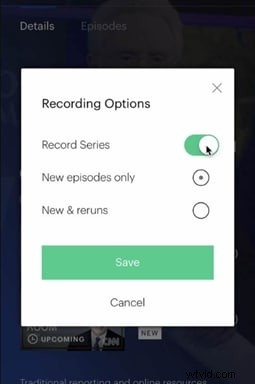
3. Tap the + icon to add it to “My Stuff.” A record button will appear; select your desired recording option and tap Save to start the capture at the scheduled time.
Method 2: Use the Built‑In Recorder on Mobile Devices
Both iOS and Android devices include native screen‑recording utilities that can capture Hulu playback.
On iPhone
1. Launch Hulu and play the desired content.
2. Go to Settings > Control Center and add Screen Recording to the toolbar.
3. Swipe up from the center of the screen to open Control Center, tap the gray Record button, and begin capturing. Stop by tapping the red button in the Control Center; the video will be saved to the Photos app.

On Android
1. Open Hulu and start the stream.
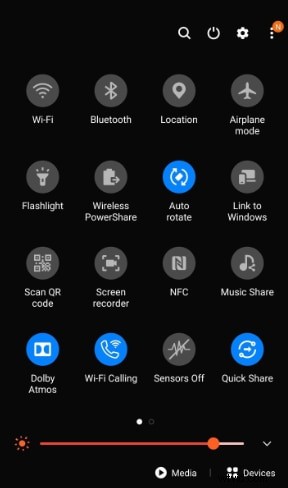
2. Swipe down from the top of the screen to reveal the Quick Settings panel.
3. Tap the Screen Recorder icon to start recording. End the capture by tapping the top‑left red stop icon.
Method 3: Employ Third‑Party Recorder Apps
When native tools are insufficient, the following apps deliver robust recording capabilities on iOS and Android.
1. AZ Screen Recorder

AZ Screen Recorder offers high‑definition recording without requiring root access. It also supports simultaneous live streaming.
- Intuitive interface
- HD quality capture
- Root‑free operation
- Live‑streaming support
- Completely free
Drawback: In‑app advertisements may interrupt the experience.
2. InShot’s XRecorder

XRecorder captures screen activity with optional front‑ or rear‑camera overlay and on‑screen drawing tools.
- Front/rear camera recording while capturing screen
- On‑screen screenshot capability
- Draw annotations in real time
- No root access required
- No watermark in exported videos
Drawback: Occasional instability reported.
3. Mobizen Screen Recorder

Mobizen delivers Full HD recording and offers extensive customization, including watermarking, GIF creation, and background music.
- Custom watermark addition
- Animated GIF export
- Background music overlay
- Robust customization options
Drawback: Higher battery consumption and English‑only interface.
Conclusion
This guide has covered reliable methods to screen record Hulu on Windows, Mac, iPhone, and Android. Whether you prefer an all‑in‑one editor like Filmora, a professional tool such as Camtasia, or a lightweight app like AZ Screen Recorder, you now have clear steps to capture your favorite content safely and efficiently.
Enjoy your recordings responsibly, respecting Hulu’s copyright policies, and feel free to experiment with the tools that best fit your workflow.