
In an era where privacy and seamless content creation are paramount, a discreet webcam recorder can be an invaluable tool. These compact applications run quietly in the background, allowing you to capture high‑quality footage without attracting attention. Whether you’re documenting a presentation, monitoring a child’s screen time, or creating professional tutorials, a hidden recorder offers convenience and flexibility.
Below is a curated list of the best discreet webcam recorders for 2026, ranked by functionality, ease of use, and value. All options are compatible with Windows, macOS, and many Linux distributions. Read on to find the perfect fit for your workflow.
Table of Contents
- Filmora Screen Recorder – Ideal for Recording & Editing
- Camtasia – Best for Highlighting Cursor Paths
- DemoCreator – Top Choice for Virtual Backgrounds
- Clipchamp – Preferred for Windows Users
- Webcam Surveyor – Motion‑Detection Specialist
- Logitech Capture – Streaming‑Ready Solution
- VLC Media Player – Budget‑Friendly Option
- QuickTime Player – Mac‑Friendly Recorder
What Is a Hidden Webcam Recorder? Why Should You Use It?
A hidden webcam recorder is software that captures video from your webcam (and optionally your screen) while remaining virtually invisible to the user. The primary benefits include:
- Unobtrusive data collection for legitimate purposes such as security monitoring or educational content.
- High‑resolution recording with minimal system impact.
- Easy integration with post‑production tools for a smooth workflow.
It’s essential to respect privacy laws. Recording a person without consent can be illegal in many jurisdictions and may lead to fines or civil liability. Always obtain explicit permission before capturing footage of another individual.
Product Reviews
1. Filmora Screen Recorder – Ideal for Recording & Editing
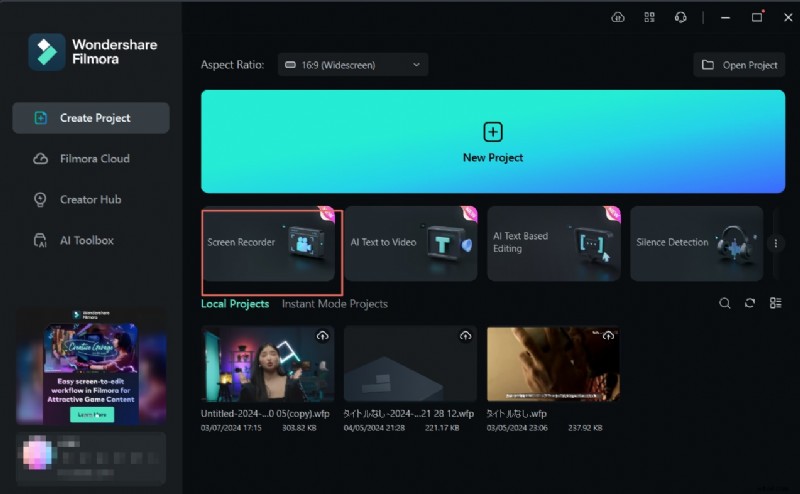
Wondershare Filmora blends a lightweight recorder with a full‑featured editor. Capture your screen, webcam, microphone, or system audio in a single click. The built‑in editor offers AI tools such as speech‑to‑text, denoise, and advanced trimming, making it a one‑stop solution for content creators.
Key Features
- Scheduled recording with a timer
- Custom screen area selection and audio mix controls
- Keyboard shortcuts for discreet start/stop
Pros & Cons
- Pros: Extensive editing tools, 4K output, AI enhancements
- Cons: Can overwhelm new users with many options
Supported OS
Windows, macOS
2. Camtasia – Best for Highlighting Cursor Paths
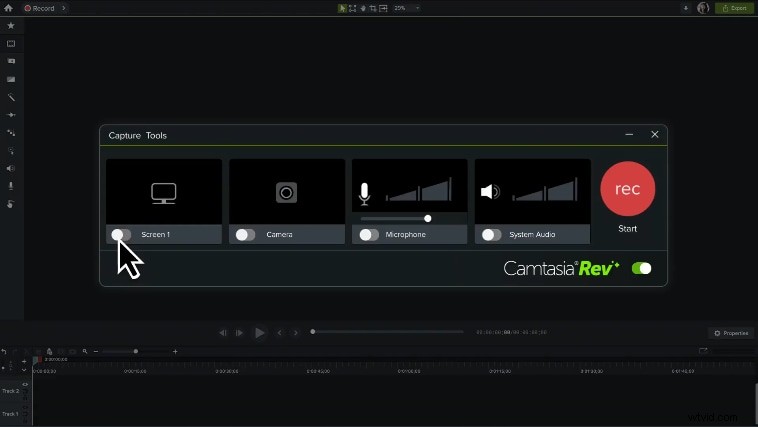
TechSmith’s Camtasia offers dual‑track recording (screen, webcam, audio) and a clean interface that stays hidden during sessions. Its standout feature is the ability to mark mouse clicks and keystrokes, ideal for tutorials and demos.
Key Features
- 4K & 60 FPS recording
- Mouse click and keystroke annotations
- Drag‑and‑drop filters for quick styling
Pros & Cons
- Pros: Beginner‑friendly, 7‑day free trial, high‑resolution output
- Cons: Premium pricing, occasional stability issues
Supported OS
Windows, macOS
3. DemoCreator – Best for Virtual Backgrounds
DemoCreator, another Wondershare product, is engineered for flawless live capture. With six recording modes—screen only, webcam only, combined, gameplay, presentations, and virtual avatar—it supports up to 4K/8K at 120 FPS, all while keeping CPU usage low.
Key Features
- Unlimited recording duration (storage‑dependent)
- Virtual background removal and replacement
- Hotkeys for instant mode switching
Pros & Cons
- Pros: Ultra‑high resolution, virtual avatar support, powerful editing
- Cons: None noted
Supported OS
Windows, macOS
4. Clipchamp – Preferred for Windows Users
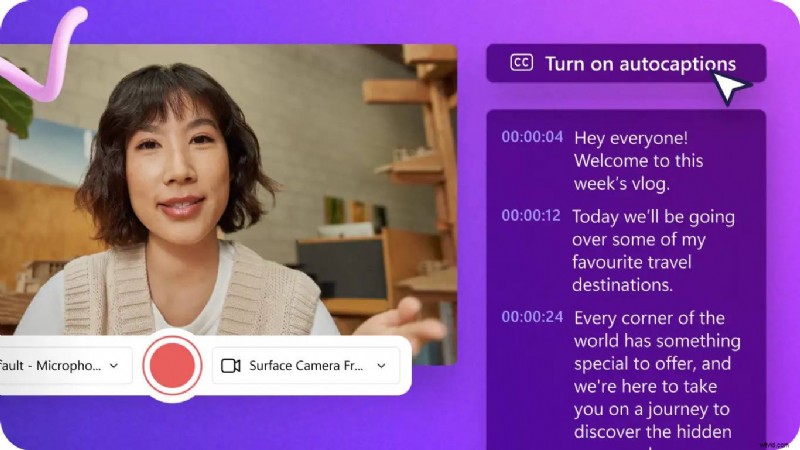
Microsoft’s Clipchamp is lightweight and free for basic use. It offers 1080p recording up to 30 minutes per clip without watermarks. Advanced features like text‑to‑speech or auto‑captions require a paid subscription.
Key Features
- Speaker coach for pitch and pacing analysis
- PIP mode for overlaying webcam on video
- Green‑screen background replacement
Pros & Cons
- Pros: Free tier, intuitive interface, pre‑installed on Windows 11
- Cons: Limited advanced features without payment, fewer options than competitors
Supported OS
Windows, macOS, Chromebook, Linux
5. Webcam Surveyor – Motion‑Detection Specialist

Despite its older interface, Webcam Surveyor excels at surveillance. It records continuously or triggers recording on motion detection and can operate in stealth mode, hiding notifications and UI.
Key Features
- Motion‑sensitivity adjustment
- Stealth mode for background operation
- Scheduled image capture at fixed intervals
Pros & Cons
- Pros: Completely hidden operation, supports external cameras, unlimited recording
- Cons: Limited codec support, dated UI
Supported OS
Windows
6. Logitech Capture – Streaming‑Ready Solution
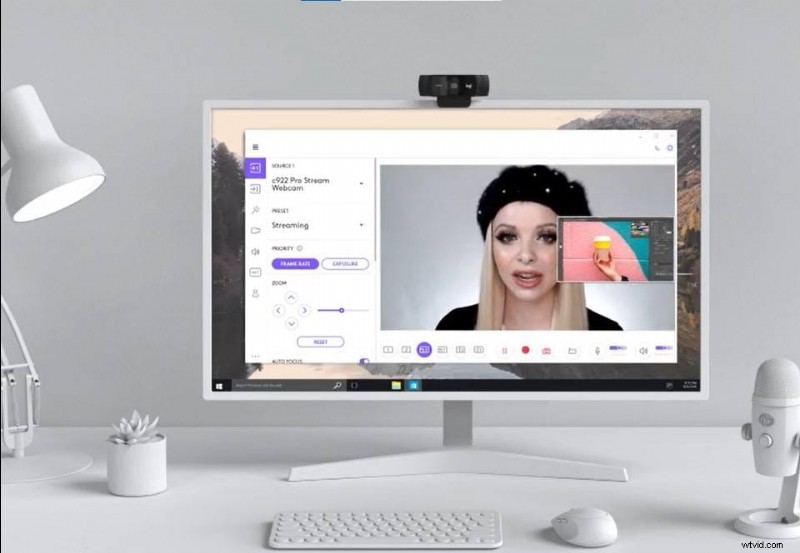
Logitech Capture is designed for live streaming and recording. It supports dual webcam inputs, adjustable aspect ratios, and can be set as a virtual camera for platforms like YouTube or Facebook.
Key Features
- Multi‑source recording (two webcams or desktop)
- Direct streaming to major platforms
- Profile‑based camera settings (up to six)
Pros & Cons
- Pros: Seamless streaming integration, advanced camera controls, mobile‑friendly layouts
- Cons: Limited advanced settings on M1/M2 MacBooks, complex navigation
Supported OS
Windows, macOS
7. VLC Media Player – Budget‑Friendly Option
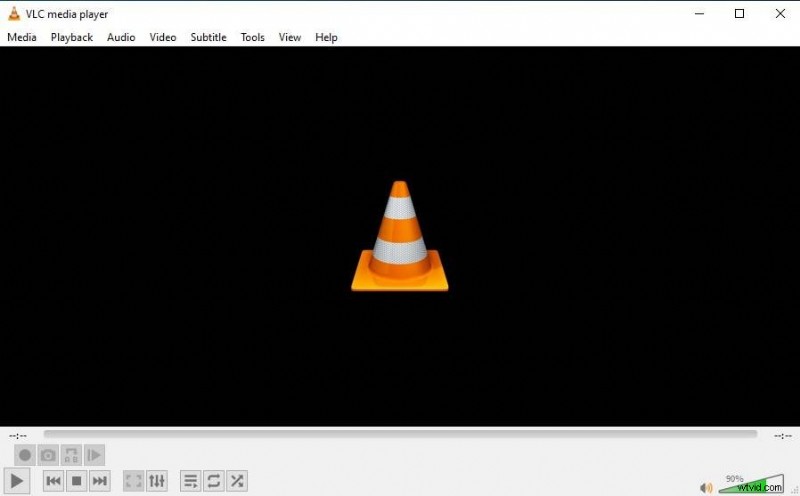
VLC is best known for media playback, but its recording feature is powerful. Though the setup is less intuitive, it supports hardware decoding and a wide range of formats.
Key Features
- Zero‑copy GPU decoding for high performance
- Multi‑format support (MPEG, WMV, MJPEG, MP4)
- Advanced playback and conversion controls
Pros & Cons
- Pros: Free, open source, extensible via plugins
- Cons: Steep learning curve, hidden features buried in menus
Supported OS
Windows, macOS, Linux
8. QuickTime Player – Mac‑Friendly Recorder
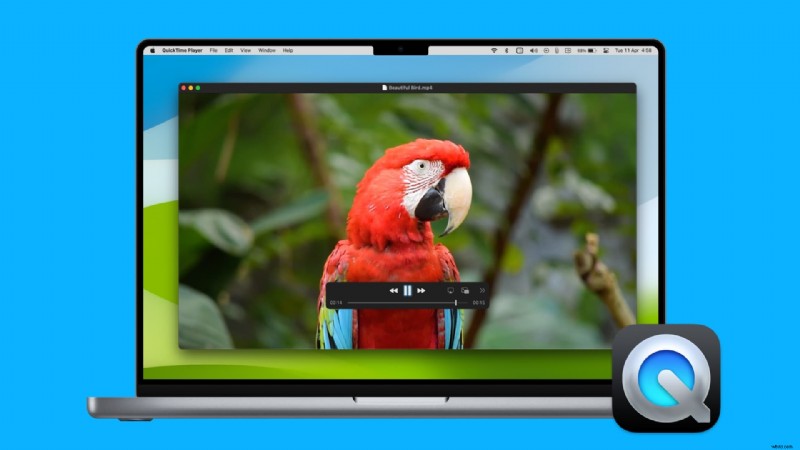
QuickTime Player remains a reliable choice for macOS users. It records webcam, screen, or both, up to 4K resolution. Audio is limited to microphone input unless third‑party drivers are installed.
Key Features
- High‑resolution recording (up to 4K)
- Separate webcam, screen, or combined capture
- Basic trimming and splitting tools
Pros & Cons
- Pros: User‑friendly, no watermarks, cross‑platform support
- Cons: Exports only in MOV format, no system audio capture
Supported OS
macOS, Windows
How to Choose the Right Hidden Recorder
When selecting a discreet recorder, consider these factors:
| Ease of Use | Minimal clicks and clear menus keep you focused on content. |
| System Compatibility | Choose a tool that runs smoothly on your OS without crashes. |
| Background Visibility | Verify the recorder stays invisible during operation. |
| Video Quality | Higher resolutions (4K/8K) simplify editing and future repurposing. |
| Additional Features | Editing tools, filters, and overlays add long‑term value. |
Conclusion
A discreet webcam recorder is a versatile asset for content creators, educators, and security professionals alike. Whether you prioritize editing power (Filmora, DemoCreator), tutorial clarity (Camtasia), or low‑profile monitoring (Webcam Surveyor), the options above provide reliable performance for 2026 and beyond. Explore the demos, test the free trials, and select the solution that best matches your workflow and privacy standards.