
Black Myth: Wukong is a visually stunning action‑RPG that draws inspiration from the classic Chinese tale "Journey to the West." With its intricate world, fluid combat, and immersive narrative, the game has quickly become a must‑play for gamers worldwide. Whether you’re looking to showcase epic battles or simply preserve your personal adventures, high‑quality gameplay recordings are essential for sharing on platforms such as YouTube, Twitch, and social media.
Below is a concise, expert‑approved guide that covers the most reliable tools and techniques for recording Black Myth: Wukong across every major platform. From professional screen recorders to built‑in console features, you’ll find the method that best fits your setup.
In this article
- Recording on PC (Windows & macOS) with Wondershare Filmora
- Recording on PC, macOS, and Linux with OBS Studio
- Recording on macOS with QuickTime Player
- Recording on Windows with Game Bar
- Recording on PS4 and PS5 using the console’s native capture tools
Way 1: Record Black Myth: Wukong on PC with Wondershare Filmora
Wondershare Filmora is a versatile, user‑friendly screen recorder that delivers crisp 60 fps footage and 10‑bit color depth—perfect for Black Myth’s vibrant visuals. The software also offers an integrated video editor with AI‑powered features such as Auto Reframe, Smart Cut, and background removal, allowing creators to produce polished videos in minutes.
Step 1: Download and Install Filmora
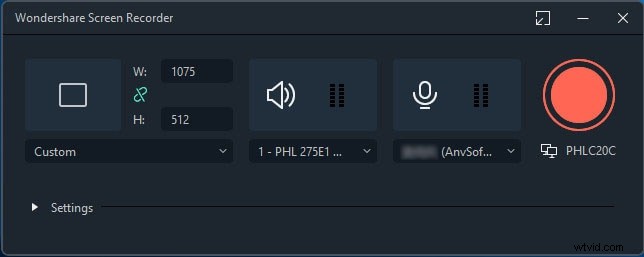
Visit the official Wondershare website, download the latest Windows or macOS version, and launch the installer. Once installed, navigate to File > Record Media to launch the recording interface.
Step 2: Configure Your Recording
Choose the screen area (full screen, window, or custom region) and enable webcam, microphone, and game audio. Hit the Record button to start capturing. When finished, click Stop.
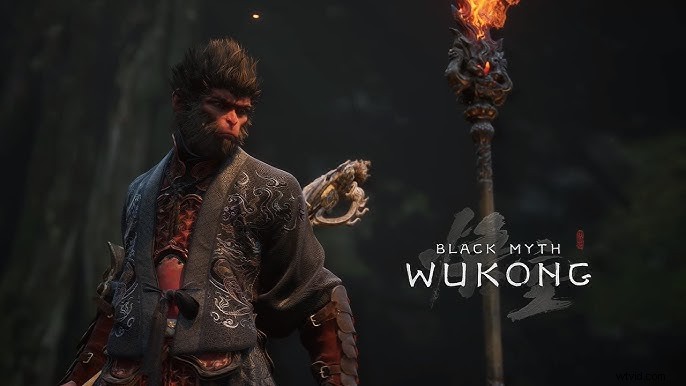
Step 3: Edit and Export
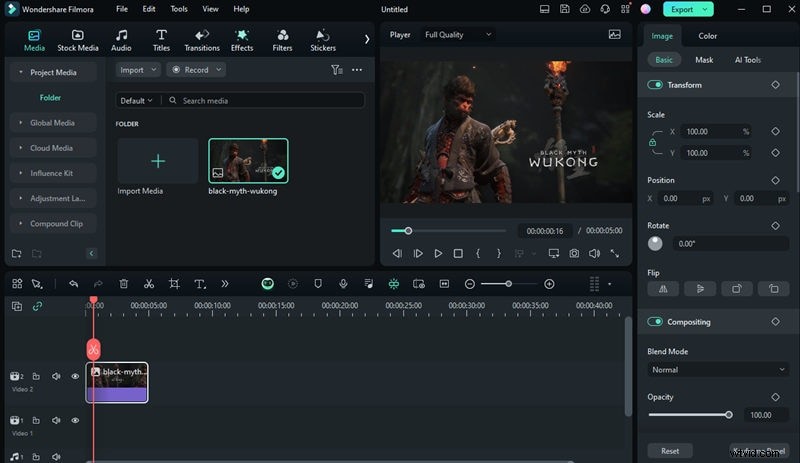
Filmora’s editor lets you trim clips, add transitions, overlay text, and apply visual effects. After editing, click Export and select the desired format. You can also upload directly to YouTube or other platforms from within the app.
Tip
For a myth‑inspired visual flair, try the Mythical Effects pack available in Filmora’s library.
Way 2: Record Black Myth: Wukong with OBS Studio (Windows, macOS & Linux)
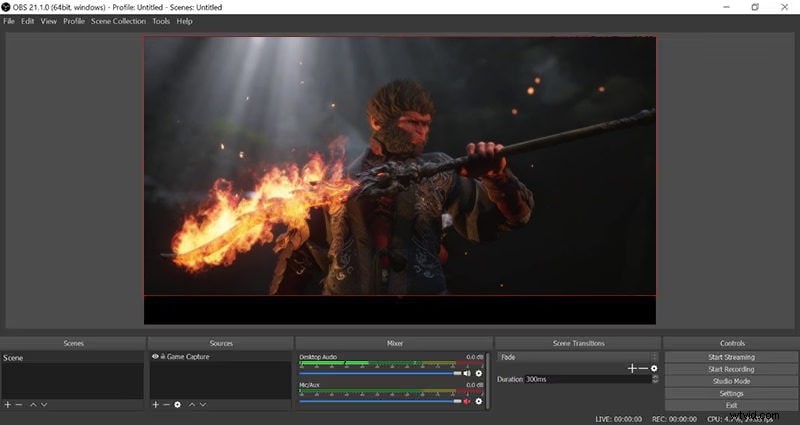
OBS Studio is a free, open‑source solution trusted by millions of streamers. It supports high‑resolution recording, advanced scene composition, and a built‑in audio mixer, making it ideal for capturing Black Myth’s fast‑paced action.
Step 1: Install and Launch OBS
Download OBS from the official site, install, and open the application. Configure hotkeys for quick start/stop to keep your gameplay uninterrupted.
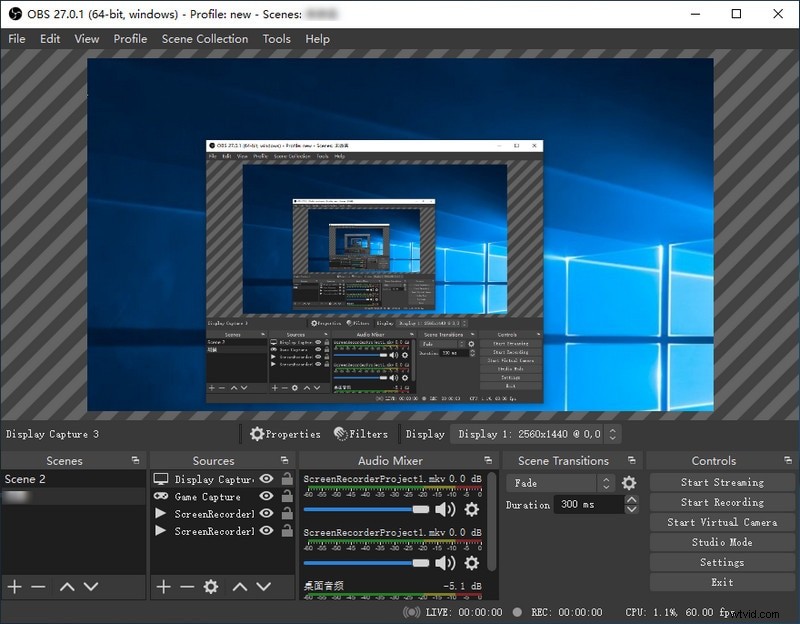
Step 2: Create a Game Capture Scene
In the Sources panel, add a new Game Capture source, then select Black Myth: Wukong from the list. Ensure the game runs in full‑screen mode for optimal capture quality.
Step 3: Start Recording
Click Start Recording to begin. When finished, click Stop Recording. Your footage will be saved in the folder specified in Settings.
Way 3: Record Black Myth: Wukong on macOS with QuickTime Player
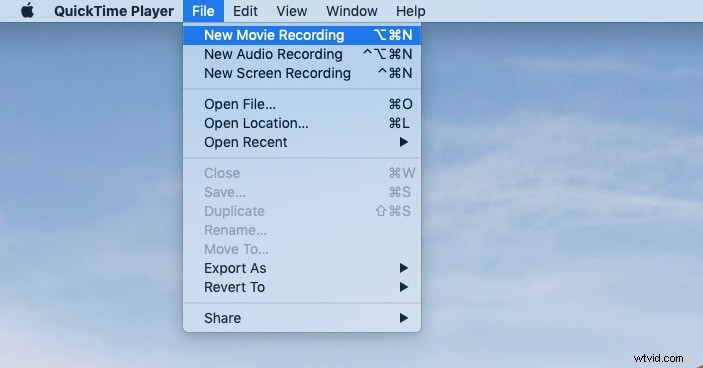
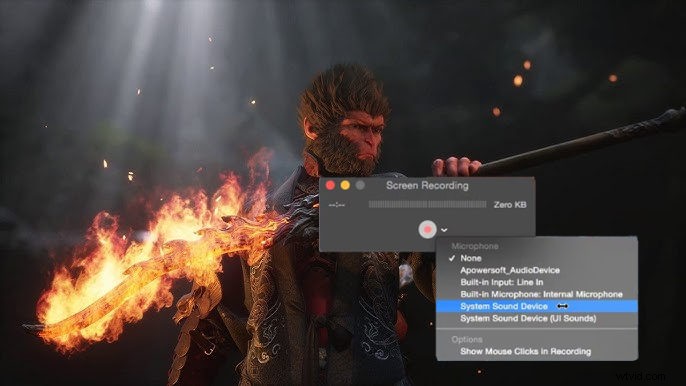
QuickTime Player is a built‑in macOS utility that offers a straightforward screen‑recording workflow. It supports full‑screen or region capture and records system audio alongside microphone input.
Step 1: Open QuickTime Player
Launch QuickTime via Spotlight or the Applications folder. From the menu bar, select File > New Screen Recording.
Step 2: Configure Audio and Start
Click the arrow next to the red record button to choose audio sources. To capture the entire screen, click anywhere on the screen; to record a region, drag to select the area, then click Record.
Step 3: Stop and Save
Click the Stop button in the menu bar once you’re finished. The video will open for quick editing before you export or share it.
Way 4: Record Black Myth: Wukong on Windows with Game Bar
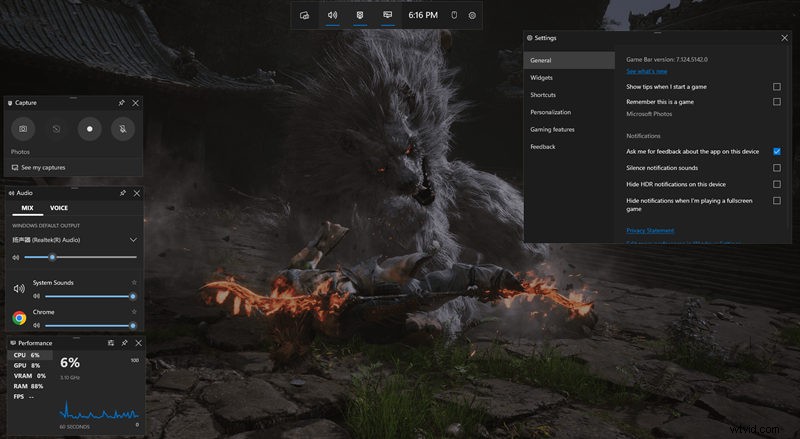
Windows 10 and 11 come with the Game Bar, a lightweight screen recorder designed for gaming. It captures gameplay and microphone audio, saving files directly as MP4.
Step 1: Launch Game Bar
Press Windows + G while playing Black Myth. The overlay appears automatically.
Step 2: Start and Stop
Click the red Record button to begin. A timer shows progress. Use Windows + Alt + R as a shortcut to toggle recording. Click Stop when done; the file is saved in Captures folder.
Way 5: Record Black Myth: Wukong on PS4 and PS5
PlayStation consoles provide a native capture feature that’s quick to use and highly reliable.
Step 1: Start Recording
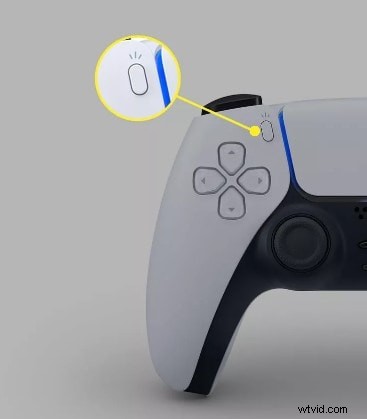
On PS5, press the Create button; on PS4, press the Share button. Choose Start New Recording (or hold Create on PS5). The console records the last few minutes of gameplay automatically.
Step 2: Stop Recording
Press the same button again and select Stop Recording. The footage is saved to the console’s Media Gallery (PS5) or Capture Gallery (PS4).
Step 3: Share Your Footage
From the Gallery, you can upload directly to YouTube, share on social media, or transfer to a computer via USB or network share.
Conclusion
Capturing Black Myth: Wukong gameplay is straightforward once you choose the right tool for your platform. Whether you favor the professional polish of Filmora, the flexibility of OBS, the simplicity of QuickTime or Game Bar, or the convenience of PlayStation’s built‑in capture, each solution ensures your epic moments are preserved and ready for the world to see.
FAQ
- How do I record Black Myth: Wukong on PC? Use Wondershare Filmora or OBS Studio—both support high‑quality video and audio capture with intuitive editing tools.
- How can I record Black Myth: Wukong on PS5? Press the Create button, select Start New Recording, and stop with the same button. Your video appears in the Media Gallery.
- What’s the best way to screen record on a Mac? QuickTime Player offers a simple, built‑in option, while Filmora provides advanced editing if you need more features.
- Can I record gameplay with audio? Yes—most tools capture both game sound and microphone input; PlayStation’s capture feature includes voice chat as well.