
Many Samsung Galaxy A23 owners wonder how to capture their device’s screen. The answer varies by region and software version, but the process is straightforward once you know where to look.
Does the Samsung Galaxy A23 Include a Built‑In Screen Recorder?
Samsung first introduced a native screen‑recording feature with One UI 2.0 on Android 10 devices. Later, the One UI 2.1 update added a button in the Quick Settings panel that, for some budget models, was non‑functional. The feature later disappeared in certain lower‑mid‑range updates, while other devices received a working version. The Galaxy A23 ships with Android 12 and One UI 4.1 by default, so a screen recorder should be present. However, the inclusion depends on the market. Recent Android 14 and One UI 6.0 updates have enabled the feature on most Galaxy devices, including the A23. The phone is also eligible for Android 15 and One UI 7.0, which will bring app‑recording support. The Galaxy AI will not be available for this model.
How to Find and Use the Native Screen Recorder
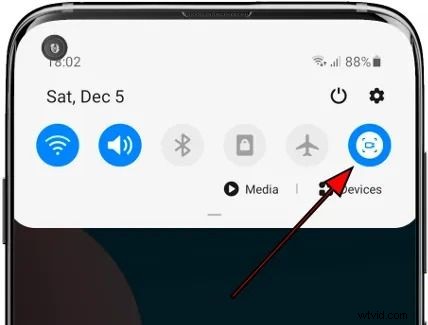
- Swipe down from the top of the screen to open the Quick Settings panel. Swipe down twice to expand the full panel.
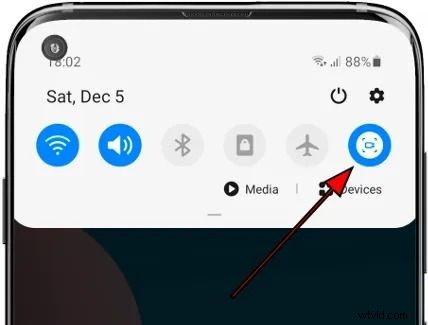
- If the screen‑record button isn’t visible, tap the More options (three vertical dots) icon.
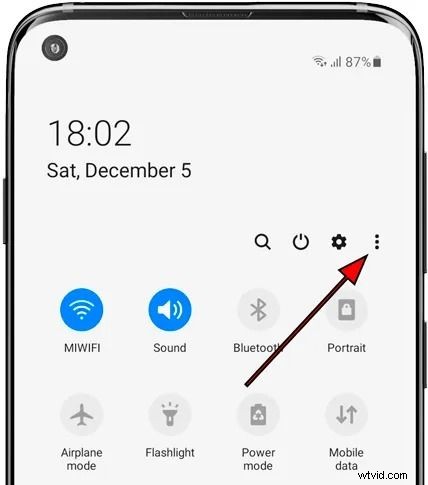
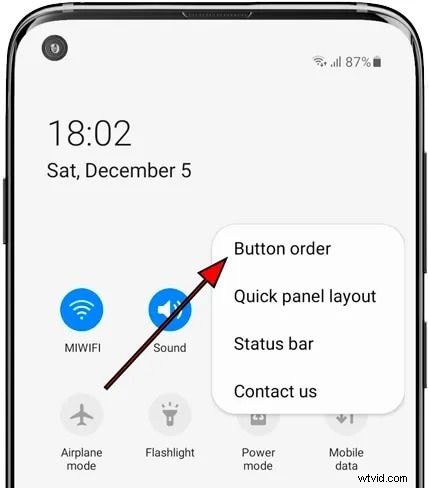
- Select Button order.
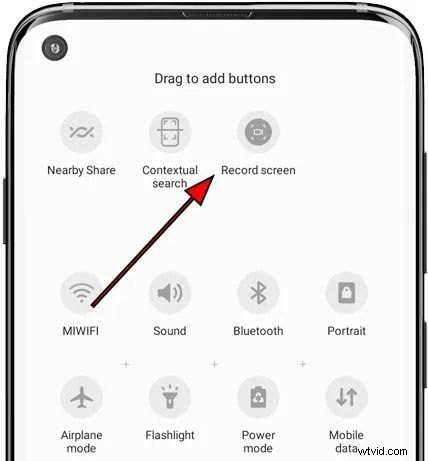
- Drag the Screen Recorder (or Record Screen) icon into the Quick Settings panel. If it’s not available, proceed to the next section.
- Navigate to Settings > Advanced features > Screenshots and screen recorder.
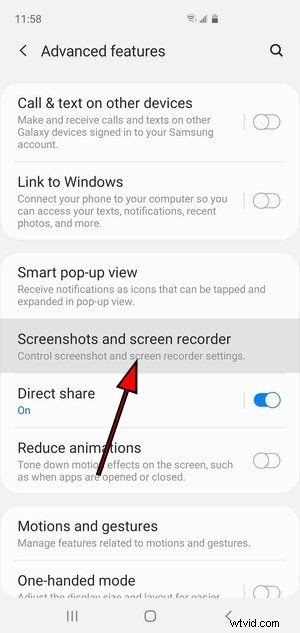
- Tap Screen recorder settings.
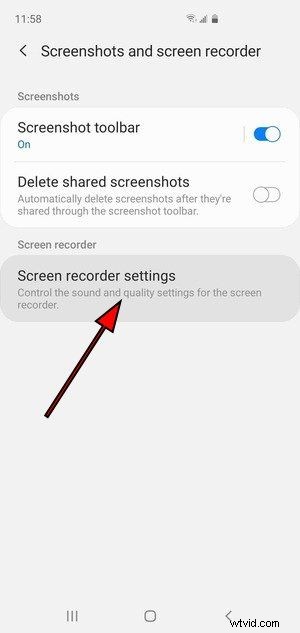
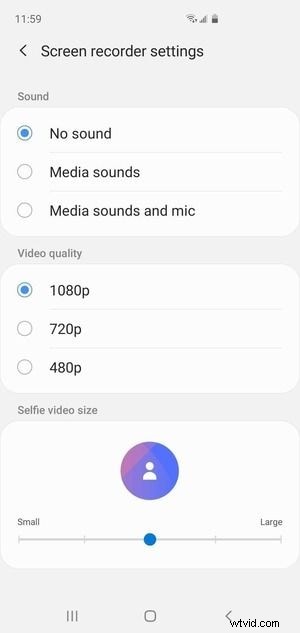
- Configure video quality and audio options: choose between no audio, media sound only, or media plus microphone.
- Prepare the content you want to record, open the Quick Settings panel, and tap the Screen Record button.
- Grant the required permissions: allow the recorder to take photos, record video, and access storage. These permissions are only needed for the current recording session.

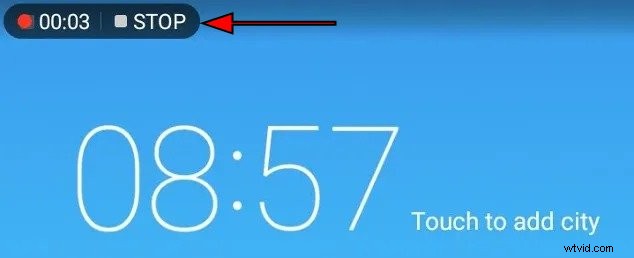
- When the three‑second countdown finishes, you’ll see a timer and a stop button in the upper‑left corner. Tap it to end the recording.
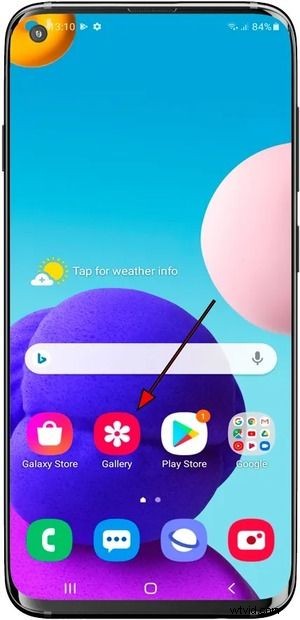
- Open the Gallery app to find the saved screen‑recording file.
When the Native Recorder Isn’t Available: Use a Third‑Party App
If your Galaxy A23 lacks a built‑in recorder, the most popular alternative is AZ Screen Recorder. It offers a user‑friendly interface, high‑quality output, and advanced features such as drawing tools, floating camera overlays, live streaming, and built‑in video editing.
Step‑by‑Step Guide with AZ Screen Recorder
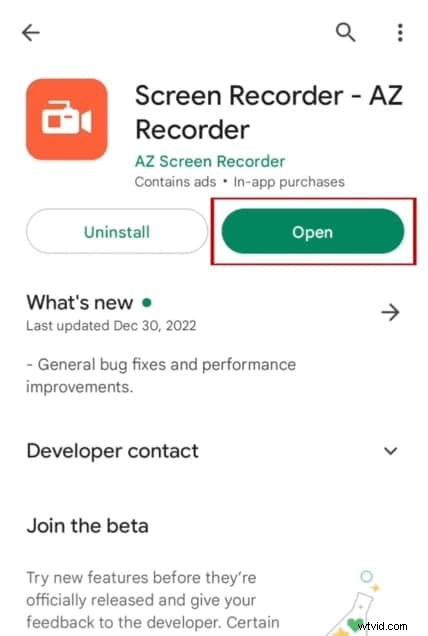
- Download and open AZ Screen Recorder from the Google Play Store.
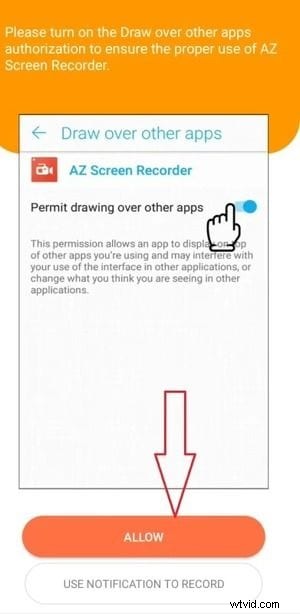
- Allow the app to draw over other apps when prompted.
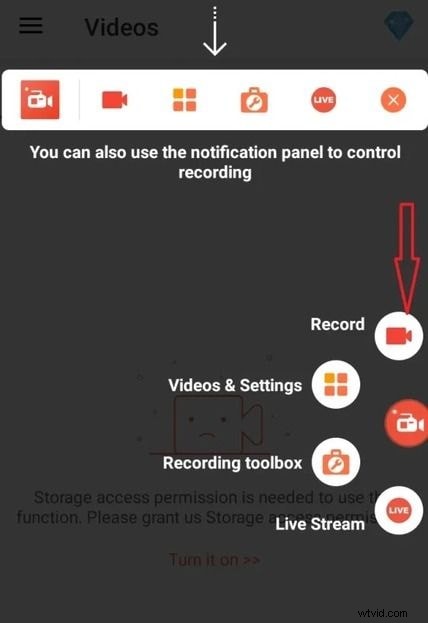
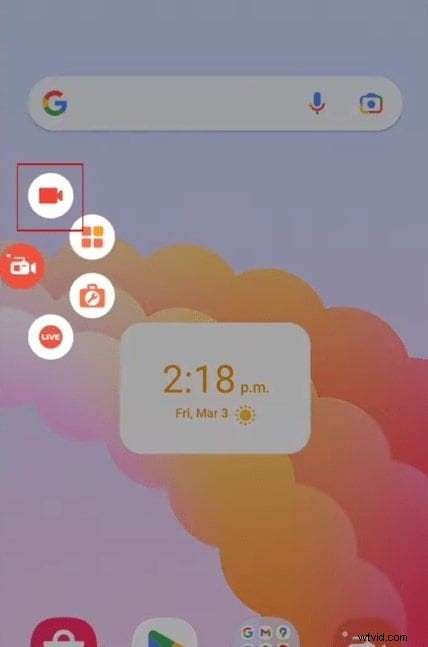
- After launch, you’ll see a floating toolbar with options: Record, Videos & Settings, Recording Toolbox, and Live Stream. Tap Videos & Settings.
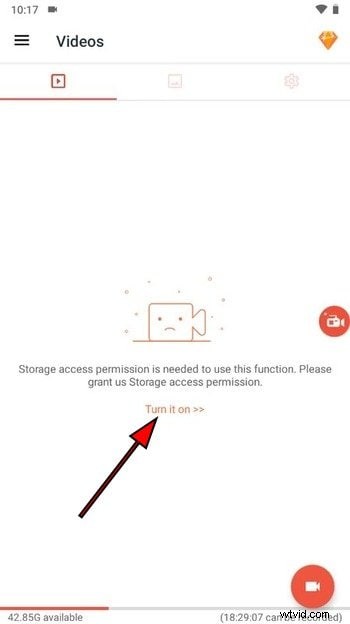
- Grant storage access.
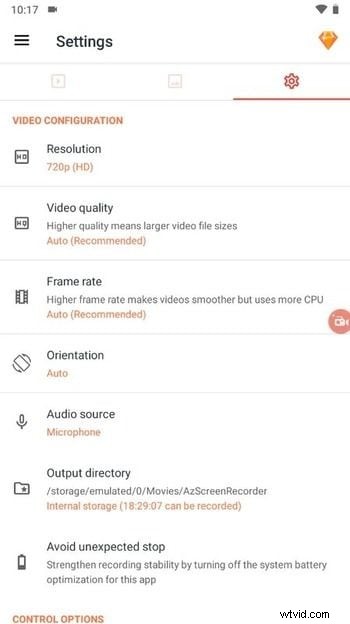
- In the Settings tab, choose video resolution (up to 1080p), quality, frame rate (60 fps free, 120 fps premium), orientation, audio source, and output folder.
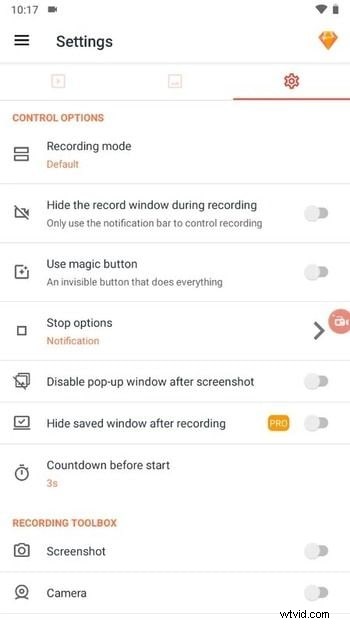
- Customize control options, recording toolbox tools, and additional settings such as custom text, logos, and touch visibility.
- When ready, tap the floating Record icon to start.
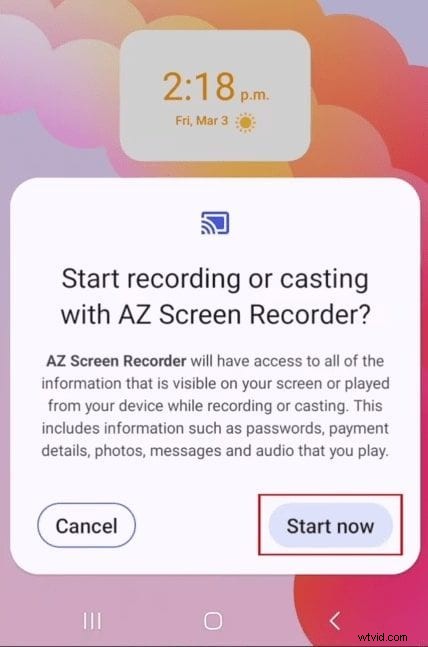
- Press Start now to begin. The countdown will finish automatically.
- Use the floating toolbar to pause, stop, or access the recording toolbox.

- You can also control recording from the Quick Settings panel.

Editing Your Screen Recordings
After capturing your screen, you might want to polish the video. Wondershare Filmora is a versatile editing solution available on Windows, macOS, Android, and iOS. It offers standard editing tools—cropping, trimming, color correction—as well as advanced features such as keyframing, motion tracking, and AI‑powered enhancements like auto‑framing and background removal. Filmora also provides a rich library of stock assets from partners like Giphy, Pexels, and Pixabay, making it suitable for both beginners and professionals.
Download Filmora, import your screen‑recorded video, and use the intuitive interface to add effects, transitions, and text overlays. For a quick reference, watch this video tutorial on editing with Filmora Mobile.
Conclusion
The Samsung Galaxy A23 offers a reliable screen‑recording experience through its native feature or, if unavailable, through a third‑party app like AZ Screen Recorder. With the guidance above, you can capture tutorials, gameplay, or any on‑screen activity with ease and then refine the footage using Filmora or other editing tools.