
Capturing what’s on your Samsung screen is essential for tutorials, gaming streams, or sharing a quick fix. Unlike static screenshots, screen recordings convey context and motion, making them a powerful tool for educators, creators, and professionals alike.
In This Guide
- Adjust the built‑in screen recording settings
- Use Samsung’s native recorder
- Record with a third‑party app
- Edit your footage with Filmora
- Frequently Asked Questions
1. Adjust the Built‑in Screen Recording Settings
Before you start recording, set your preferences to ensure the output matches your needs.
Step 1: Open Settings.
Step 2: Navigate to Advanced Features > Screenshots & screen recordings.
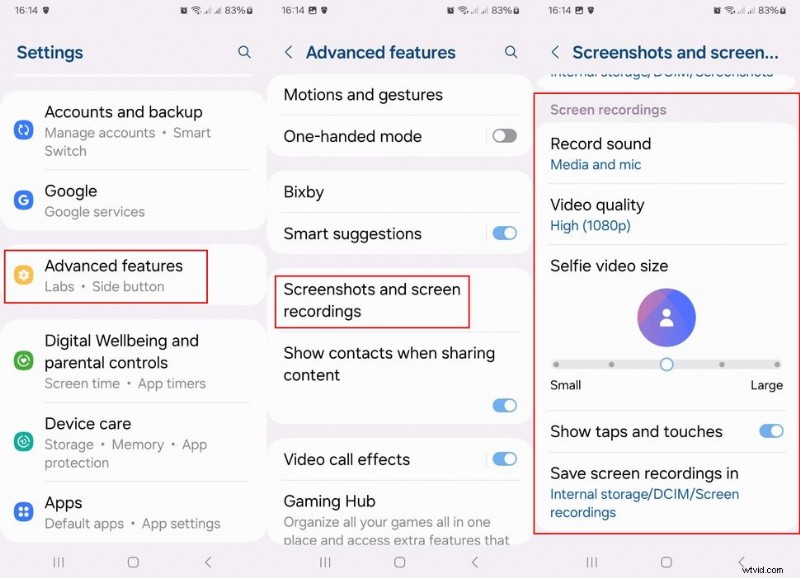
Here you’ll find options for Audio source, Video quality, Selfie camera size, Show taps, and the storage location. Adjust them as follows:
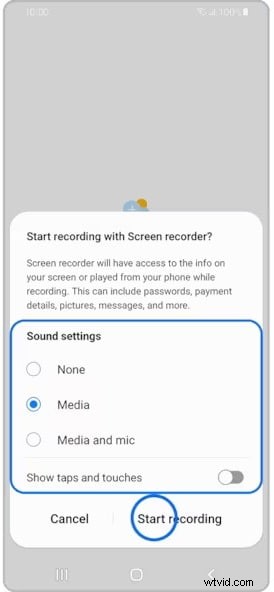
- Record Sound: Choose between Media + Mic, Media, or None to control background audio.
- Video Quality: Select 480p (low), 720p (medium), or 1080p (high).
- Selfie Video Size: Enable a floating camera overlay for hands‑free recording.
- Show taps & touches: Turn on to highlight user interactions.
- Save recordings to: Pick a folder or the default gallery.
Once these settings are configured, you can start recording using either the native tool or an external app.
2. Record with Samsung’s Native Recorder
2.1 Built‑in Screen Recorder
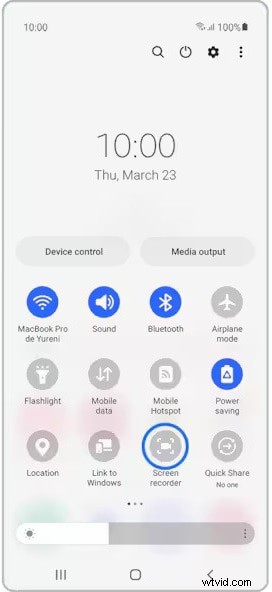
The quickest way to capture your screen is via the device’s built‑in recorder. Follow these steps:
- Open Settings.
- Tap Screen Recorder or swipe down to find it in the Quick Settings panel.
- Choose your audio preference in the popup, then tap Start Recording.
- The recorder begins after a short countdown; when finished, tap the Stop button in the upper‑right corner.
- Your video appears automatically in the Gallery for sharing or editing.
2.2 Game Launcher Recorder
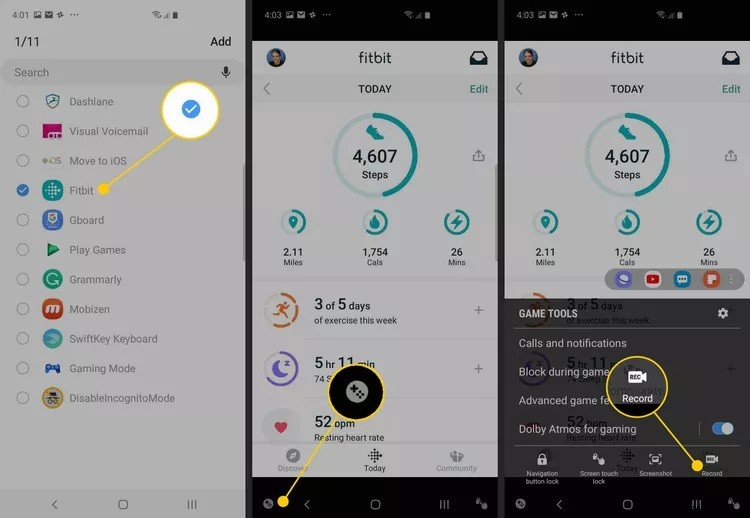
For gamers or anyone needing a more robust recorder, Samsung’s Game Launcher offers advanced features, though it’s limited to in‑app recordings.
- Launch Game Launcher and go to Library.
- Tap the three‑dot menu, select Add Apps, then add the target app.
- Open the chosen app; tap the Game Tools icon, then Record.
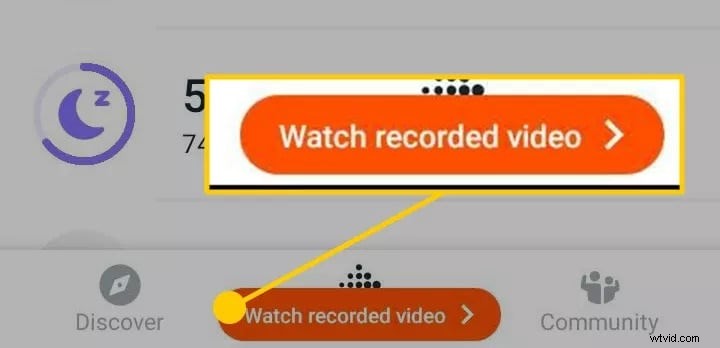
- Stop when finished and choose Watch recorded video or locate the file in Gallery.

3. Record with a Third‑Party App
Google Play offers several reliable screen‑recording apps. Two popular choices are XRecorder and Mobizen.
3.1 XRecorder
XRecorder delivers smooth, lag‑free recordings with a user‑friendly interface. It boasts a 4.7‑star rating from over 7 million reviews.
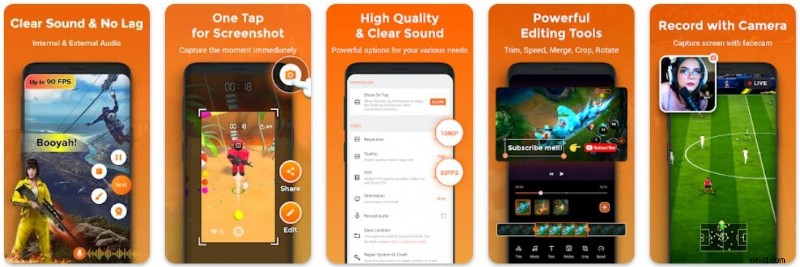
- Download XRecorder from the Play Store.
- Open the app and tap the + button.
- Select Record Video and hit Start.
- After a three‑second countdown, recording begins.
- Tap Stop to finish; the video is saved automatically, with options to edit or share.
3.2 Mobizen
Mobizen offers similar functionality and is trusted by 100+ million users. It provides a quick start with an intuitive interface.

- Install Mobizen from the Play Store.
- Open the app; you’ll see options for Record a video, View files, and Take a screenshot.
- Tap Record and confirm the prompt.
- The recording starts after a three‑second countdown.
- Stop with the Mobizen icon; then choose to Watch or Delete. All recordings are also accessible via Gallery.
4. Edit Your Recordings with Filmora
Once you have your screen‑recorded footage, you might want to polish it for a professional look. Filmora is a versatile editor available on Android, iOS, macOS, and Windows.
- Free trial for newcomers.
- AI‑powered features: music generation, smart masking, text‑to‑video, AI copilot editing, etc.
- Built‑in templates, royalty‑free stock media, and creative packs.
- Advanced visual effects: motion tracking, background removal, speed ramping, keyframe animation.
- Convenience tools: auto reframing, split‑screen, beat sync, silence detection, audio ducking.
Screen Recorder — an intuitive tool for all users.
Final Thoughts
While screenshots capture static information, screen recordings provide richer context, making them invaluable for teaching, troubleshooting, and entertainment. Samsung’s native recorder is quick and efficient, but third‑party apps like XRecorder and Mobizen offer additional flexibility. After recording, Filmora lets you add polish, branding, and creative flair to your videos.
FAQs
-
Can I record only audio on my Samsung phone?
Yes—choose the Media or None option in the audio settings to capture only sound.
-
Can I record while the screen is locked?
Yes, background recording apps can capture content even when the phone is locked.
-
I don’t see the screen recorder on my phone.
Add it to Quick Settings: go to Settings > Advanced Features > Screenshots & screen recordings and enable the toggle.