
Game sound effects transform a simple play‑through into an engaging cinematic experience. Whether you’re streaming Free Fire or editing a YouTube tutorial, the right audio can keep viewers hooked and elevate the quality of your content.
In this guide you’ll discover the essential types of game sound effects, learn how to craft them with Wondershare Filmora’s AI tools, and find step‑by‑step instructions for both desktop and mobile workflows.
In this article
- The Different Types of Game Sound Effects For Video Content
- How to Create Game Sound Effects for Professional Gaming Videos
- How to Create Game Sound Effects for Simple Gaming Videos
Part 1: The Different Types of Game Sound Effects For Video Content
Sound effects fall into several categories, each serving a distinct purpose. Understanding these categories helps you choose the right tools and achieve the desired atmosphere.
- Environmental sounds – rain, thunder, jungle ambience, and background chatter. These establish the world you’re presenting.
- Character sounds – footsteps, breathing, grunts, and dialogue snippets. They add personality and emotional depth.
- Combat & weapon sounds – gunshots, melee clinks, explosions, and re‑load clicks. They drive the pacing and adrenaline of action scenes.
- Foley sounds – subtle cues like door creaks, cloth rustles, and debris impacts. They ground the virtual environment in reality.

Part 2: How to Create Game Sound Effects for Professional Gaming Videos
When you’re producing polished content, the quality of audio can make or break your channel’s credibility. Wondershare Filmora offers AI‑powered tools that let you generate tailored sound effects quickly, even if you’re not a sound designer.
Why Filmora?
- Rich library of video and audio assets
- AI Sound Effect Generator & AI Music for instant, royalty‑free audio
- Cross‑platform support (Windows, macOS, Android, iOS)
- User‑friendly interface that balances power and simplicity

Step‑by‑Step Workflow on PC
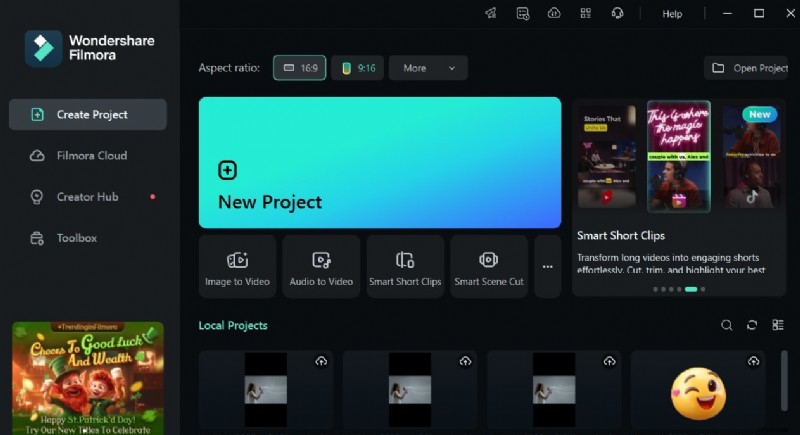
- Open Filmora and create a new project.
- Import media (optional if you only need the sound).
- Go to the Audio tab and choose AI Sound Effect.
- Describe the desired sound – be specific about character, environment, or combat.
- Click Generate and let the AI produce the clip.
- Preview, download, and drag the generated audio onto your timeline.
- For background music, select AI Music, set genre/mood/theme to “Gaming,” and generate.
- Layer multiple sounds if needed to enrich the mix.
- Export your finished video (MP4) or just the audio (MP3).
Key Tips for Quality
- Match the sound’s tempo to the on‑screen action for seamless integration.
- Use the export‑only‑audio feature to create custom soundtracks for future projects.
- Keep a backup of your original footage so you can experiment without risk.
Part 3: How to Create Game Sound Effects for Simple Gaming Videos
Mobile creators often need a quick, on‑the‑go solution. Filmora’s iOS and Android apps let you generate and add AI sound effects directly from your phone.

Mobile Workflow
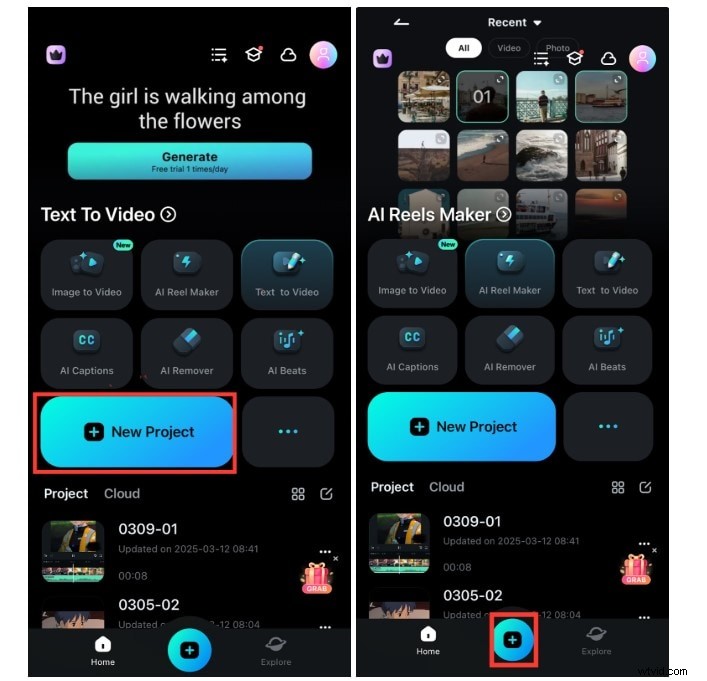
- Launch Filmora on your device and start a new project.
- Import the video or photo you want to edit.
- Tap the Audio button and select AI Audio.
- Choose AI Music, set mood to “Epic” and theme to “Cinematic,” then generate.
- Tap the generated track, preview, and press the + icon to add it to the timeline.
- For sound effects, pick AI Sound, describe the effect, and generate.
- Regenerate if the first result isn’t perfect.
- Preview the full video and export as MP4.
Conclusion
Whether you’re a seasoned editor or just starting out, Filmora equips you with AI tools that make crafting high‑impact game sound effects fast and accessible. Use the desktop version for complex projects and the mobile app for quick edits. With consistent practice, you can elevate every Free Fire clip or other gaming video to a professional standard.
Download Filmora from the official website today and start creating soundscapes that captivate your audience.