

World of Warcraft (WoW) has amassed millions of players around the world as it has continued to evolve. Hence, recording WoW gameplay isn’t just for fun.
Creators can record their gameplay for public sharing. On the other hand, WoW enthusiasts may want to review their tactics and improve their performance. Some players even push the limits of endurance, like in the World of Warcraft world records, where screen recording was used to document every hour.
This article will walk you through the best methods to record World of Warcraft gameplay on PC. So whether you're a creator, a passionate gamer, or an intending record-breaker, this tutorial has you covered.
In this article
- World of Warcraft World Records — Screen Recording WoW
- Software Options for Recording WoW Gameplay on PC
- How to Record World of Warcraft on Windows PC
- How Can You Record World of Warcraft with Professional Audio
Part 1: World of Warcraft World Records — Screen Recording WoW
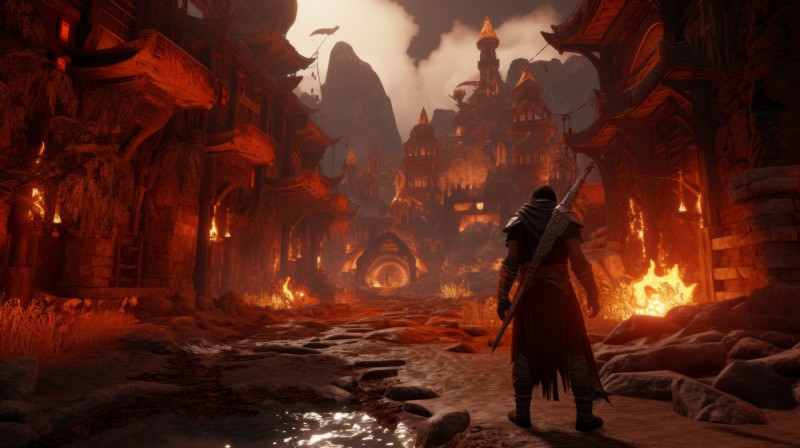
Justin O’Donnell holds the World of Warcraft world record for longest gaming time, 78 hours and 30 minutes. Before that, Barnabás Vujity-Zsolnay set the record at 59 hours and 20 minutes. These marathon sessions required focus, endurance, and proper record.
Screen recording tools have played a major role in WoW players pushing the boundaries of what's possible in the game. Players have shown skill and dedication over the years, and without recorded gameplays, these accomplishments wouldn’t have been verified or acknowledged.
Part 2: Software Options for Recording WoW Gameplay on PC
Depending on your needs, there are two solid options for World of Warcraft records: Filmora and Xbox Game Bar.
Filmora – For Recording and Editing
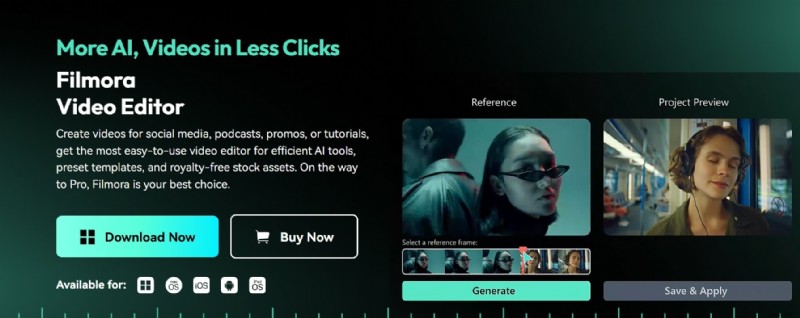
Wondershare Filmora is a great choice for recording WoW gameplay, especially for game creators who want built-in video editing features. This Warcraft recorder records smoothly and gives output in HD.
Xbox Game Bar – For Built-in Recording
Make Videos with Wondershare Filmora
- Vast video/audio effects and creative assets.
- Powerful AI for effortless content creation.
- Intuitive, professional yet beginner-friendly.
- Works on Mac, Windows, iOS, and Android.



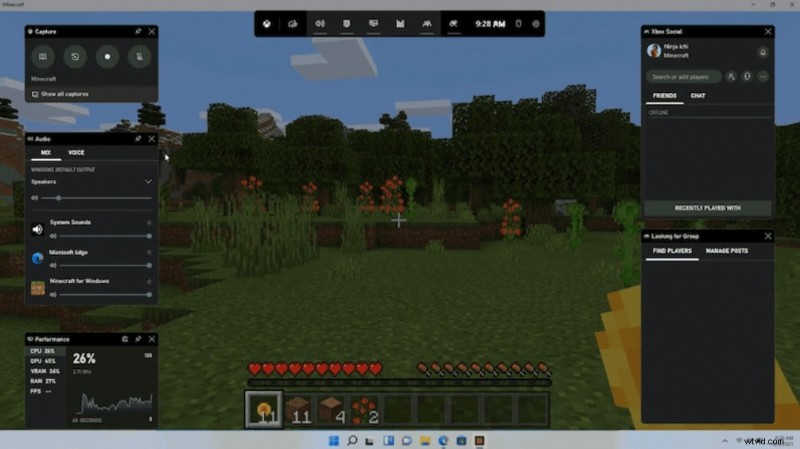
Xbox Game Bar is a built-in tool for Windows users that allows easy gameplay recording with minimal setup. It lacks advanced editing features. However, it’s a simple and free option for capturing WoW clips.
| Feature | Filmora | Xbox Game Bar |
| Ease of Use | Simple interface with editing tools | Very easy, built into Windows |
| Video Editing | Yes – full editing suite | No editing tools |
| Audio Enhancement | Yes – noise reduction, voice tuning | No audio tools |
| Performance Impact | Moderate, depends on settings | Low impact, minimal features |
| Webcam Recording | Yes – can record facecam | No webcam support |
| Customization | High – adjustable FPS, resolution, overlays | Basic – fixed settings |
| Cost | Paid (with free credits to new users) | Free, included with Windows |
Part 3: How to Record World of Warcraft on Windows PC
You can easily record World of Warcraft gameplay using Filmora's screen recording feature. Here is a detailed step-by-step guide on how to use both methods and export in HD for the best quality.
Method 1: Recording WoW Gameplay with Filmora
- Step 1: Install and launch Filmora.
- Download and install Filmora from the official website.
- Open Filmora, and on the main menu, click Screen Recorderto access the recording feature.
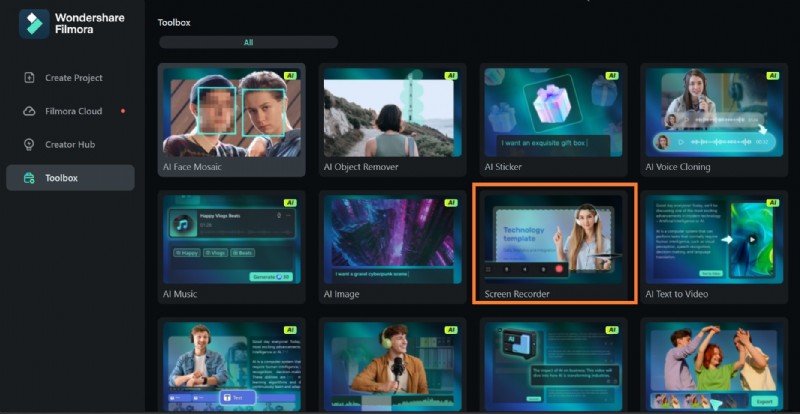
- Step 2: Adjust recording settings.
- In the screen recorder window, choose:
- Full screen to capture the entire display.
- Custom area to select a specific region of your screen.
- Set the frame rate to 60 FPS for smooth gameplay.
- Enable System Audioto record WoW’s in-game sounds.
- Turn on the Microphoneif you want to add live commentary.
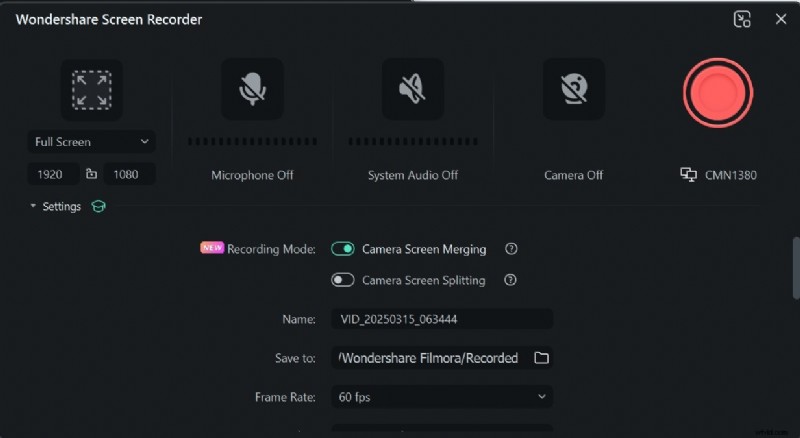
- Step 3: Start recording.
- Click the Recordbutton, and a countdown timer will appear.
- Open WoW and start playing.
- Use the F9 key to pause or stop recording.
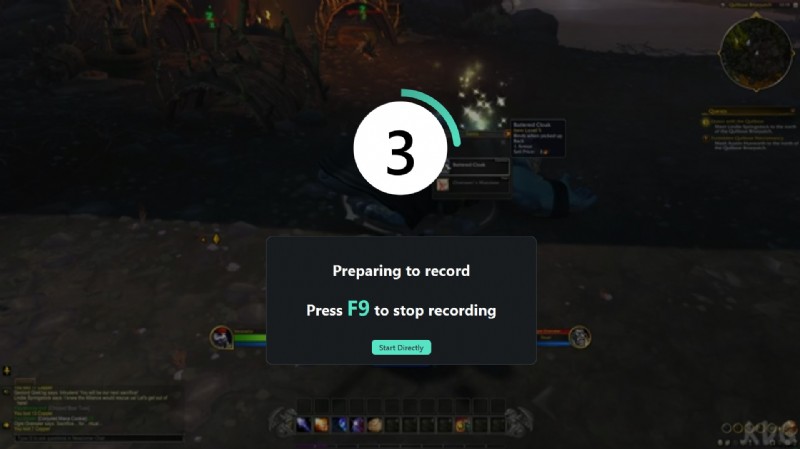
- Step 4: Edit and enhance your recording.
- Once the recording is finished, Filmora will automatically import the video into the editor.
- Trim unwanted parts, add effects, and enhance audio if needed.
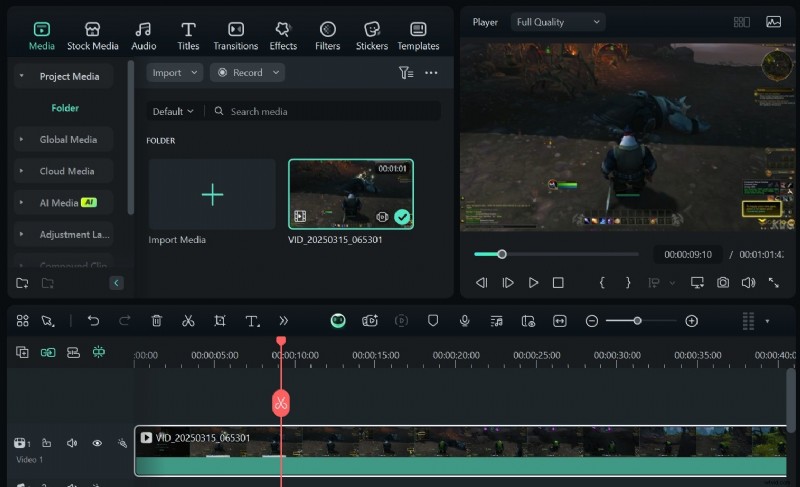
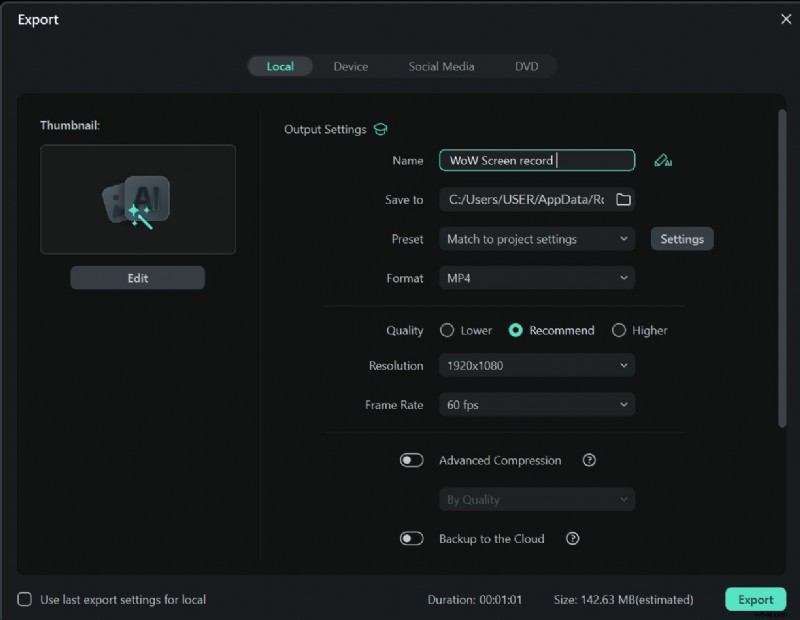
- Step 5: Export in HD for better quality.
- Click Exportin the top-right corner.
- Choose MP4 as the file format (best for YouTube and social media).
Method 2: Record World of War Gameplay with Xbox Game Bar
If you don’t need advanced editing and just want a simple recording tool, Xbox Game Bar is a great built-in option for Windows users.
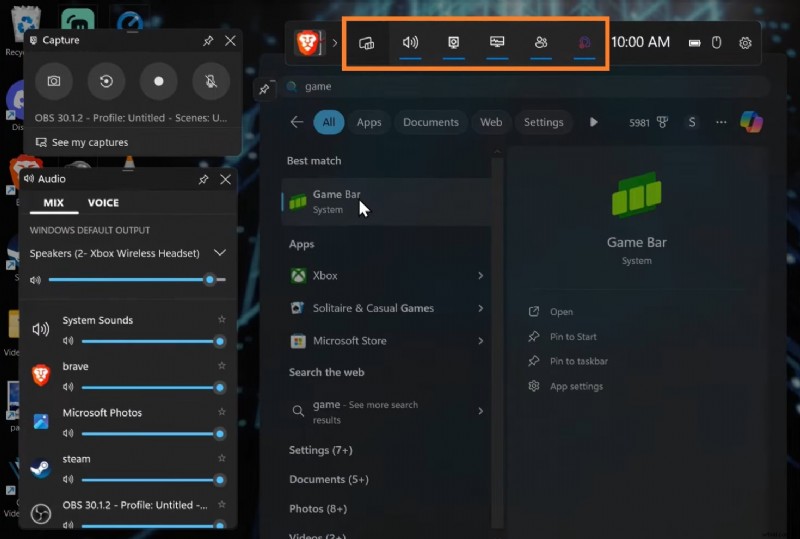
- Step 1: Enable Xbox Game Bar.
- Press Win + G to open the Xbox Game Bar overlay.
- If it doesn’t open, go to Settings > Gaming > Xbox Game Bar and toggle it on.
- Step 2: Start recording.
- Open WoW and press Win + Alt + R to start recording.
- A small recording bar will appear, showing the time elapsed.

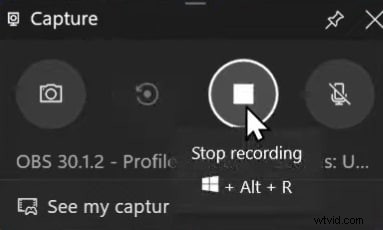
- Step 3: Stop and save the recording.
- Press Win + Alt + R again to stop recording.
- Your video will be saved automatically in Videos > Captures.
Part 4: How Can You Record World of Warcraft with Professional Audio
When recording World of Warcraft gameplay, high-quality audio is just as important as good visuals. Clear sound improves the viewing experience and enhances the effects of combat. Even voiceovers and in-game music become more immersive with great sound.
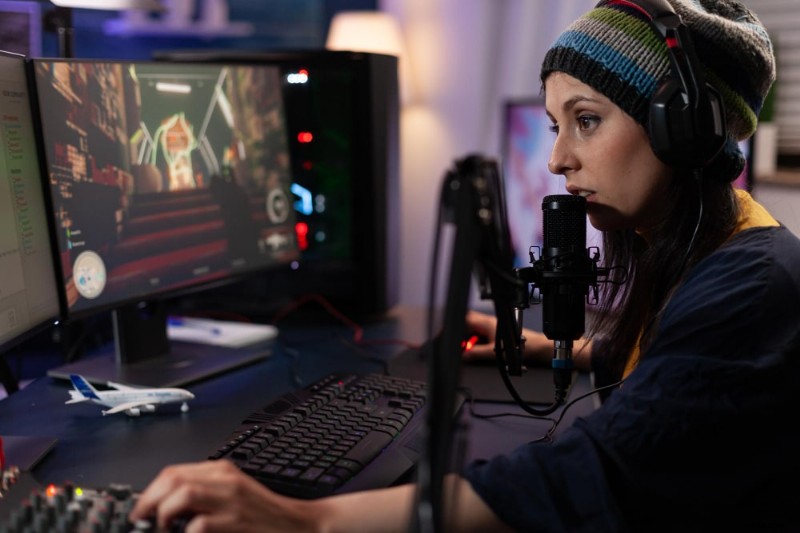
So whether you're creating a guide, a commentary video, or just recording epic game moments, poor audio can ruin a great recording. Luckily, Filmora has built-in tools to help you improve your audio after recording—no expensive microphone is required.
How to Enhance WoW Records Using Filmora
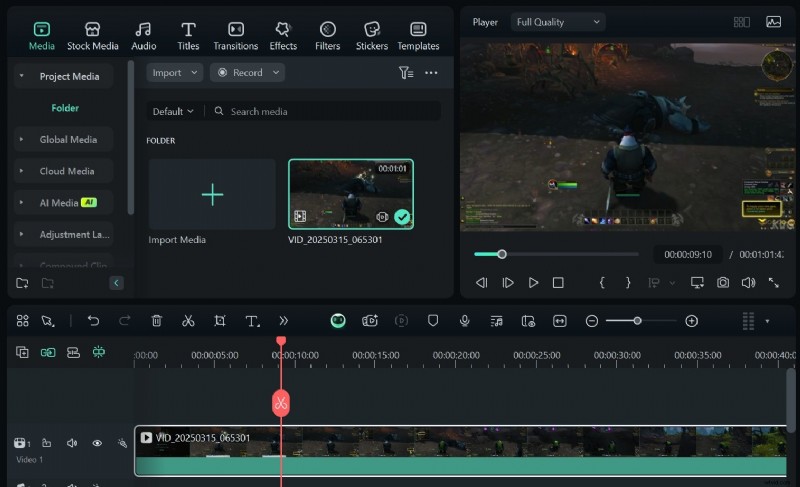
- Step 1: Open Filmora and import your WoW recording.
- Drag the video to the timeline.
- Step 2: Use noise reduction for cleaner audio.
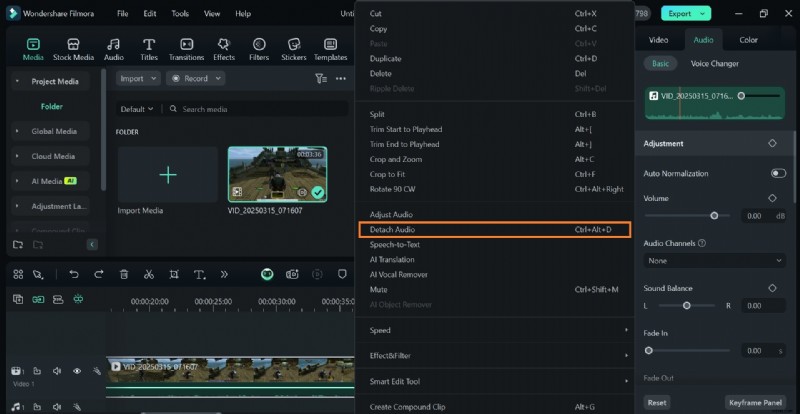
- Remove background noise—keyboard clicks, fan sounds, static—with noise reduction.
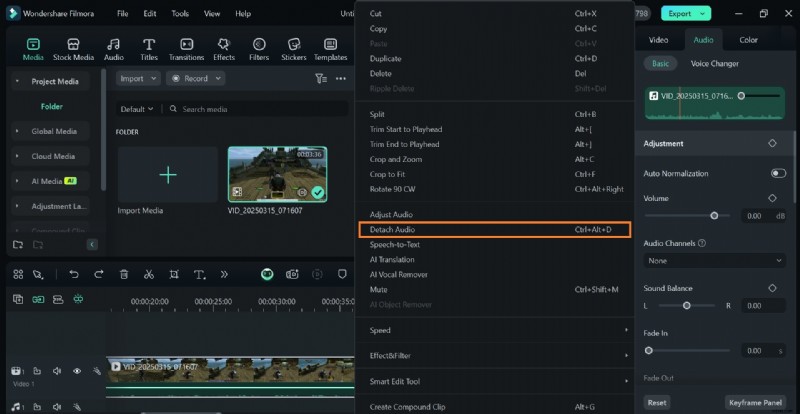
- Right-click your video in the timeline and select Detach Audioto separate the audio from the video.
- Step 3: Adjust noise reduction.
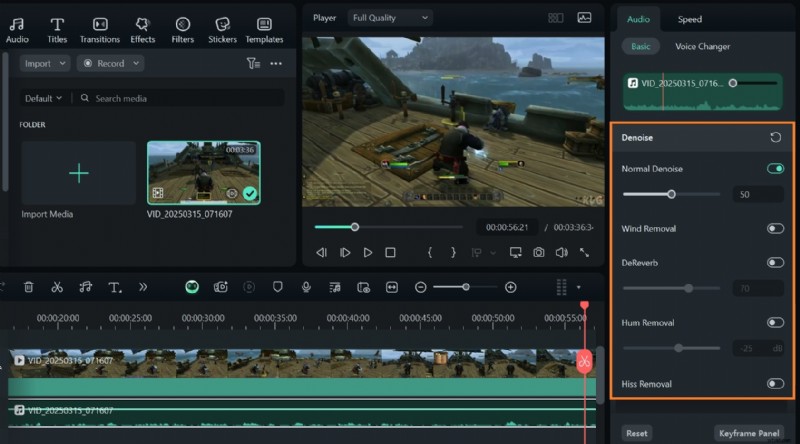
- Click on the audio track, then go to the audio editor panel at the top.
- Select Denoiseand adjust the noise reduction level.
- Step 4: Boost voice clarity with audio ducking.
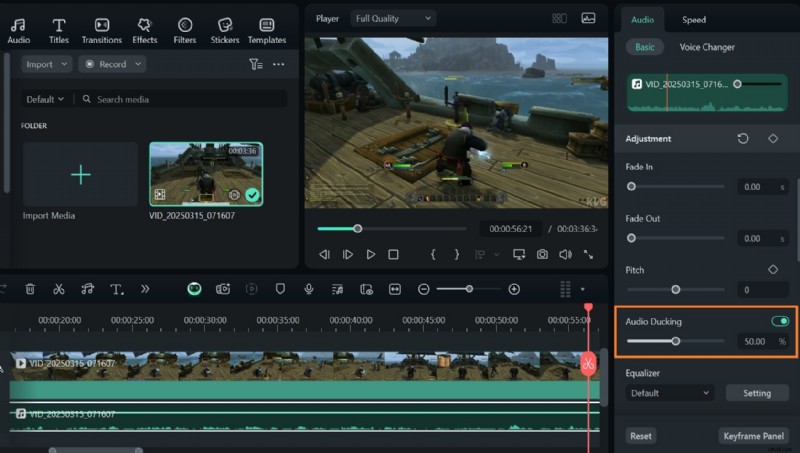
- Select your voiceover track, if you recorded one.
- Click Audio Duckingif you want to lower the game sound while keeping your voice clear.
- Adjust the intensity and preview the result.
How to Improve Audio Without a Microphone
If you didn’t use a mic when using your Warcraft recorder but still want clear voiceover or enhanced sound effects, try these methods.
- Step 1: Extract and edit game audio separately.
- Detach Audio to separate the game’s sound.
- Step 2: Use the Equalizer and Noise Reduction to enhance the in-game sounds.
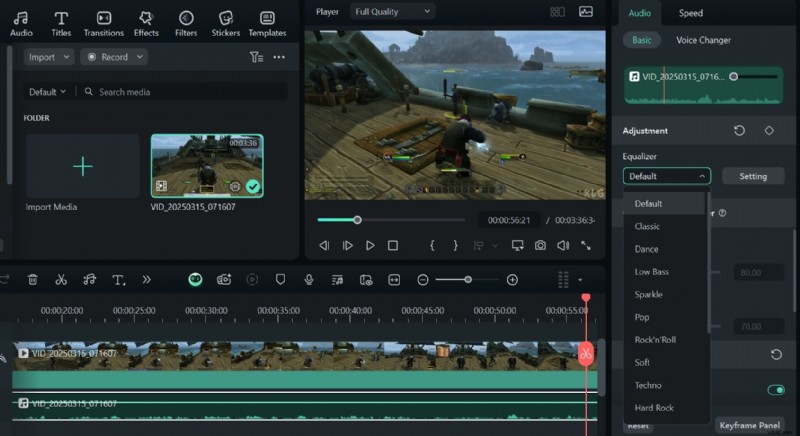
If necessary, re-record commentary separately on Filmora and sync it with the gameplay.
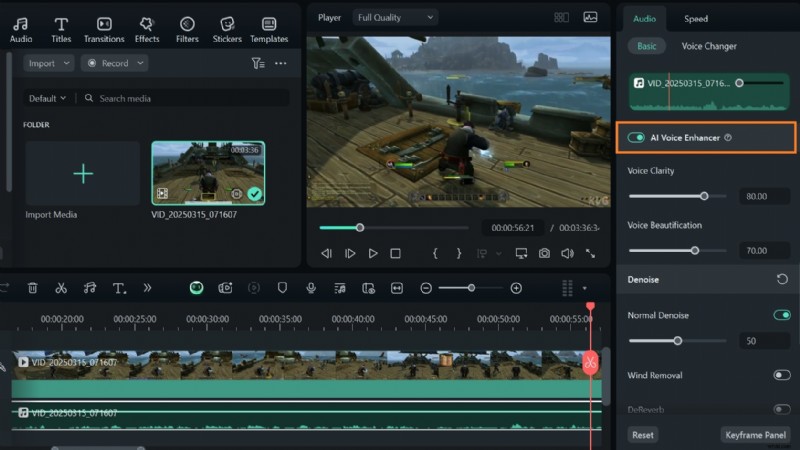
- Step 3: Use Filmora AI Voice Enhancement.
Filmora offers AI-powered voice enhancement, which can make in-game character voices and effects clearer without using a mic.
Conclusion
There are several tools and software for recording World of Warcraft gameplay. On your PC, you can use Xbox or Filmora to record gameplay.
Filmora is an all-in-one Warcraft recorder that offers more than screen recording features. You can capture interesting battles, document world records, and share gameplay guides using this awesome tool. You can also improve your recorded sound for a more immersive audio.