
The fun in gaming isn't just about playing anymore. It has graduated to capturing and sharing epic moments. But how do you record your screen while playing on Android?
Recording gameplay does not require complex setups or expensive software, as it might look. Modern Android devices allow you to capture every move in high quality using the best screen recorder for games on Android.
Not all recording apps are built the same, though. Some slow down the gameplay, reduce video quality, or add distracting watermarks. That's why we've researched and handpicked the best gaming recorders for Android that offer smooth, lag-free, and high-resolution recording—perfect for every type of gamer.
In this article
- Best Game Screen Recorder for Android: Top 7 Applications
- After Screen Recording a Game on an Android, What's Next?
- How to Edit Screen-Recorded Gaming Videos
- Can I Share Game Highlights Directly on Social Media Platforms After Editing?
Part 1: Best Game Screen Recorder for Android: Top 7 Apps for Live Recording
While you can record your screen when playing battle royales, racing games, or RPGs, not all apps offer smooth gameplay capture with high-quality video. The wrong choice can lead to lag, frame drops, or watermarks on your content.
To help you pick the best screen recorder for games on Android, we've listed the top seven game-recording apps that deliver high-resolution footage, lag-free performance, and easy editing options. They include:
1. AZ Screen Recorder – The Most Popular Choice
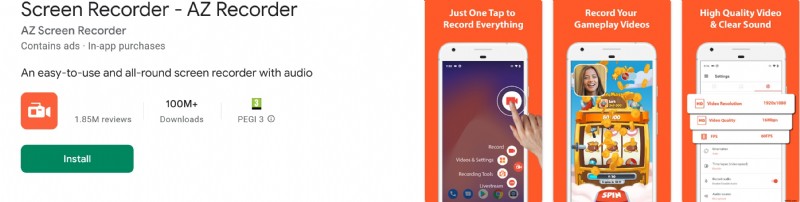
AZ Screen Recorder is one of the best gaming recorders for Android. It provides smooth, high-quality recording without a time limit or watermark.
|
Features |
● 1080p recording at 60 FPS for ultra-smooth gameplay ● Internal and external audio recording for commentary ● Floating control button for easy access ● Live streaming support for YouTube and Facebook ● Basic video editing tools to trim and cut recordings |
|
Pros |
● Free and beginner-friendly ● No need for root access ● High-quality video and audio |
|
Cons |
● Some advanced features require in-app purchases ● Occasional ads in the free version |
2. Glip Screen Recorder – Best for Streamers
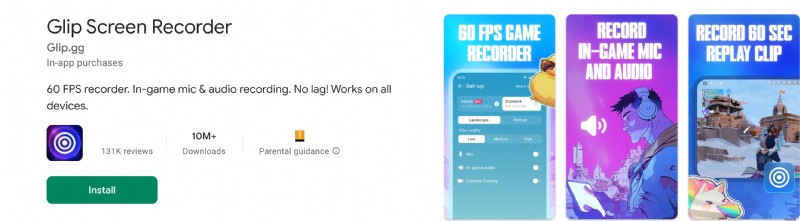
Glip is an excellent option for streamers and content producers who require a top-notch Android game screen recorder. It offers seamless streaming to platforms like YouTube and Twitch.
|
Features |
● Supports live streaming with overlays ● Records in 1080p at 60 FPS ● One-tap start and stop feature ● Built-in face cam for reaction videos ● Cloud storage option for easy access |
|
Pros |
● Ideal for mobile game streamers ● No lag or frame drops ● Saves recordings to the cloud |
|
Cons |
● The free version has ads ● Limited customization options |
3. Mobizen Screen Recorder – Best for Editing
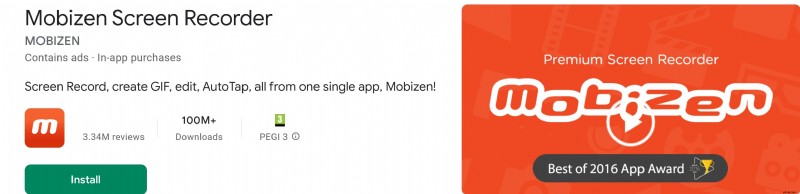
Mobizen is known for its powerful editing tools and high-quality recordings. It's a great choice for gamers who want to create professional gameplay videos.
|
Features |
● Records in Full HD (1080p, 60 FPS) ● Internal and external sound recording ● Face cam overlay for reactions ● Drawing tools for annotations ● Advanced editing suite included |
|
Pros |
● High-quality footage with smooth performance ● Built-in editor for easy video customization ● Great for tutorial-style videos |
|
Cons |
● The free version adds a watermark ● Some features require a paid upgrade |
4. Vidma Screen Recorder – Best for Beginners
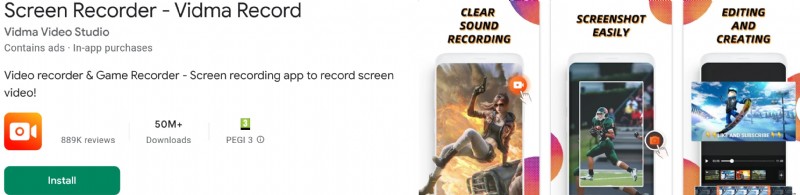
Vidma is a lightweight yet powerful game-recording app. It's easy to use and doesn't require any advanced settings.
|
Features |
● One-tap recording with floating controls ● HD recording at 60 FPS ● Record internal and external audio ● No watermark in the pro version ● Small file size for low storage usage |
|
Pros |
● User-friendly interface ● No root access needed ● Minimal storage impact |
|
Cons |
● Some features are locked behind a paywall ● No built-in live streaming |
5. XRecorder – Best for No Watermark Recording
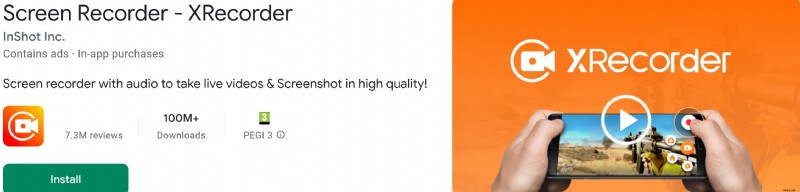
XRecorder is a great choice if you need the best screen recorder for Android gaming without watermarks or time limits.
|
Features |
● Records in 1080p HD at 60 FPS ● Internal and external audio support ● Floating controls for quick access ● No root required ● Screen capturing and screenshot tools |
|
Pros |
● No time restrictions ● Smooth high-resolution recording ● Easy to use |
|
Cons |
● No built-in video editing tools ● No live streaming support |
6. Google Play Games – Best Built-in Option
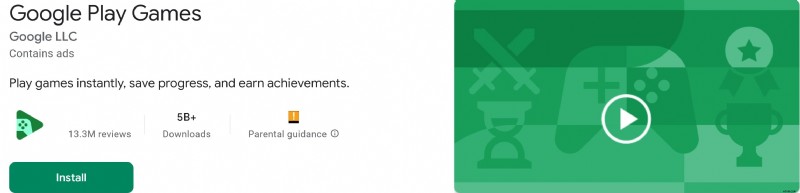
If you don't want to install an extra app, Google Play Games offers basic recording features for supported games.
|
Features |
● No need to install a third-party app ● Records in 720p and 480p ● Built-in face cam option ● Quickly share to YouTube ● Simple and easy to use |
|
Pros |
● Built into Android devices ● No extra storage needed ● Good for casual recordings |
|
Cons |
● Limited resolution options ● Not available for all games |
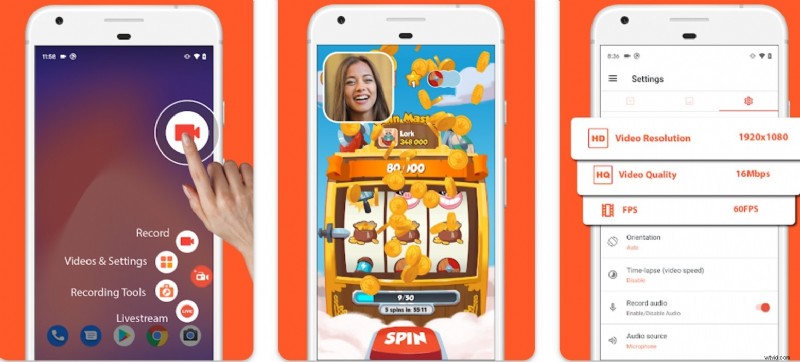
7. ADV Screen Recorder – Best for Customization
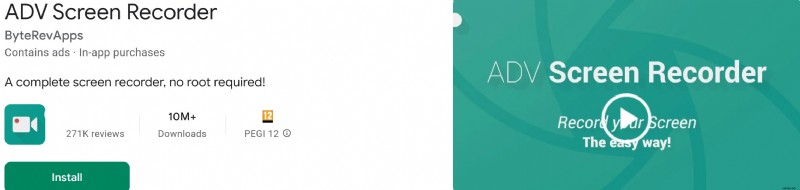
ADV Screen Recorder gives you full control over your recordings with customizable settings.
|
Features |
● Records in HD with customizable bitrates ● Overlay text and images on recordings ● Dual recording modes (default & advanced) ● Face cam support ● No watermark or time limit |
|
Pros |
● Great for detailed tutorials ● Full control over settings ● No watermark |
|
Cons |
● Slightly more complex setup ● Lacks built-in editing tools |
Part 2: After Screen Recording a Game on an Android, What's Next?
A great screen recording means nothing without proper editing. Whether you plan to upload content to YouTube, TikTok, or Instagram, editing your gameplay makes it more watchable and shareable. Below are the five key reasons you must edit your gaming videos before sharing.
1. Improve Video Quality
Recording with the best screen recorder for games on Android ensures smooth and clear footage, but editing takes it to the next level. You can enhance brightness, adjust contrast, and stabilize shaky clips for a professional look.
2. Remove Unwanted Footage
Not every moment of your gameplay is exciting. Cutting out long loading screens, mistakes, or unnecessary sections keeps viewers engaged. Trimming ensures your content is fast-paced and entertaining.
3. Enhance Viewer Engagement
Adding text overlays, transitions, and sound effects makes your videos visually appealing. Viewers enjoy watching content with smooth edits, engaging music, and on-screen highlights.
4. Highlight Key Moments
Editing allows you to showcase the best parts of your gameplay. You can use slow motion, zoom-ins, and freeze frames to emphasize clutch moments, making your content stand out from the rest.
5. Professionalize Your Content
Top gaming creators edit their videos to create a unique style. Custom intros, logos, and branded overlays add a polished feel that helps you build an audience.
Now that you know why editing is essential, what tool or app is best for the job? Filmora is one popular name in the video editing space. And despite not being one of the best screen recorders for Android gaming, it is a top screen recorder for PC games.
What is Filmora?
Filmora is a powerful video editing tool designed for both beginners and professionals. It offers special effects and AI-powered tools. Filmora assists in transforming unprocessed gameplay into captivating content, whether you are creating tutorials, highlight reels, or montages.
Features of Filmora
- AI-powered editing tools for automatic adjustments
- Hundreds of effects, transitions, and animations
- Supports 4K video editing for crisp resolution
- Easy export options for YouTube, TikTok, and Instagram
- Audio editing tools for music, voiceovers, and noise reduction
Make Videos with Wondershare Filmora
- Vast video/audio effects and creative assets.
- Powerful AI for effortless content creation.
- Intuitive, professional yet beginner-friendly.
- Works on Mac, Windows, iOS, and Android.


Does Filmora Offer a Screen Recorder for Android?
Currently, Filmora is not among the best screen recorders for Android gaming, but it does provide a screen recording feature for Windows and macOS. After recording your Android gameplay, you can transfer the footage to Filmora's mobile or desktop app for advanced editing.
To do this on your PC:
- Download and install Filmora from the official website.
- Open Filmora, go to Record, and select "Record PC Screen."
- Adjust recording area, frame rate, and audio settings, then press F9 or click "REC."
- Start playing Valorant—Filmora will capture all on-screen activity.
This means you can still use the best gaming recorder for Android to capture your footage and edit it professionally in Filmora.
Part 3: How to Edit Screen-Recorded Gaming Videos
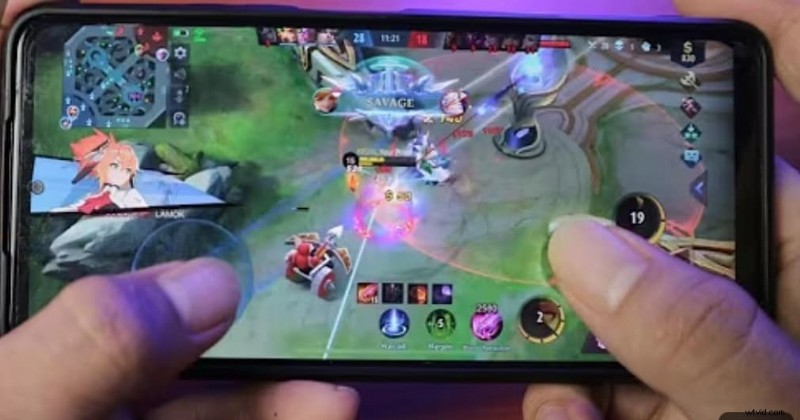
Recording gameplay is just the first step. When you are done, launch Filmora and import the video to begin. Whether you want to trim unnecessary parts, add effects, or improve audio, this tool is up to the task.
Before we start editing, let's explore some must-have effects that make your video more exciting:
- Slow Motion & Speed Up
- Green Screen (Chroma Key)
- Text and Titles
- Transitions
- Audio Effects
- Filters and Color Grading
- Motion Tracking
- Picture-in-Picture (PiP)
- Zoom and Pan Effects
- Stickers and Emojis
Step-by-Step Guide to Editing Gameplay Videos in Filmora
Here is a step-by-step guide on how you can edit screen-recorded videos on your Android device.
Step 1: Import your gameplay recording. Open Filmora on your PC or mobile. Click "Import" and select your recorded game footage. Drag and drop the file into the timeline.

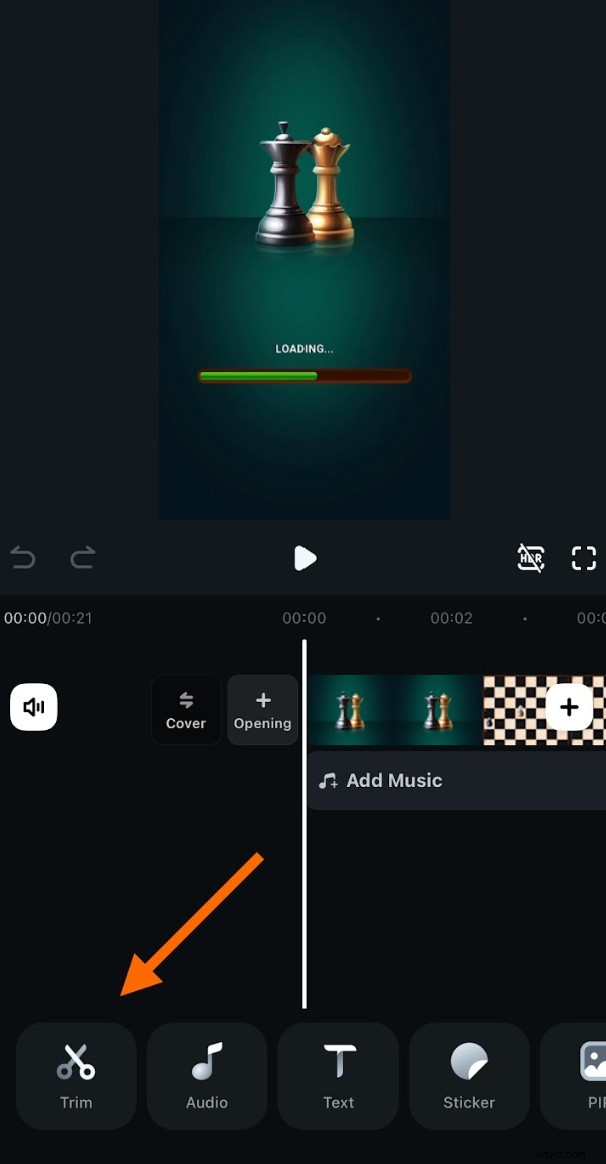
Step 2: Trim Unnecessary Parts
- Click on the video track to select it.
- Use the cut tool to remove unwanted sections.
- Drag clips together for a seamless flow.
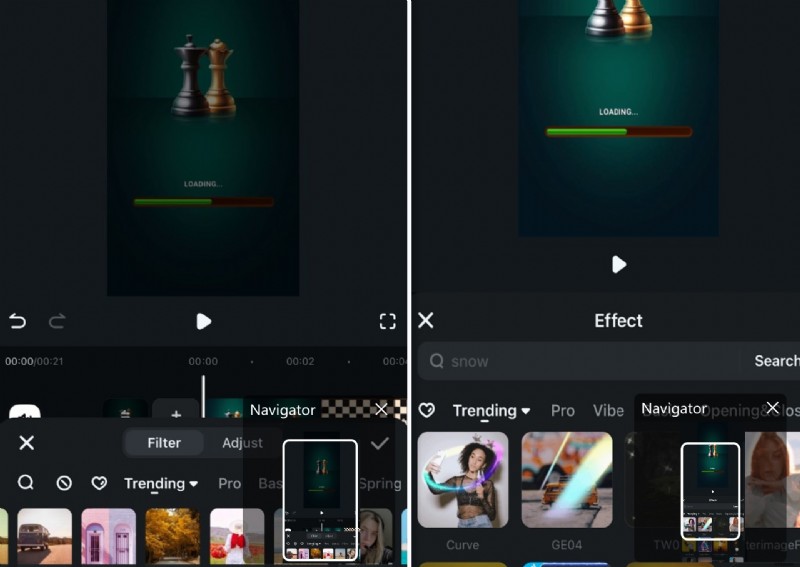
Step 3: Add filter and Effects
- Go to the Effects tab.
- Choose transitions like fade, slide, or dissolve.
- Drag the transition between clips for smooth scene changes.
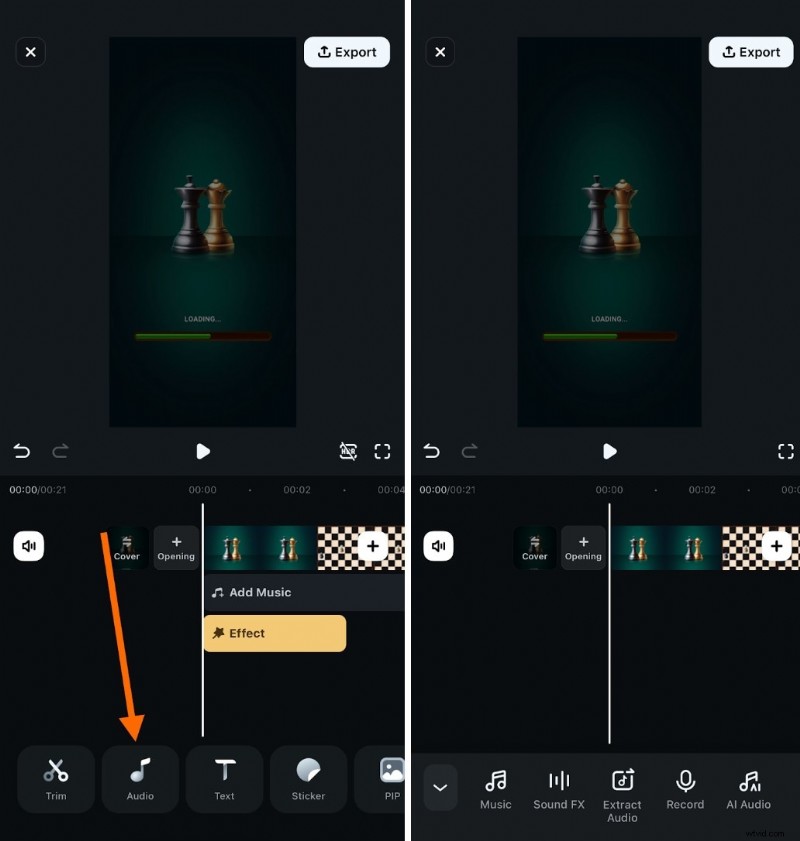
Step 4: Enhance Audio & Music
- Click on the Audio tab.
- Extract audio
- Add background music for a professional touch.
- Record
- Adjust volume levels to balance game sounds and voiceovers (available on PC versions)
- Use noise reduction to remove background noise (available in PC versions)
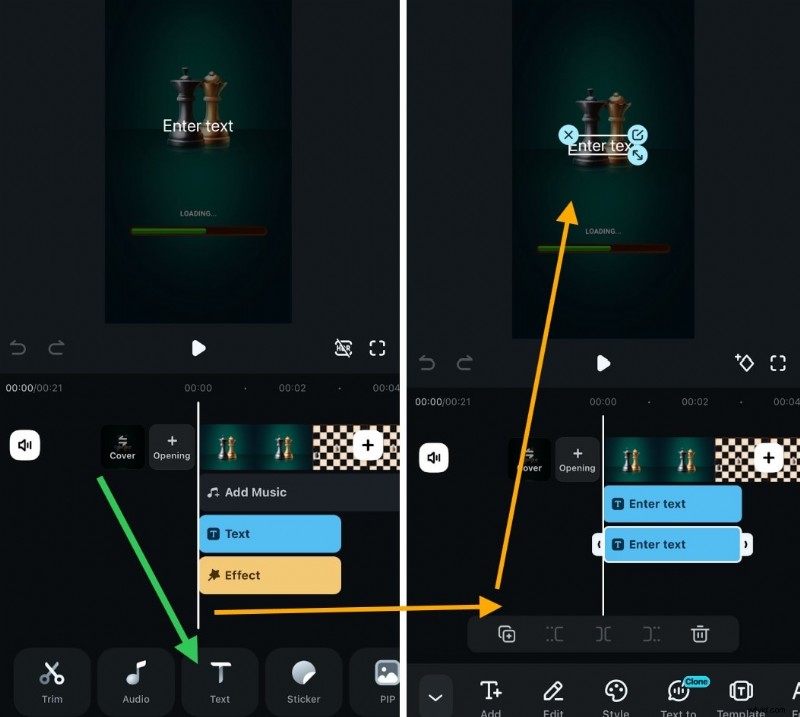
Step 5: Include Text and Overlays. Click "Titles" and choose a text template. Customize text for instructions, commentary, or highlights. Drag and place text at key moments.
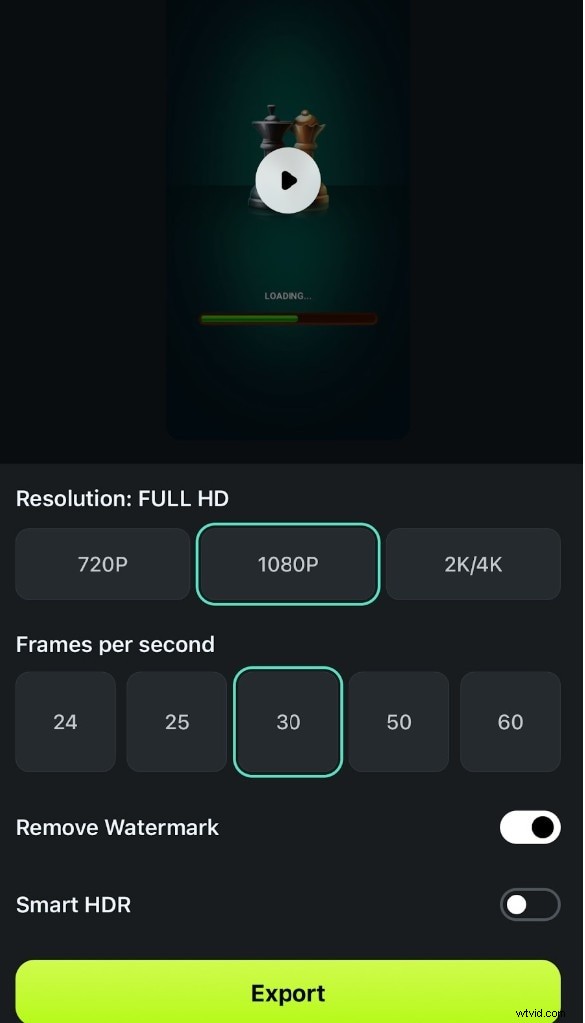
Step 6. Click "Export" and choose your preferred video format. Click "Save," and your video is ready!
Use Filmora's PC Version for Advanced Editing
While Filmora's mobile app is great for quick edits, the PC version has more tools for advanced gaming content. If you want motion tracking, multi-layer editing, and AI effects, transfer your video to Filmora's desktop software.
Part 4: Can I Share Game Highlights Directly on Social Media Platforms After Editing?
Once you are done editing your game video clip, the next step is saving or sharing it with the world. Uploading directly to social media saves time and helps your content reach more viewers. Luckily, modern editing apps, including Filmora, allow you to export and share gaming highlights seamlessly.
How to Share Edited Gameplay Videos on Social Media
Many gamers post their gameplay on platforms like YouTube, TikTok, and Instagram. But to maximize engagement, your video must be formatted correctly.
Here's how to export and share your video directly from Filmora:
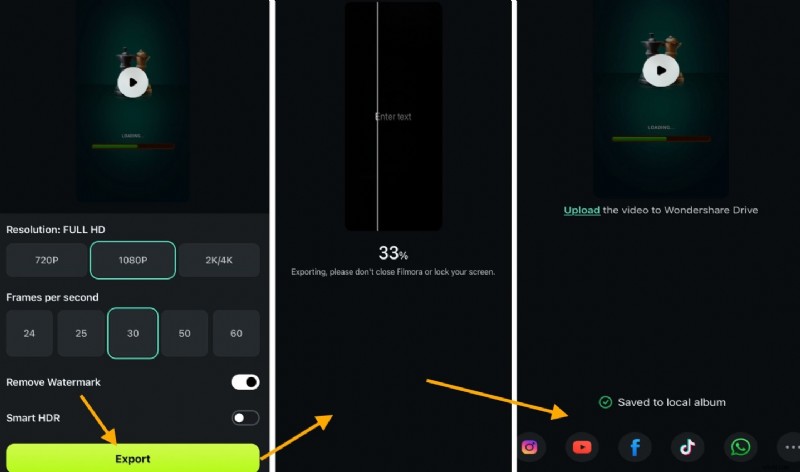
Steps:
- Click the export button and wait for the process to complete
- Select your platform (YouTube, TikTok, Instagram, or Facebook).
- Log in to your account and add the title, description, and tags.
- Hit Upload, and your gaming video is live!
How to Make Your Gaming Videos More Engaging
Simply uploading a video isn't enough. You need to grab attention. Here's how to boost engagement:
- Use a Catchy Thumbnail: A strong thumbnail increases clicks.
- Write a Compelling Title: Include keywords like "Best Kills in PUBG" or "Epic Minecraft Build."
- Add Hashtags and Tags: This helps your video get discovered.
- Use Subtitles and Captions: This improves accessibility and retention.
- Post at the Right Time: Share when most gamers are online (evenings & weekends).
Conclusion
With the best screen recorder for games on Android, you can capture and share your best moments. A top app will ensure smooth, high-quality video capture. But recording is just the beginning.
Editing with Filmora helps you enhance your footage, add effects, and make your content engaging. You can upload game clips directly to YouTube, TikTok, Instagram, or Facebook after editing.

Filmora
⭐⭐⭐⭐⭐
The Best AI-powered Video Editing Software and App