
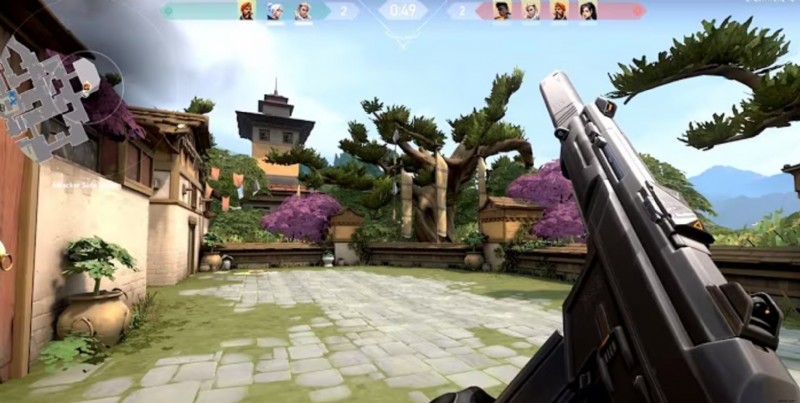
Recording your gameplay is like having a personal highlight reel—minus the awkward pauses and those embarrassing fails. But being able to rewatch all these after the action will help you analyze your gameplay, improve your reflexes, or show off your best clip Valorant action to friends.
So, to get started with this, you need the right clipping software. A top tool can make all the difference and give you smooth and high-quality clips without compromising your game performance. If you want to know about the clip software, continue reading.
We will compare some of the best clipping software for Valorant and dive into some of the best practices using these tools.
In this article
- Comparison of the Top 10 Valorant Clipping Software for Game Moments
- Best Practices for Recording Valorant Clips with No Lag
- How to Record Gameplay Using One of the Best Valorant Record Apps
- Can I Play and Record Valorant Clips on a Mobile Phone?
Part 1: Comparison of the Top 10 Valorant Clipping Software for Game Moments

The best Valorant clipping software is essential to capture your epic gameplay moments without compromising your PC’s performance. At its basics, a top recorder should offer HD recording and a built-in editor. Latency is another critical factor—no one wants to lag in the middle of a clutch moment.
So, to cut a long story short, let's compare some of the best Valorant clip software based on these features and more. We’ll be comparing the top 7 apps, and instead of boring you with long paragraphs, let’s break them down in a simple table based on key features.
| Valorant Clips Software | Built-in editor | Customizable hotkeys | HD recording with no frame drops | System impact | Latency | GPU hardware acceleration | 4K recording | Device/Desktop |
| Filmora | Yes | Yes | Yes | Low | Low | Yes | Yes | Desktop |
| NVIDIA ShadowPlay | Yes | Yes | Yes | Very Low | Low | Yes | Yes(up to 8k) | Desktop |
| Medal.tv | Yes | Yes | Yes | Low | Low | Yes | Yes | Desktop/mobile |
| OBS Studio | Yes | Yes | Yes | Medium | Medium | Yes | Yes | Desktop |
| Action | Yes | Yes | Yes | Medium | Medium | Yes | Yes | Desktop |
| Razer Cortex | No | Yes | Yes | Low | Low | Yes | No | Desktop |
| PlayClaw | Yes | Yes | Yes | Medium | Medium | Yes | Yes | Desktop |
| Fraps | No | No | Yes | High | High | No | No | Desktop |
| Xbox Game Bar | No | Yes | Yes | Low | Low | Yes | No | Desktop |
| Bandicam | Yes | Yes | Yes | Medium | Medium | Yes | Yes | Desktop |
Part 2: Best Practices for Recording Valorant Clips with No Lag
Recording Valorant gameplaysmoothly without FPS drops requires the right settings and system optimizations. Even a slight lag can affect performance, so optimizing your recording setup is essential. Below are some key best practices to ensure lag-free recording while playing at high FPS.
1. Optimize Recording Software Settings
Choosing the right recording settings can prevent performance drops. Here's how to configure them:
| Setting | Recommended Value | Purpose |
| Resolution | 1920x1080 or 1280x720 | Balances quality and performance |
| FPS | 60 (or 30 for weaker PCs) | Ensures smooth recording |
| Bitrate | 6000-8000 kbps (1080p) | Reduces file size without losing quality |
| Encoder | Hardware (NVENC/AMD) | Offloads processing to GPU |
| Recording Format | MP4 or MKV | Ensures compatibility |
2. Adjust In-Game Settings for Smooth Performance
Valorant is a well-optimized game, but if recording causes stutters, tweak these settings:
| Setting | Recommended Value | Impact |
| Multithreaded Rendering | Enabled | Boosts FPS on multi-core CPUs |
| Material Quality | Low/Medium | Reduces GPU load |
| Texture Quality | Medium | Maintains visual clarity without FPS dips |
| Detail Quality | Low | Lowers rendering demand |
| V-Sync | Disabled | Reduces input lag |
| FPS Limit | 144 or higher (if the monitor supports) | Ensures consistent frame rates |
3. Optimize System Performance
A well-optimized system prevents unnecessary lag while recording. Use these tips:
| Optimization | Steps |
| Enable Game Mode | Windows Settings → Gaming → Game Mode (Enable) |
| Close Background Apps | Disable unnecessary startup programs via Task Manager |
| Free Up RAM | Use ISLC (Intelligent Standby List Cleaner) to clear unused memory |
| Update GPU Drivers | Download the latest Nvidia/AMD drivers for performance improvements |
4. Use a Dedicated Capture Card (For Dual PC Setup)
If you stream and record simultaneously, a capture card can reduce the load on your main PC.
| Best Capture Cards | Key Features |
| Elgato HD60 X | 1080p 60 FPS, Low latency, USB 3.0 |
| AVerMedia Live Gamer 4K | 4K recording, PCIe-based |
| Razer Ripsaw HD | Pass-through for dual-PC setup |
5. Optimize Storage and File Management
Recording gameplay requires fast storage and efficient file management.
| Storage Tip | Purpose |
| Use an NVMe SSD | Faster read/write speeds than HDDs |
| Save to a Secondary Drive | Avoids game performance issues |
| Record in Short Clips | Reduces file size and prevents corruption |
Part 3: How to Record Gameplay Using One of the Best Valorant Record Apps
In this section, we’ll dive into how to record Valorant using Filmora, one of the top-rated Valorant clips software. It is a top video editor tool that offers high-quality recording without burdening your system.
Filmora Overview

Filmora is a versatile screen recording and editing software that works smoothly for recording game clips on both Windows and Mac. It’s known for its ease of use and ability to record in HD without significant system impact. This Valorant record app allows you to capture your gameplay and immediately start editing, making it an all-in-one solution for gamers looking to enhance their Valorant clips.
Features
- HD Recording: Record high-quality gameplay in Full HD or 4K.
- Built-in Editor: Edit your clips with seamless tools for cutting, trimming, and adding effects.
- Customizable Hotkeys: Assign quick keys for easy recording during your gameplay.
- Low System Impact: Filmora runs smoothly without affecting your FPS or causing lag.
- GPU Hardware Acceleration: Supports hardware acceleration for fast rendering and recording.
Clip Videos with Wondershare Filmora
- Vast video/audio effects and creative assets.
- Powerful AI for effortless content creation.
- Intuitive, professional yet beginner-friendly.
- Works on Mac, Windows, iOS, and Android.


How to use Filmora’s built-in editing tools to cut, trim, and add effects to your clips
Here, we’ll walk you through the process to get your Valorant clips captured and edited with this tool.
Follow these steps to record Valorant gameplay using Filmora:
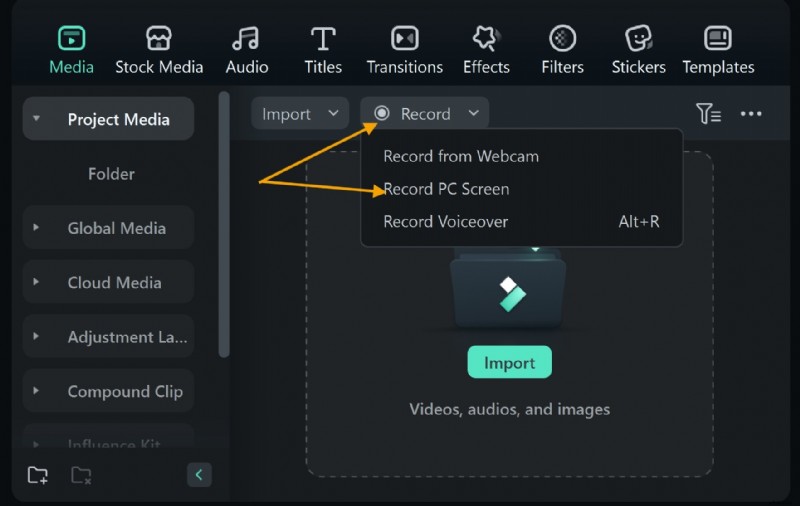
Step 1: Download and install Filmora on your computer by going to the official website. Launch and click on a new project.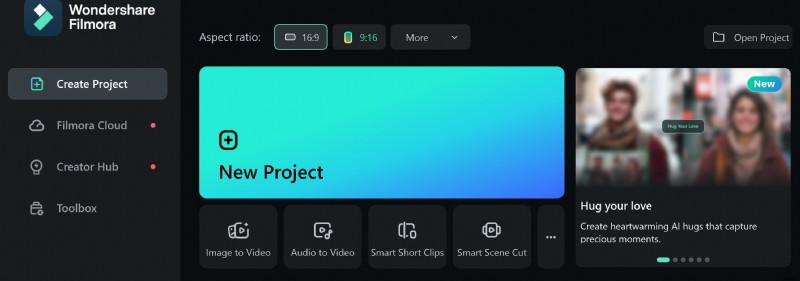 Step 2: Click Record, and choose "record PC Screen" to activate the screen capture function.
 Step 3: Set up the recording parameters. Choose the recording location, adjust the frame rate, and turn on the audio recording. Press 'F9' or click the red 'REC' button to start recording. Before the start, there will be a brief countdown.
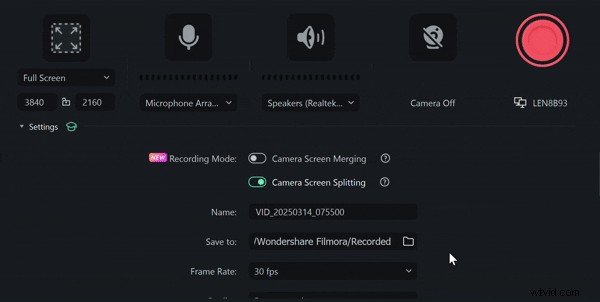 Step 4: Launch Valorant and play as usual. Filmora will record all on-screen activity. Press 'F9' again or click the stop button on the control panel to end the recording. The recorded footage will appear in Filmora's media library. Drag it to the timeline to edit, then export it in your desired format.
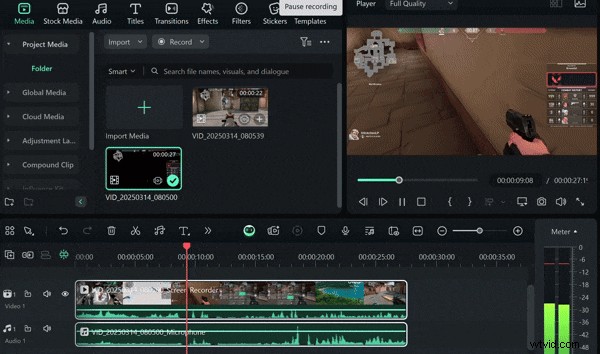
Filmora provides all the tools you need to create professional-quality Valorant videos while maintaining smooth gameplay performance. It’s the best choice if you want powerful and advanced Valorant clipping software.
Is Filmora a Paid Tool?
Yes, Filmora is a paid tool, but it offers a free trial version. The full version unlocks all features, including 4K recording, unlimited export options, and additional editing tools. Given its features and ease of use, this valorant highlights recorder is a solid investment for anyone serious about recording and editing action game clips.
Part 4: Can I Play and Record Valorant Clips on a Mobile Phone?
While Valorant is one of the most popular competitive games on PC, it is not officially available on mobile platforms. Despite rumors online, Riot Games, the developer, says it has not released a mobile version of the game, but there are discussions about its potential release in the future. Therefore, recording Valorant clips on mobile devices isn't an option—yet.
However, if you’re an avid mobile gamer who enjoys similar FPS games, recording clips of other games on your phone is possible. Apps like Medal.tv and DU Recorder can capture high-quality gameplay footage from your mobile screen, giving you the ability to share your moments with friends.
Conclusion
If you're looking for the best Valorant clips download option, check out platforms like Medal.tv and Streamable, where you can save and share high-quality gameplay moments. If you have the right Clips software, capturing your gameplay becomes a breeze.
Since most of these tools allow you to edit these videos, you can make them even more professional and share your best moments with friends. Filmora is one of the top Valorant clipping software with minimal impact on performance, ensuring that your gaming experience remains smooth.