
Record Facebook Video Calls: 4 Proven Methods for Android, iOS, and Desktop
Jul 14, 2025 • Proven solutions
During virtual meetings it’s easy to miss key points. Recording the session lets you review the discussion later, ensuring nothing slips through the cracks. This guide answers the common question, “Can you record a Messenger video call?”, and provides four reliable techniques across desktop, iOS, and Android.
- Method 1: Capture Video Calls on Mac and Windows PCs
- Method 2: Record Facebook Video Calls on iPhone or iPad
- Method 3: Record Facebook Video Calls on Android Devices
- Method 4: Record Chat Videos within Facebook Messenger
Method 1: Capture Video Calls on Mac and Windows PCs
Desktop users benefit from powerful screen‑recording software that preserves audio and video quality. Wondershare Filmora offers a comprehensive suite: screen capture, webcam overlay, microphone recording, and post‑edit capabilities—all in one application.
Filmora’s Screen Recorder can capture any region of your screen and your webcam simultaneously, ensuring the call remains clear and the speaker’s expressions are visible. After recording, Filmora’s editor allows trimming, cropping, noise reduction, and other enhancements.
Try Filmora for seamless recording!
Filmora Screen Recorder can capture any area of the PC screen and webcam, which means it perfectly records your Messenger video calls and retains the original video quality. You can edit the recordings directly within Filmora—making it a one‑stop solution.
Try It Free
For Win 7 or later (64‑bit)



Once you record a Messenger call, you can refine it with Filmora’s editing tools. Trim excess footage, crop the frame, and use AI‑powered noise suppression to improve audio clarity.
Step‑by‑Step: Using Filmora to Record a Messenger Video Call
- Step 1: Open the Screen Recorder and select the Messenger call window.
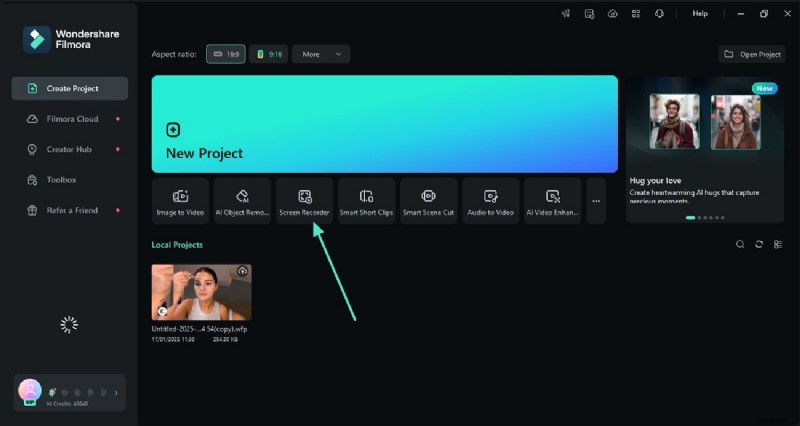
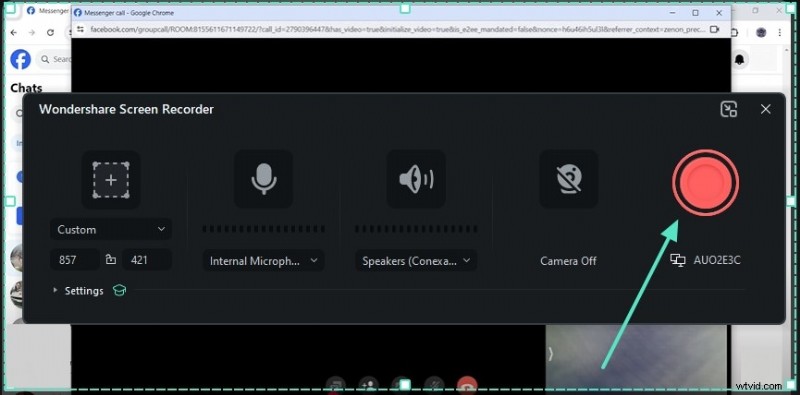
- Step 2: Configure the capture area, enable webcam and microphone, then hit the red "Record" button.
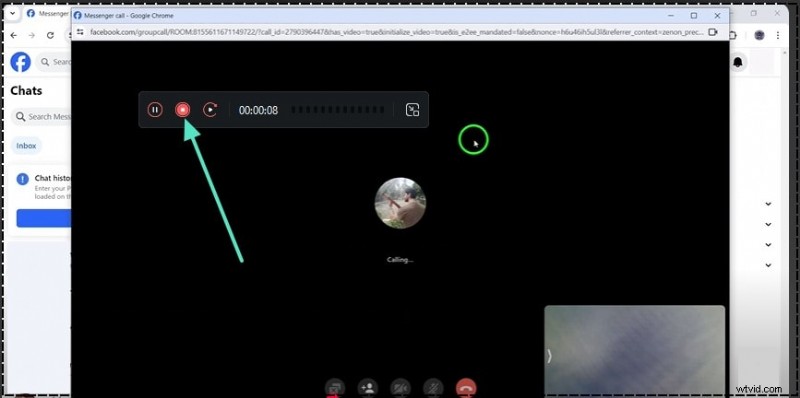
- Step 3: When finished, click the floating "Stop" icon. The video appears in Filmora’s interface, ready for export or further editing.
Method 2: Record Facebook Video Calls on iPhone or iPad
iOS users can leverage third‑party screen recorders to capture Messenger calls. Screen Recorder – 3D Video Recorder is a popular choice that supports webcam and microphone overlays, adjustable resolution, bitrate, and frame rate.
Follow these steps to record a Messenger call on iOS:
- Open the screen recorder app and tap the red "Record" button. Enable the microphone, then choose "Start Broadcast" to begin the call capture.
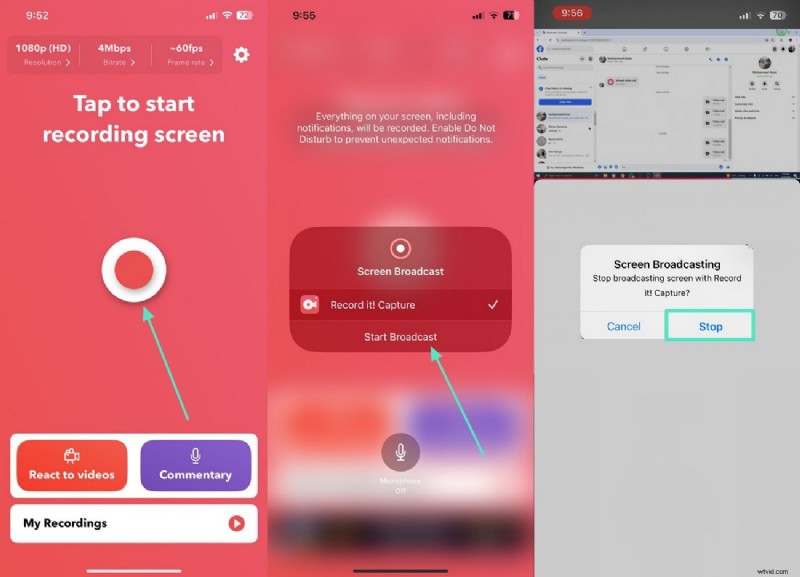
- When finished, tap the top‑right recording bar and select "Stop" to end the session. The video is saved to your device for later review.
Method 3: Record Facebook Video Calls on Android Devices
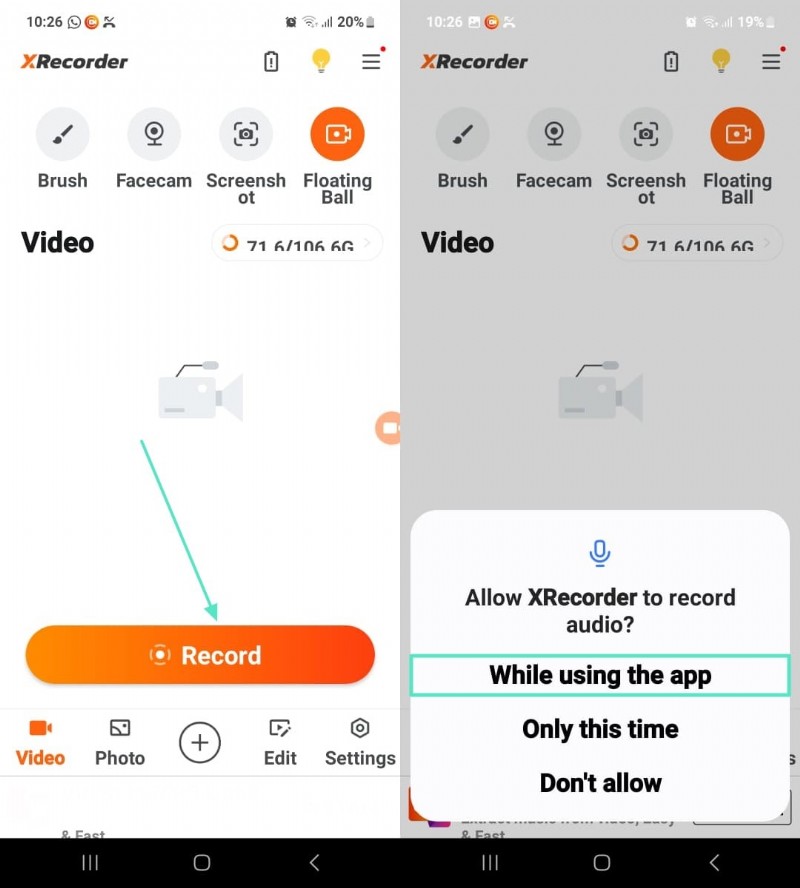
The Google Play Store hosts several robust screen‑recording apps. XRecorder – Screen Recorder is a feature‑rich option that records at up to 120 FPS, supports live audio commentary, and includes a built‑in denoiser for clear sound.
Step‑by‑step guide using XRecorder:
- Open XRecorder and tap "Record". Grant screen‑recording permissions and navigate to the Messenger call.
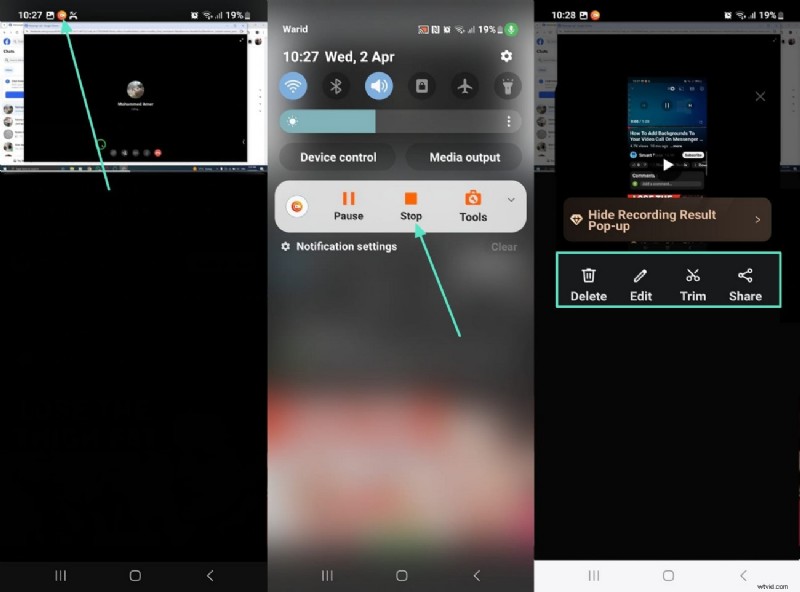
- After the countdown, recording begins (an icon appears in the notification panel). When done, tap "Stop" from the panel and access the video in the app. Trim, share, or edit as needed.
Method 4: Record Chat Videos within Facebook Messenger
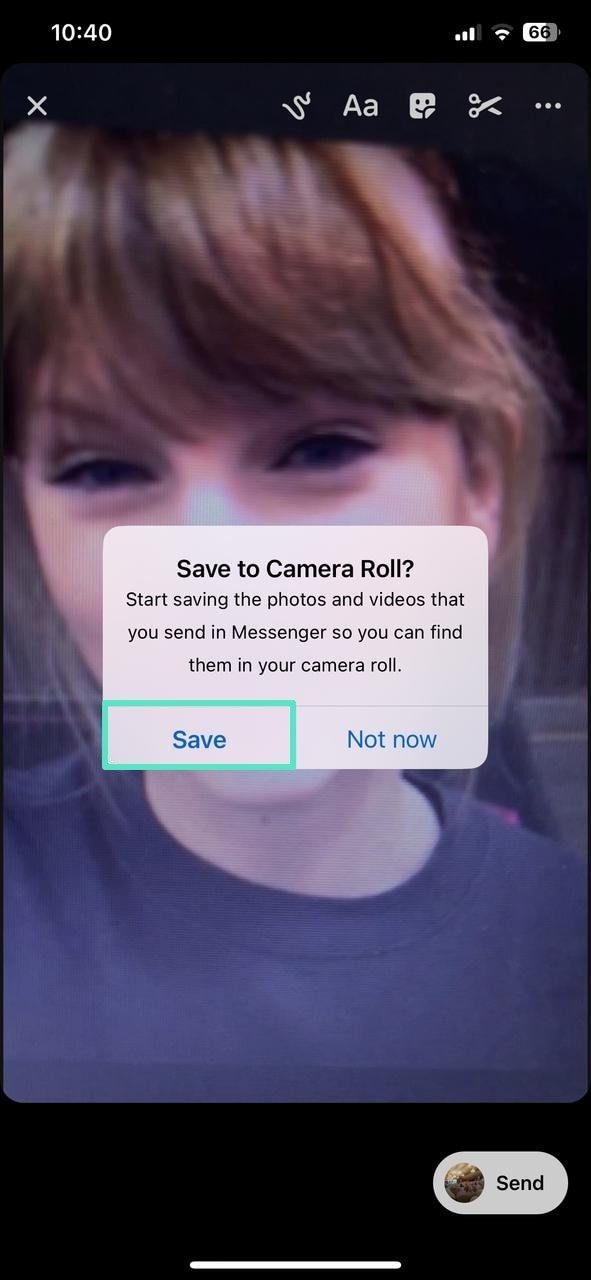
While Messenger lacks a built‑in call recorder, you can capture short video clips during chats. Open a conversation, tap the camera icon to grant permissions, and hold the capture button to record. After sending, you can choose to save the clip to your camera roll or delete it.
Follow the steps below:
- Step 1: In the desired chat, tap the camera icon and allow camera/microphone access.
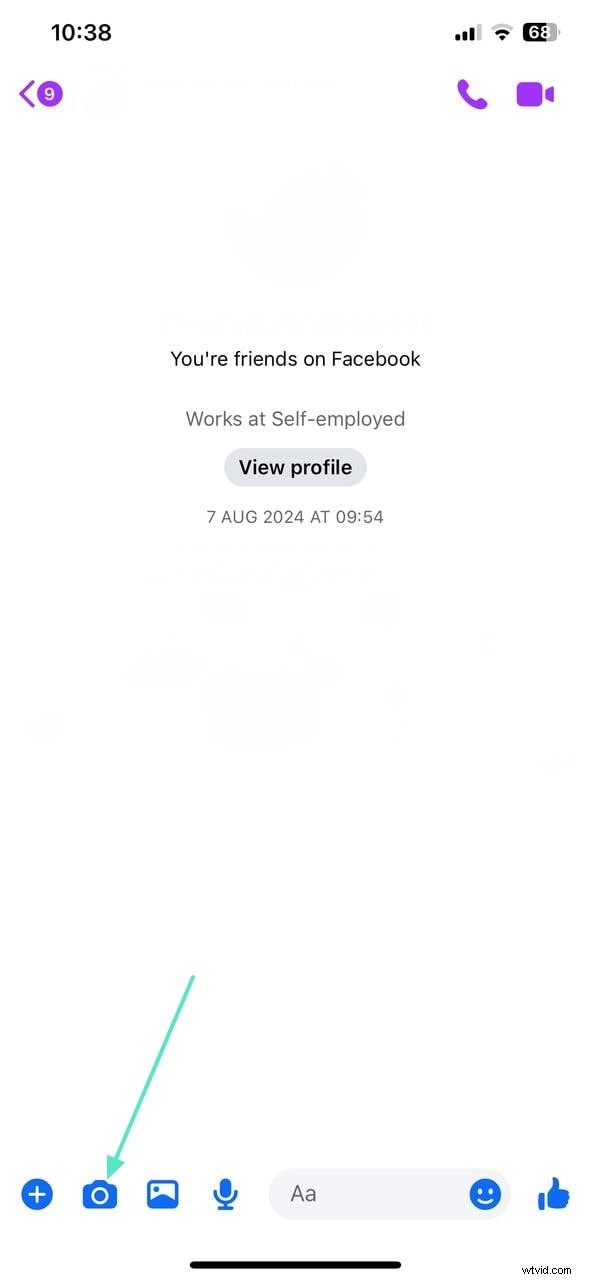
- Step 2: Hold the capture button to record; tap "Send" when finished.
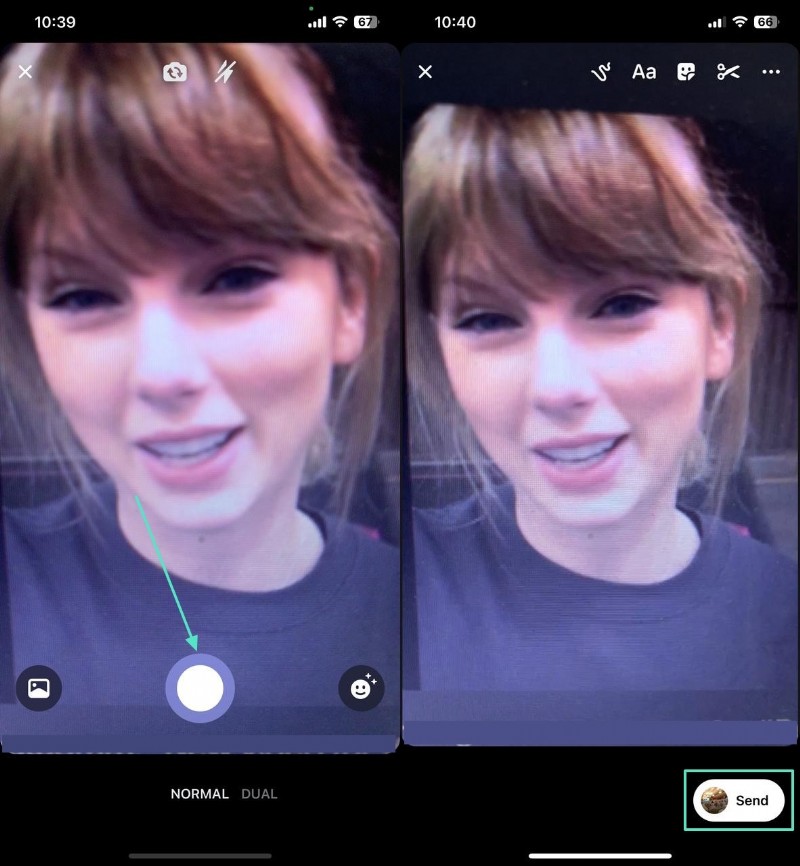
- Step 3: Decide whether to keep the video in your camera roll. The clip appears in the chat thread for easy retrieval.
Conclusion
This guide has answered the question, "Can you record a Messenger video call?", by presenting four clear methods across platforms. For desktop users, Wondershare Filmora stands out as a comprehensive recording and editing solution. iOS and Android users can rely on dedicated screen‑recording apps, while the built‑in Messenger camera offers quick clip capture for casual chats.
Max Wales
Max Wales is a writer and a lover of all things video.
Follow @Max Wales