
Do you want to create virtual avatar videos for your YouTube channel, social media, online courses, tutorials, or gameplay walkthroughs? DemoCreator's motion capture technology can help you make captivating videos, turning your real-time webcam output into a 3D avatar recording.
What is webcam motion capture? How does it work? What are the benefits of this ground-breaking technology? Discover the answers below as we explore this innovative tech and walk you through DemoCreator's Virtual Avatar feature.
Table of Content
Webcam motion capture is an AI-powered technology for tracking real-time facial expressions and body movement on camera to create a lifelike virtual avatar that mimics all motions. It uses facial recognition and detects even the tiniest movements using AI sensors, simulating them in perfect sync and expressing human emotion.
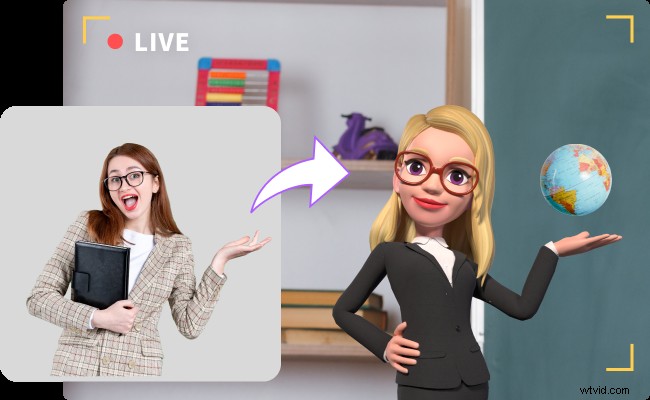
For instance, if you tilt your head, raise your eyebrows, smile, place one hand on your hip, and raise the other to point to an object, your virtual avatar will replicate all those movements without latency. It will detect and copy everything you do on camera, including blinking, frowning, moving your lips when smiling or talking, scratching your nose, and adjusting your hair or glasses.
It's like looking into a mirror, except a cartoon or anime character looks back at you. It sounds exciting, doesn't it? Let's see what benefits you can reap from webcam motion capture.
Benefits of Using Webcam Motion Capture
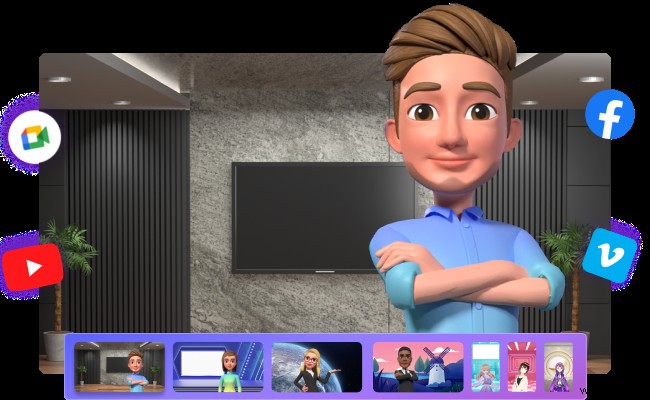
Leveraging motion capture using a webcam provides the following benefits:
- Creating a lifelike digital AI presenter - Are you camera-shy? Do you prefer getting down to business instead of focusing on how you look on camera? Make a realistic virtual avatar that moves like you and showcases your emotions. That will make your videos more immersive and exciting, engaging your viewers and taking your storytelling to the next level.
- Cutting production costs - Do you wish to become a YouTube content creator but can't afford an expensive camera? Embrace webcam motion capture and become a VTuber without investing in costly equipment.
- Increasing production efficiency - Whether you're a VTuber, educator, gamer, or another content creator, webcam motion capture for virtual avatar videos can cut your production time. You don't need to spend days or weeks creating animated characters and implementing them into your videos; specialized software will do the legwork.
Are you ready to enjoy these benefits? Meet Wondershare DemoCreator, your go-to webcam recorder for AI avatar videos.
DemoCreator's Virtual Avatar and Motion Capture Features
DemoCreator's Virtual Avatar is an exclusive AI feature that other screen and webcam recorders are yet to implement. It uses cutting-edge AI technology to detect and track real-time on-camera motions and facial expressions, creating a matching, lifelike virtual avatar that adds depth and realism to your content.This webcam motion capture software tracks your head and upper-body movements, including your face, arms, hands, and fingers. Whenever you blink, wink, look away, raise your eyebrows, frown, smile, or talk, your AI avatar will do the same. It will simulate real-time motion, synchronizing its movements with yours and bringing your story to life.
DemoCreator offers 30+ virtual avatars, including ACG (Animation, Comics, and Games) and cartoon characters. However, it doesn't limit your options; it lets you import VRMs (Virtual Reality Models) to expand your collection.
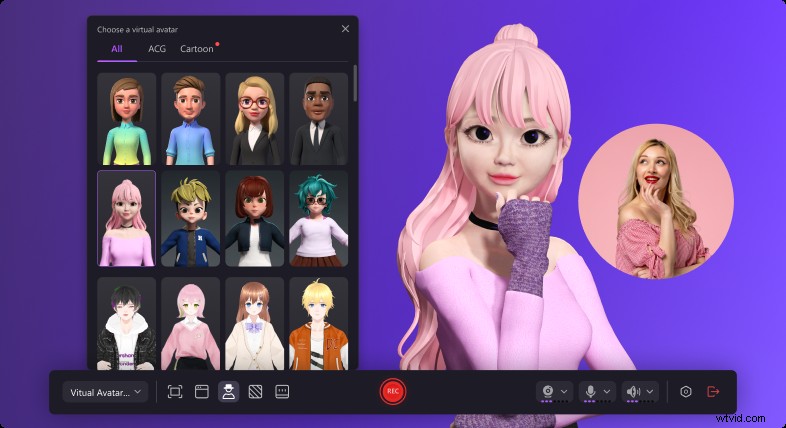
You can resize your virtual avatar, mirror your camera, change or remove the background, specify the recording area (the entire screen, specific windows, or a custom selection), and choose an aspect ratio (standard 4:3, YouTube, TikTok, or Instagram).
You can also activate an AI teleprompter to deliver your lines seamlessly and create a fluid experience. It lets you type or import a script, optimize it with AI, or manually adjust the font, text alignment, speed, and opacity.
Another excellent feature includes screen drawing tools for adding annotations while recording. You can highlight mouse clicks, add cursor spotlight or magnification effects, and draw shapes (e.g., lines, circles, and arrows) to bring attention to vital information. That's ideal for tutorials or when presenting graphs and charts.
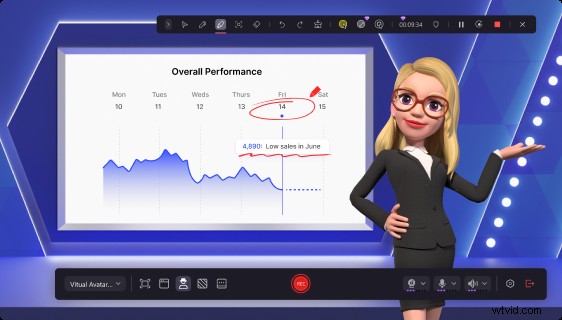
Let's see how to create virtual avatar videos with DemoCreator's webcam motion capture technology.
How to Use DemoCreator With Virtual Avatar and Motion Capture
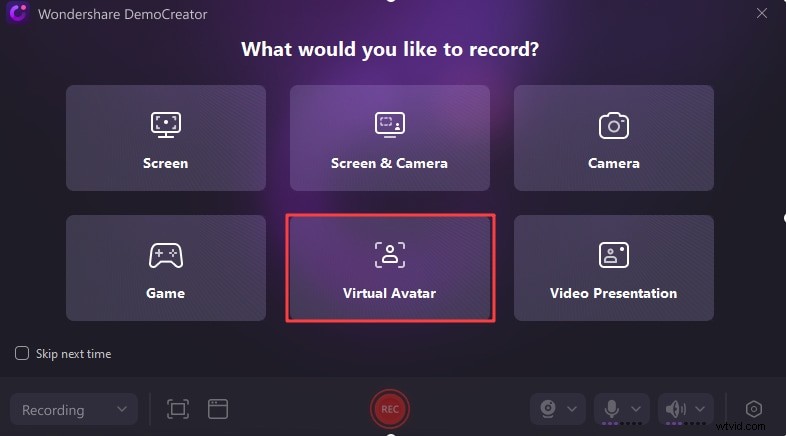
Virtual Avatar is one of DemoCreator's six recording modes. Others include Screen, Screen & Camera, Camera, Game, and Virtual Presentation. However, it doesn't stop there. It also lets you edit your recordings and other media, making it perfect for all content creators.
Here's how to record and edit a virtual avatar video with DemoCreator:
- Download and install Wondershare DemoCreator on your computer.
- Launch the software, register or log into your account, and click Video Recorder.
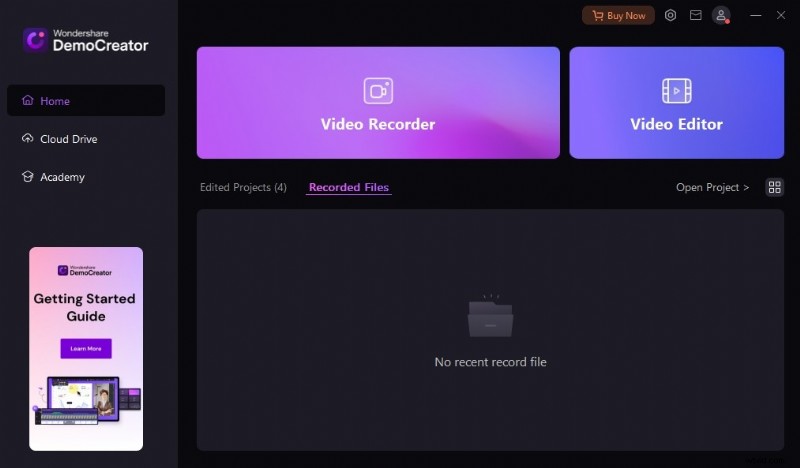
- Choose the Virtual Avatar recording mode.
- Specify the recording area: the entire screen, one or more windows, a custom selection, or a fixed aspect ratio. Then, select your camera (if you wish to mirror it), microphone, and system audio device.
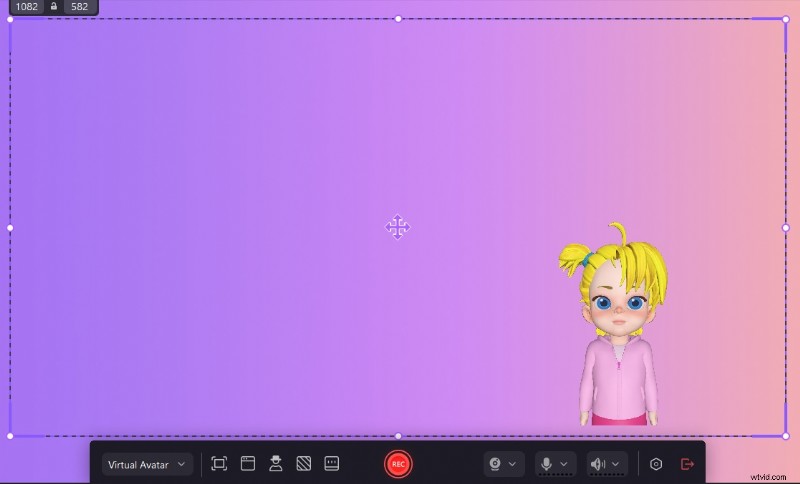
- Choose a virtual avatar and customize its proportions.
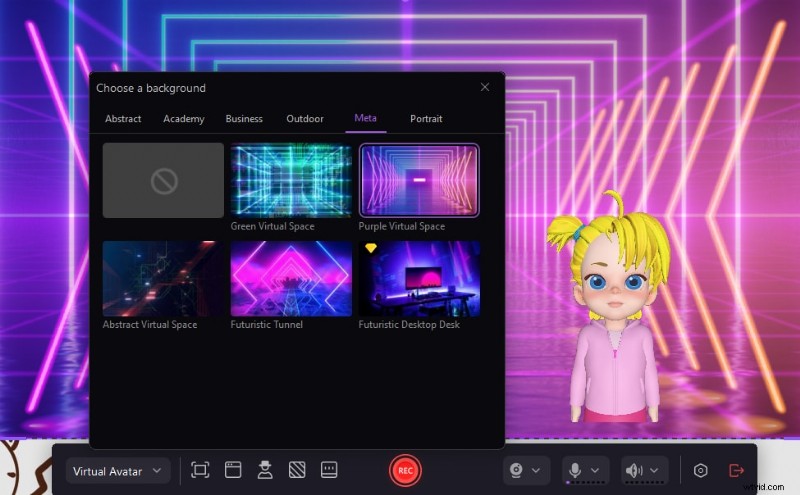
- Browse the available backgrounds across Abstract, Academy, Business, Outdoor, Meta, and Portrait categories and select the most suitable scene.
- Enable the AI Teleprompter, type your lines, or click Import to add an existing script. Optimize it manually or with AI and hit REC or F9 to start recording (pause and resume anytime with F9).

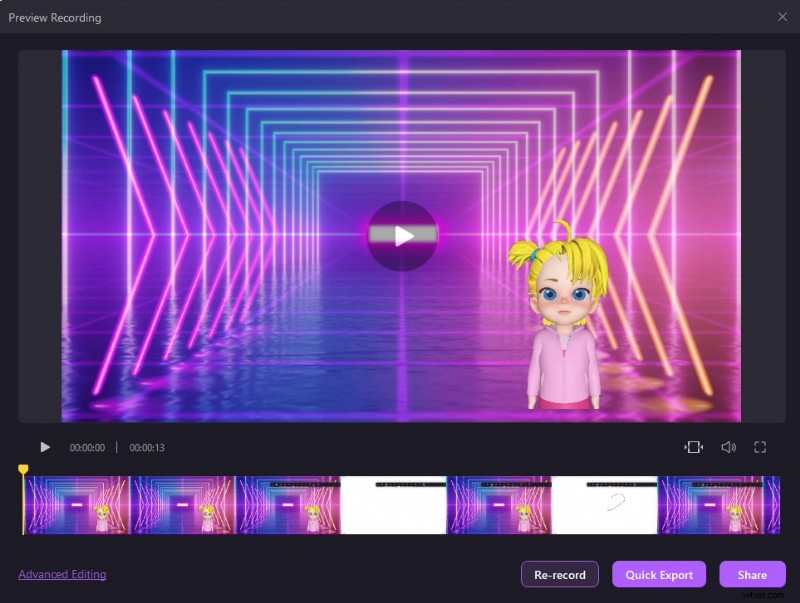
- Finish recording using F10 or the Stop button and preview the video. Click Re-Record if it doesn't meet your expectations or Quick Export to save it to your device. You can also click Share to publish it online or Advanced Editing to polish it in DemoCreator.
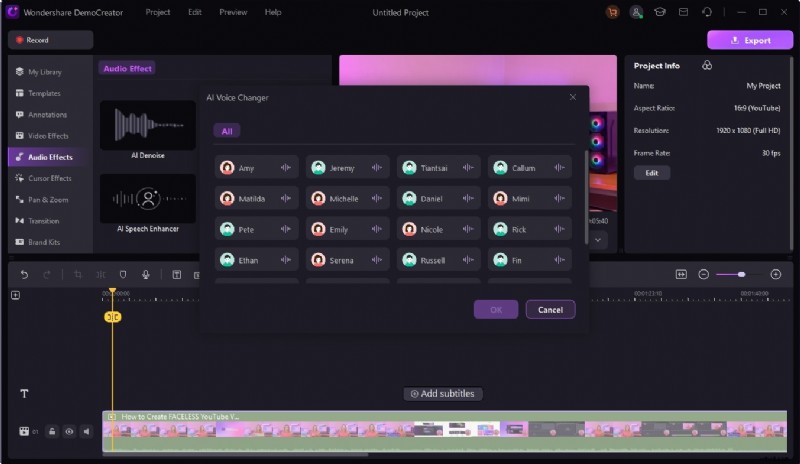
- If you access DemoCreator's Video Editor, you can enrich your virtual avatar video with annotations, transitions, brand kits, animations, filters, stickers, auto-captions, subtitles, and audio effects like AI Denoise, AI Speech Enhancer, AI Voice Remover, and AI Voice Changer. Click Export once you finish editing.
- Choose a location, format, resolution, and frame rate, and click Export to save the recording to your device. Otherwise, connect to YouTube, TikTok, or Vimeo, adjust the settings, and click Upload to share your video.

Bonus: How To Edit Your Webcam Motion Capture Videos
Why would you need another software when you can edit videos in DemoCreator? Well, DemoCreator is a professional screen and camera recorder. It's perfect for quickly creating video presentations, explainer videos, tutorials, gameplay videos, and other recordings. It does have many editing features, but a dedicated video editing software opens the door to more possibilities.
Wondershare Filmora is an excellent example. It's an AI-powered video editor with millions of creative assets. It has recording capabilities, but they only include capturing your screen, camera, system audio, and microphone. It doesn't have multiple recording modes, webcam motion capture, virtual avatars, a teleprompter, and other recording functionalities available in DemoCreator.As a professional video editor, Filmora offers advanced features for fine-tuning your videos. Some include AI frame interpolation, AI copilot editing, AI TTV (Text-to-Video), motion tracking, keyframing, audio ducking, and a music generator.
Filmora has everything content creators need to unleash their creativity. The best part? It receives frequent updates, adding innovative AI tools to its extensive feature library.
Here's how to edit your webcam motion capture videos in Filmora:
- Download and install Wondershare Filmora on your computer.
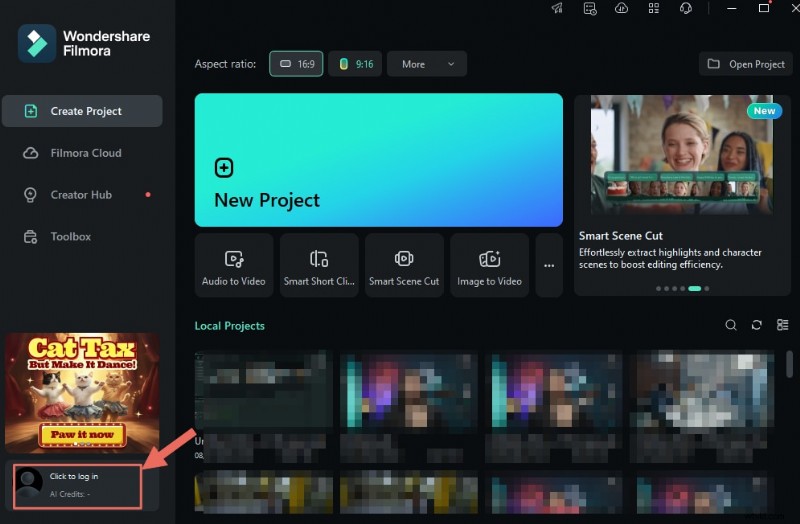
- Log into your Wondershare account and click Create Project > New Project.
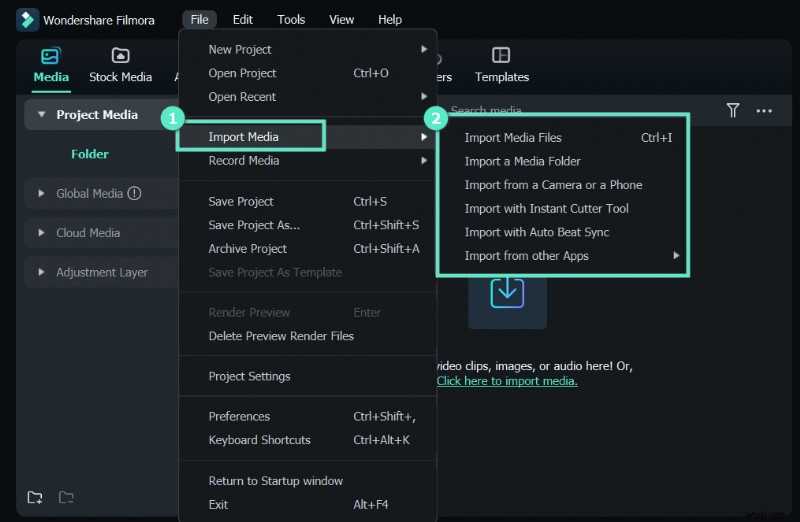
- Go to File > Import Media > Import Media Files and choose your webcam motion capture video.
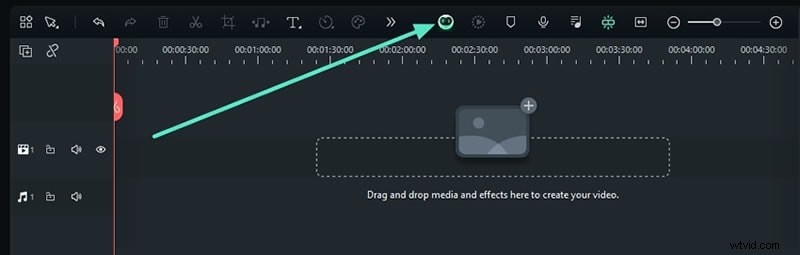
- Drag and drop it onto the timeline and activate the AI Copilot from its toolbar to get editing suggestions.
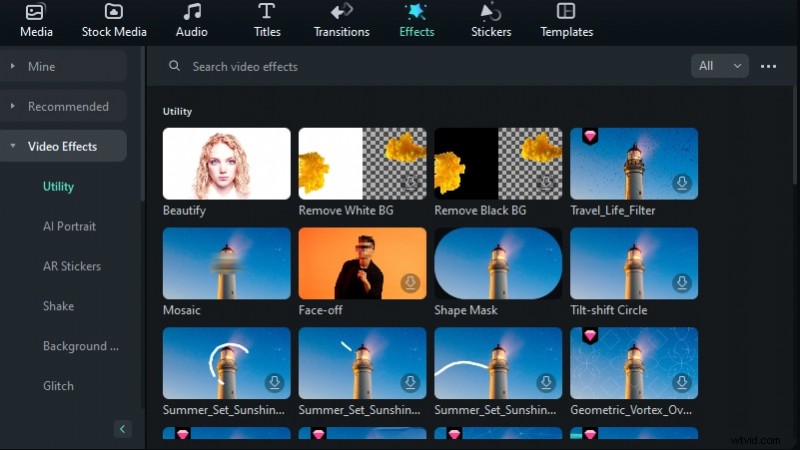
- Navigate through Audio, Titles, Transitions, Effects, and Stickers tabs to choose from various options to enhance your video. For instance, clicking Effects reveals Video Effects, Filters & LUTs, Overlays, Audio Effects, NewBlue FX, Boris FX, and other categories, each with vast collections. Drag and drop any element onto the timeline and adjust it in the Properties panel.
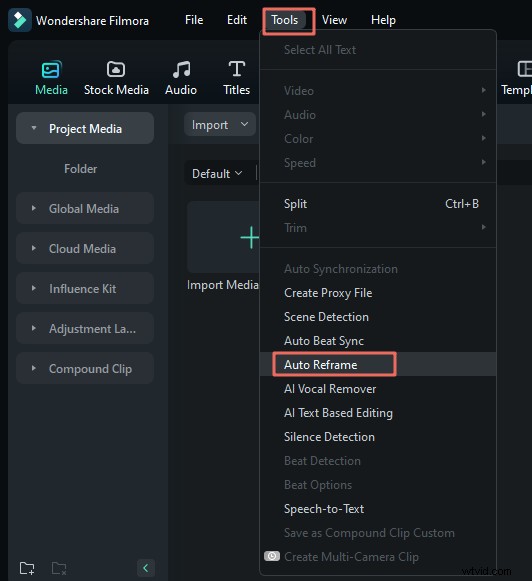
- Click Tools to explore Video, Audio, Color, and Speed functions. Some quick-access options include Scene Detection, Auto Reframe, AI Vocal Remover, AI Text-Based Editing, and Silence Detection.
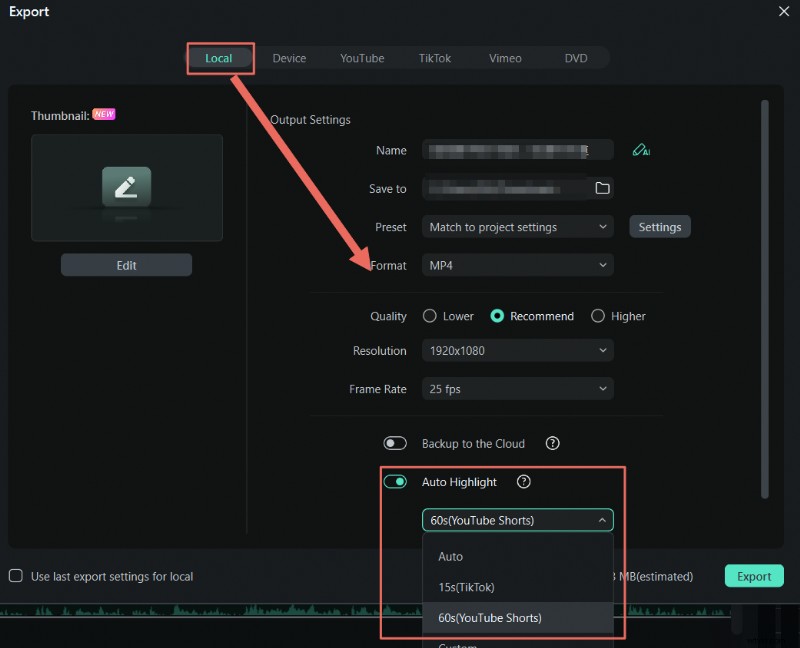
- Once you complete editing, click Export and specify the output settings. If you choose a local directory and the MP4 format, Auto Highlight can split your video into multiple short clips (15-second TikTok, 60-second YouTube, or custom-length videos).
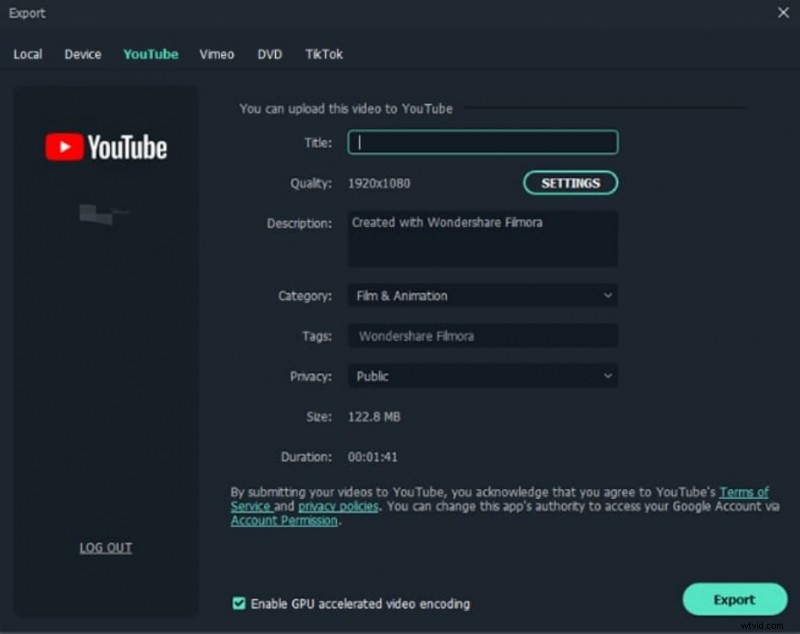
- If you wish to share the video directly on YouTube, Vimeo, or TikTok, connect to your account, modify the settings, and click Export.
Conclusion
Webcam motion capture for virtual avatar videos has taken the world by storm. Content creators increasingly leverage this state-of-the-art technology to make engaging videos that glue viewers to the screen.
Do you wish to create videos that stand out? Try DemoCreator's webcam motion capture and tell a unique story through expressive virtual avatars. Then, transform your recordings with Filmora's AI-driven editing functionalities that leave nothing to be desired.