
Fujifilm’s GFX100 and GFX100S both have a 102Mp medium format sensor, which means they can produce huge images. In fact, if you print at 300ppi, the prints measure 98.62 x 73.96cm or 38.8 x 29.1-inches. However, if you need something bigger still, the GFX100 and GFX100S both feature Fujifilm’s Pixel Shift Multi Shot mode. They enable you to create prints measuring 197 x 148cm or 77.5 x 58-inches at 300ppi.
When Pixel Shift Multi Shot mode is activated, the camera automatically captures 16 raw files, one after the other, using the in-body image stabilisation system to shift the sensor between each shot. These images can then be combined using Fujifilm’s Pixel Shift Combiner software, which is available for free for PC and Mac computers. The final results are 405Mp images!
Currently, Pixel Shift Multi Shot mode is only available on the GFX100 and GFX100S, but with in-camera image stabilisation appearing in other Fujifilm cameras, including the Fujifilm X-T4, perhaps we will see it rolled out to other models?
The good news is that it’s very easy to use Fujifilm Pixel Shift Multi Shot mode as follows:
01 Use a tripod
In order for Pixel Shift Multi Shot mode to deliver the results you expect, the camera needs to be motionless, so mount it on a sturdy tripod and compose the image.
Read our guide to the best tripods
02 Select Pixel Shift Multi Shot mode
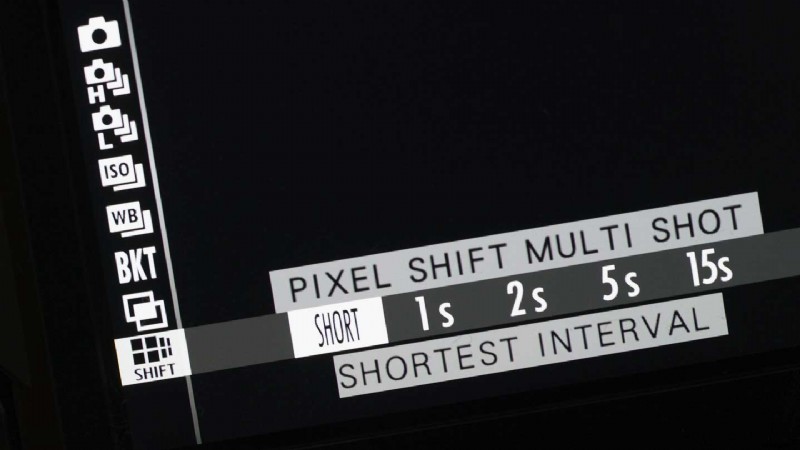
Pixel Shift Multi Shot mode is found at the bottom of the drive mode options. These are accessed by pressing the drive mode button. Scroll down to select the mode.
03 Set the interval
Fujifilm recommends that you selected the shortest interval, which is the first option. However, if you prefer, the interval between each exposure can be set to 1, 2, 5 or 15sec. Simply scroll over to the one you want using the joystick on the back of the camera.
04 Take the shots
Once you’re happy with the composition and focus, fully-depress the shutter release button to start the camera shooting. It will automatically capture a sequence of 16 images with your specified interval in between each of them. A counter on the camera shows the progress.
05 Open Fujifilm’s Pixel Shift Combiner
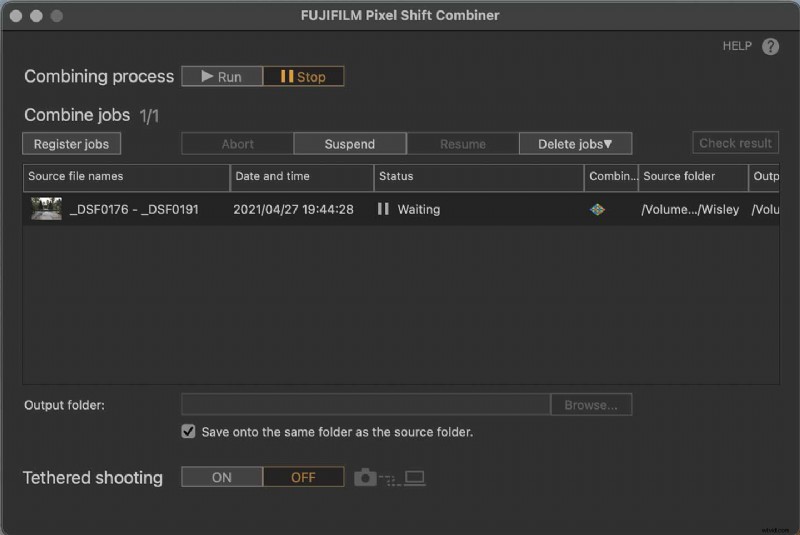
The images need to be combined on a computer so the first step is to download your images to your drive and open the Pixel Shift Combiner software.
Then, click on Register jobs’ and select the first of the sequence of 16 raw files shot in Pixel Shift Multi Shot mode, the software will automatically detect the others.
Now click on ‘Run’ to set the software to work. It will automatically combine the images and save the composite as a DNG file in the folder with the original files.