
What is Pixel Shift Multi Shooting mode?
The Sony A7R III debuts a new mode for Sony called Pixel Shift Multi Shooting mode. When this is activated via the menu, the camera takes a sequence of four images which are tagged for compositing. Then in Sony’s new software, Imaging Edge, the images can be merged into one with greater detail and better tonal gradations.
Although the software uses four images, the files are actually output at 42.2Mp size – the same as the standard images from the camera.
The images below compare a cropped section of two images, one that’s a composite created by using Pixel Shift Multi Shooting mode and Imagine Edge and another standard image of the same subject at the same settings.
The process of making these crops suitable for display on this page has hidden some of the difference, but it’s still possible to make out that the Pixel Shift Multi Shooting image has a little more detail. It also looks a bit more natural.
If you head over to our Flickr album you can download the images to compare them in more detail yourself.
You’ll also see some images of a flower in which it’s very hard to spot a difference between the two capture modes at 100%, but the Pixel Shift version looks more vibrant at normal viewing size.
- Sony A7R III Review
How do I get Sony Imaging Edge?
Imaging Edge isn’t supplied with the camera, it has to be downloaded. Follow this link to download Sony Imaging Edge. The software actually comprises three packages called Viewer, Editor and Remote that work together.

Standard Image

Standard Image at 100%

Pixel Shift Multi Shot Image at 100%
Suitable subjects for Pixel Shift Multi Shooting
Because Pixel Shift Multi Shooting mode requires four images that are captured with a minimum of 1 sec between each of them, the camera and the subject need to be still. If part of the subject is moving, for example, foliage in a landscape it may be recorded in several places in the final image. If however, you shoot with an exposure time that’s long enough to blur the subject in each image, it’s possible to create a more natural looking result – provided you don’t mind blurred foliage.
- Shooting at night with the Sony A7R III
How to use Pixel Shift Multi Shooting Mode
1. Navigate to page 3/14 in the first Menu tab of the A7R III and select Px Shift Multi Shoot.
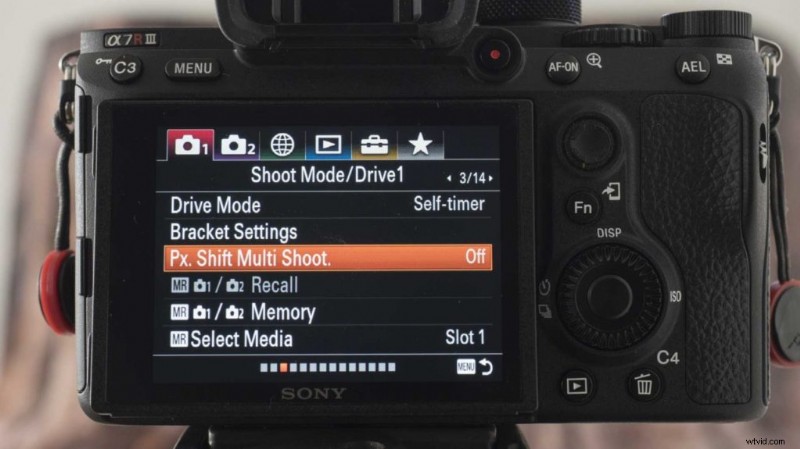
2. In the next screen, scroll down to the ‘On’ option.
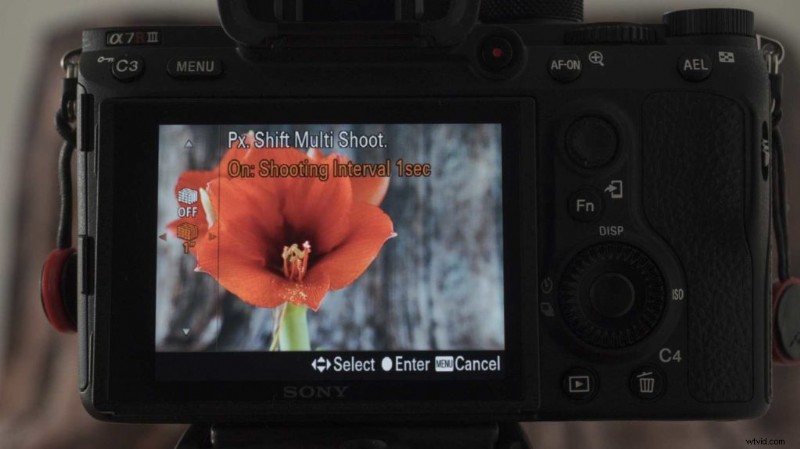
3. Toggle left or right to set the interval between the fours shots that will be taken. The interval can be set to 1, 2, 3, 4, 5, 10, 15 or 30 seconds
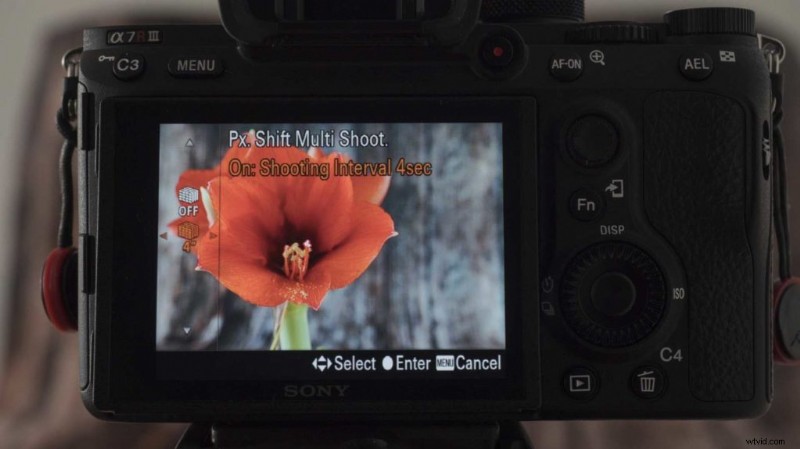
4. Compose the shot with the camera on a tripod and select the exposure and white balance settings as normal
5. Press the shutter release once, the camera will then take four images in succession with the specified time between each shot. The camera will automatically record raw files, whatever image format you were previously shooting.
6. Download the images to your computer and open Imaging Edge Viewer.
7. Use the file navigation tools in Viewer to find the folder where you stored the Pixels Shift Multi Shooting (PSMS) images
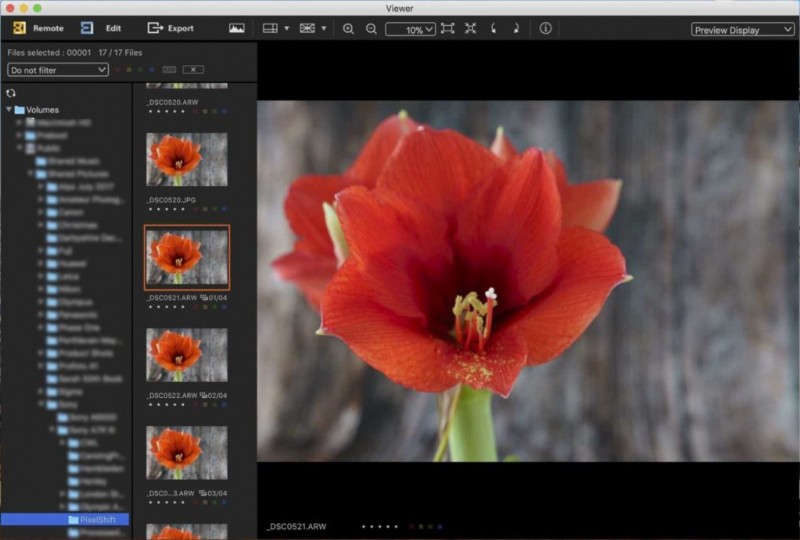
8. Locate the Pixel Shift Images – they have an icon underneath their thumbnail with 01/04, 02/04, 03/04 or 04/04 next to it and click on one – any of the four.
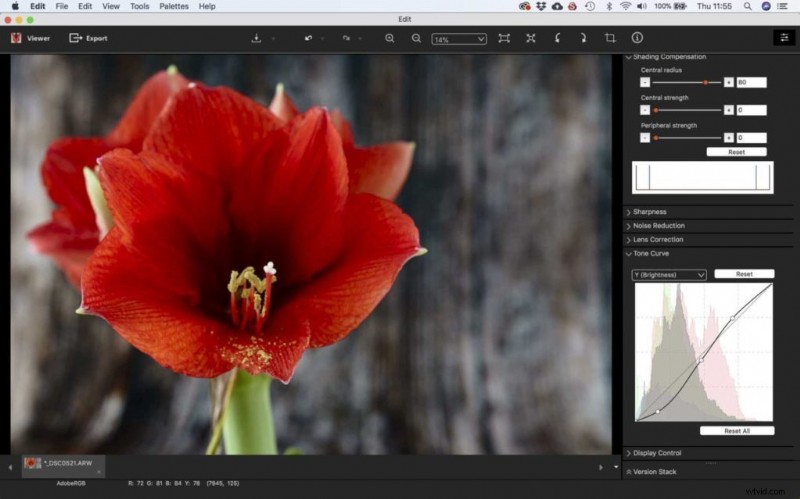
9. If necessary select Edit from the menu bar to access the editing options and make any adjustments before clicking on Viewer to return to the browser
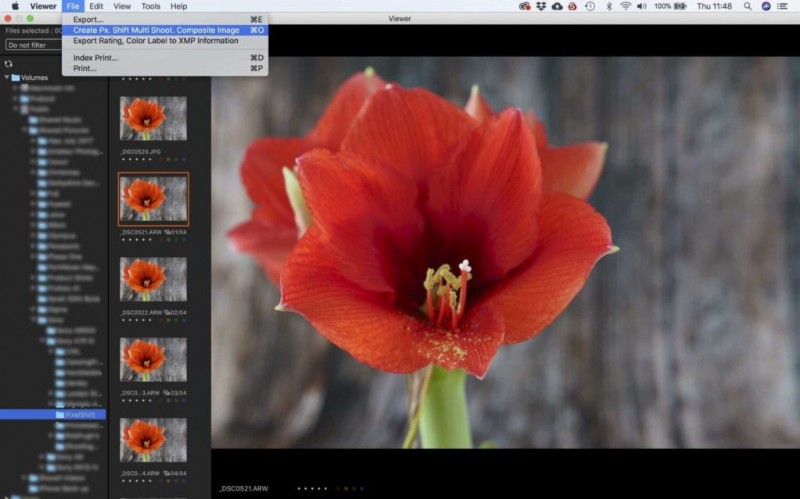
10. Click on File in the Menu bar followed by ‘Create Px Multi Shoot Composite Image’
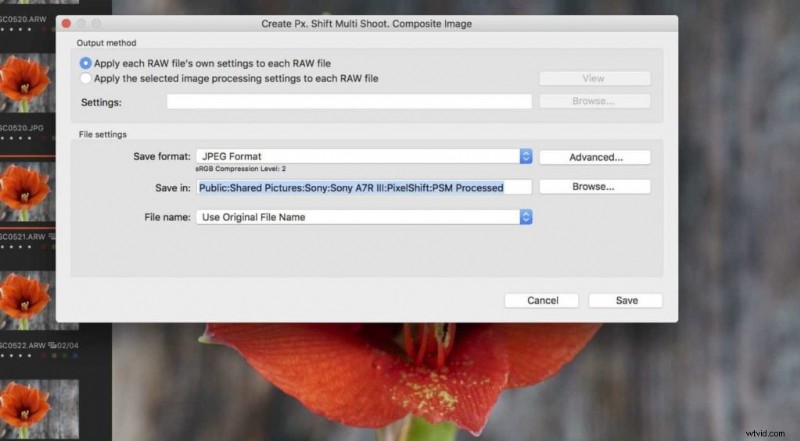
11. In the next screen select to apply each file’s own settings and set the format for the final image. Also, specify the storage location and name before hitting save.
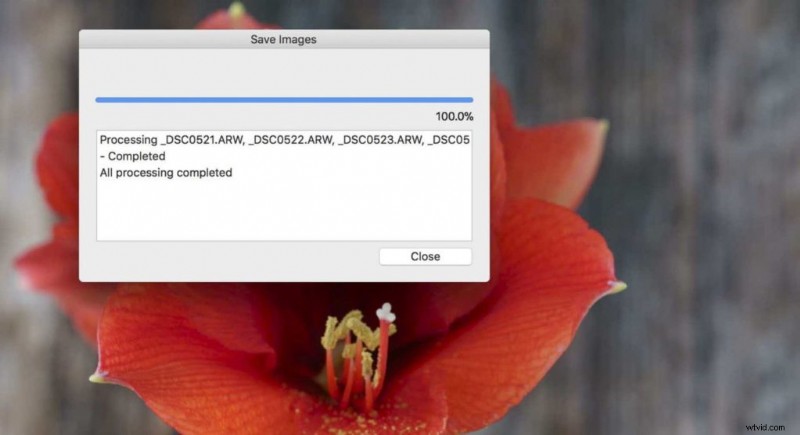
12. The software will now composite the images and create a new file in the location you selected.
Sony Pixel Shift Multi Shooting Mode
 ‹
›
×
‹
›
×
- Shooting sport with Sony A7R III