
Nikon introduced a Guide Mode in 2009 with the D3000. Since then, every successive D3XXX camera model has had a Guide Mode, including the current Nikon D3500.
Nikon’s Guide Mode is designed to help novice photographers take control of the camera and learn about the settings as they go. It uses non-technical language to explain everything, so as well as learning about how to control your camera, you learn about photography.
Here’s how to use the Nikon D3500’s Guide mode:
01 Set Guide on the mode dial
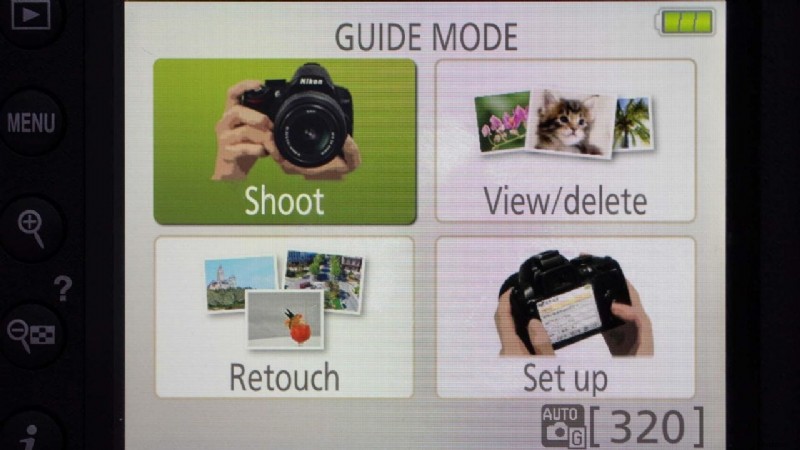
The first step is to rotate the camera’s mode dial to ‘Guide’ and select Shoot, View/delete, Retouch or Set-up using the navigation and OK buttons. Each of these gives you a selection of options followed by step-by-step instructions.
We’re going to explain Shoot first, so select that.
02 Select Easy operation
Shoot offers two levels of control, Easy operation and Advanced operation.
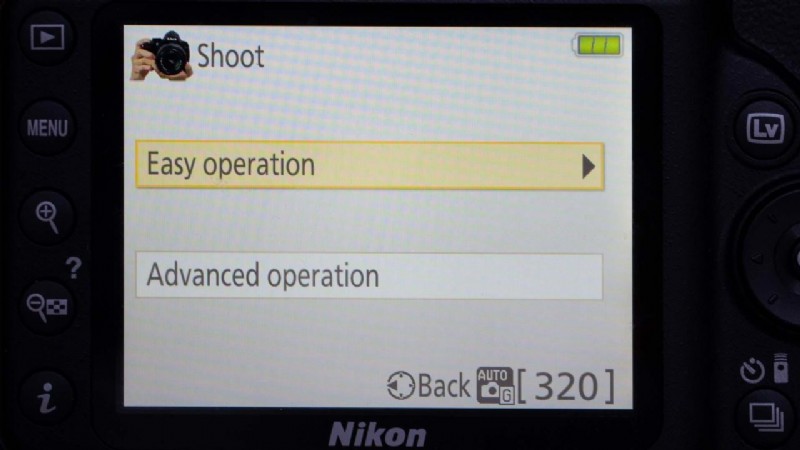
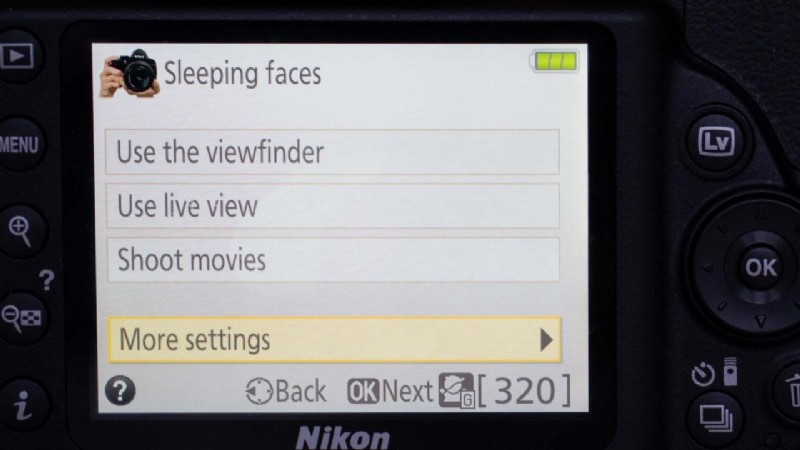
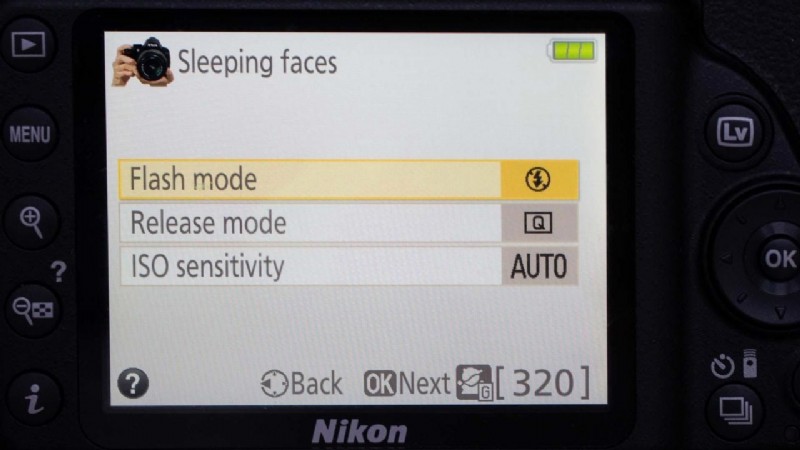
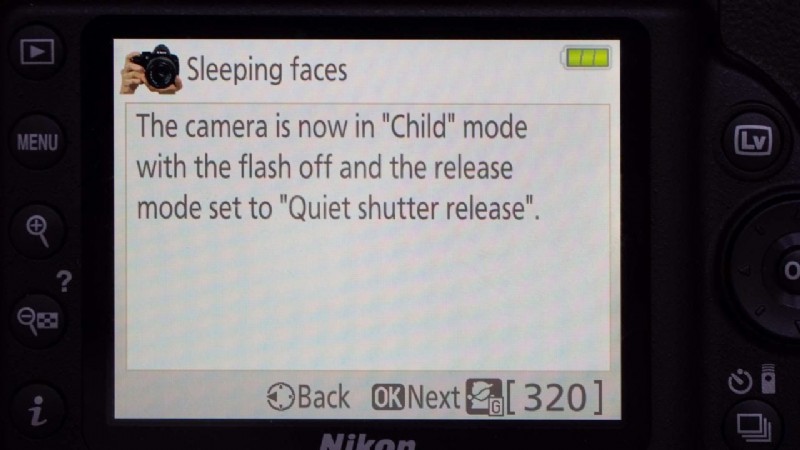
Select Easy operation to reveal a choice of shooting portraits, night portraits, night landscapes, distant subjects, close-ups and moving subjects, or shooting without flash, or in automatic mode. Selecting one of them sets the camera to the relevant Scene mode.
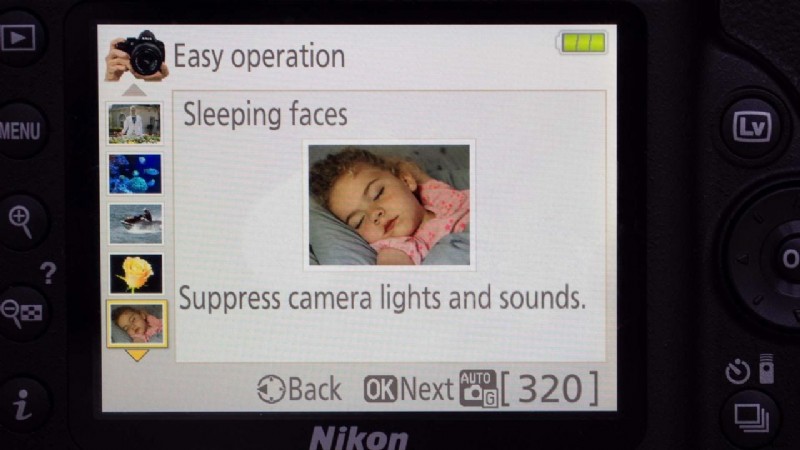
It means the camera will set appropriate exposure, white balance, focusing and colour modes for the subject automatically.
03 Select Advanced operation
Follow step 1, but this time when you’re given the choice of Easy or Advanced operation, select Advanced.
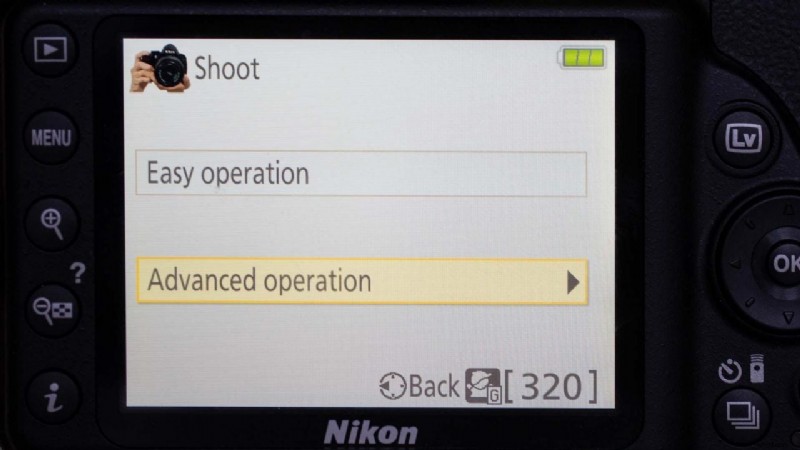
You’ll now see a collection of effects that you might want to achieve. The options are Soften backgrounds, Bring more into focus, Freeze motion (people), Freeze motion (vehicles), Show water flowing, Capture reds in sunsets, Take bright photos and Take dark photos.
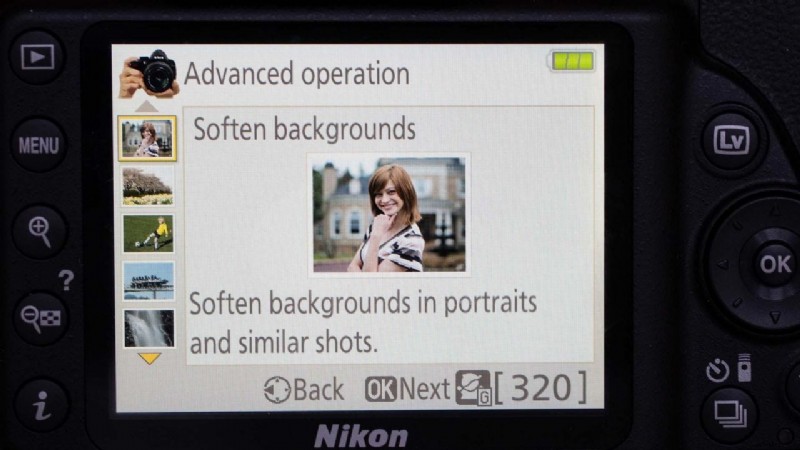
04 Follow the on-screen instructions
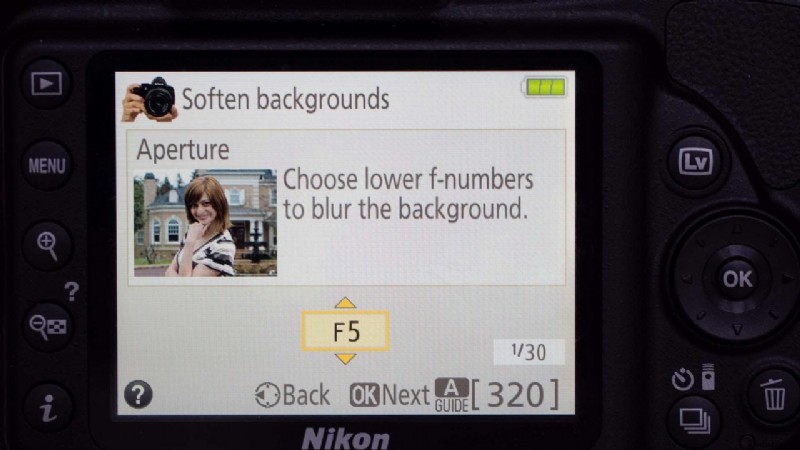
Once you’ve selected an option the camera explains which mode or control is required and sets it. For example, with ‘softens backgrounds’ the camera explains that aperture-priority mode is the setting that lets you control aperture and that using a longer focal length will give more background blur.
Pressing the OK button or waiting a few moments reveals the next screen with the words ‘Choose lower f-numbers to blur the background’. A scroll control lets you adjust the settings.
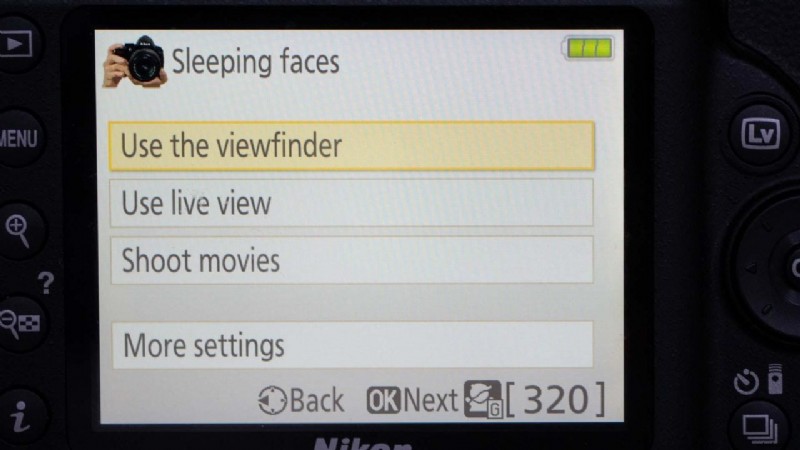
Once the OK button is pressed to confirm the aperture setting, a new screen allows you to choose between using the viewfinder or the screen to shot the image or if you want to shot a movie. There’s also a ‘More settings option that lets you adjust other features such as the Picture Control mode.
There’s no need to use the mode dial to set Aperture-priority mode (for example) when you’re in Guide mode, the camera will set it for you. However, it helps you learn what the various camera settings do so you can use them in the future.
05 Select View/Delete, Retouch or Set-up
As well as helping you take control of the camera at the shooting stage, Nikon’s Guide Mode takes you through setting up the camera and reviewing, deleting and retouching images.
It’s just a case of rotating the camera’s mode dial to ‘Guide’ and select View/delete, Retouch or Set-up using the navigation and OK buttons.
The View/Delete, Retouch and Set-up options are very straight forward.
You just select which you want then choose from the options with choices such as ‘View single photos’, and ‘View multiple photos’ in View/Delete and ‘Trim (Crop Images)’ in Retouch.