
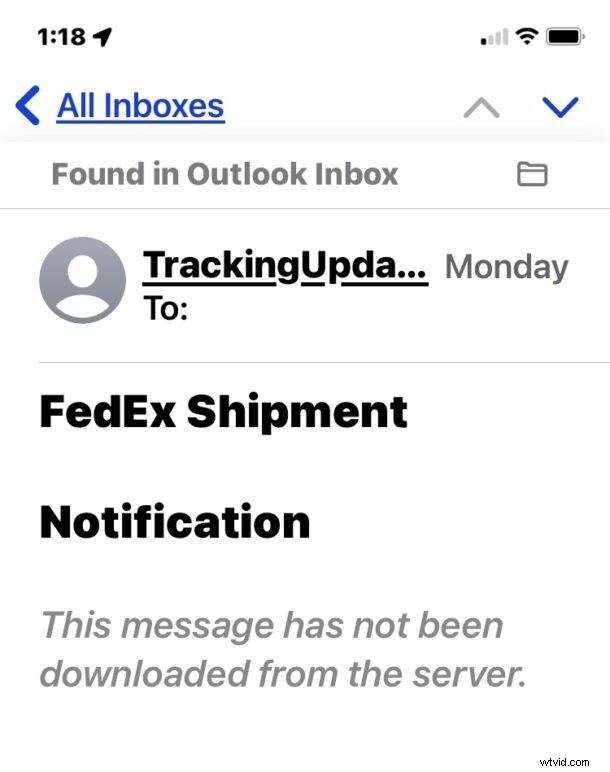
Occasionally, Mail app users on iPhone and iPad may try to open an email and encounter an error message in the email subject that says “This message has not been downloaded from the server.” The Mail app does not provide any means to download the email message from the server, leaving it up to the user to figure out how to get the email and read the email.
If you encounter the “message not downloaded from server” error message in Mail on iPhone or iPad, read along to fix and troubleshoot the problem so that you can see the email as intended.
1: Make sure you’re online
This goes without saying, but your iPhone or iPad must be online with an active internet connection to be able to retrieve email.
Confirm you have a wi-fi or cellular connection that is active (by visiting a website like this one).
2: Quit and relaunch Mail app on iPhone or iPad
Sometimes quitting and relaunching the Mail app is enough to resolve the ‘message not downloaded’ problem.
On the latest iPhone and iPad models without a Home button, swipe up from the very bottom of the screen to pull up the app switcher, locate the Mail app, then swipe up on Mail app to force quit it. Now relaunch Mail app and try to open the email message again.
3: Restart the iPhone or iPad
Restarting iPhone or iPad often remedies the “message not downloaded” mail error, and it’s actually the first troubleshooting trick I use when I run into this error in Mail app somewhat regularly on my iPhone.
For modern iPhone & iPad with Face ID: Press Volume Up, then press Volume Down, then press and hold down the Power/Lock button until you see the Apple logo on the screen to force a restart.
For older iPhone & iPad models with Home buttons: Press and hold the Home button and Power button until you see the Apple logo.
Now relaunch Mail app and return to the email message that was showing the message download error, it should be able to download just fine now, allowing you to read the email message.
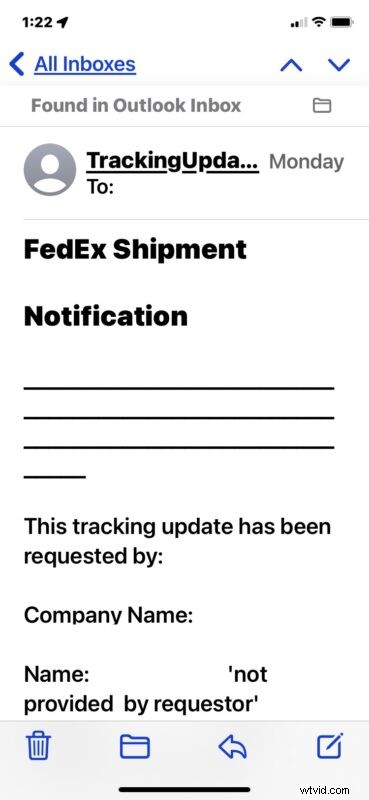
For example, here’s a loaded email message that, before restart, had failed to load:
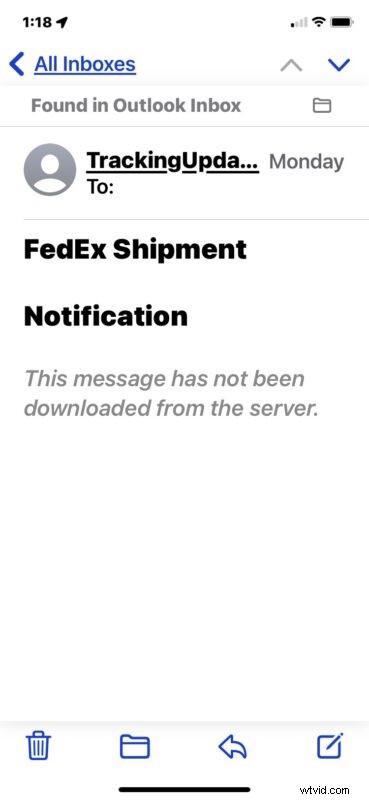
And the example message with the “This message has not been downloaded from the server” error message:
Why does “This message has not been downloaded from the server” error happen?
There could be any number of reasons from this, from how the services are configured, to behind the scenes stuff, to temporary blips in communication between the device and server, to brief server downtime, or a hiccup in your internet connection.
Some services seem more prone to this happening than others, for example Mail app with Outlook and Hotmail seem to more frequently encounter the “message not downloaded” error message compared to Gmail.
Rarely, this error message pairs with another stating “Cannot Get Mail” and when one is fixed the other pops up instead. If that happens it’s often an issue with the Mail account authentication, or internet connection itself, and both can also sometimes coincide with having an email stuck in the outbox, which further indicates a problem with the connection or authentication.
If you’ve encountered this error and found the above fixes to work for you, or you found another resolution, let us know in the comments.