
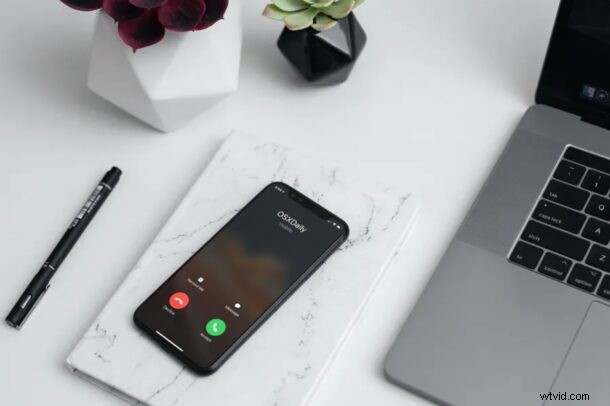
Are you still getting incoming phone calls and notifications from certain contacts even though you’ve enabled Do Not Disturb on your iPhone? Not sure why this is happening? We understand how frustrating this can be, but it’s really easy to fix and mute these contacts as well.
Do Not Disturb on iOS devices makes it really convenient to temporarily silence phone calls and mute notifications, which is pretty useful while you’re in an important meeting to avoid bothering others with the alert sounds. However, the default setting for Do Not Disturb still allows incoming phone calls from contacts in your Favorites list when the feature is turned on. That’s right, your Favorite contacts are immune to your Do Not Disturb mode.
Let’s take a look at how you can stop phone calls from Favorites with Do Not Disturb is enabled on your iPhone.
How to Stop Phone Calls from Favorites When Do Not Disturb / Focus is Enabled
Removing the Favorites override for Do Not Disturb is actually a pretty simple and straightforward procedure.
- Head over to “Settings” from the home screen of your iPhone.
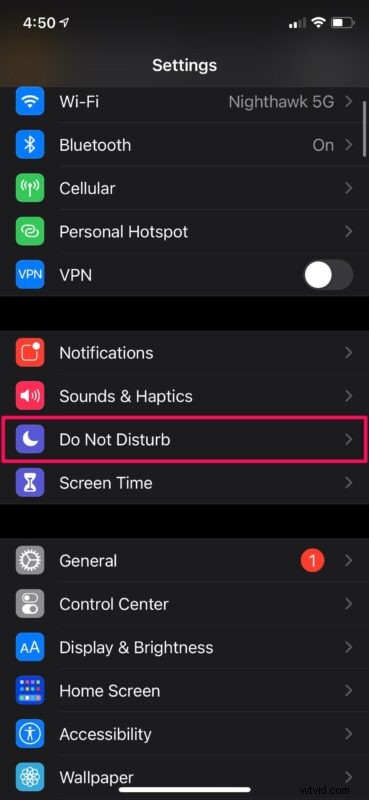
- In the settings menu, scroll down and tap on “Do Not Disturb” which is located just above the Screen Time option.
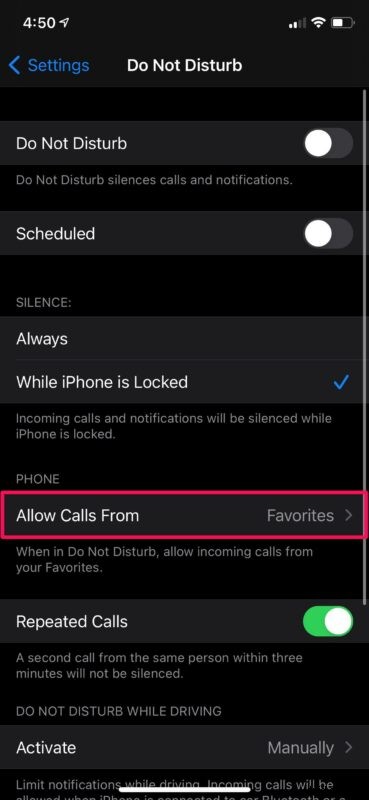
- Here, you’ll find the option “Allow Calls From” which is set to your Favorites. Tap on it to change the settings.
- Now, simply select “No One” instead of Favorites for Do Not Disturb override and you’re good to go.
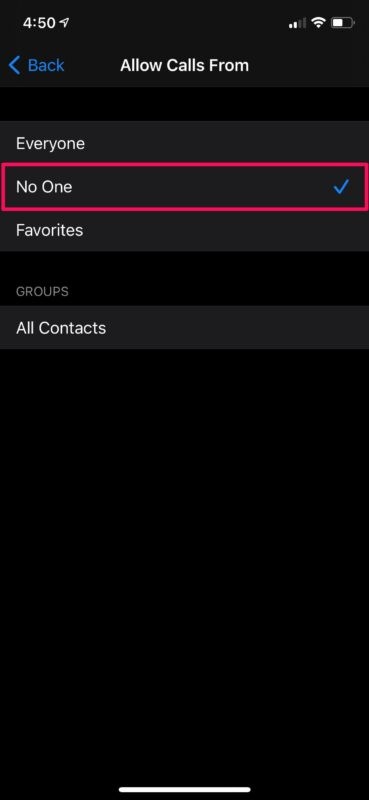
There you go. You’ve managed to remove the default override for Do Not Disturb mode on your iPhone.
It’s worth pointing out that this override setting is only for incoming phone calls. There’s no similar override setting for message notifications and alerts when Do Not Disturb is enabled.
Also do note that this is different from Emergency Bypass contacts, which because that overrides everything it’s probably best for that to be limited to select family, spouse, partner, or best friend.
Considering you wanted to stop getting phone calls from your Favorites, you may also want to update the list of contacts in your Favorites list by removing the people who you’re not close with or consider important to you anymore.
If you take advantage of an identical feature called Do Not Disturb while driving, your iPhone will auto-reply to an incoming message and let them know you’re driving. However, they can still break through your DND mode by sending “urgent” as an additional message. This applies to all contacts and not just your favorites. Unfortunately, this feature isn’t optional and you can’t really disable it.
Did this resolve why you were still getting incoming calls from your favorite contacts when Do Not Disturb is turned on? What do you think of these features?