
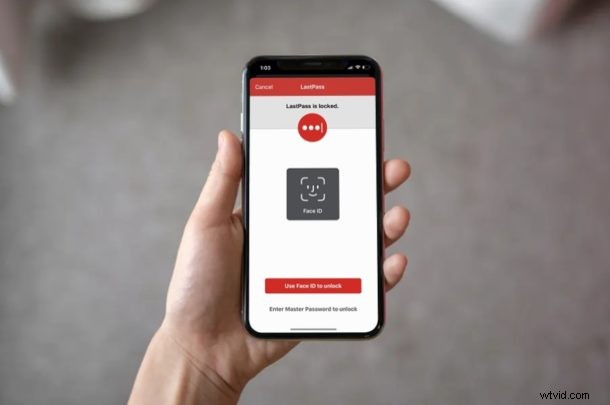
Want to use a password manager with iOS or iPadOS? Are you not impressed with the features that iCloud Keychain has to offer on your iPhone and iPad? If so, you might want to try out third-party password managers like LastPass, 1password, or Dashlane that offer a lot more flexibility with support for multiple operating systems.
Apple’s built-in password management tool is certainly nice to have, especially if you own multiple Apple devices. However, many of us use other devices that run different operating systems on a regular basis too. As a result, you won’t be able to constantly rely on iCloud Keychain as you switch between various platforms. This, in addition to a limited feature set, is perhaps why you might want to look at other options.
If you are interested in trying out other password managing apps on your iOS device, read on to learn how you can use third party password managers on both the iPhone and iPad.
How to Use Third Party Password Managers on iPhone & iPad
Before you go ahead with this procedure, you need to have a third-party password management app like DashLane, LastPass, 1Password, etc. installed on your iOS device. Also, make sure your iPhone or iPad is running iOS 12 or later. Without further ado, let’s take a look at the necessary steps.
- Open “Settings” app from the home screen of your iPhone or iPad.

- In the Settings menu, scroll down and tap on “Passwords & Accounts”.
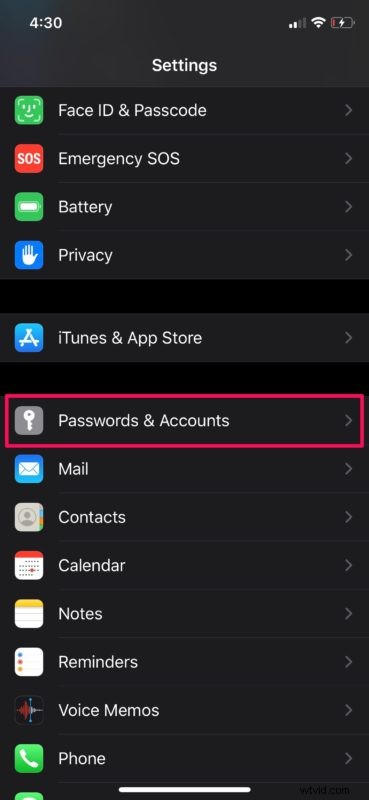
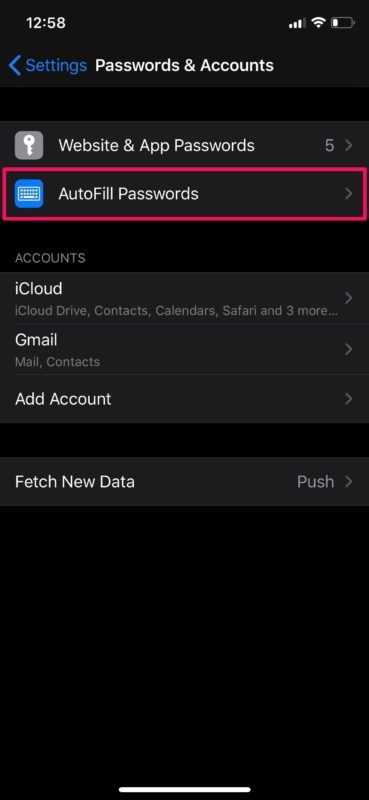
- Here, tap on “AutoFill Passwords” as shown in the screenshot below.
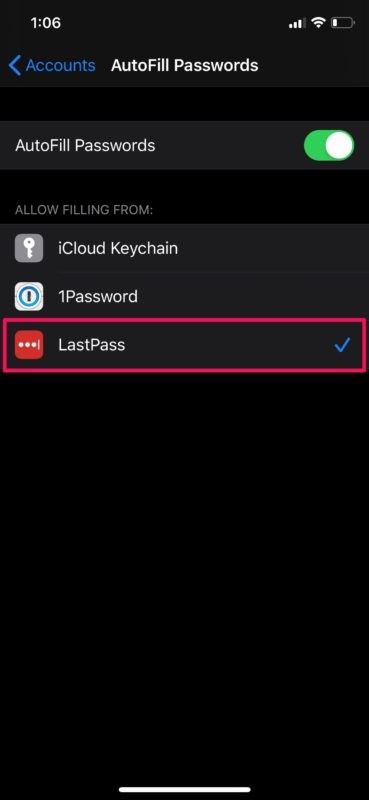
- As you can see here, your third-party password managers will show up in this section. Simply choose your preferred third-party service to start using it instead of Keychain.
- You’ll be asked to log in to your third-party password manager to confirm the change.
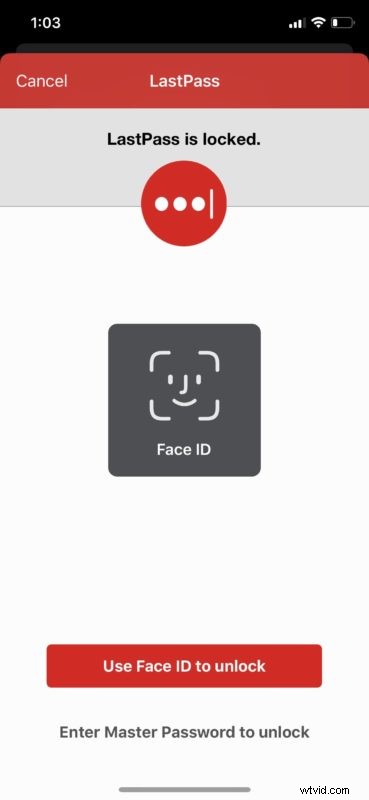
- Now, if you head over to a website and tap on the log-in section, you’ll have the option to autofill your account information, as long as they’re stored in the third-party app.
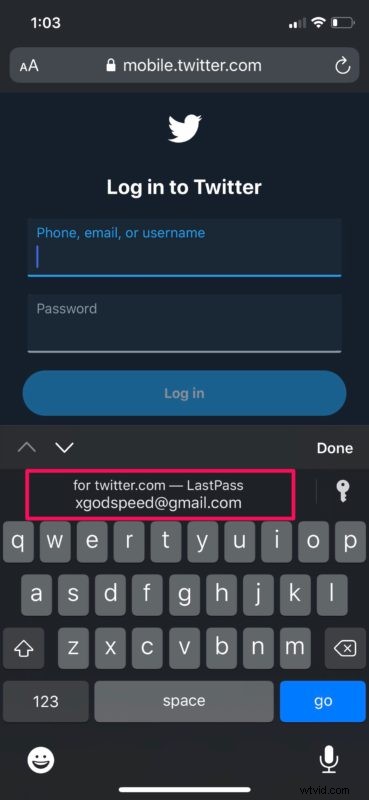
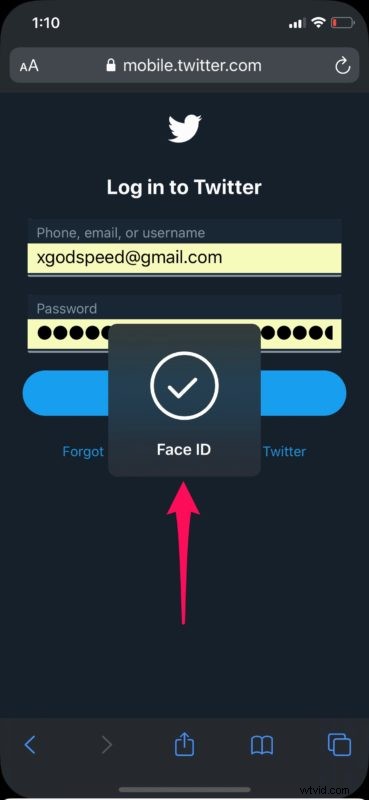
- If you tap on the account name or e-mail that’s shown on your keyboard, you’ll be asked to authenticate with Face ID or Touch ID before it automatically fills your log-in details. This way, your information stays completely secure.
Now you know how to use third-party password managers on both your iPhone and iPad.
By relying on a third-party solution for managing your passwords, you don’t have to worry about compatibility issues as you switch between platforms like iOS, iPadOS, macOS, Android, Windows, and more. It works just the way as iCloud Keychain would, once you set up all your accounts.
Until iCloud Keychain and iOS 12 came out, iPhone and iPad owners had to rely on unconventional methods and workarounds to use third-party password managers, due to the lack of system-wide support in iOS. However, Apple changed their strategy towards such apps by now allowing them to be recognized as a Keychain counterpart. This allows you to quickly access your passwords and log in to your accounts, regardless of what service you use.
If you’ve already used a third-party password manager before, you’ll be quick to realize that iCloud Keychain has its fair share of negatives. It lacks certain basic features that you would expect out of a password manager, like alerting you in case of a security breach, or being able to change passwords without even leaving the app. This is why third-party password managers like LastPass or DashLane would be a more ideal solution.
Did you manage to successfully switch to a third-party service for storing log-in details to all your online accounts? What do you think of this system-level functionality that Apple has to offer? Do let us know your thoughts and opinions in the comments section down below.