
REC

Recommended: Video Production, Editing & Gear Maintenance Guide

 WTVID >> WTVID >  >> Video Editing >> video editing software

Create Freeze Frames Instantly in Final Cut Pro X with One Keyboard Shortcut

Creating a freeze frame or a gap in your timeline in Final Cut Pro X is as easy as one simple keyboard shortcut.

Ready for the fastest shortcut quick tip ever? These shortcuts will break the video up in your timeline either by inserting a freeze frame, gap, or default generator. These shortcuts are perfect for rough cuts and first edits, especially if you don’t have all the footage yet for the project.

Option-F
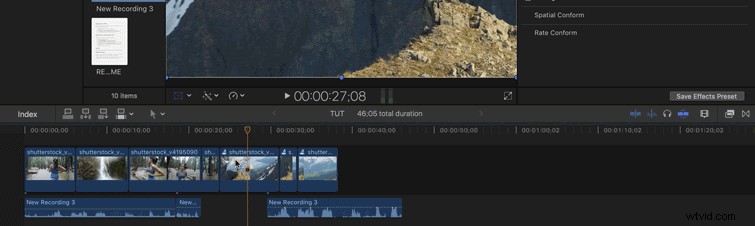
Create Freeze Frames Instantly in Final Cut Pro X with One Keyboard Shortcut

To create a quick freeze frame anywhere in your timeline, hit the Option-F shortcut to automatically insert a three-second freeze frame into your video. The frozen frame will last exactly four seconds, but you can extend the frame to however long you want.

Option-W
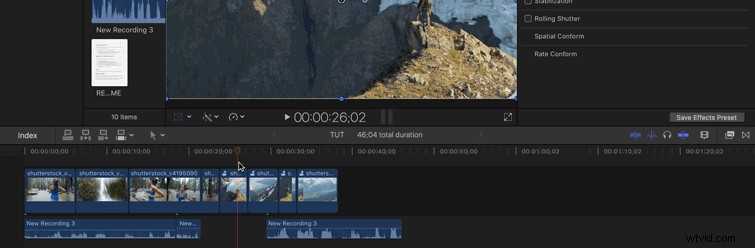
Create Freeze Frames Instantly in Final Cut Pro X with One Keyboard Shortcut

If you want to break a clip up in your timeline with black video or just make room for a different clip, hitting the Option-W shortcut will automatically create a three-second gap in the middle of your clip. The inserted clip won’t affect audio, so keep in mind that your later clips may no longer be in sync with your audio.

Option-Command-W
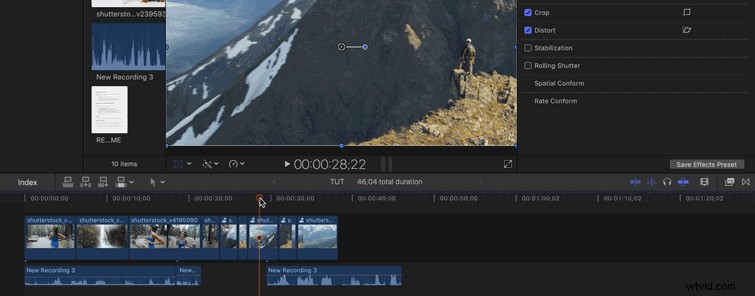
Create Freeze Frames Instantly in Final Cut Pro X with One Keyboard Shortcut

You can also insert a placeholder video clip by hitting Option-Command-W. Like the previous shortcut, this will not affect the audio, so plan on moving or leaving the audio clip as you see fit.


  1. Create Professional Custom Lower Thirds in Final Cut Pro X: 5-Step Guide

  2. Create Stunning Video Slideshows with Final Cut Pro: Ultimate Step-by-Step Guide

  3. Why Final Cut Pro Outshines Final Cut Express: Key Advantages

  4. Master the Vignette Effect in Final Cut Pro X: Step-by-Step Guide

  5. How to Create Stunning Freeze Frame Effects in Adobe Premiere Pro 2022: Step-by-Step Guide

video editing software
  1. Top 10 Essential Final Cut Pro X Plugins for Pro Editors

  2. Final Cut Pro X 10.0.6: Major Updates and Apple's Renewed Focus on Professionals

  3. Master Compressor in Final Cut Pro: Step-by-Step Guide for Seamless Video Encoding

  4. How to Fix Final Cut Pro X Crashing on Mac: Proven Solutions

  5. Master Color Correction in Final Cut Pro: Pro Tips for Perfect Footage

  6. Final Cut Pro X Troubleshooting: Quick Fixes for Common Issues

  7. Create Stunning Split Screen Videos in Final Cut Pro: Step-by-Step Guide

  8. 9 Essential Beginner Tips for Mastering Footage Editing in Final Cut Pro X