
The DaVinci Resolve motion tracker is fast and simple to use. Let’s explore how to get the most out of this already amazing tool.
The DaVinci Resolve motion tracker’s efficiency always seems to impress clients, but that certainly doesn’t mean it’s perfect. Let’s take a look at how to best utilize this fantastic feature.
Resolve’s lovely tracker at work. The tool automatically picks points within a vignette to analyze.
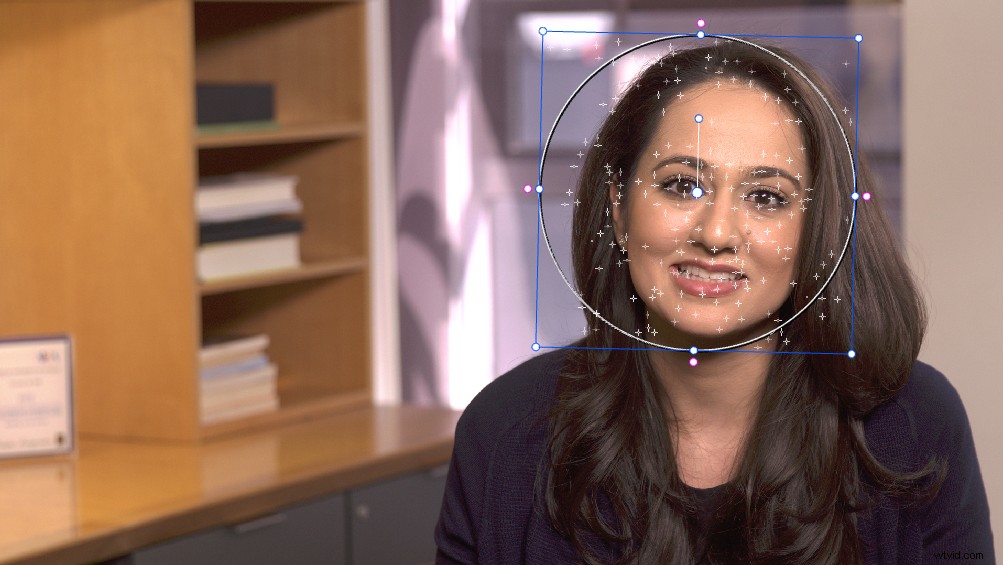
Track the Best Object
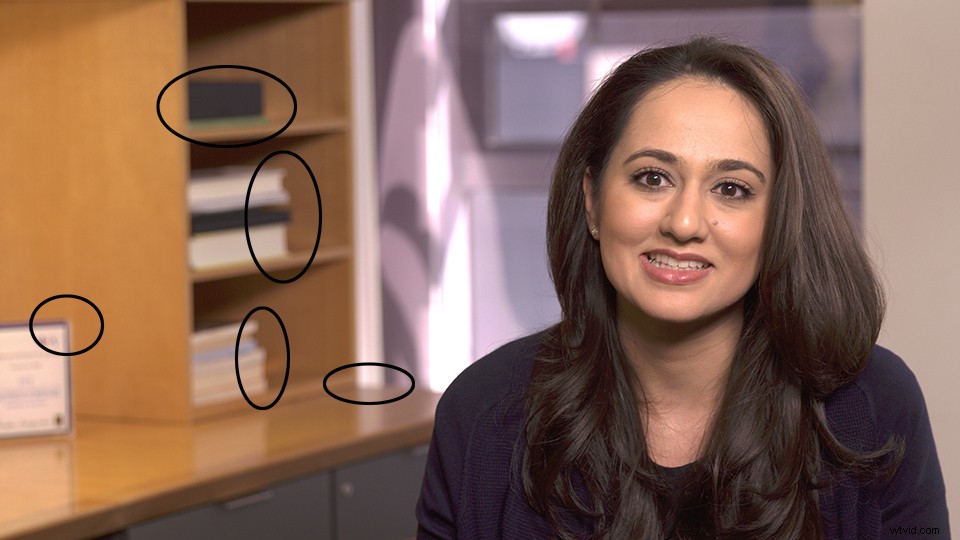
There are a few basic scenarios where you may want to use tracking. You’ll either have a moving camera, a moving subject, or both. Most of the time, it makes sense to place a power window on the moving object in question and track it. However, sometimes the object is stationary and you just want to compensate for the movement of the camera. In these scenarios, the best object to track may actually not be the talent, but an inanimate object that remains in the frame during the shot. After tracking for camera motion, you can reposition the power window onto the subject.
Let’s assume this was a particularly shaky shot. The interviewee may not be the best place to start, since she’ll be moving around during the shot. The black circles are some inanimate areas that would likely yield a good track.
Track Without Softness
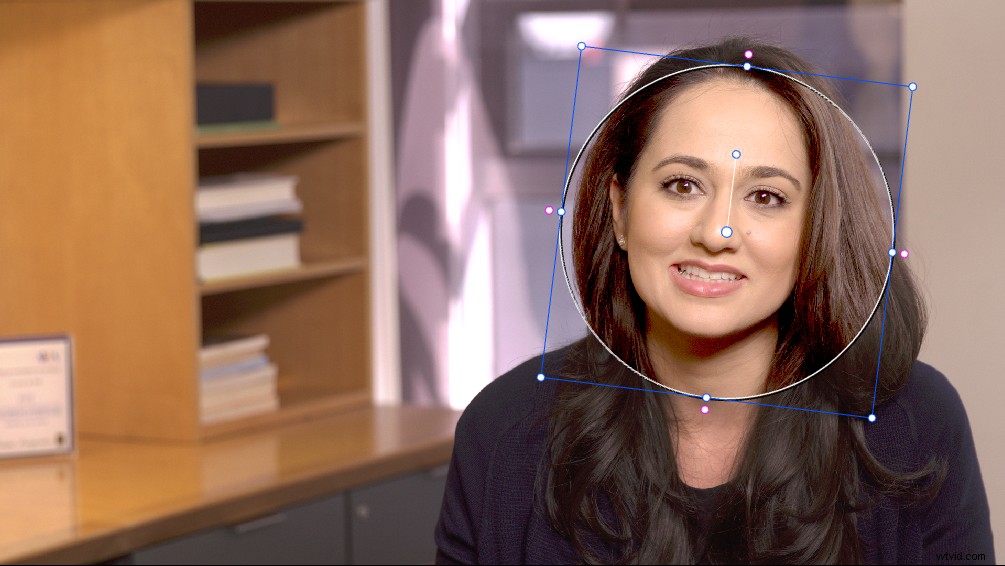
When creating a tracking node, I’ve gotten better results by setting the softness to its minimum. If you’ve performed a correction on the node already, inform the client of the lack of softening which will make the correction stand out temporarily while you perform the track.
A vignette with zero softness, while optimal for tracking, immediately gives away the effect. Notify your client so they know you’re about to perform a track.
Only Track Relevant Data
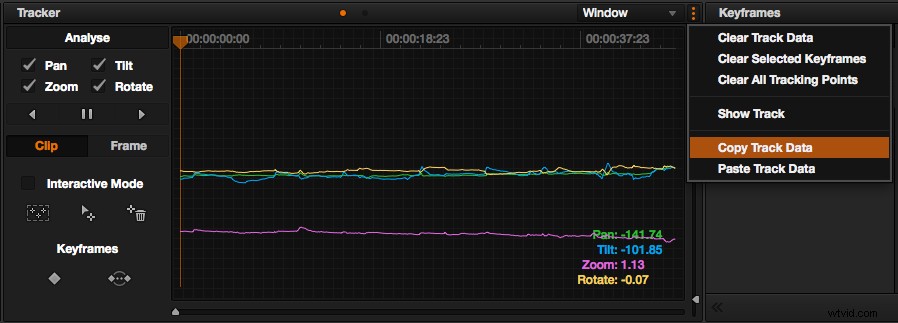
Don’t create more tracking data than you need. Is the subject moving from left to right? Is there a camera zoom or pan you want to stay with? Before you initiate tracking, consider what elements should be tracked. By default, Resolve will track the pan, zoom, tilt, and rotation parameters inside the power window. That doesn’t mean you need all four for every shot. In fact, tracking data you don’t need can cause the track to get confused and produce inferior outcomes.
Don’t Be Afraid to Track Multiple Times
Sometimes the original track fails midway through the shot. The DaVinci Resolve motion tracker is fast enough where minimal time is lost by retracking. If you keep getting the same results, consider resizing your power window. Pick an area of the shot with defined regions of contrast to optimize for the best tracking performance.
On particularly difficult shots, you may even want to take advantage of Resolve’s Track One Frame Forward or Backward commands, accessible via the Color menu.
Multiple Windows Can Use the Same Track
If you need to perform multiple corrections on tracked information, you can use Copy and Paste Track Data to prevent tracking the same objects again. The commands are located on the top right of the tracking panel. You can paste into another node or another shot entirely. To get it to work, make sure you have a vignette style selected first.
When Tracking Fails
Resolve’s tracker isn’t perfect, and sometimes tracking will fail. In these cases, you can use keyframes to move your power windows around manually. To do this, select the node you want and click the Mark menu, select Keyframe Timeline Mode, and then Color. The bottom right of the Color page shows a timeline representation of your nodes. Selecting the Color mode will highlight your current node.
The interface at the bottom-right of the Color page. Click the diamond icon to automatically add keyframes as you change the parameters of the window.
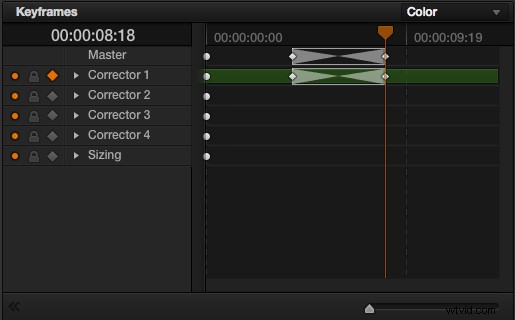
The easiest way to work is to turn on the automatic keyframe feature, which is the diamond shape next to the lock icon. Now any change you make will be recorded as your first keyframe, so navigate through the frames and create subsequent moves. New keyframes will automatically be added.
I’ve seen people get tripped up on making too many keyframes. This can result in power windows that jerk around and give away the correction, the last thing we want. Instead, start at the extreme ends of the shot and note where the move should begin and end. Follow the subject through the duration of the shot, and when the correction lags behind, adjust it.
This technique of going halfway will create less keyframes. Keyframing can take some time to get right. If you’re in a fast-paced session, notify the client to set expectations, or refine it when they’ve signed off on the overall grade. I often track into the shot handles when my client has given me the green light to begin rendering.
Ask: Do I Need to Track?
There will be times when you think tracking will help the shot you’re working on, but if you’ve made an adequate qualifier, you may not actually need to. For example, if the subject is not moving much and you have a power window on their face, as long as you’ve softened it out enough, you may not need tracking.
Just because Resolve has a great tracker, it doesn’t mean we require its use for every shot. Exercise your judgement to see where attention should be given.