
It’s easy to start editing with Screencast-O-Matic’s Video Editor. Editing doesn’t have to be a hard process. It can be a fun and easy way to enhance your video projects. At Screencast-O-Matic, we’ve designed our tools to be easy so that anyone, anywhere can start editing without the high learning curve.
Below we walk you through the editing process. You’ll be editing videos in no time!
1-2-3 Easy Video Editing Process
Screencast-O-Matic has a free video editor that does all the edits you need! You can cut, resize, or crop your videos. Add in overlays including images, text, and highlights. With a Deluxe or Premier plan, you can get full access to the video editor. This allows you to use green screen, access all your videos in the Content Manager, and more!
Quick Edits With Timeline Editing Tools
Let’s go over the timeline editing tools and how to add an edit to your video. The tools menu is located above your video timeline.
The editing process is simple and intuitive. It’s the same 1-2-3 process for almost every tool you use.
1. Click on your video timeline
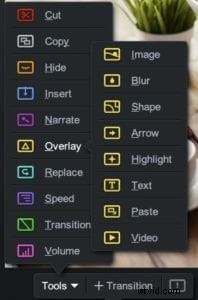 Head to the location on your timeline where you want the specific tool to appear.
2. Choose the tool and customize
When you click on the ‘Tools’ menu, a series of tools will appear. Choose and click on the tool you want to use.
You can customize the tool further. For example, in ‘Overlay Text,’ you can customize your text by choosing a font, color, and background.
3. Implement the tool on your timeline
Once you customize your tool, you can implement it on your timeline by clicking on ‘Done.’
An icon will appear in your menu bar indicating that it’s been placed in that location. You can click on the icon to re-edit or remove the tool.
Video Editor Resources
Here is a list of valuable resources. Turn to the ‘Video Editor Cheat Sheet’ for the complete list of tools as well as general how-tos to enhance your video. You can also view video tutorials detailing the process for each of our overlays.
Video Editor Cheat Sheet
Overlay Video Tutorials
We have an easy video editing guide to help you with the preparation, production, and publishing of your videos.
Easy Video Editing Guide
Learn how to manage your recordings, edit and add audio tracks or use animation.
Video Editing Tutorials
For more creative ways to utilize the video editor, head to our blog and read all the ways to enhance your videos.
Video Editor Blog