
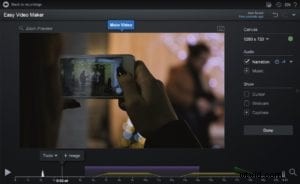
 Whether you’re a seasoned YouTube pro or you’re making your very first video, you’ll need an online video maker that is not only easy to use but also easy to learn. Believe it or not, you don’t need any experience to get started. You can create professional-looking, easily shareable videos with Screencast-O-Matic, no matter your skill level.
Start with the Basics
If you want the easiest route possible, simply open the Screen Recorder and hit record. You can record yourself, your screen, or both. Then follow the directions to save, upload, and instantly share your finished video.
But what if you want to add a few special touches to your video? We have good news: You don’t need experience for that either!
With these easy video tips below, you’ll be making professional-quality videos in no time.
Mix and Match Your Content
Do you have multiple video clips to use in your video? No problem. There’s no limit on what you can do. You can record and import videos from your phone (iOS or Android), Chromebook, PC or Mac devices.
You can also add images and import audio files. Just grab the content you want to use and import them into Screencast-O-Matic.
From there, add and edit them together however you like.
Enhance Your Video with Overlays
Editing your videos is easier than ever, so don’t be afraid to give it a try. From the video editor, you can use overlays to add context and polish to your video with the click of a button.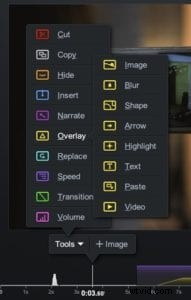
Overlays let you place images, video, text, shapes, or highlights over a selected part of your video. For example, if you’re showing a map of the United States, you can add an arrow pointing to the state you’re discussing.
You can also adjust the colors and font sizes of your overlays.
Add Music
The right music can go a long way in holding your audience’s attention. With Screencast-O-Matic’s stock music library, adding the perfect track is a cinch.
You can choose from a rotating selection of 30 tracks with a free account. Just select your favorite track to add it to your video. The music will be automatically looped until the end of your clip.
If you are a Deluxe or Premier user, you’ll get access to the entire music library and the choice to import your own music. You’ll also have greater control over volume settings, fading, looping, and more.
Fix Mistakes with Ease
Regardless of your experience level, mistakes are bound to happen now and then. Luckily, with a few easy editing hacks, no one will ever be able to tell.
Try using the Cut tool to edit out a flubbed line or a background distraction. Simply cut your clip just before the error, and drag the tool to cut out a section of your video.
Instantly Share Your Creation
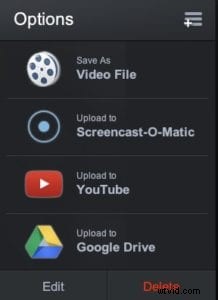 Once your video is finished, you can save it to your computer and instantly upload it to Screencast-O-Matic, YouTube, Vimeo, Google Drive, or Dropbox.
You’ll also get a handy link you can share with your audience.
And More
If you need some help or just want some inspiration for your next project, check out Screencast-O-Matic’s blog and tutorials. With an easy video maker, you’ll be creating and sharing videos in no time.