
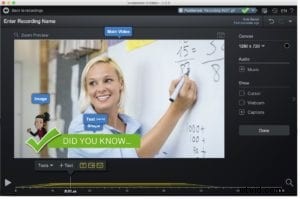
 You don’t need to be a graphic designer to create engaging online videos for your class.
The trick is all in the tools you use. You can combine multiple tools with Screencast-O-Matic to create eye-catching videos.
More remote teachers are exploring graphic design platforms like Canva. You can build professional-looking graphics and seamlessly incorporate them into your screencasts or videos. So wow your next class by using any of these four methods to up your design game.
1. Easily Record Your Slide Presentations
You can easily create impressive presentations using Google Slides or PowerPoint. There are many services that offer pre-made presentation templates. You can customize template designs by adding photos, videos, and animation. You can then capture your slide presentations with the screen recorder.
If you make a mistake during your recording, there’s no need to start over! You can easily fix or enhance your video in the video editor. Easily cut sections of your video, add overlays including shapes and text, or insert other recordings into your video.
Here’s a tip: It’s best to record at 720p. You’ll find this preset size in the recorder. The size is best for sharing your video.
2. Add Custom Graphics to Your Videos
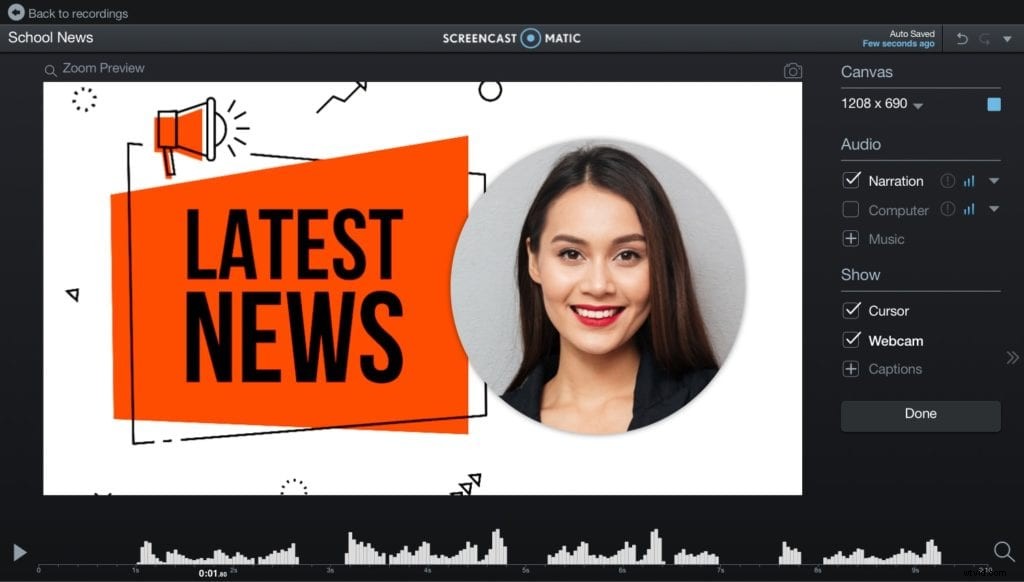 There are easy ways for you to create your own graphics. Canva is a favorite among social media influencers and it’s becoming popular among educators looking to add creativity to their online content.
You can create everything from logos, banners, and infographics. Any of those graphics can be used in your video after it’s downloaded.
The rest is all done using the video editor. They can be added as overlay images.
You can further enhance your graphics in the editor. The video editor offers a full range of options including adding shadows, transitions, removing certain colors, and adjusting the opacity.
Here’s a tip: Download your graphic as a .png file. Select the “transparent background” option if you want the graphic to appear in your screen recording.
3. Mix and Match Video Projects
Don’t limit yourself by only using graphics. The video editor can combine multiple layers of video, including other recordings within your screencast.
Much like adding an image, the overlay video tool can be customized. It’s a great option for teachers looking to add embellishments to their virtual lesson plans.
You can also mix and match videos from multiple devices. You can insert videos from your mobile device and add them to any of your videos.
Here’s a tip: Add custom intros to your videos. It’s a great way to introduce class topics.
4. Video Breaks With Creative Flair
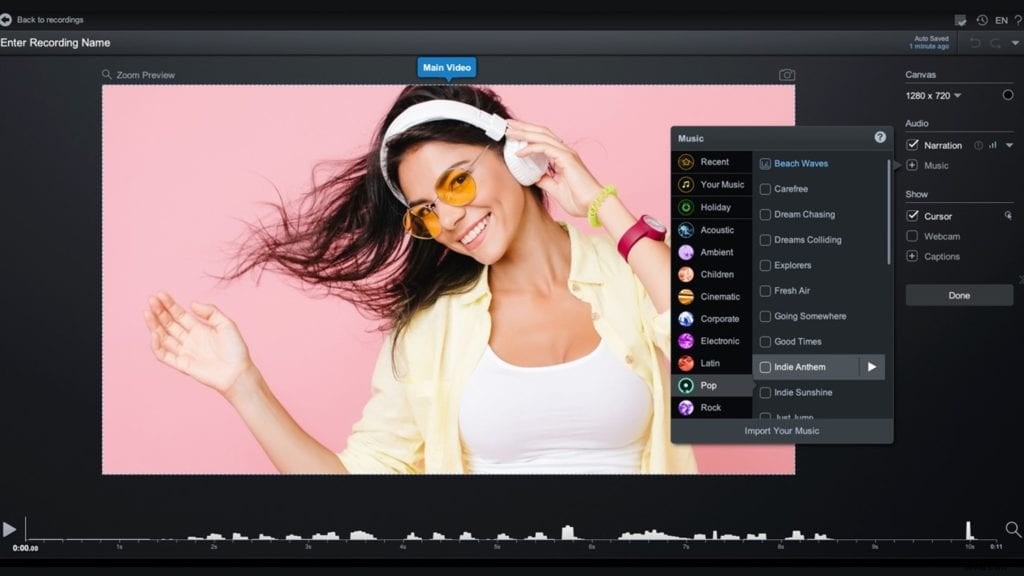 Add a visual break anywhere in your screen recording by inserting a video or text animations.
For example, split up a lengthy study guide by dividing it into chapters. Create animated titles pages for each chapter using text animations.
You can also insert a video into separate sections of your video. All you need to do is use the ‘insert video’ tool in the video editor.
Here’s a tip: You can add music to your video breaks. If students walk away, they’ll know when to come back once the music stops.
Creative Videos Made Easy
Combining your favorite online education tools doesn’t have to be complicated. Screencast-O-Matic works with a multitude of platforms.
So unleash your creativity, create engaging videos, and transform your Screencast-O-Matic videos into works of art.