
Recording with your webcam can be a great way to connect with your audience. Showing your face on a video allows your audience to identify with you and see your facial expressions while explaining a topic.
Screencast-O-Matic has made it simple for you to record your webcam and computer screen with its easy to use tools. Let’s go over the recorder controls and the options you have when recording with your webcam.
Settings In Your Recorder
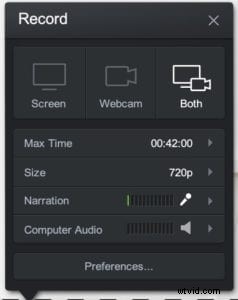 There are three options when recording your video. You’ll find those options at the top of your recorder.
- Screen – This allows you to record anything within the recording frame. You can adjust the size of the recording frame by choosing a preset size or drag and drop the frame to your desired size.
- Webcam – This feature allows you to record yourself. This will show the full view of your webcam.
- Both – This option allows you to show your webcam AND your screen at the same time. This is often used when you want to point out something on your screen but still have your webcam up.
When you select either ‘Webcam’ or ‘Both,’ a webcam box will appear showing your webcam view.
Options to Record Your Webcam
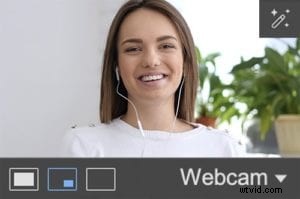 There are three options to record your webcam. It’s located at the bottom of each webcam box.

Webcam view – By clicking on this icon, the full view of your webcam will show in your recording.

Screen and webcam view – This will show your webcam and screen at the same time.

Screen view – The full view of your screen will be recorded while this is selected.
Moving Your Webcam
You have the option to move your webcam box. By clicking on the box, you can move it anywhere within the recording area.
You also have the option to move it off of the recording frame if you want to concentrate on your screen while it records.
Record Your Webcam and Screen
During the recording, you have the option to switch between your webcam and your screen.
All you need to do is click on the options in the webcam box to toggle between both settings.
Green Screen Filter or Flip Camera Options
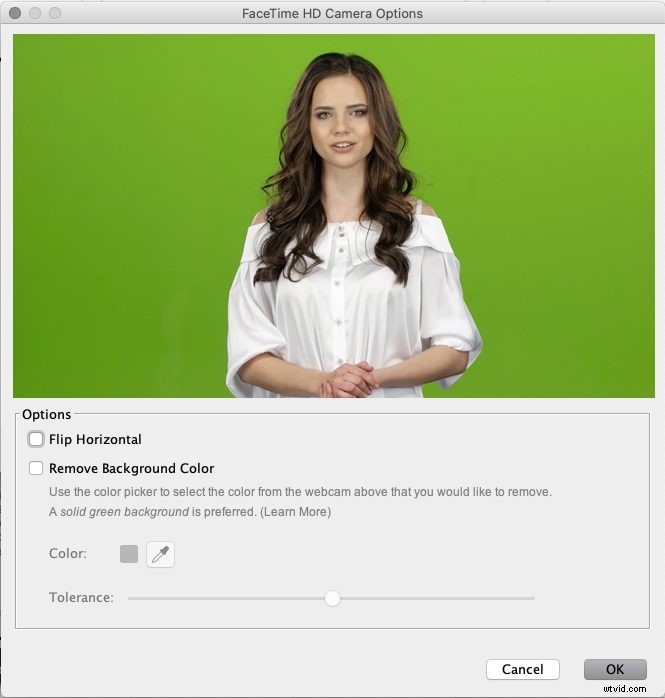
 By clicking on the pencil icon, you have access to the green screen filter and flip camera options.
Flip Horizontal – This allows you to flip the scene.
Remove Background Color – The green screen filter allows you to remove the background. With the color picker, you can choose the color to remove. You can also adjust the tolerance level. Please read this helpful Green Screen guide to remove your background.
You can find out more about our webcam features, along with the rest of our tools and features on our Tutorials page.