
This page introduced a few simple and free methods to join multiple MP4 videos into one without any loss of video quality.

How to Join MP4 Videos
With MP4 videos being highly compressed, it enables a smaller file size compared with other video formats, while the reduced file size doesn’t impact the quality of the video. As the result, very much of the original video quality is preserved, which makes MP4 a web-friendly video format.
As MP4 has earned its solid place among all video formats, people are seeing and using quite more MP4 videos for streaming, sharing, and uploading these days. However, in a bid to save the hassles during uploading MP4 videos to video-sharing platforms, merging MP4 videos into one long video clip to make a short movie is such a great idea. In this post, you’ll find specific know-how on how to easily merge MP4 videos without cost.
Do Not Miss: 22 Online Video Editors, 16 Best Video Editing Software for Mac
Table of Content:
How Do I Merge MP4 Files in Windows 10How to Merge MP4 Files on Mac
How to Combine MP4 Files Online
How to Combine MP4 File: FAQ
How Do I Merge MP4 Files in Windows 10
FilmForth is an easy-to-use and practical MP4 video joiner that merges as many MP4 videos as you want into one. FilmForth is awarded as one of the best free video editing programs, it’s completely free of use and it can merge your MP4 videos together without watermarks and without quality loss.
FilmForth supports an assortment of popular media formats including JPG, JPEG, BMP, GIF, WebP, MP4, WMW, AVI, WebM, TS, 3GP, 3GPP, M4V, MOV, MKV, MTS, M2TS, WMV, WAV, M4A, and MP3. So for the non-MP4 videos you are in possession of, you can merge and edit them with FilmForth as well.
Hit the download button below to get FilmForth for free from the Microsoft store now!

Step 1. Create a Project in FilmForth
To merge MP4 videos with FilmForth, after FilmForth is fully installed on your PC, launch FilmForth from the Windows start menu, and hit the New Project button in the middle of the program.
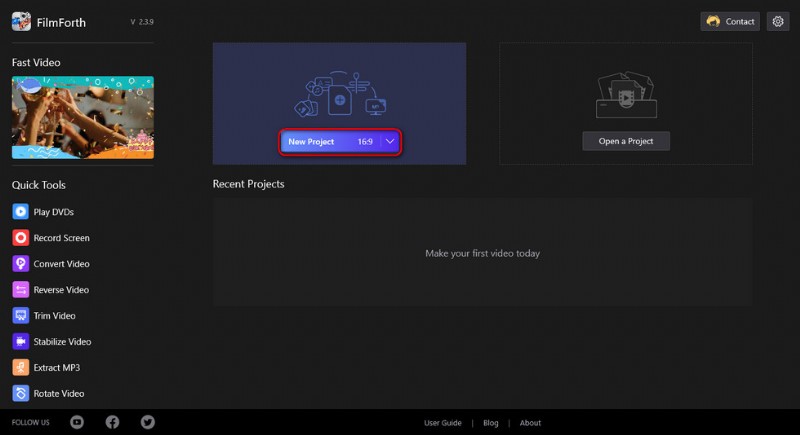
Create a New Project
Step 2. Import MP4 Videos into FilmForth
Drag and drop the videos into the program or click ADD VIDEO/PHOTO CLIPS button to load two or more MP4 video clips that you want to merge into the program, then you’ll see these multiple MP4 videos aligned in the timeline.
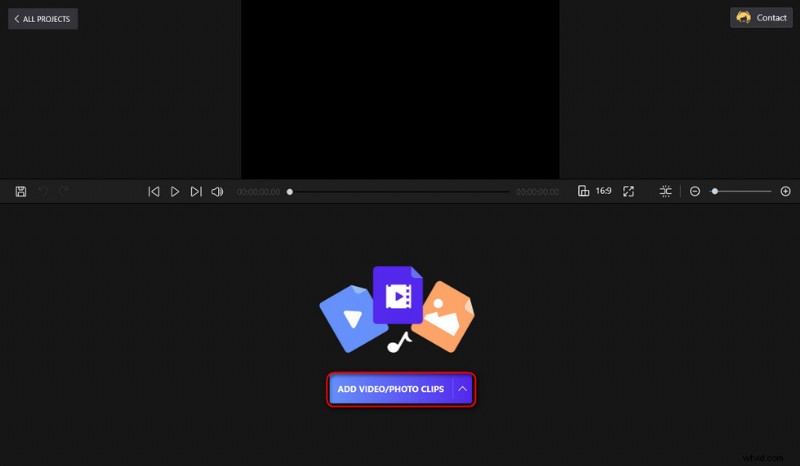
Load MP4 Video into FilmForth
Step 3. Edit MP4 Video Clips
It’s worth mentioning that FilmForth offers quite a lot of editing options for you, video editing features that FilmForth provides include trimming, cropping, adding special effects, rotating videos, changing playback speed, adding transitions, and fade in/out, detaching audio, splitting videos, etc.
Before you start combining MP4 videos, you can edit your MP4 videos as needed. Click to select an MP4 clip in the timeline, and you’ll see additional editing options popping up from the lower operation panel for further video editing operations.
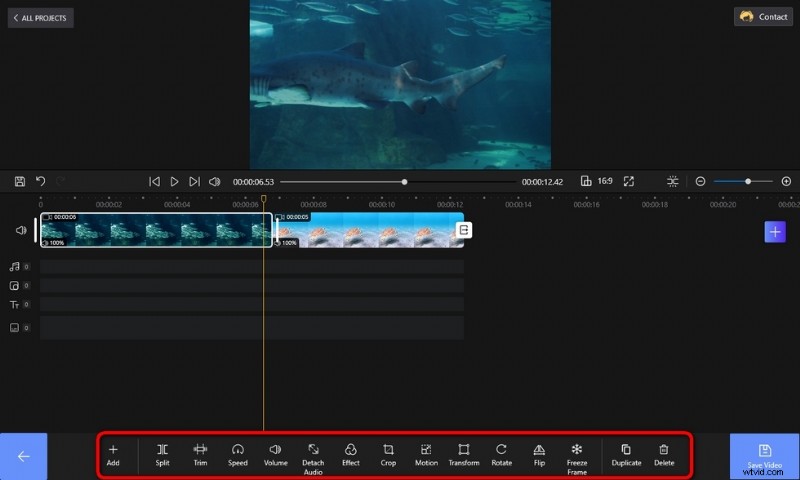
Edit MP4 Videos
Step 4. Join MP4 Video Clips into One
The added MP4 videos will be automatically joined in FilmForth program after saving and exporting. By dragging and dropping in the timeline, the added MP4 videos can be repositioned. Make sure your MP4 clips are in the desired order.
Additionally, there are buttons available from the sides of adjacent MP4 video clips for you to add transition effects to the opening, ending, and conjunctive parts of the clips.
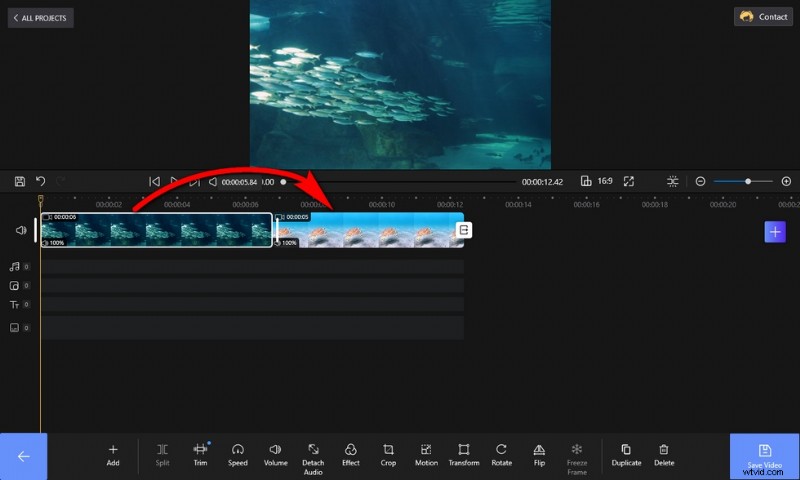
Combine MP4 Videos into One
Step 5. Save and Export Joined MP4 Video Clip
When you’re ready, hit the Save Video button from the lower right side to export the joined MP4 video. Then customize video parameters for the export videos, such as video bitrate, video frame rate, audio quality, etc. Lastly, define the output path and export the combined MP4 video clip.
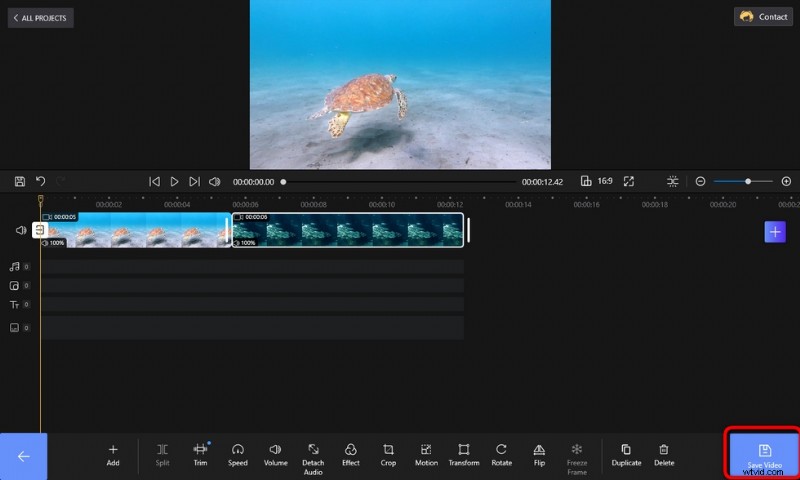
Save and Export MP4 Video
How to Merge MP4 Files on Mac
After introducing the method of joining MP4 videos on Windows PC, here in this part I’d like to show you how to merge MP4 videos on Mac computers. To do so without cost, the simplest method is using the iMovie app, the free video editing app which is preinstalled on your Mac computer.
In our earlier guide, we’ve discussed how to add text to video using iMovie, and iMovie is such a practical tool if you have basic video editing needs on Mac or iPhone.
In the following, you’ll learn how to merge MP4 videos on Mac using the iMovie app.
- Launch the iMovie app on your Mac computer.
- Import the clips you intend to merge into the iMovie app.
- Drag and drop the added clips into the timeline.
- Drag and drop to change the order of the MP4 clips you want to merge.
- When you’re ready, hit the export button from the upper-left side.
- Select Files from the exporting menu, which will save your joined MP4 video as an MP4 video file.
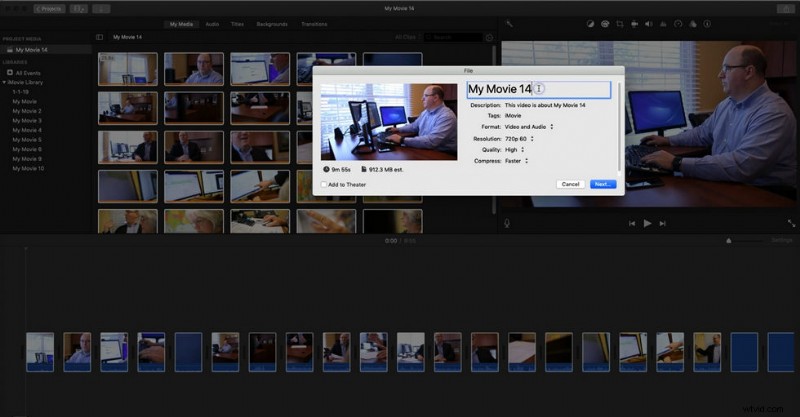
Join MP4 iMovie
How to Combine MP4 Files Online
Having learned the methods of joining MP4 on Windows and Mac, there’s another great method that you should know – using online MP4 joiners. Web video editor tools are usually multi-platform which means they can work on your computer whether it’s Windows or Mac.
Additionally, there’s no need for software installation or account registration, as long as you choose the right tool. All you need is a web browser program and a relatively stable internet connection. In this post, to join MP4 videos on Windows and Mac computers online, we’ll be using Clideo, one of the best online video editors which features an easy-to-use MP4 merging feature.
- Use your web browser to navigate to the Clideo MP4 joiner tool.
- Hit the Choose file button to upload the video clips you want to merge to Clideo, and please wait patiently for the uploading process.
- Drag and drop to rearrange the added MP4 clips in the timeline.
- Aspect ratio settings and Crop options are available for adjustments to the right.
- Once you’re happy with the result from the preview window, hit the Export button to export and download the joined MP4 video.
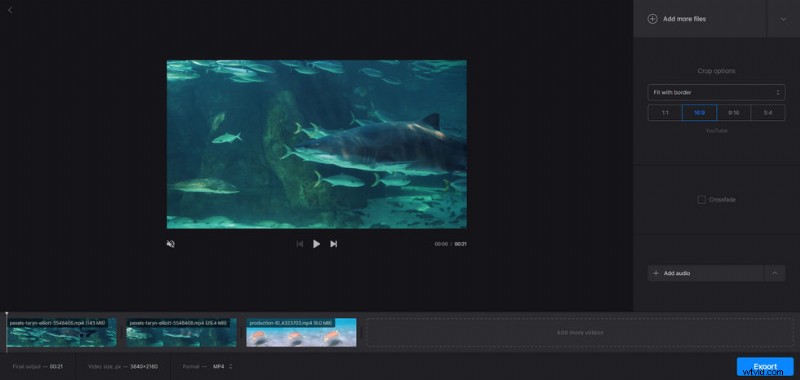
Join MP4 Video in Clideo
How to Combine MP4 Files: FAQs
How do I merge MP4 files with VLC
Open VLC, go to the Media menu and click “Open Multiple Files” > Click the “Add” button in the pop-up window to import multiple MP4 files to be merged > Select Converter from the drop-down menu at the bottom right > Customize Save the output files to a location, and then click the Start button to save the new merged video.
How do I merge MP4 files with Windows Media Player?
After downloading the Windows Media video clip joiner program to your computer, follow the steps below to merge MP4 files: Click Add files on the File menu after launching Windows Media Player > Upload the MP4 files to be merged > Click the “Combine “button to save the videos to your computer.
How do I join MP4 videos?
To join MP4 videos, simply drag and drop them into FilmForth video editing, drag the added video clip to reposition it if needed, and export the video.
What’s the best MP4 merger?
FilmForth is the best MP4 merger that allows you to merge MP4 videos in a few clicks, it’s free and it doesn’t export videos with watermark.
Can I merge videos that are not in MP4 format?
No worries, FilmForth supports most industrial standard video formats, and that very likely includes the format of your video. So you can merge them with FilmForth as well.
Is FilmForth Really Free?
FilmForth is completely free of use, you can use FilmForth to trim, crop, add special effects, add transitions, and more to your videos without costing a dime.
Can I join MP4 videos online?
Yes, there’re plenty of online MP4 joiners out there that allow you to merge videos online. However, if you’re working with large or high-quality MP4 files, FilmForth is the one you should go to as it offers a fast and steady merging experience and assures you a satisfactory result.
At Last
The best part about FilmForth is that it not only merges your MP4 videos without cost, it even enables you to edit your videos, providing as many video editing features as you can think. So stop hesitating and download FilmForth to your computer and give it a try right away!
More Related Articles
- Top 10 MP4 to MP3 Converters
- How to Change Background on YouTube Channel on Phone
- Top 3 Apps to Convert YouTube to MP3 for iPhone
- How to Fade out Video on Windows 10
- Best 4 Voice Changers for YouTube Videos