
The reverse effect makes your video more interesting. How to apply the reverse effect to your video? Here are 5 best free MP4 video reversers that can reverse MP4 videos free without watermarks.
Applying the reverse video effect would add some fun to your video. Below are five MP4 video reversers to help you reverse MP4 for free!
5 Best Free MP4 Reversers to Play MP4 Video Backwards
- MiniTool MovieMaker
- iMovie
- EZgif
- Kapwing
- Video Reverser
MiniTool MovieMaker
MiniTool MovieMaker is a watermark-free video reverser that can reverse MP4, MKV, WMV, MOV, AVI and other video formats. It also supports speeding up or slowing down reversed video. This software mainly focuses on video editing. It can trim video, split video, add text to video, zoom in video, mute video, etc.
How to reverse MP4 using MiniTool MovieMaker.
Step 1. Download MiniTool MovieMaker, open the installer and complete the installation. Then run MiniTool MovieMaker.
Step 2. After launching this program, close the popup window to access the main UI.
Step 3. Import the MP4 file that you want to reverse and add it to the timeline.
Step 4. Make sure that the MP4 file is selected. Then click the speed controller icon and choose the Reverse option.
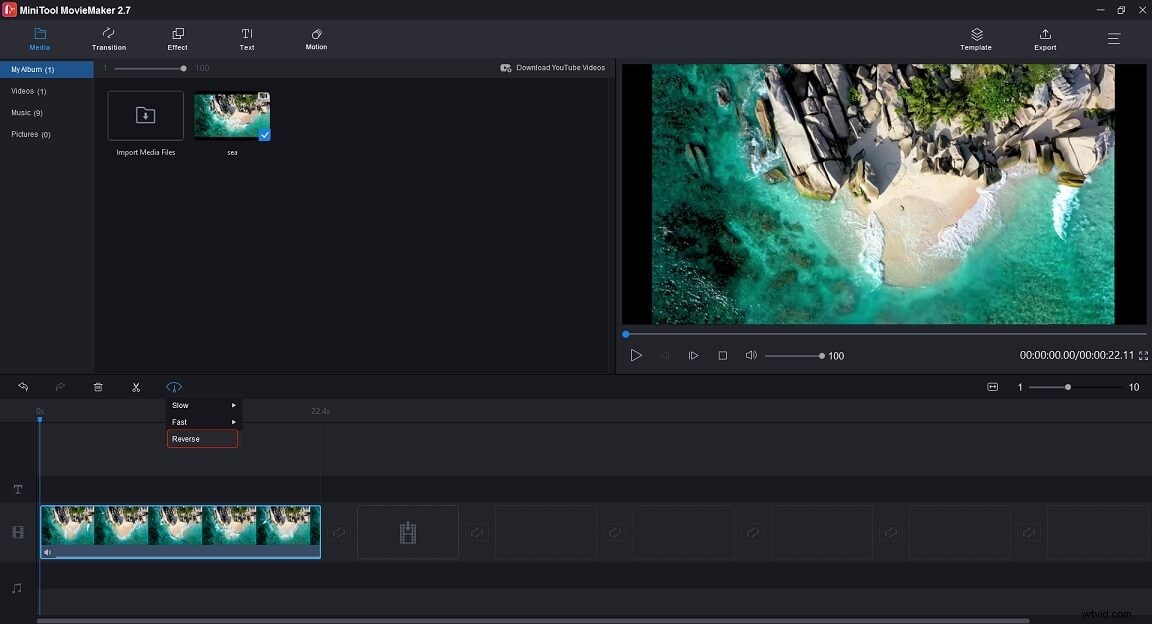
Step 5. Click on Export and adjust the output settings. Once done, export the reversed MP4 video.
Related article: Top 10 YouTube Video Reversers to Play Video Backward
iMovie
How to play videos backward on macOS or iOS? Try the built-in video editor – iMovie. It’s absolutely free without ads and a watermark. Besides reversing MP4, it lets you modify videos with many editing options such as green screen, crop, split, split screen and more.
Here’s how to reverse MP4 video in iMovie:
Step 1. Open the iMovie app and create a new project.
Step 2. Add an MP4 video to iMovie and drag and drop it to the timeline.
Step 3. Select the MP4 clip and click the Speed button above the Preview window. Then check the Reverse box. Now, you can play the MP4 video in reverse.
Step 4. Export the reversed video.
EZgif
EZgif is an online MP4 reverser. It’s capable of reversing MP4 videos, cutting videos, merging videos, cropping videos, resizing videos and so on. The upload file size is limited to 100 MB.
Here’s how to reverse MP4 online with EZgif.
Step 1. Visit the EZgif website.
Step 2. Click on Video to GIF > Reverse to open the video reverser.
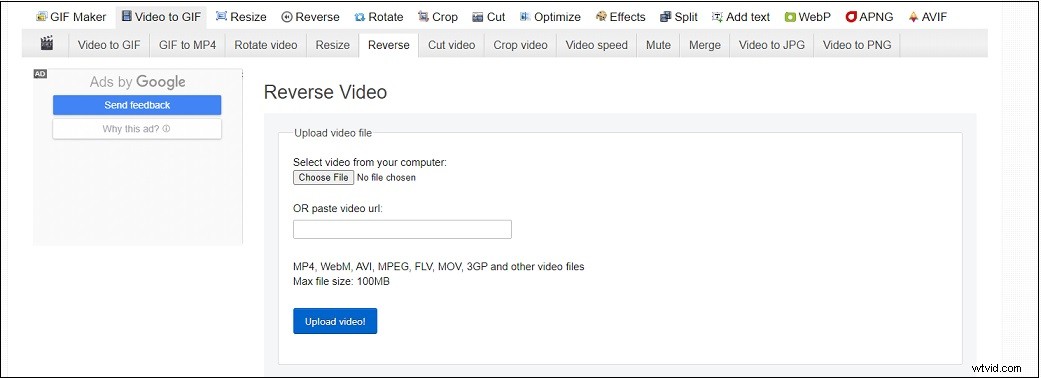
Step 3. Upload the target MP4 file from your computer or by entering the video link and click Upload video to go on.
Step 4. On the Reverse Video page, check the reverse sound or mute sound option according to your needs.
Step 5. Lastly, hit the Reverse video button and save the reversed video.
Kapwing
Another tool to reverse MP4 online is Kapwing. It’s free to use and powerful. Just create a Kapwing account and you can make a reverse video without any watermark.
Here’s how:
Step 1. Log in to your Kapwing account and click on Tools.
Step 2. Find the Reverse Video tool and click on it.
Step 3. Next, upload your MP4 video and select the desired Reverse speed option.
Step 4. Tap on CREATE and download the video after finishing the process.
Video Reverser
As its name suggests, Video Reverser can play your videos backward. It supports MP4, MOV, FLV, MKV, M4V, 3GP, MPG, etc. The maximum file size for upload is 10 MB.
Here’s how:
Step 1. Go to the Video Reverser website.
Step 2. Click Choose File to upload your MP4 video.
Step 3. Select MP4 or another format as the output format and click Start.
Step 4. Then download the reversed MP4 file from the website.
Conclusion
To conclude, online MP4 reversers are easy to use but can’t reverse large MP4 files. If you want to play large MP4 files in reverse, you should use video reverse software like MiniTool MovieMaker or iMovie.