
This page covers 3 free and easy methods to add speech bubbles/text bubbles to pictures or videos. With it, an intuitive visual effect that people in the scene are talking and conversating in front of you is presented.
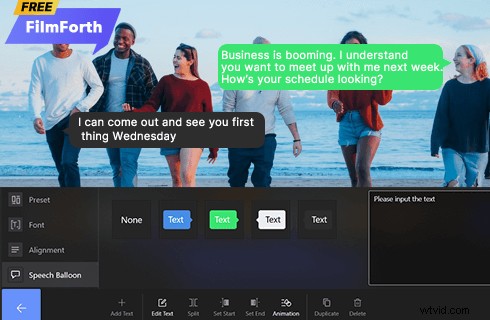
How to Add Speech Bubbles to Videos
A speech bubble, text bubble, comic bubble, or thought bubble added to a still image or video will give the audience a better view of a conversating scene, we’ll be clearer on the talking and interacting individuals and on where the lines are coming from, not to mention there is much fun of it for sure. To this, DC and Marvel comic and animation buffs will totally agree.
So, are you looking for the best ways to add lovely-looking speech bubbles or text bubbles to pictures or videos? This page has the information you need, we will discuss the proven methods to add speech or text bubbles to pictures or videos on Windows, Android phones, iPhones, and online for free. Thus whatever device you’re on, you’ll find a solution here.
More Video Editing Tips: How to Make YouTube Intro, How to Do Glitch Video Effect, How to Resize Videos
Best Video Editor with Speech Bubble/Comic Bubble/Text Bubble for Windows
Firstly, I’ll show you how to add speech bubbles to images and videos on Windows. I’d like to introduce an awesome piece of video editing program: FilmForth, it is a completely free, easy-to-use, feature-rich video editing program, plus it doesn’t have watermarks.
With it, you can easily trim, crop, resize, rotate and even add emoji to videos and pictures without cost. Of course, it has a variety of attractive and customizable speech bubble options to add to images and videos.
Now hit the download button below so you can get FilmForth for free from Microsoft Store! It works for both Windows 10 and Windows 11.

1. How to Add Speech/Text Bubbles to Videos or Photos on Windows with FilmForth
Step 1. Create a Project in FilmForth
Once you’ve downloaded and installed FilmForth, then you’re ready. To use FilmForth to add speech bubble overlays, launch FilmForth from Windows start menu, and then hit New Project button in the program.
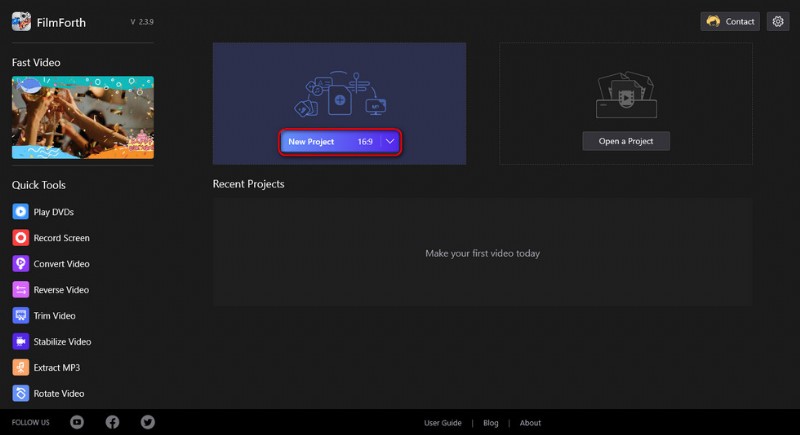
Create a New Project
Step 2. Import Video Clips into FilmForth
Drag and drop the media files into the program or click ADD VIDEO/PHOTO CLIPS button to load the video or image file that you want to add speech balloons to, then you will be led to the video editing workplace.
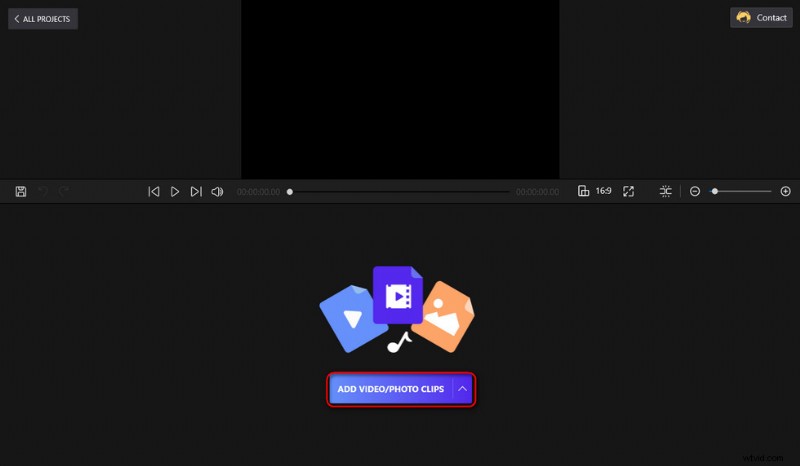
Load Media Files into the Program
Step 3. Go to Edit Text Screen
Hit the Text button below, and then Add Text button, a new text track will be added in the timeline. Hit the Edit Text button below to enter the text editing screen.
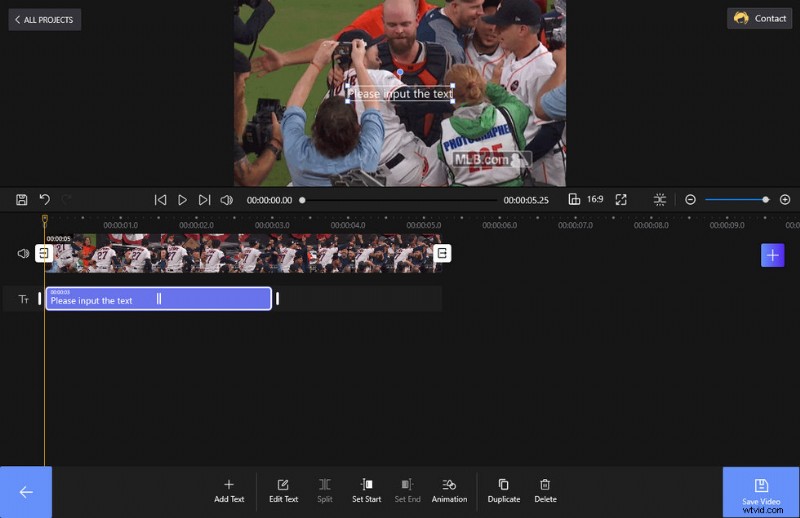
Go to Edit Text Screen
Step 4. Add Text Bubble to Pictures or Videos
From the Edit Text screen, hit the speech ballon tab from the left side, and then you can choose a preferred speech bubble. Type in the dialog text in the right box, and hit the backspace button from the lower-right side to get back to the video editing workplace.
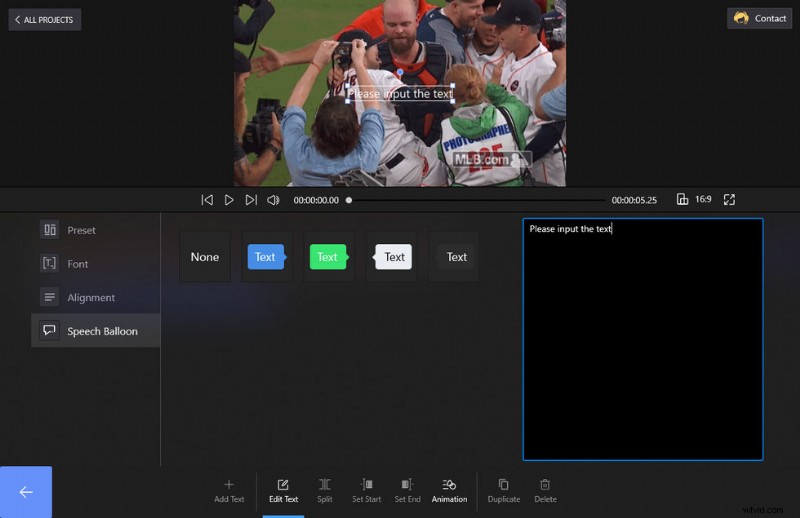
Add Text Bubble to Video
Step 5. Export Picture or Video with Speech Bubble
Your image or video with a speech bubble will be shown in the upper preview window. When ready, hit the Save Video button from the lower-right side to save and export your video.
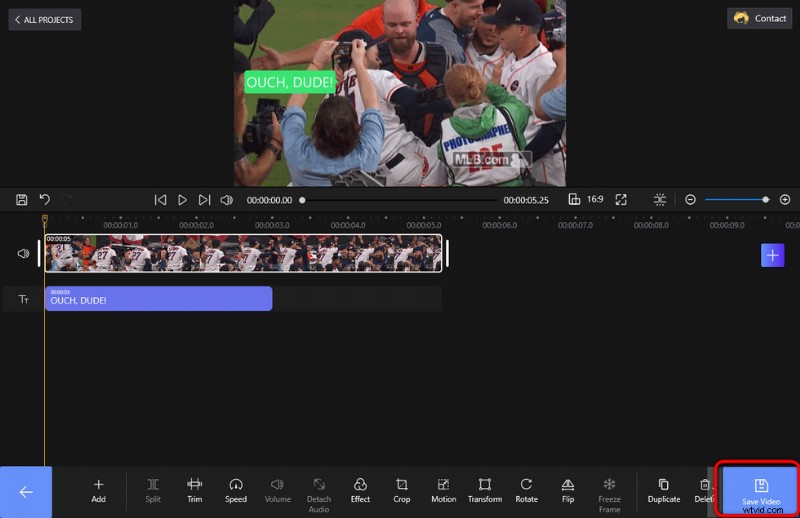
Export Text Bubble Video
2. How to Add Text Bubbles to Videos on Android Phones and iPhone
In this section, I’d like to show you how to add text bubbles to images or videos on Android Phones and iPhones. To do so, we need a free video editing app called KineMaster, it’s one of the most popular free video editing applications for mobile phones these days.
- Get KineMaster from Google Play Store: https://play.google.com/store/apps/details?id=com.nexstreaming.app.kinemasterfree&hl=en&gl=US
- Install KineMaster on your mobile phone.
- Launch KineMaster app on your Android phone or iPhone.
- Create a project and select a preferred aspect ratio for your project.
- Hit the Media button to import the picture or video.
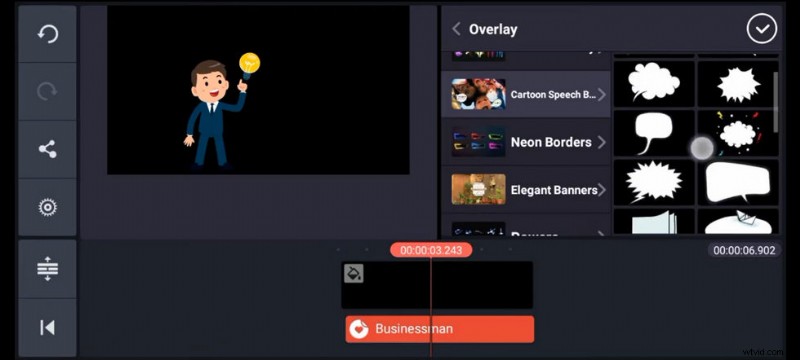
Add Text Bubble with KineMaster
3. How to Add Text Bubbles to Videos Online
In this part, we’ll introduce the installation-free method to add text bubbles to images and videos. To do that, we need a great online video editing service called Kapwing. It’s an online video editor that is based off web browsers.
- Go to Kapwing Video Editor https://www.kapwing.com/video-editor
- Choose your photo or video, hit the Upload File button to upload to Kapwing website.
- Select a preferred aspect ratio for your project
- Kapwing offers four options for speech bubbles including Image Search, Emoji, Upload (speech bubble PNG), and Shapes. Select the one that you prefer.
- If needed, add lines of text into the speech bubble.
- Hit the Export button in the top corner of the screen to Finish and share the photo/video with thought bubbles.
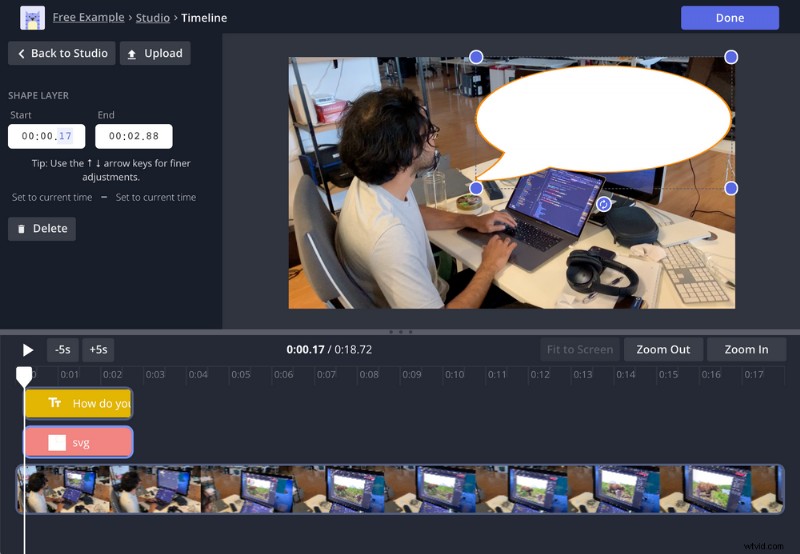
Add Text Bubble with Kapwing
To Sum Up
With the given methods above, adding speech bubbles, text bubbles, comic bubbles, animation bubbles, or thought bubbles to videos or pictures is a breeze, no matter what device you’re on, or in what manner you’d like to do this.
I hope you’ve benefited from this guide and can easily do a variety of speech bubbles of different ideas to your media, like pet thought bubble on TikTok, or making a meme from trending ones. So, it’s time to get started, get FilmForth now, and do it on your own!