
Do you want to set your favorite song as a mobile ringtone? However, most ringtones are about 30 seconds long. How to split a long audio track into several parts? This task can be accomplished with the free audio editing tool Audacity. If you’d like to add audio to video, MiniTool MovieMaker is recommended here.
Audacity is one of the best professional designed audio editing tools available for free and for different platforms. Like many other audio tools, Audacity allows you to divide a relatively long recording track into separate tracks, and each separate track can be extracted as a separate file.
However, how to use Audacity to finish the task of splitting an audio file? Don’t worry. The following will show you how to split audio in Audacity. Let’s dive in.
How to Split Audio in Audacity
Step 1. Once you have installed this free audio splitter, launch it on your computer.
Step 2. Navigate to File > Open to search for the audio file and open it in Audacity.
Step 3. Head to Selection Tool and select the desired split point in the clip. Then select Edit and Clip Boundaries. Next, select Split from the pop-up menu. Or you can use the keyboard shortcuts Command + I (Mac) or Control + I (Windows) to get to the Split option.
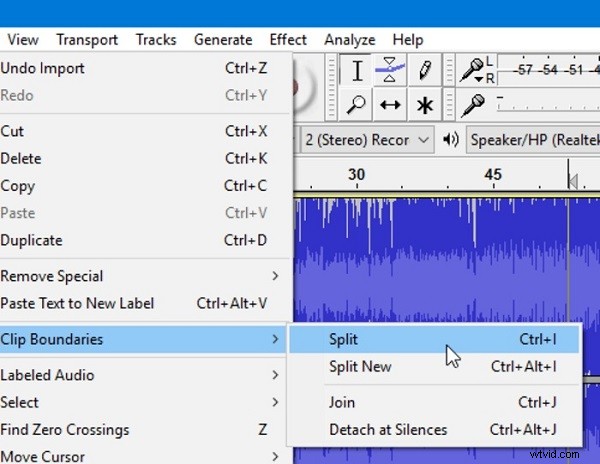
Step 4. If there are some parts that you don’t to export, you can delete them by using the keyboard shortcut Ctrl + K, or go to Edit > Delete.
Step 5. Last, go to File > Export and choose your preferred audio format for exporting.
How to Merge Audio Tracks in Audacity
Step 1. Go to File > Open, and open all the audio files that you want to merge.
Step 2. Use the Selection Tool to select portions of each clip that you want to join together. Then select Edit > Clip Boundaries.
Step 3. From the pop-up menu, select Join. Or you can use the keyboard shortcuts Command + J (Mac) or Ctrl + J (Windows). This will then join the clips and will create silence in the areas which had originally been between the two clips.
Step 4. If you don’t want the silence in between you can use the Time Shift Tool and drag the two clips together before joining the clips together.
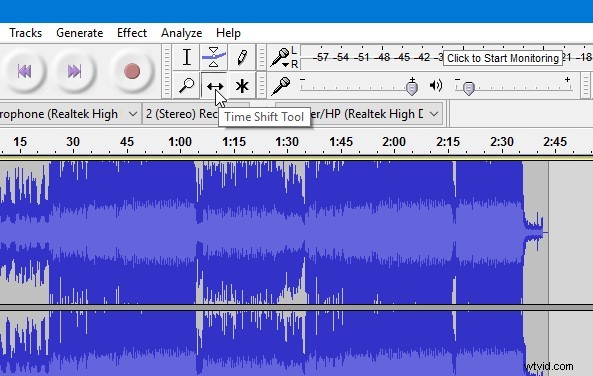
Step 5. Go to File > Export to save the merged audio file.
Audio File Formats Supported by Audacity
When you split audio in Audacity, you may find there are errors in importing or exporting the files. Because Audacity doesn’t support a few certain audio formats. Here are the audio file formats supported by Audacity.
- MP3
- WAV
- AIFF
- OGG Vorbis
- FLAC
- MP2
- PCM
You might be interested in: 8 Best Audio Recording Software | You Must Have
Other Free & Excellent Audio Splitters
In addition to Audacity, there are many other excellent audio splitters, such as WavePad Audio File Splitter and Mp3splt. Let’s have a look at them.
1. WavePad Audio File Splitter
WavePad Audio File Splitter has an excellent set of functions for splitting audio files. It supports lossy and lossless audio formats. The most impressive feature is that it uses silence detection, which allows you to split large audio files containing multiple music tracks.
2. Mp3splt
Mp3splt is an excellent online audio splitter. It can automatically detect the split point and silent gap, which is very convenient for splitting albums. In addition, it has a built-in audio player, so you can preview the entire audio track or a clip.
Bottom Line
Now you know how to split audio in Audacity and merge two or more audio files as well. Did you find this post useful? If you have any questions or suggestions about it, please let us know via admin@wtvid.com or share them in the comments section below.