
The photo you took has a dreaded red eye. How to fix red eye effects in the photo? Thankfully, there are 4 red eye removers available for you. In this post, I’ll show you how to use them to fix red eye in photos (Try MiniTool MovieMaker to make a photo slideshow).
The red-eye effect is common in photography, which bothers us a lot. How to fix red eye in pictures? Let’s take a look at the 4 effective ways to remove red eye from pictures.
Fix Red Eye in Photos Using iPhone’s Photos
For iPhone users, they can fix red eye in photos using the Photos app. This app features a red eye remover that can remove red eye from photos in just serval steps.
Follow these steps to fix red-eye effect on iPhone.
Step 1. Open the Photos app and find the photo with red-eye effect.
Step 2. Open the photo and click Edit at the upper right corner. Then you will see the eye icon in the upper left corner. Tap on this icon to continue.
Step 3. Tap on a red eye in the photo and it will fix the red-eye problem.
Step 4. When you fix all the red eyes in the photo, press on Done at the bottom right.
Fix Red Eye in Photos Using Photoshop
When it comes to fixing the red-eye effect, the best red eye remover - Photoshop must be your first choice. Besides removing red eye from pictures, it also can reduce blemishes, remove objects, blur backgrounds, etc.
Here’s how to fix red eye in Photoshop.
Step 1. Open the target photo with red eye.
Step 2. Click the Spot Healing Brush tool in the toolbar and select Red Eye Tool.
Step 3. Make a selection of the eye. Then the red-eye effect will be removed automatically. To get a better result, you can adjust the Pupil Size and Darken Amount.
Step 4. Save the edited photo.
Fix Red Eye in Photos Using Lunapic
Another red eye remover is Lunapic. It’s free to use and available for web browsers. No sign-up requirement!
Let’s see how to fix red eye online for free.
Step 1. Go to the Lunapic website.
Step 2. Navigate to Adjust > Redeye Reduction.
Step 3. Tap on Choose File to upload the photo with red eye.
Step 4. Draw a box around the eye and click the Fix Redeye button.
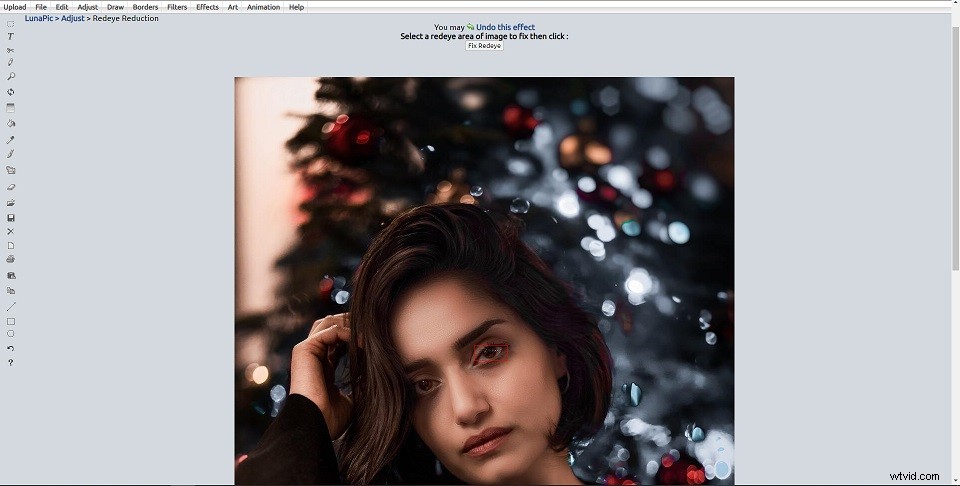
Step 5. After removing the red-eye effect, right-click on the photo and save it.
Fix Red Eye in Photos Using Fotor
Fotor is an online photo editor featuring red eye remover. With it, you can get rid of the red-eye effect naturally.
Here’s a quick guide.
Step 1. Visit the Fotor website and create a Fotor account.
Step 2. Click on Edit a Photo to open the photo editing tool.
Step 3. Tap Open > Computer to load the photo.
Step 4. Then click on Beauty and choose Red-eye Removal from the EYES list.
Step 5. Click on the eye to remove red eye and apply the changes.
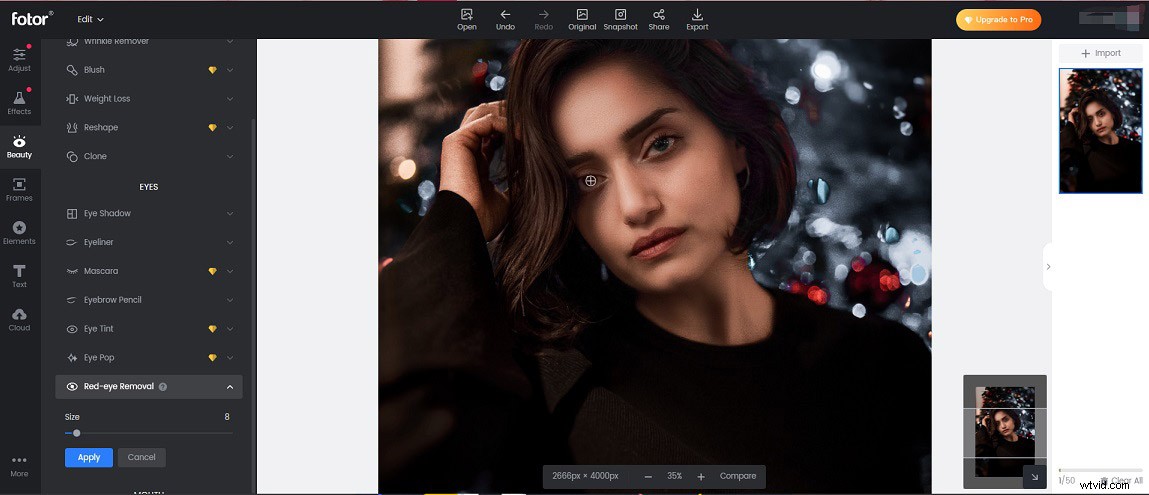
Step 6. Go to Export and download the photo.
Conclusion
Red eye removers can remove red-eye effects effectively. Now, choose the one you prefer and have a try!