
If you want to remove image background without installing any software, you’ve come to the right place. This post will introduce 7 online image background removers to make image transparent quickly and easily, and it also explains how to remove background from image in PowerPoint.
Sometimes, you may need to make a picture transparent and then add it to another photo to create a new one, or you want to remove image background for other reasons. How to remove background from image online? Here’re 7 online image background removers.
To create a short video from images, video clips, and background music, try MiniTool MovieMaker, a free photo video maker without watermarks.
Top 7 Online Image Background Removers
#1. remove.bg
URL: https://www.remove.bg/
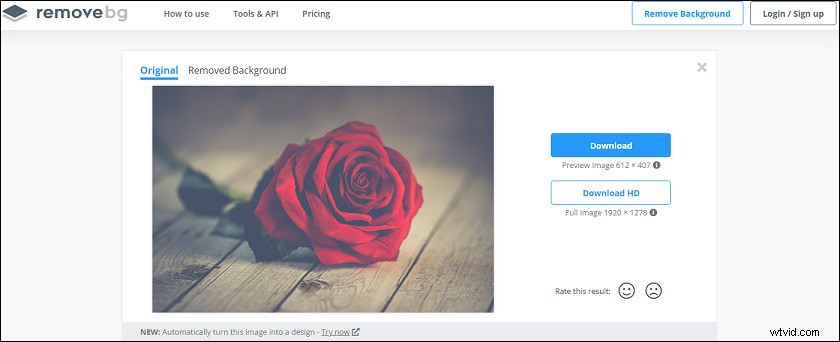
remove.bg is a useful online image background remover. You can use it for free and without registration. After uploading an image, it will automatically remove the default background. Then you can use the eraser to remove anything else from this picture.
What’s more, you can add a new background to this image and blur it with four modes. Then directly download the new image from this site. And remove.bg has a mobile app for Android.
#2. PhotoScissors
URL: https://photoscissors.com/
PhotoScissors is also a great tool to remove background from image online. The picture should be JPG, PNG, or WebP format and the file size is no more than 10MB.
It will automatically remove the background after uploading a picture. Then you can choose to replace the background with another image or solid color. Finally, download the new image for Facebook Cover, Instagram Post, eBay, and more.
#3. Adobe Creative Cloud Express
URL: https://www.adobe.com/express/
Powered by Adobe Photoshop, Adobe Creative Cloud Express is a web and mobile app that helps users to create beautiful designs like posts and stories, flyers, logos and more.
Also, it’s one of the best online photo background removers to make images with a transparent background. Also, you can resize image, crop, trim, merge, reverse video, and more.
#4 Icons8 Background Remover
Icons8 Background Remover is an indispensable tool when you need speedy removal of background from any photo. It is a 100% free tool that works automatically with AI.
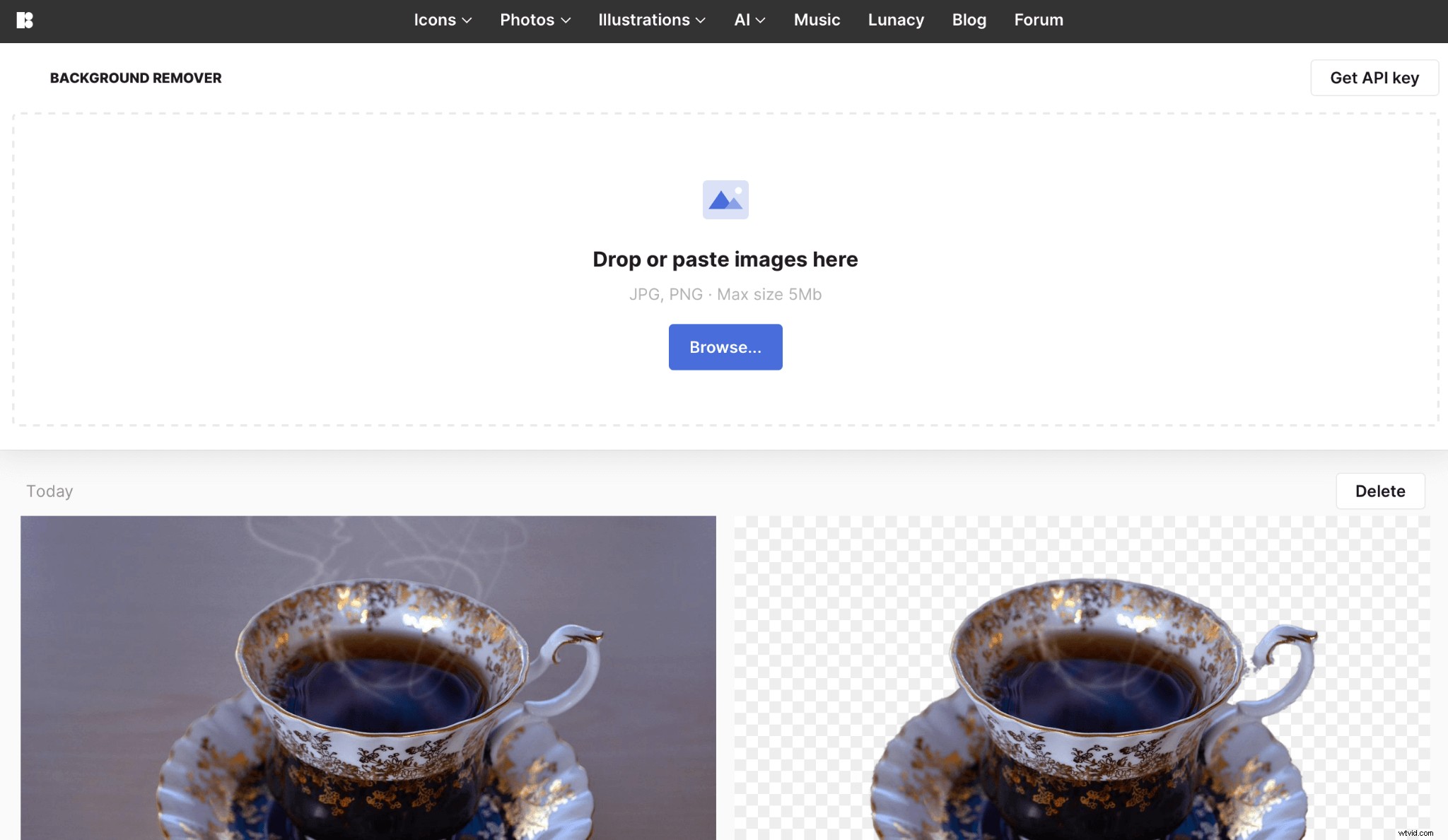
It has a super simple interface, so everyone will get familiar with this tool in just a few seconds. The background removal process takes a few minutes too, but processes the photos with great accuracy.
What’s more, you can find all the processed photos in your account. So if you accidentally delete some image, just go to the Icons8 Background Remover website and find what you need quickly.
#5. PhotoRoom
URL: https://www.photoroom.com/
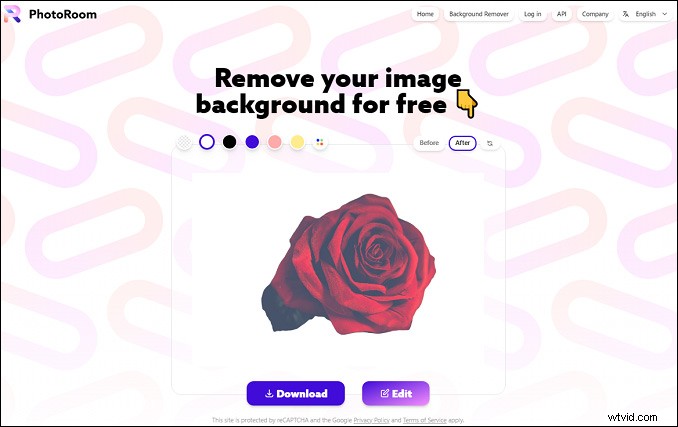
PhotoRoom is another image background remover online. After removing the background, you can replace it with a solid color to make a new image. Optionally, you can add text to the photo, resize and flip it, add shadows, and more.
#6. Slazzer
URL: https://www.slazzer.com/
Similar to remove.bg, Slazzer will automatically remove the image background once you’ve uploaded one, then you can add a new background and blur this photo.
If you want to remove image background in bulk, download the desktop app for your Windows, Mac, or Linux
#7. Clipping Magic
URL: https://clippingmagic.com/
You can use Clipping Magic to remove background from image online. This site also offers tools that let you choose areas to keep or remove.
Moreover, you can replace the background with a solid color, do color adjustments, crop image, and add shadows. It also offers a bulk image background remover. To use it, you should choose a subscription plan.
How to Remove Background from Image in PowerPoint
In PowerPoint, you can remove the background from a picture using the automatic background removal or draw lines to choose the area to keep or remove. However, you can’t remove background from vector graphic files.
Here’s how to remove background from image in PowerPoint.
Step 1. Open a PowerPoint Presentation file, click the Insert > Pictures, then add your picture from your device or online.
Step 2. Select the image, go to the Picture Formats tab, and click the Remove Background.
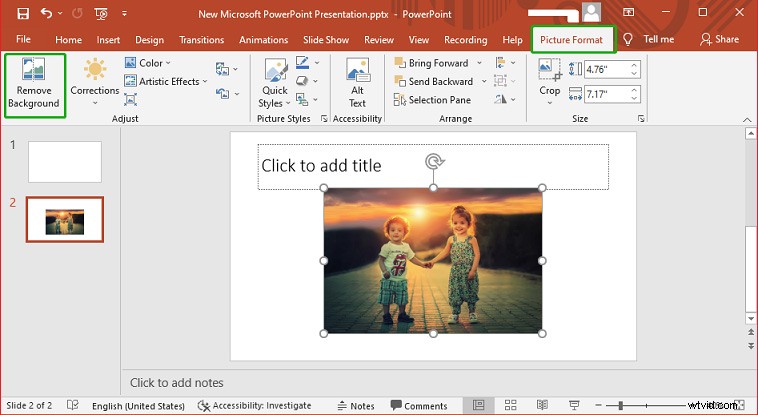
Step 3. The default background area will be colored to remove. Then choose the Mark Areas to Keep or Mark Areas to Remove, then use the drawing pencil to mark the areas on the picture to keep or remove.
Step 4. Once done, click the Keep Changes to save your changes. To save this picture, right-click it and select the Save image as…, choose a folder and click Save.
Conclusion
With the 7 online image background removers, you can easily and quickly remove the background and get a new picture with a transparent background or a solid color or another image. Also, follow the steps to remove a background from an image in PowerPoint.
In addition, there’re many other effective tools you can try, such as PickMoney, InPixio, Fotor. What’s your favorite tool to remove background from image online? Share it with us.