
TikTok is a popular video-sharing app that allows you to browse, share, and save videos. How to save TikTok to camera roll? This post offers you 5 solutions to save TikTok videos to camera roll.
TikTok allows you to save your or other people’s videos to the camera roll. But sometimes TikTok videos are not downloadable due to some reason. Here are 5 ways to directly save TikTok videos to camera roll and download TikTok videos that can’t be saved on your phone.
Try MiniTool MovieMaker to make a longer TikTok video!
Solution 1. Use TikTok’s Save Video Feature
TikTok’s built-in Save Video feature lets you download TikTok videos without third-party apps. Here’s how to save a TikTok to camera roll using the Save Video feature.
- Open the TikTok app and find the video you wish to save.
- Long press on the video until you see the Save Video Or click the Share icon.
- Choose Save Video to download the TikTok video to your camera roll.
Solution 2. Save TikTok Video As a GIF
Can’t find the Save Video option? You can save a TikTok video as a GIF.
- Open the TikTok video you’d like to save.
- Click the Share icon in the bottom right corner of the screen.
- Tap on Share as GIF and TikTok will turn the video into a GIF.
- After that, you can see the GIF in your camera roll.
Solution 3. Share TikTok Video on Instagram
To save TikTok to camera roll, you can share the TikTok video to Instagram Stories and download it. The steps are:
- Click the Share icon located in the lower-right corner of the TikTok video that you want to download.
- Share this TikTok video to your Instagram Stories.
- Go to Your Story and save the TikTok video to your camera roll.
Solution 4. Use a TikTok Saver
Using a TikTok Saver is the best choice for desktop and mobile users because it can quickly download the TikTok videos you want.
Follow the steps below to save TikTok videos to camera roll.
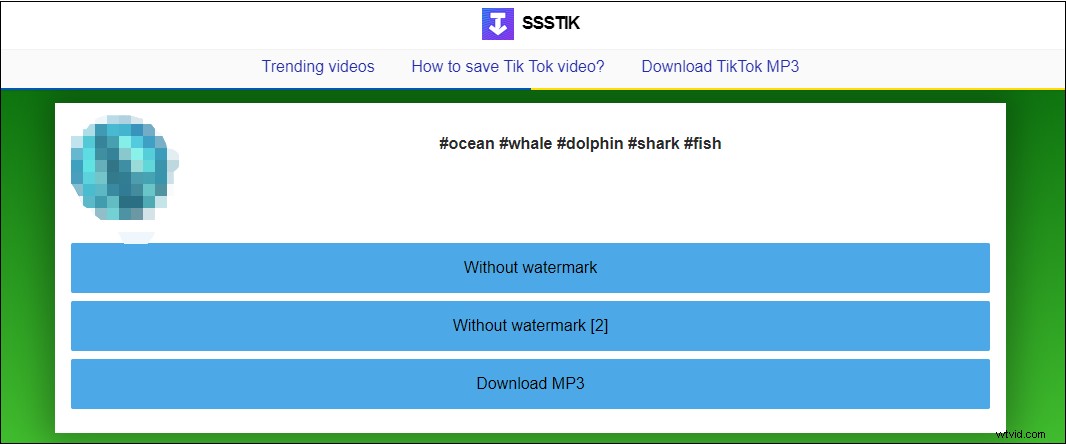
- Open a TikTok saver like SSSTIK.
- Copy the TikTok link and paste it into the box.
- Press the Download button.
- Then select the Without watermark option to save the TikTok video to your device without watermark.
Solution 5. Use the Built-in Screen Recorder
If the above solutions are not working, you can screen record the TikTok video that can’t be downloaded. Android devices and iPhones have a native screen recorder.
Here’s how to save TikTok to camera roll with a screen recorder on Android.
- Pause the TikTok video that you’re going to record.
- Swipe down the status bar and tap on Screen Recorder.
- Turn off the microphone and click Record.
- Play the TikTok video.
- When the TikTok video is finished, stop recording. Then go to your camera roll and you will find the recorded video.
Conclusion
Want to save TikTok to camera roll? Choose a suitable method and have a try!