
TikTok is one of the most popular short-video platforms. It has a massive collection of music tracks for you to make videos. Sometimes, you may want to choose a portion of a song for your video. How to trim a sound on TikTok? This post has clear steps.
Needless to say, each creator knows the importance of sounds on the video. As one of the most popular short-video services, TikTok has an extensive music library of songs and sounds for your video creation.
More importantly, TikTok allows you to trim a sound, and thus you can choose the desired portion of a song or a sound. And this post will show you how to trim sound on TikTok before or after you record a video.
If you want to trim audio on Windows, try MiniTool MovieMaker.
In TikTok’s music library, you’ll find various trending songs and sounds of different durations. You can choose the entire music track for your video or just select a fixed portion. And you can add a sound before or after recording a video.
How to Trim a Sound on TikTok Before Recording
Step 1. Open the TikTok app, and click the + icon on the bottom of the screen to make a new video.
Step 2. Click the Add Sound from the top of the camera screen. Then you can discover or search for a specific sound using the search bar.
Step 3. Once selected, click this sound, and you’ll see a scissor icon on the right side.
Tap the Scissor icon, and you’ll see the audio wave displayed at the bottom. Drag the audio wave to the left to trim the music. And then you can choose 15 seconds of that sound. TikTok allows you to record a 15-second video by default.
Step 4. After trimming, click the checkmark to confirm. Then click the Record button to record your video.
Want to do a voiceover on TikTok? Check this post: Solved – How to Add Your Sound to TikTok.
How to Trim a Sound on TikTok After Recording
You can also add music to your TikTok video after recording, and you can add a song or sound to the uploaded video. This part explains how to trim music on TikTok after recording a video.
Step 1. Open the TikTok app, click the + icon, and then click the Record button to record a video. Or click the Upload to upload a video from your gallery.
Step 2. Tap the Sounds to select the music for your video.
Step 3. When you choose a sound, click the scissor symbol, and then drag the audio wave to adjust when the sound starts.
Step 4. Click the checkmark to save your changes. Next, you can add text, filters, effects, and more to the TikTok video. Then post it to TikTok.
How to Trim Music for Video with MiniTool MovieMaker
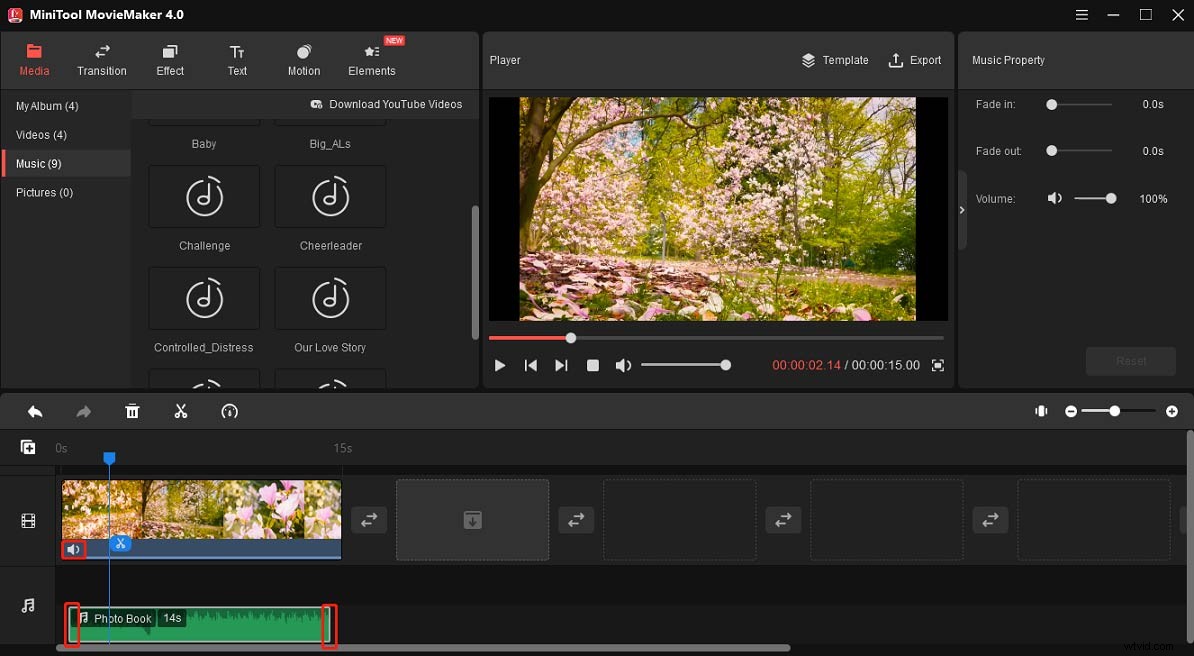
MiniTool MovieMaker is a free video editor. It enables you to rotate, flip, trim, split videos, add background music, edit the original audio track in the video, apply filters, and more. Here’s how to add music to the video and trim it in MiniTool MovieMaker.
Step 1. Launch MiniTool MovieMaker, and click the Import Media Files to upload video from your PC. Then drag it to the timeline.
Step 2. To add music to the video, go to the Music tab, choose a song and click the +. Or click Import Media Files to upload your music, and drag it to the timeline.
Step 3. To trim the music you added, drag either edge of the audio track on the timeline. Then you can move this track to change its position on the video. And you can click the speaker icon in the video clip to mute the original audio.
Step 4. Then click the Export to choose the output format, folder, etc., and tap Export to export the video.
Conclusion
That’s all about how to trim sounds on TikTok. Now, you can follow the steps and easily trim a sound on TikTok before or after recording a video.