
This post teaches you how to edit your posteded TikTok videos.
On TikTok, captions provide a direct connection with your audience. Visuals provide the initial attention, but captions help provide extra information to the viewers. That’s not all; they help in boosting engagement on your posts. Captions help provide a CTA(Call to Action). You can draw attention to a concise message through the captions. For instance, many TikToker’s add “LIKE, FOLLOW and SHARE” in captions at the end of the video.
Edit TikTok Caption By TikTok App Itself
After posting a video on TikTok, you realize that the originally planned caption is missing. Don’t sweat; you can edit captions on TikTok. The process involves you saving the video, re-uploading it with captions, and deleting the old video. It’s the only way to do that on the app as of now.
Step 1. Save the TikTok Video You Have Posted
- Launch the TikTok app from the home screen of your Android iOS phone.

Open TikTok App
- Now that you are inside the app, head to the Me section. It is located at the bottom. In this section, you will see the videos posted by you. Tap on the video in which you want to add a caption.
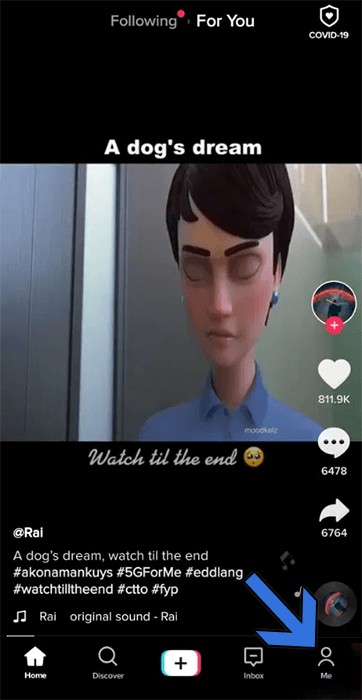
Me Section of TikTok
- Your selected video is now on the screen. Tap on the three-vertical-dot button.
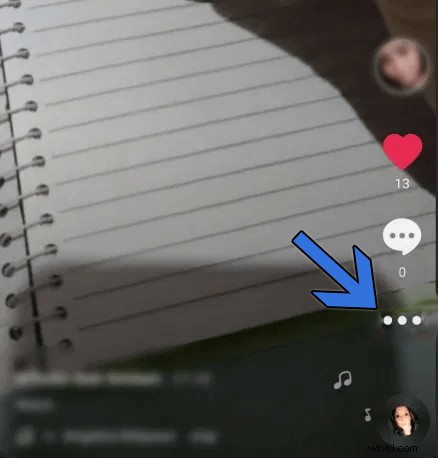
Select Video
- Tap on the Save Video option and your TikTok video will be saved.
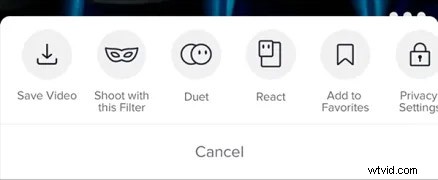
Save TikTok Video
Step 2. Repost the Video With Caption
- Now, tap on the “+” sign given at the bottom of the screen.

Upload Video
- Head to the videos and pictures gallery from the Upload option.
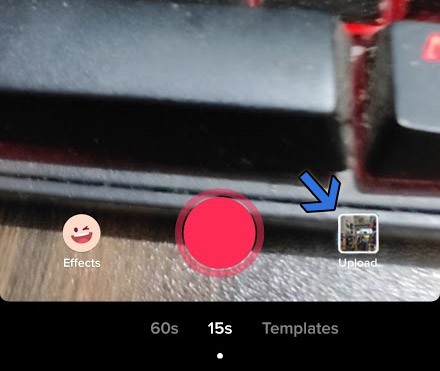
Select Video to Upload
- Select the video which we saved earlier. And then, tap on the Next button.

Select TikTok Gallery Video
- On the next screen of video selection, tap on the Next button.
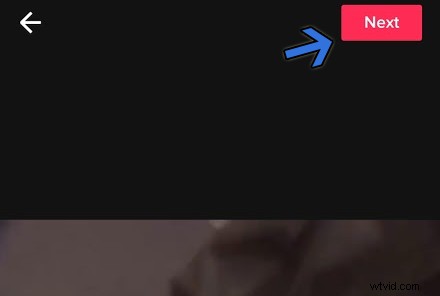
Click “Next”
- Add captions of your choice. Take advantage of the captions and make your video go viral on social media.
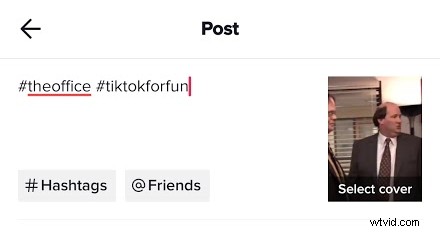
Add Captions
- After everything is done, tap on the Post button. Then, your updated video will appear on the timeline.

Post TikTok Video
Step 3. Remove the Original Video Without the Caption
- Head to the Me section the app from the home screen

Head to “Me” Menu
- Now, it will show the videos and photos that you have posted.
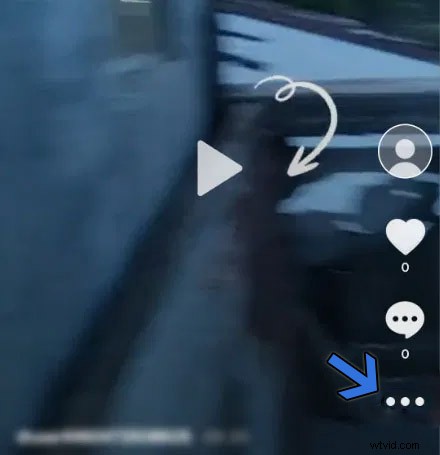
Enter Delete Menu
- After that, tap on the Delete button, and your old TikTok video will be deleted forever.
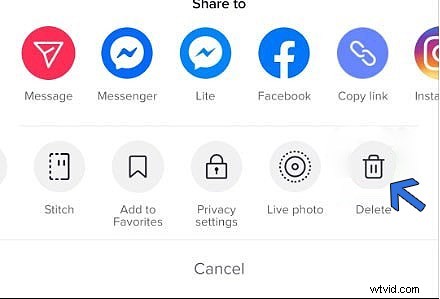
Delete the Video
Edit TikTok Caption by FilmForth
Adding captions on TikTok is fast and easy. But what about the different fonts, styles, and effects. That’s what advanced users prefer for their content. FilmForth can help you up to your caption game with its extensive text menu. Add captions of different sorts to the TikTok videos before posting them on the platform.
Step 1. Download and install FilmForth from Microsoftware. Please do not download from any third party for safety issues.
 Step 2. Launch FilmForth and create a New Project via Add Video/Photo Clips
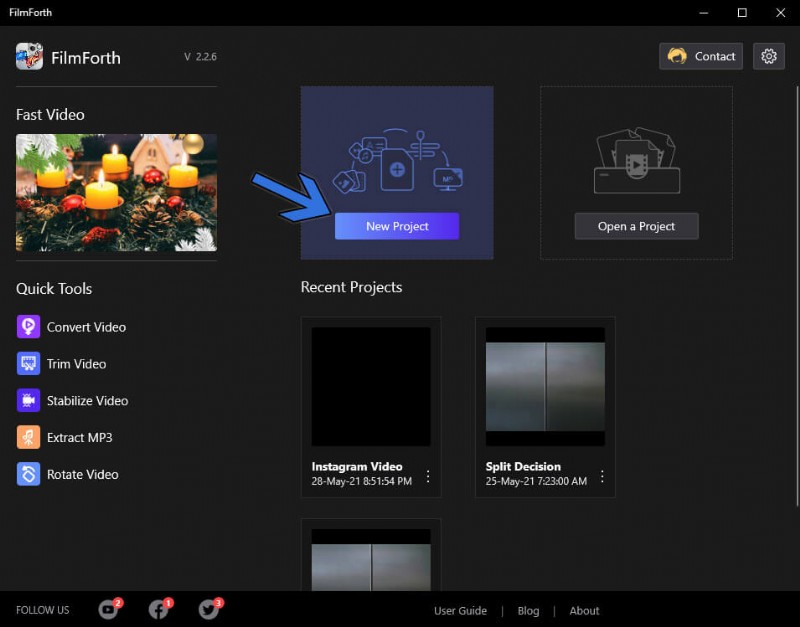
Create New Project
Step 3. Head to the text menu using the shortcut from the timeline feed.
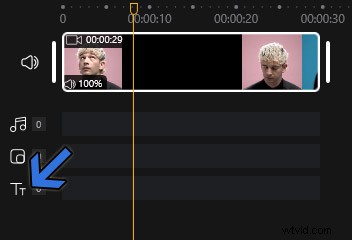
Head to Text Menu
Step 4. Add text to the video by clicking on the Add Text button.

Add Text
Step 5. A text box will appear on the screen. Double click on it to open the text edit menu. Alternatively, you can click on the Add text button.
Step 6. Select the fonts, size, and more for your caption. Enter the text that you wish to add a caption in the box given at the right.
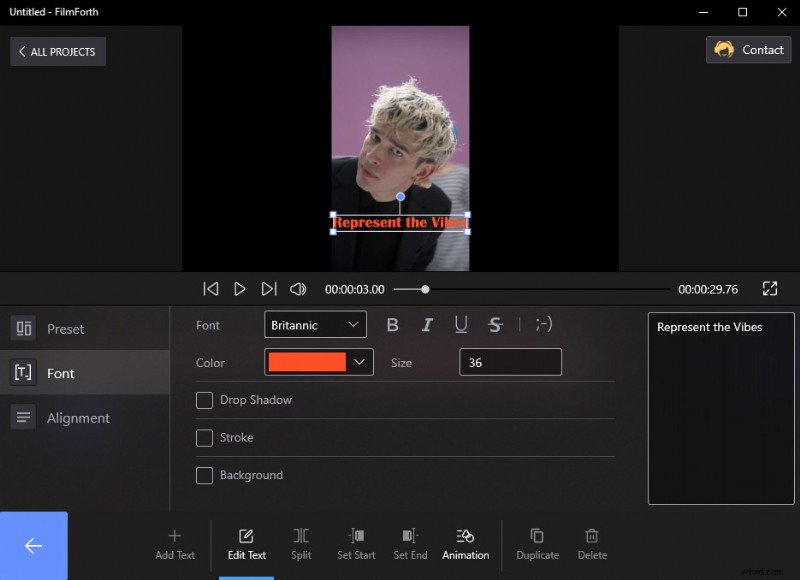
FilmForth Text Menu
That’s not all; add animation to your caption from the Animation menu. It has the option for the start, end, and emphasis.
Step 7. Access the text menu from the tool’s dashboard at the bottom. Click on the Animation button.

Text Animation
Step 8. You have the option of text in the following manner
- Entrance: Entering or appearing on the screen in style selected by you. You can set the timer for animation between 0.2 to 2 seconds.
- Exit: Make the text disappear in different styles.
- Emphasis: The text will do specific actions on the screen to catch the viewer’s attention.
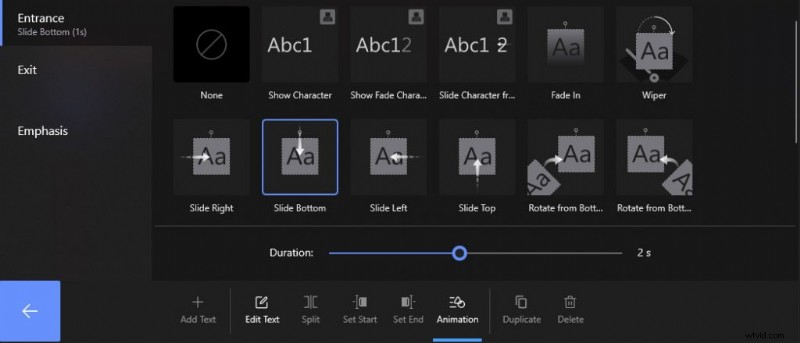
Text Animation Menu
Other TikTok Video Editing Tips
1. How to Trim Video on TikTok
- Tap on the plus button, given on the home screen of TikTok
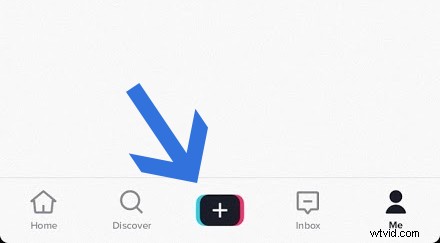
Click the “Plus” Button
- Head to the video gallery for selecting the video which you want to post on TikTok.
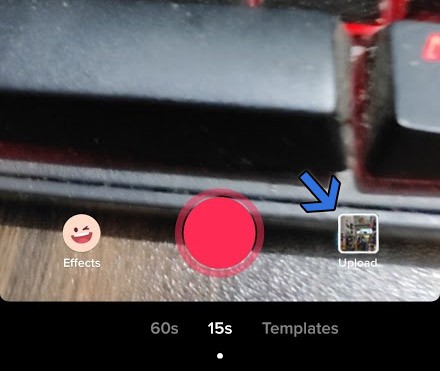
Upload a Video
- Select the video from the gallery and tap on Next

Select a Video
- Use the slider to trim the video from the head or the tail.
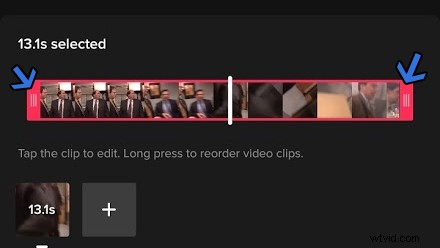
Trim the TikTok Video
Add Sound on TikTok
- Continue the video posting process and tap on the Next button, located at the top right corner of the screen. You will see a library of music that is searchable. Find the music that goes with the video.
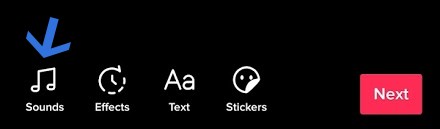
Add Music
Add Effects on TikTok
- Tap on the Effects button, given at the bottom, besides the sounds option.
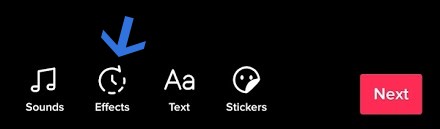
Add Effects
- Tap and hold the effect to apply them. You can select the scope of an effect using the slider.
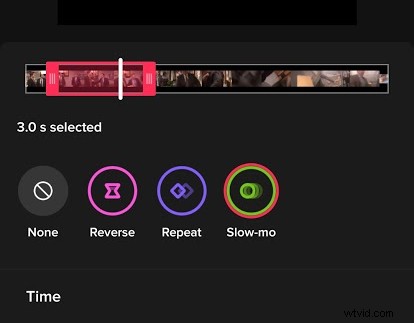
Apply Effects
Conclusion
Edit captions on TikTok without pulling your hair out. The on-board caption tool is ideal for basic scenarios where generic captions do the job. When you want to go the extra mile, take the help of FilmForth. A video editor for editing all your TikTok captions. Add the aesthetic flair to the captions, and stand out from the crowd.