
Preparation
What you need to prepare:
- A computer (Windows or macOS)
- Your video footage or photos
- Filmora video editor
Step 1
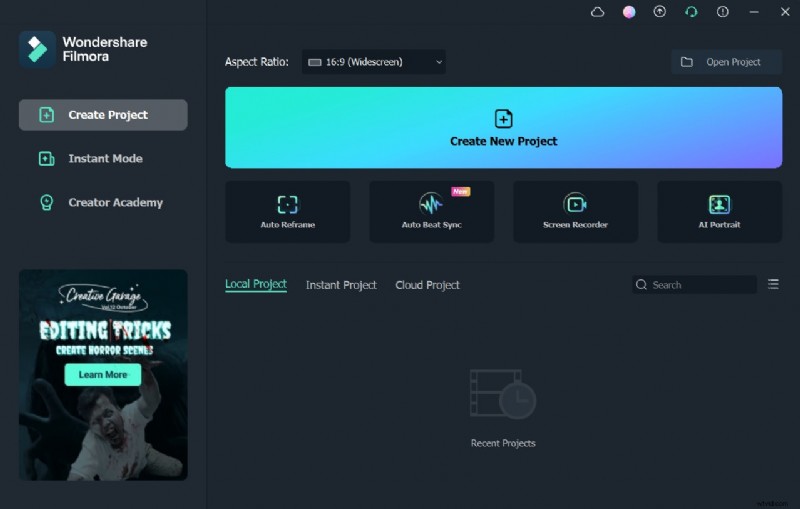
Navigate to the official Wondershare Filmora website and click the “Free Download” button to obtain the installer. Follow the on‑screen prompts to install Filmora on your device.
Step 2
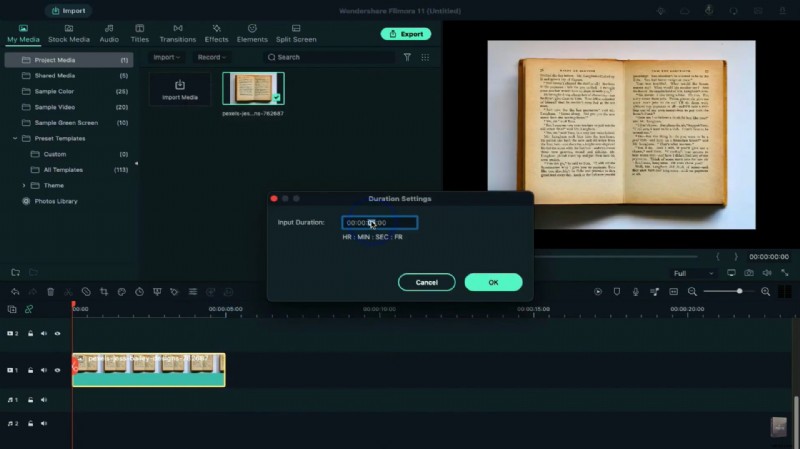
Import your photo or video into Filmora. Drag the clip onto the timeline, right‑click it, and set its duration to 11 seconds. Double‑click the clip to open the settings panel and adjust the Scale so the image fits the screen.
Step 3
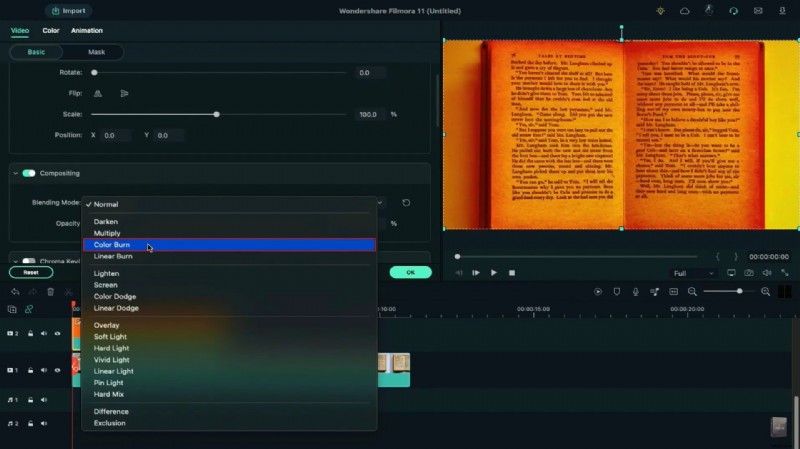
From the My Media panel, choose Sample Color and pick any color you like. Drag the color onto track 2 of the timeline. Double‑click the color clip, then select Color Burn under Blending Mode. Trim the clip to 1 second and, in the preview window, shrink it until it appears as a thin line. Adjust the zoom to 75% for easier handling.
Step 4
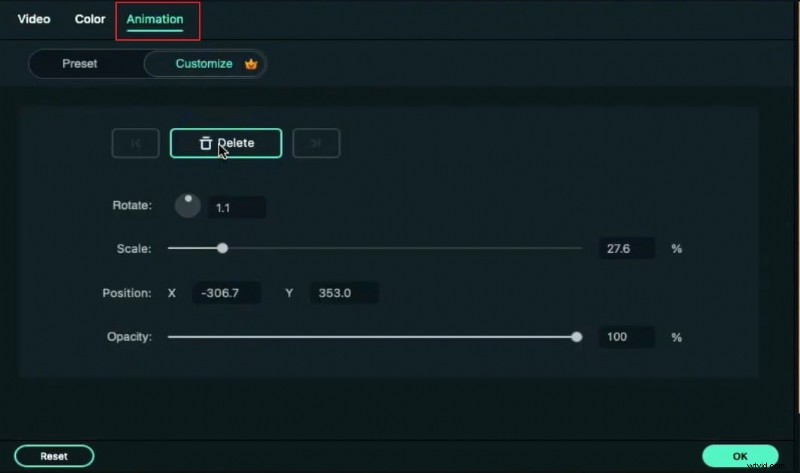
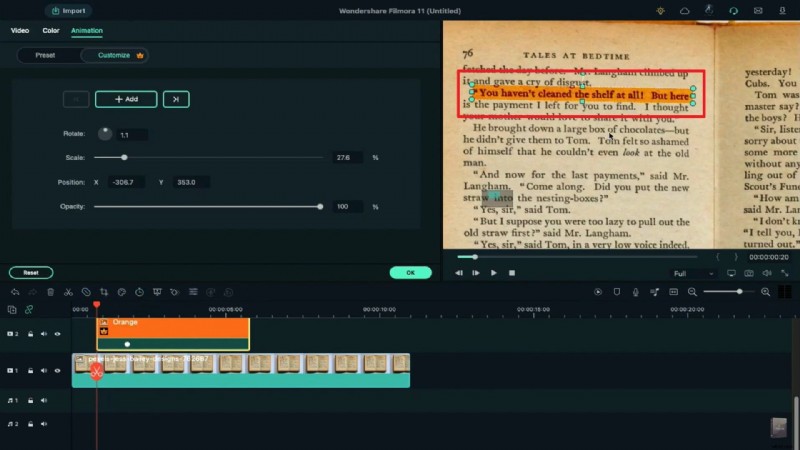
Place the colored line over the desired text in the preview. Use the Rotation and Width controls to align it. Advance 1 second on the timeline, go to the Animation tab, and add a keyframe to the clip.
Step 5
Return to the timeline start, double‑click the color clip, and shrink it in the preview until it disappears. Extend the clip’s duration to match the 11‑second photo segment.
Step 6
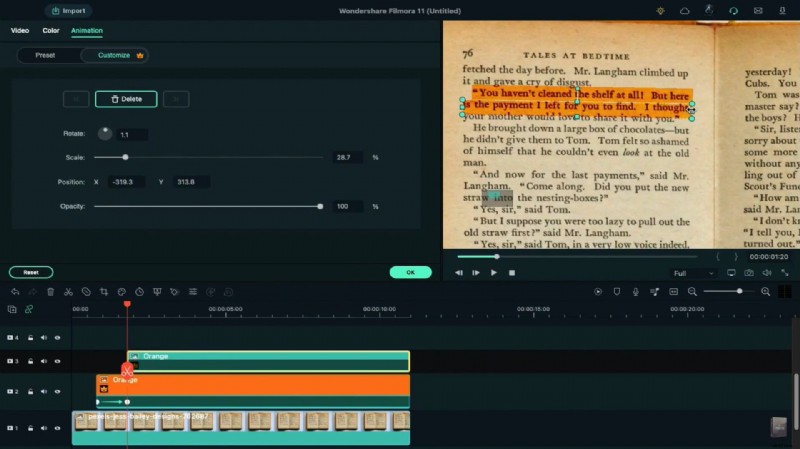
Copy the color from track 2 and paste it onto track 3 at the keyframe position. Remove the existing keyframe, reposition the color, and add a new keyframe 1 second later. Shrink the line again until it is fully hidden.
Step 7
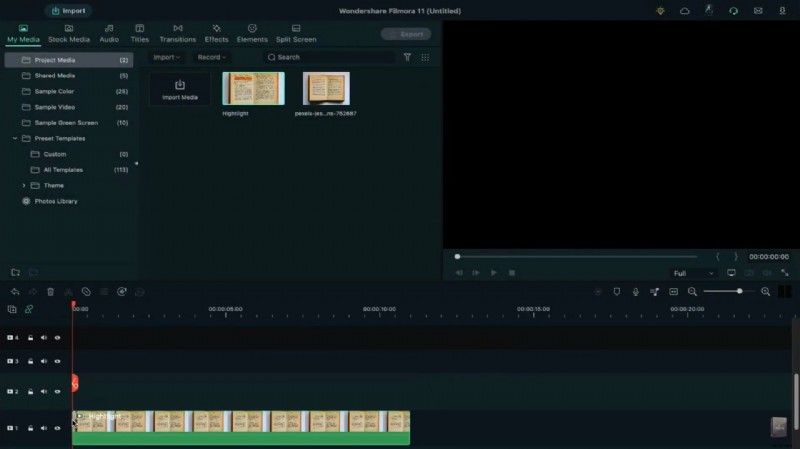
Repeat the copy‑and‑paste process for track 4. Once the sequence is complete, export the clip at a high bitrate and give it a descriptive name. Import the exported video back into Project Media and add it to the timeline.
Step 8
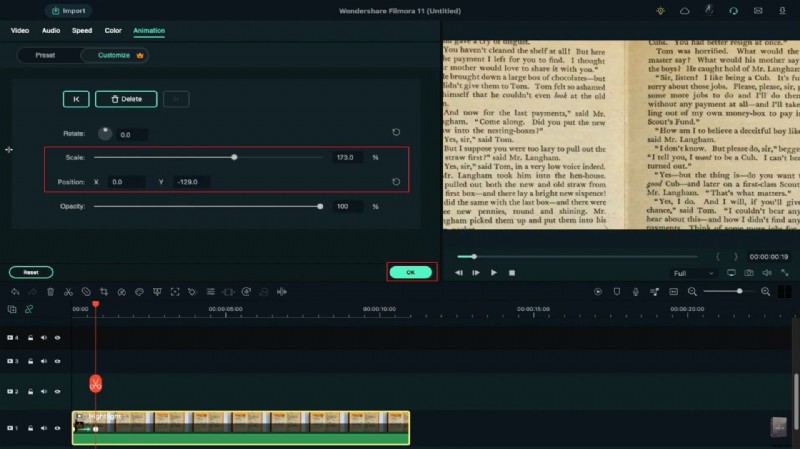
At the start of the timeline, add a blank keyframe. Move the playhead to frame 19, double‑click the clip, and increase its Scale to create a subtle zoom‑in effect. Adjust the position to match the highlight, confirm with OK, and render the final video.
Summary
Key takeaways:
- Swap backgrounds using Filmora’s green‑screen features.
- Employ smooth transitions to enhance visual flow.
- Explore a variety of pre‑set backgrounds—social, business, sports, and more.
Also, if you want to add text in a special font to give your videos a cinematic flair, click here to learn more.