
Top 3 AI Features to Elevate Video and Audio Editing
Filmora 13 introduces groundbreaking AI tools that streamline content creation, enabling you to produce professional‑grade videos with minimal effort.
Key AI Tools
Transcript Highlights
In this video, the creator explains Filmora 13’s new AI capabilities, focusing on the AI Vocal Remover, AI Music Generator, and AI Speech Enhancement.
Key takeaways:
- AI Vocal Remover: Separate vocals from music tracks, creating two distinct stems and allowing independent adjustment of each.
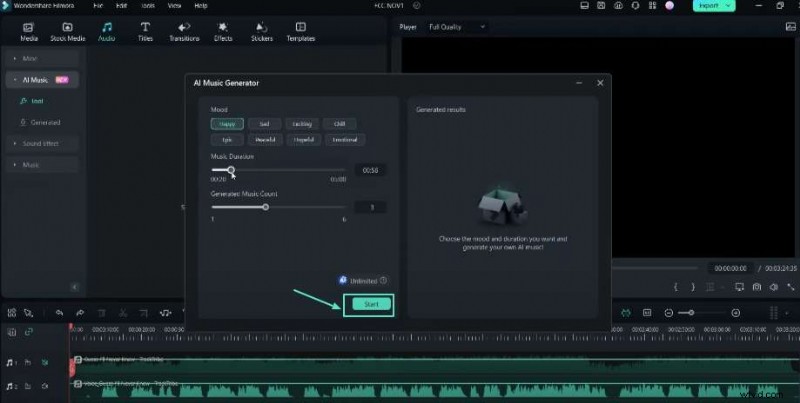
- AI Music Generator: Create royalty‑free background music in moods such as happy, sad, exciting, chill, epic, peaceful, hopeful, or emotional. Lengths range from 20 seconds to 5 minutes, with up to six variations.
- AI Speech Enhancement: Clean up dialogue by removing wind noise, hum, hiss, and reverb, and boost clarity with adjustable denoise levels.
These tools empower creators to craft polished videos without external plugins or expensive audio libraries.
Steps to Enhance Video and Audio Editing with AI in Filmora
Preparation
Before you begin, ensure you have:
- A computer running Windows or macOS
- Your source video and audio files
- The latest version of Filmora installed
Step 1: Locate the AI Vocal Remover
Navigate to the Audio workspace and click on AI Vocal Remover. This feature functions as an audio editor within Filmora, allowing you to split a single track into vocal and instrumental stems.
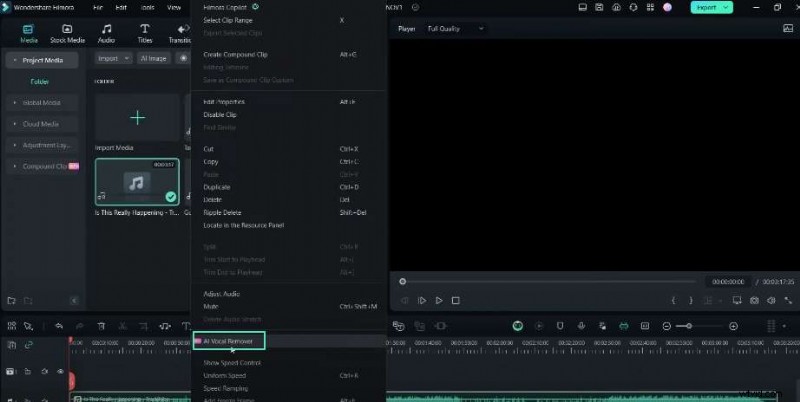
After processing, you’ll have two separate tracks that you can adjust independently.
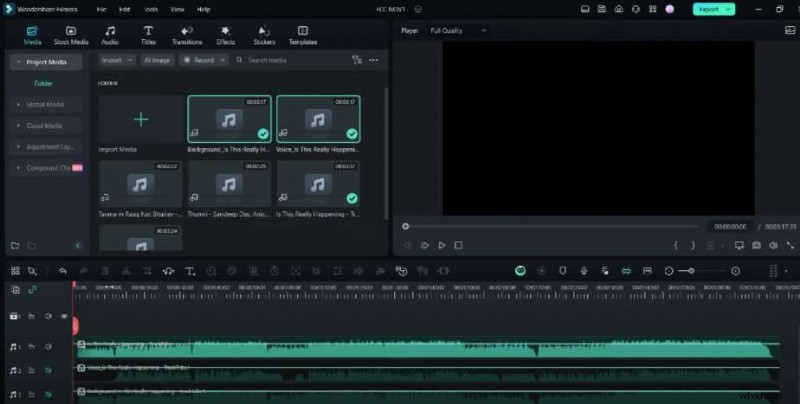
Step 2: Test the Separation
Play the original track, then listen to the extracted vocals and music separately. This helps you evaluate the quality of the separation and decide whether to suppress the music stem to highlight the vocals.

Step 3: Explore the AI Music Generator
Open the AI Music panel to generate custom royalty‑free tracks. Choose a mood—such as happy, sad, or epic—set the duration (20 s to 5 min), and decide how many variations (1‑6) you want.
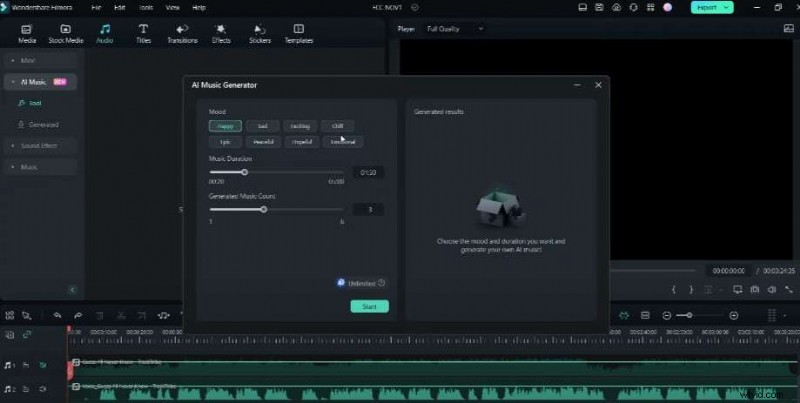
Once you click Generate, Filmora will create the requested tracks.
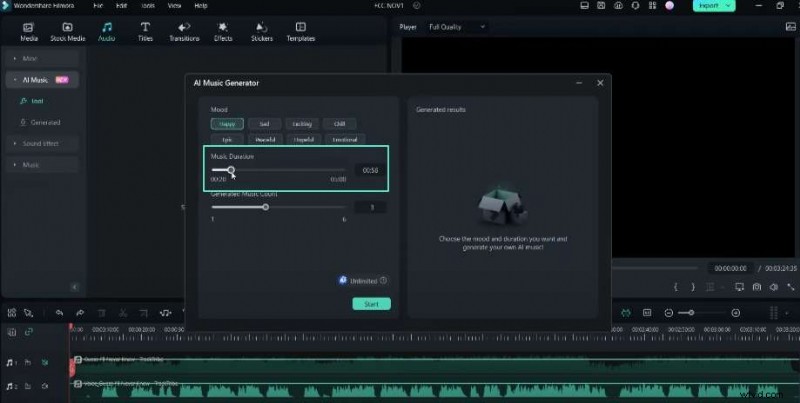
Step 4: Use the Generated Music
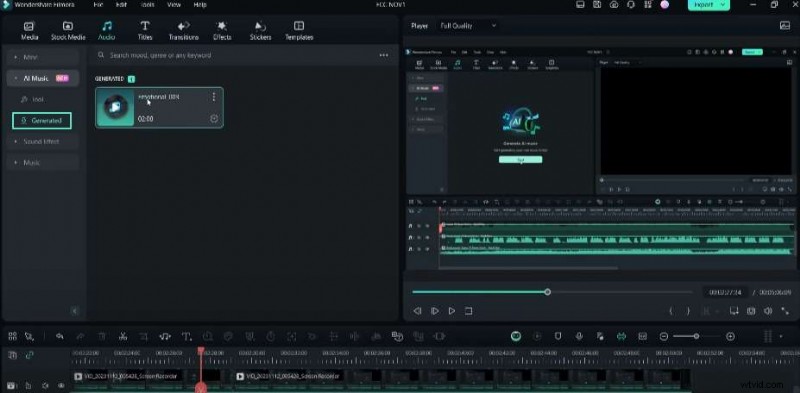
The new tracks appear in the Generated folder. Drag them onto your timeline as background music. Because they are royalty‑free, you can use them in commercial projects without licensing concerns.
Step 5: Enhance Dialogue with AI Speech Enhancement
In the Audio tab, find AI Speech Enhancement under the Denoise section. This tool improves vocal clarity by reducing background noise and reverb.
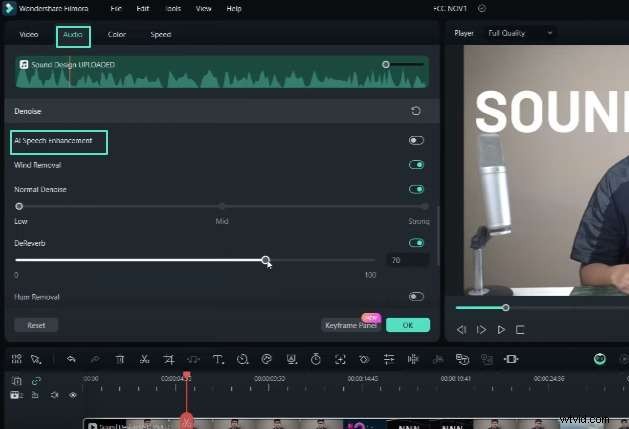
Play the original clip and compare it to the enhanced version to hear the difference.

Step 6: Fine‑Tune Denoising Settings
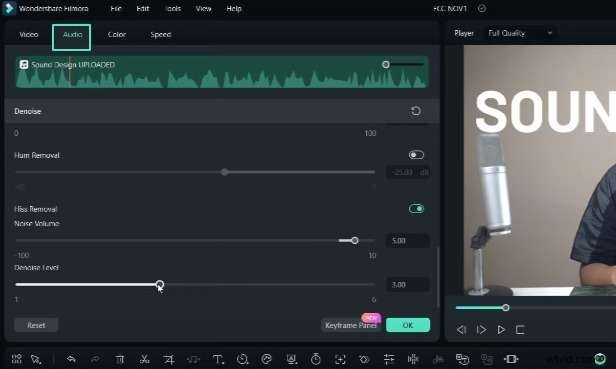
Adjust the intensity of wind noise removal, general denoise, and reverb reduction. You can choose low, medium, or high levels depending on the source quality.
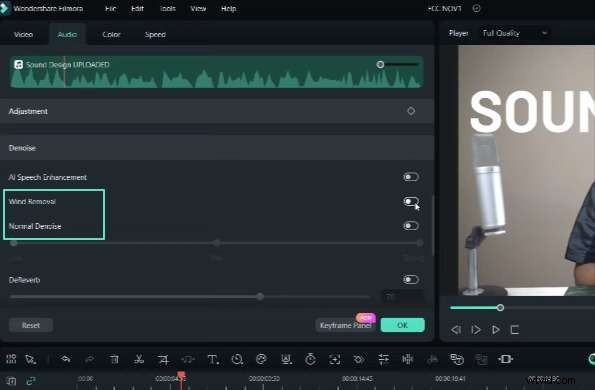
Step 7: Remove Unwanted Hum or Hiss
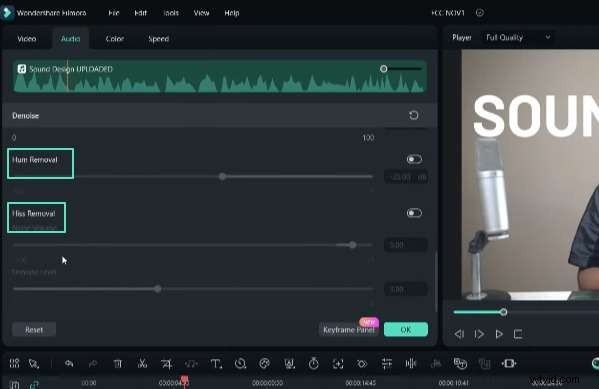
Filmora also offers a dedicated tool to eliminate hum and hiss from vocal tracks, further polishing your audio.
Step 8: Try Filmora’s AI Features
Download the free trial of Filmora 13 from the description below and experiment with these AI tools. They unlock new possibilities for creators who want to produce high‑quality video content efficiently.
Summary
Filmora 13’s AI suite—including Vocal Remover, Music Generator, and Speech Enhancement—redefines what’s possible in video editing. Whether you’re a hobbyist or a professional, these features help you streamline your workflow, reduce post‑production time, and deliver polished results. For more in‑depth tutorials, visit the Filmora Creator Hub.