
Adobe’s latest video editing software puts your work in the cloud and lets you switch seamlessly between editing on your phone or your workstation.
Adobe has finally pulled the curtains back on Project Rush, revealing an all-new application that they’ve aptly dubbed Premiere Rush CC. This wonderful new program strips Premiere down to the basics and brings it into the cloud, allowing users to sync projects and edit from their computers, phones, or tablets.
So, let’s take it for a spin.
Editing in Rush
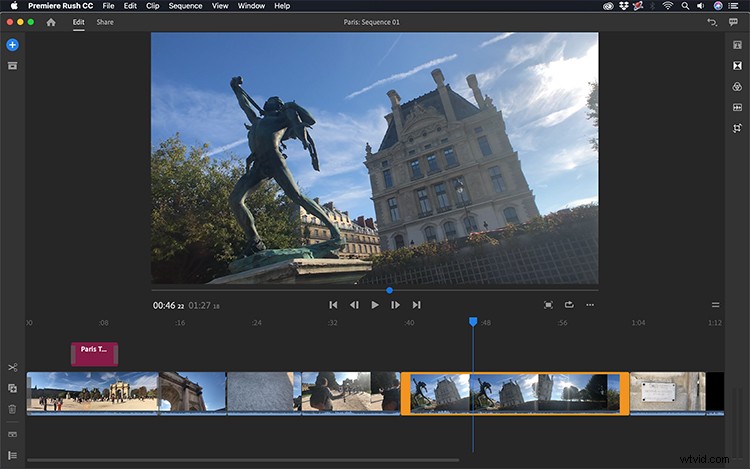
Think of Rush as a minimalist version of Premiere Pro — it’s the same program, just without the clutter. (It’s especially friendly to new users.) When you first open Rush, you’ll get a guided tour of the program. Start a new project by importing media with the streamlined media browser. Bring in footage from your local device or via the cloud. Preview clips with hover scrub, and even perform basic trims just prior to import.
Once you have your project set up, you’ll see the new Rush interface, which is simple and intuitive. A program monitor sits above a very basic timeline. You can full-screen the program monitor, loop playback, and even change the orientation to portrait or square. (This is especially useful when working with content for Instagram.) View all of your media assets with a collapsible Project panel.
As the name implies, Rush’s timeline is designed for quick editing. For example, all trims are ripple trims. This prevents you from having to close gaps and constantly shift clips. Repositioning a piece of footage will perform a rearrange edit, automatically inserting and shifting your footage accordingly. Users get three simple timeline tools: split, duplicate, and delete. To perform more detailed edits, you can expand to see audio waveforms and toggle on a display to view tracks and their controls, including an option for recording voice-overs.
Fine-Tuning
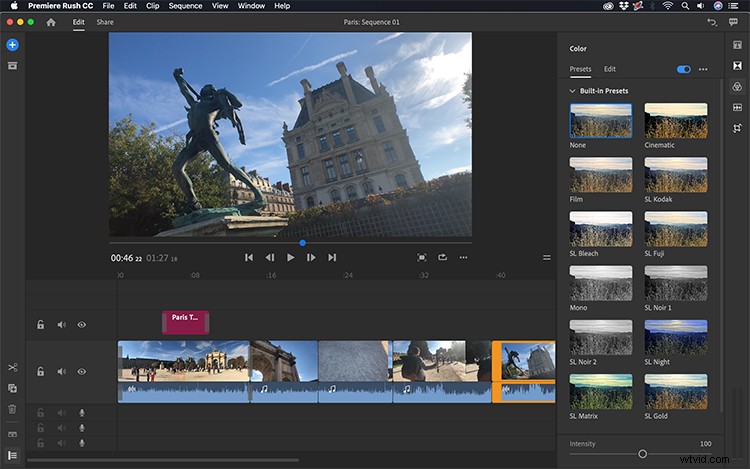
Once you’ve made a cut that you’re happy with, you can further refine your project with five different control panels. The first is a Title panel, which is exactly like the Essential Graphics panel in Premiere Pro. You can even import mogrt files if you’d like. A Transitions panel allows you to add cross dissolves and dip to black and white. Adjust tint, exposure, saturation and more with the powerful Color panel. And if you’re in a hurry, use one of the many available filter presets.
If you take a closer look at the clips in your timeline, you’ll notice that Rush is automatically detecting the type of audio you’re using and placing it into categories. The three categories are “Voice,” “Music,” and “Other.” Once it completes the detection, Rush will automatically adjust the levels as needed. If it detects a voice, it will perform auto-ducking to attempt to get optimal levels. (You can also turn this feature off and manually adjust your audio at any time.)
Last but not least is the Transform panel, where you can adjust the position, rotation, and scale of your assets. Jump into an advanced menu to add a crop or edge feather, or to simply change the opacity. You can also scale and position assets directly on the program monitor.
Sharing
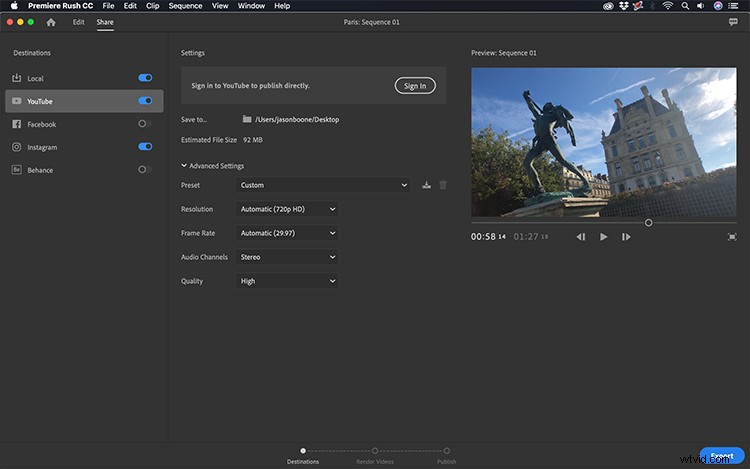
After you’ve finished fine-tuning your cut, it’s time to export. Select the “Share” button to bring up the export settings. This is very much like the Export Settings dialogue box in Premiere, only much more streamlined. Since Rush is geared more for social media platforms, you’ll find export and publishing presets for YouTube, Facebook, Instagram, and Behance. Also, just as in Premiere, you can still tweak the advanced export settings and save out your own custom export presets if you so desire.
Cross-Device Workflow
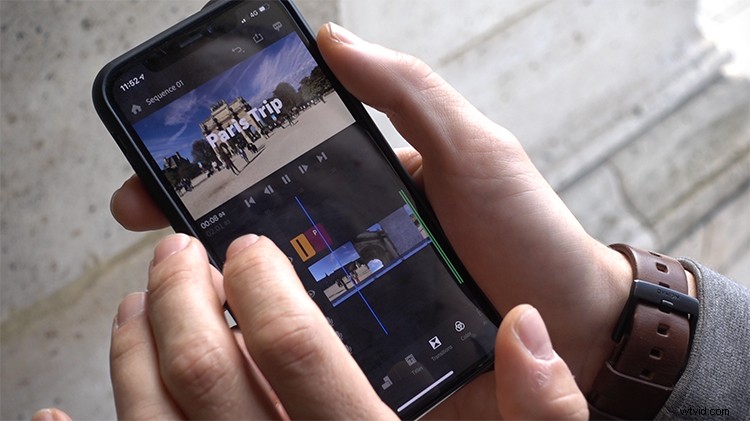
One of the main features of Premiere Rush is the fact that you can edit content directly from the cloud. Projects and media files will automatically sync via your Adobe Creative Cloud account, making them accessible from the Rush mobile app or via a desktop. This allows editors to work entirely on a mobile device or to use the mobile app in conjunction with the desktop version. For now, unfortunately, only an iOS app is available. An Android version is set for release in 2019.
It doesn’t matter if you’re a daily vlogger, an indie filmmaker, a social media manager, or a journalist out in the field, Adobe Premiere Rush CC is definitely worth checking out. To learn more and to check out all of the pricing options (including a free starter version), go the Adobe Rush website.