When you’re editing video, you’re essentially playing with time. Let’s look at a few Premiere Pro tools to help you do just that.
You know, it’s called nonlinear editing for a reason. You’re moving and shifting clips around as you wish on a timeline, creating an entirely new sequence of events. Premiere Pro has a handful of tools that allow you to dive down into your footage and manipulate time on a clip level. Let’s take a look at a few.
1. The Rate Stretch Tool
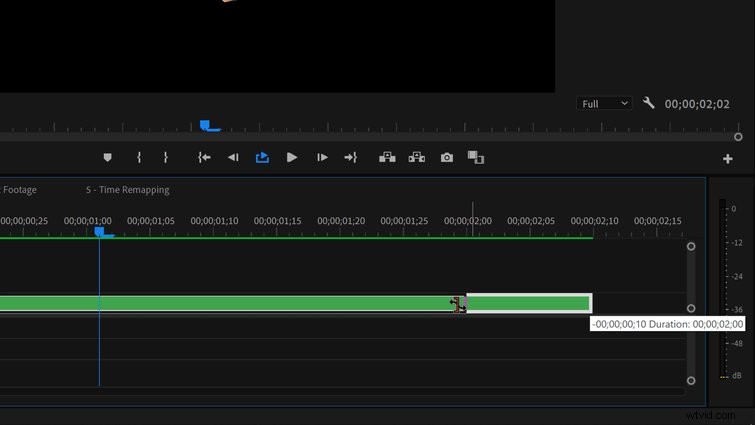
One of the fastest ways to manipulate time in Premiere Pro is via the Rate Stretch tool. Simply press the R key to bring it up. Hover over the edge of a clip to watch the tooltip activate. Click-and-drag to speed up or slow down your video. The speed is displayed via a percentile in the clip name. If you can’t see it, click on the Wrench icon and activate Show Video Names.