Remove black bars from a YouTube or another video
Black bars appear if your video doesn’t fit the aspect ratio of the post. That’s why before sharing your clip you’d better check social media specs and requirements in our complete guide.
To remove black bars from a vertical or horizontal video you need to crop it before uploading to a website. Another option, if you don’t want to lose parts of the frame, you can just blur the bars or change their colour.
Whatever you choose, our tool comes in just handy! It is free, user-friendly, and works online. Keep reading!
Upload a video to crop
Open Online Video Resizer by Clideo in any browser. Hit the big blue button in the centre of the tool’s homepage and upload a recording from your personal device.
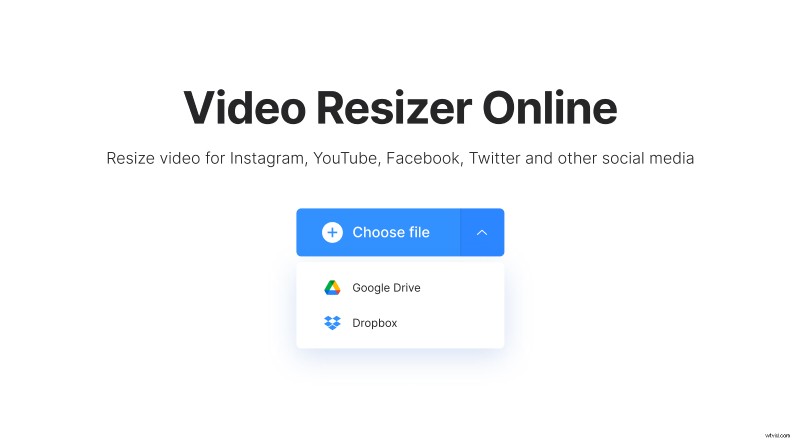
If you want to change the aspect ratio of a YouTube or any other video that you keep in your online storage accounts, call a drop-down menu and import a file right from Google Drive or Dropbox.
Crop black bars from the video
Find the “Resize for” section on the right of the player, call the drop-down menu with different social media and choose the last option – Custom. Then select the aspect ratio you need. You can also hit the tiny chain between the boxes and set the video’s width and height manually.
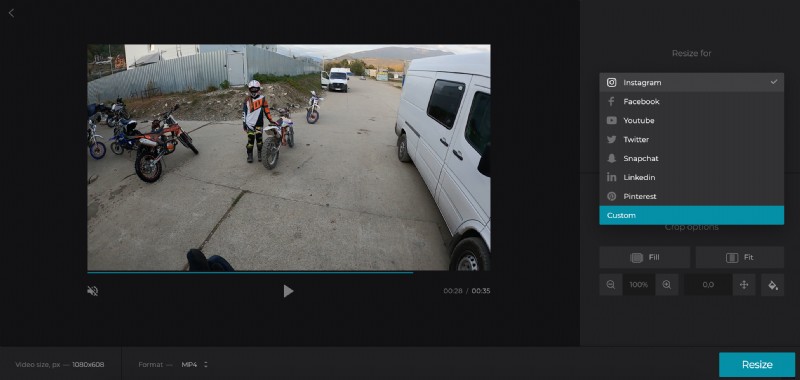
To get rid of all the bars – on the left and right sides, or on the top and bottom – click on the “Fill” pane under the Crop options. Use the special arrows to move the frame and “catch” the needed part of it.
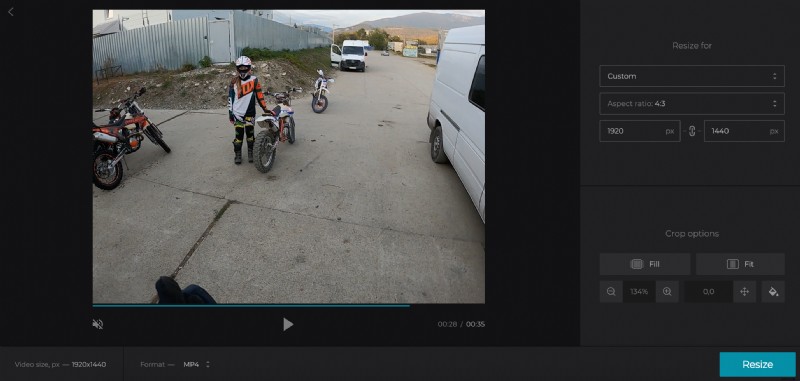
Another option – you may want to keep the video as it is but change depressive black bars to something more appropriate, maybe vivid and colourful. For that, hit the “Fit” option and choose the bars’ colour or blur them. You can also type a Hex code manually.
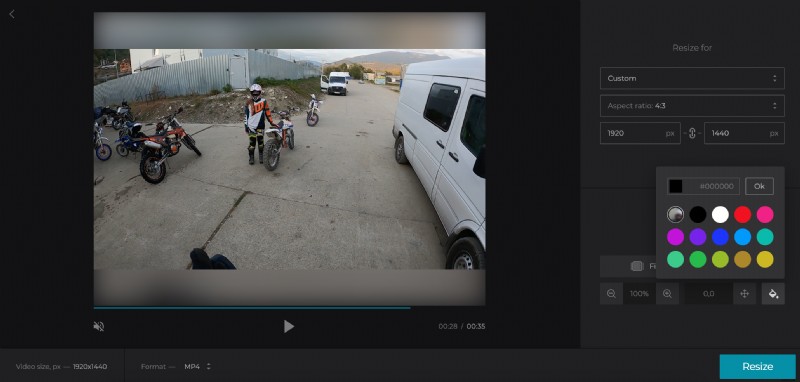
Select an output format or keep the initial one. To decide on this setting, you can check the social media manual one more time.
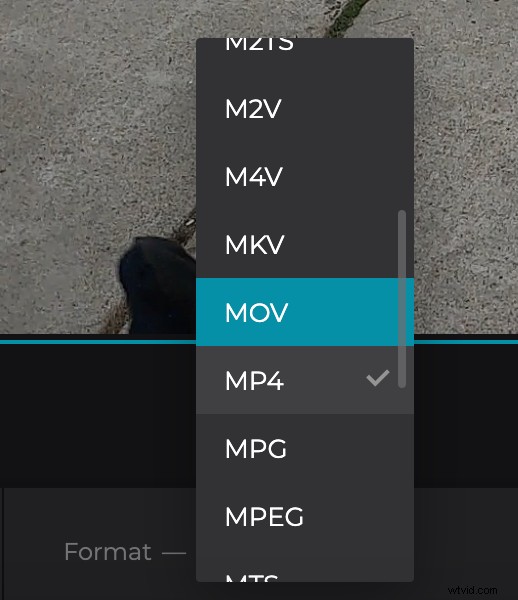
Hit “Resize” and get ready to enjoy the result.
Save the video without black bars
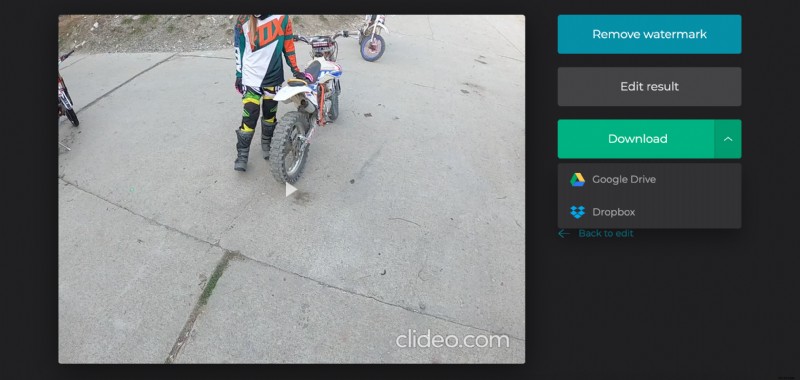
Give the video a final run. Are you happy with what you see? Save it to your personal device or cloud storage. Not yet? Click on “Back to edit” and keep making the visual better!