
Ready to master the mystic arts of your YouTube data? Take a closer look at how to view, decode, and take action on your metrics.
Now, I could sit here and list out every single YouTube metric for you, providing a brief summary of what each one does. But this information is already widely available, and without proper context it can be hard to figure out what to do with these figures.
What’s more important when learning the intricacies of analytics is to figure out how to use the data. This includes how to properly view, decode, and take action on your specific metrics. Let’s take a closer look at how it works.
How to View the Data
First things first, where can you view your data? Simply go to YouTube Studio and navigate to Analytics. This shows you a variety of metrics, including sections focusing on Reach, Engagement, Audience, and Revenue.
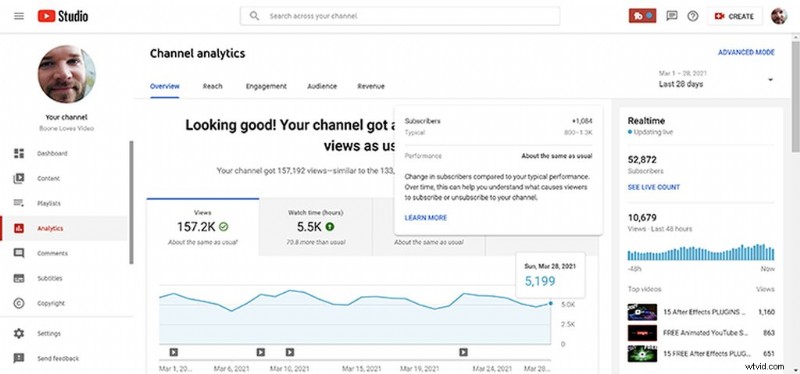
The main Overview page shows some of the more popular metrics, including views, watch time, subscriber count, and revenue. There’s information on top performing videos, as well as your latest uploads. Many of the metrics are compared by the typical performance of other videos over the same time period.
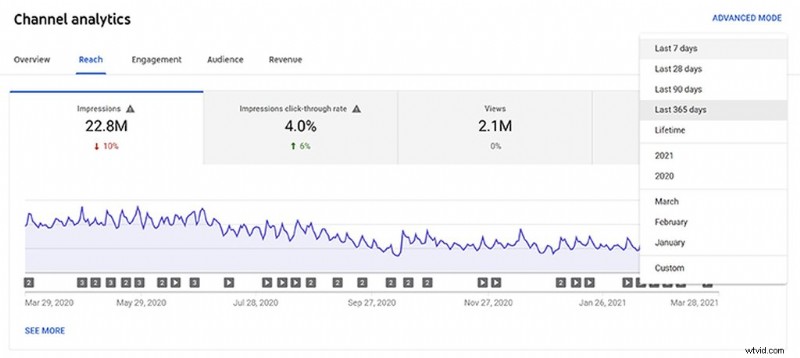
Speaking of time, this is one of the primary ways to view the data. Play around with the time duration in the dropdown menu at the top right to view metrics from the last 7, 28, 90, or 365 days. You can also view the data over the course of a specific month, year, or even the lifetime of your channel.
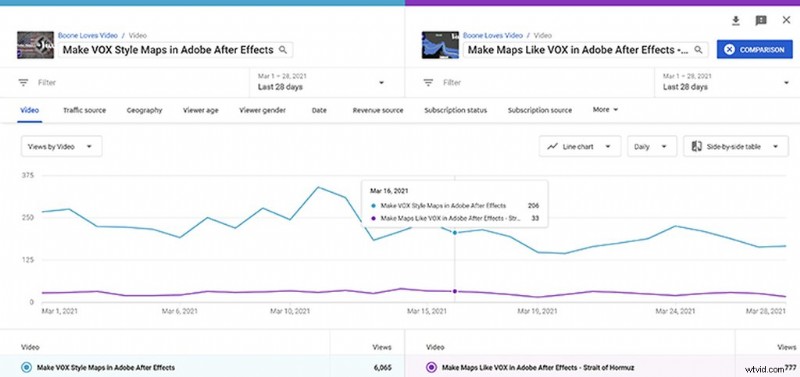
While the Analytics page shows you the data on a channel level, you can naturally dive down and view the metrics on an individual video level as well. And, once you get comfortable, jump into Advanced Mode to compare videos via filtered metrics. This is a fun way to take a look at how similar videos performed.
Now, let’s take a look at what this data is telling us.
How to Decode the Data
With so many metrics available, it’s easy to get overwhelmed and give up on an analysis before it even begins. The quickest, easiest way to decode and understand your data is via the provided tooltips. To view a tooltip on a desktop, simply hover the cursor over a metric.
For example, when you hover over Subscribers in the Overview section of the Analytics page, a dialogue box pops up. This provides further information on how to understand and use the metric. To take a deeper dive of the topic, click on the Learn More button.
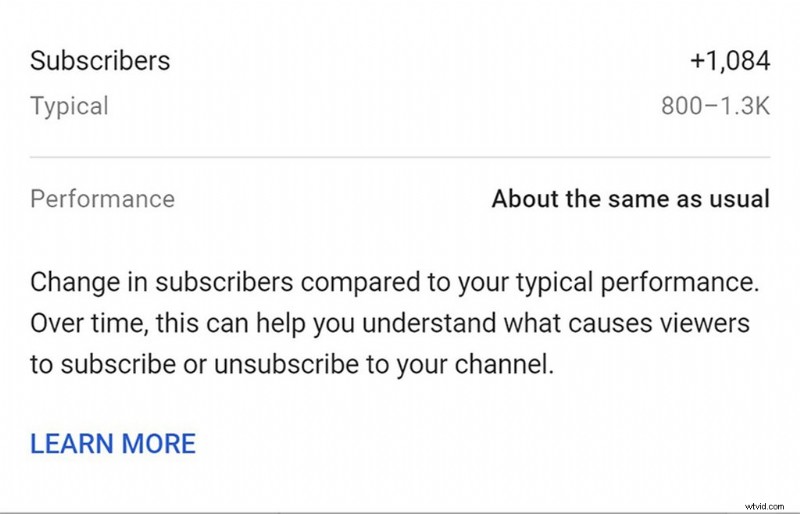
In addition to giving context to a metric, tooltips also show specific data points for Line and Bar charts, as well as additional general information that’s not clearly visible initially. This helps keep the analytics page less cluttered. Again, with so much information on screen, the Analytics page can be quite overwhelming when you first open it up.
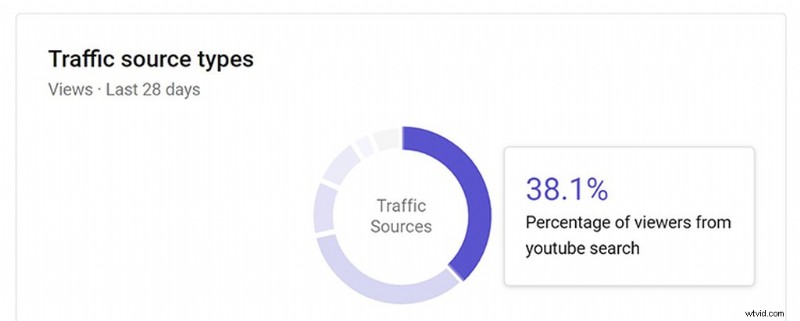
Tooltips are the best way to quickly learn about the metrics and figure out what the data is telling you.
How to Act on the Data
Now that you know how to view and decode the data, it’s time to take action. While metrics can tell you a myriad of things, mindlessly clicking around the Analytics page isn’t going to get you far. It’s important to have a purpose. Figuring out what you want to accomplish will help drive you to the data you need. Then, you can decide how to take action on that information.
In my case, I have a channel focusing on After Effects tutorials. One of the main problems I’ve noticed is the volatile number of views from upload to upload. Sometimes it’s quite high, while other times it’s extremely low. I want to attract and build a more loyal audience, and hopefully, in turn, get a more uniform number of views per video.
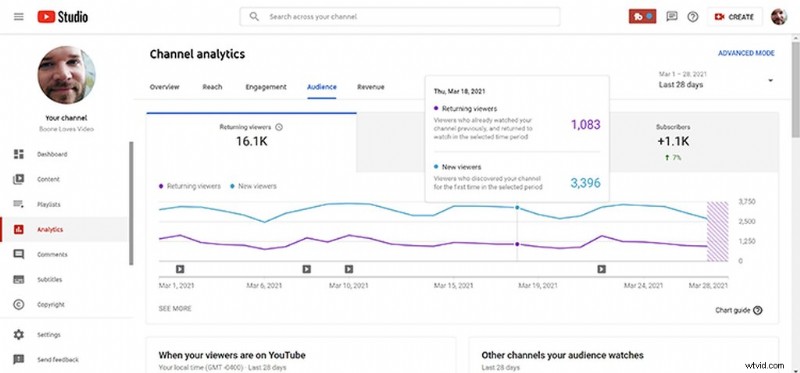
In Analytics, I’ll open up the Audience tab. Here, you’ll see that the majority of my views come from New Viewers. My Watch Time from Subscribers for this past month was down at 9.5%. This is typical for some educational channels, as many viewers of these channels are looking for a specific solution and will only watch one video. Nevertheless, there’s certainly room for improvement here.
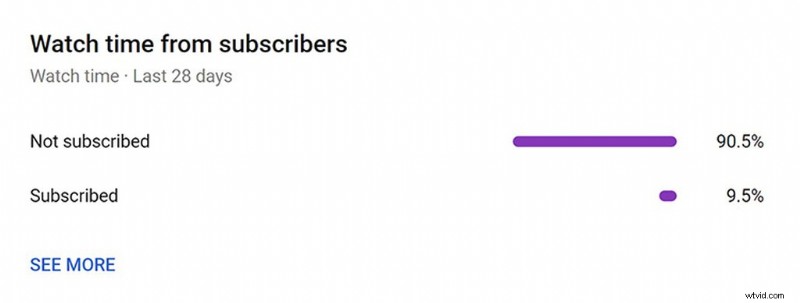
These two metrics give me something to take action on. I can experiment with a variety of different ways to try and boost the Watch Time from Subscribers percentile and increase returning viewers.
For example, I can try and niche down to reach a more specific audience, add multi-part tutorials, or simply attempt to insert more of my face and personality into the content. I can experiment with branding my thumbnails a bit better, ask viewers to hit the notification bell, use cards to drive viewers to other videos, or even test out new series and playlist ideas. And then, there’s always collaborations.
The key thing to remember is that it will take time to see results in the analytics. It’s not always straightforward and easy to figure out what works and what doesn’t. If it was, then everyone would have a successful YouTube channel.
It’s all about experimentation over time.
It’s Time to Experiment
So, what do you want to do with your channel? Here are a few questions to get you started on your analytics journey:
What Parts of My Video Are Boring/Interesting?

Check Key moments for audience retention in Engagement for dips and spikes.
Possible actions:
- Shorten unnecessary intros.
- Lengthen/shorten your videos.
When Do Viewers Watch My Videos?
Take a closer look at the spikes and dips of view graphs. Change the time duration to see patterns.
Possible actions:
- Upload at the optimal times of the day/week.
How Are People Finding My Videos?
Head over to the Reach page and view Traffic Sources. Also, try comparing the traffic sources of your most popular videos. Don’t forget to check External Sources, as well.
Possible actions:
- Collaborate with blogs/sites that already shared your content, optimize videos for popular keywords.
Are My Thumbnails and Titles Working?
Check out the Impressions funnel in the Reach page. Again, use tooltips to better understand each metric.
Possible actions:
- Optimize thumbnails and titles. A/B test to see what’s working best with your audience.
These are just a few ideas to get you started. Now, go set some goals and dive into that data!
For more YouTube inspiration, check out these articles:
- How to Start a YouTube Channel – Everything You Need
- Create Captivating Thumbnails for Your YouTube Channel
- Use the YouTube Chapters Feature to Keep Engagement
- 5 YouTube Banner Ideas for Your Channel
- Design Unique and Stylish End Screens for Your YouTube Channel
Cover image via Golden Sikorka.