
One of the advantages of working in a platform like Final Cut Pro X or Adobe Premiere Pro is keyboard shortcuts. If you edit video for a living, you know how much time keyboard shortcuts can save. Here are a few easy-to-remember Final Cut Pro X keyboard shortcuts just waiting to make your life easier.
Adjust Volume Across All Clips
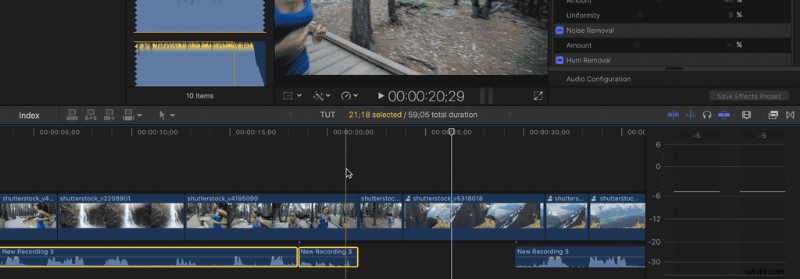
Hitting Control-Option-L allows you to increase or decrease the dB value. This will save you from going through each clip individually to tweak the decibel value. This action will let you move the levels to a specific number instead of increasing the volume by said number. To increase the volumes by a specific number, use the keyboard shortcut Control-L.
Create Placeholder Title
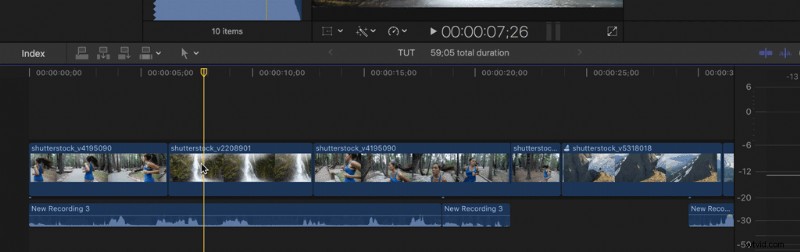
Another helpful shortcut is for adding placeholder titles to clips while you move on to the next scene. By hitting Control-T, a “Basic Title” placeholder clip will appear in place of the selected clip. If you don’t know the titles or graphics yet that you’re going to use, this will help when you return for the second edit.
Add a Gap Clip
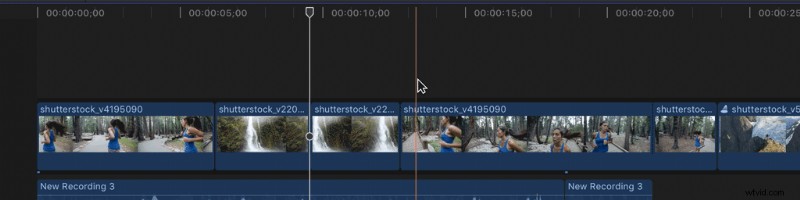
In the same vein as the placeholder title, if you’re still waiting on footage or if you still need to shoot a few scenes, adding a placeholder clip is a must. Hit Option-W to add a three-second clip of black video to the current playhead position. If you need a longer or shorter clip, you’ll still be able to alter the length of the clip however long you wish, and it won’t affect the rest of your edit.
Basic Functions
Some of the most basic functions like the Blade tool, the Arrow tool, or Zoom tool have one-key shortcuts that will spare you the frustration and tedium of moving the mouse over, picking the right tool, and moving back to your congested timeline. With these shortcuts you never have to avert your eyes from the timeline.
- Arrow Tool — A
- Blade Tool — B
- Hand Tool — H
- Position Tool — P
- Trim Tool — T
- Zoom Tool — Z
Zoom In on Timeline
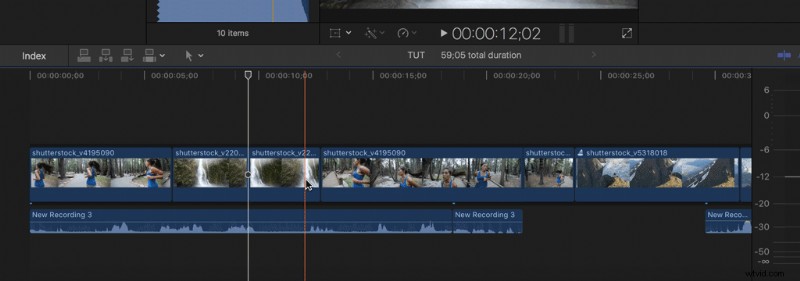
If you need to make an incredibly timely cut and are moving frame to frame, zooming in on the timeline is an absolute necessity. Obviously, this won’t zoom in on the image but rather expand the timeline. Hit Command-Equal Sign (=) to zoom in and Command-Hyphen (-) to zoom out to your regular timeline size.