Free Audacity Autotune: Step‑by‑Step Guide Using GSnap, MAutoPitch, and Graillon
Audacity is a powerful, free, multi‑track audio editor that lets you record, edit, and mix audio. While it offers a wide range of built‑in effects, it does not include a dedicated pitch‑correction tool. Fortunately, a number of high‑quality, free plugins can bring autotune into Audacity on Windows, macOS, and Linux.
What Is Autotune and How It Works
Autotune is a pitch‑correction algorithm introduced in 1997 by Antares Audio Technologies. It detects the frequency of each note in a vocal or instrument track and snaps it to the nearest desired pitch. The result is a smooth, in‑key performance that eliminates accidental flats and sharps.
Top 3 Free Autotune Plugins for Audacity
1. GSnap (Free – Windows, macOS, Linux)
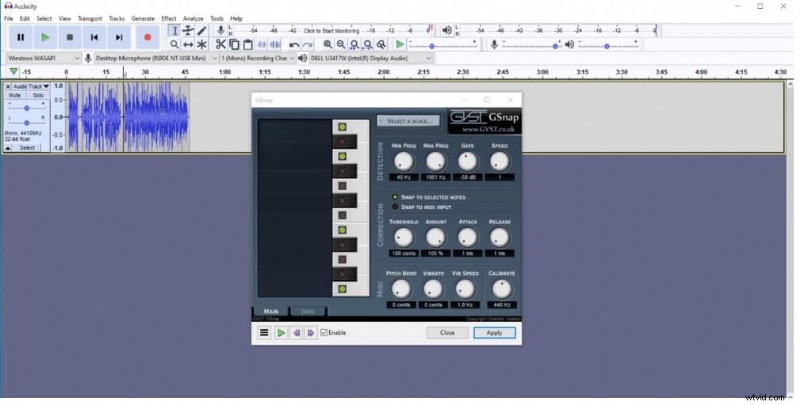
GSnap, developed by GVST, is a lightweight yet powerful pitch‑correction plugin. It offers:
- Customizable high/low frequency thresholds for precise tuning.
- Noise gate to filter background hiss.
- MIDI‑driven control of pitch‑shift parameters.
- Real‑time tempo adjustment and tuning calibration.
- Full control over maximum pitch bend and speed settings.
- Completely free and easy to install.
2. MAutoPitch (Free – Windows, macOS)
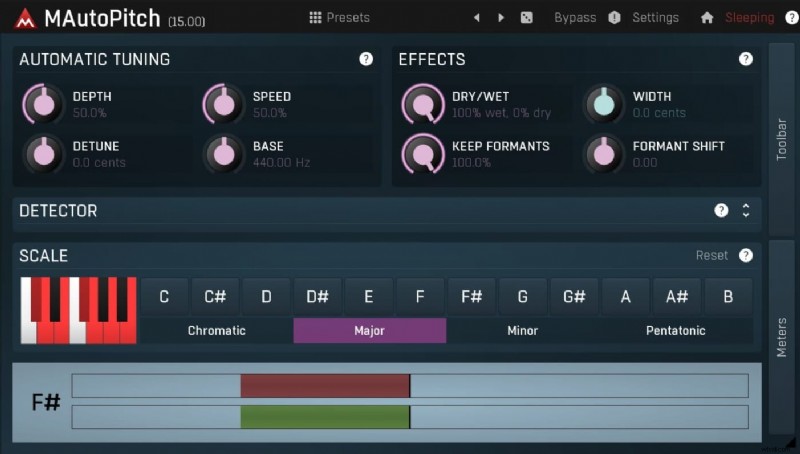
MAutoPitch delivers automatic pitch correction with an intuitive interface. Key features include:
- Limiter to prevent clipping and keep output within safe thresholds.
- Efficient algorithms that run smoothly on modern CPUs.
- Automatic gain compensation for consistent loudness.
- Advanced GUI for fine‑tuning settings.
- Real‑time MIDI control and stereo expansion.
- Regular free updates and offline access.
3. Graillon (Free – Windows, macOS, Linux)
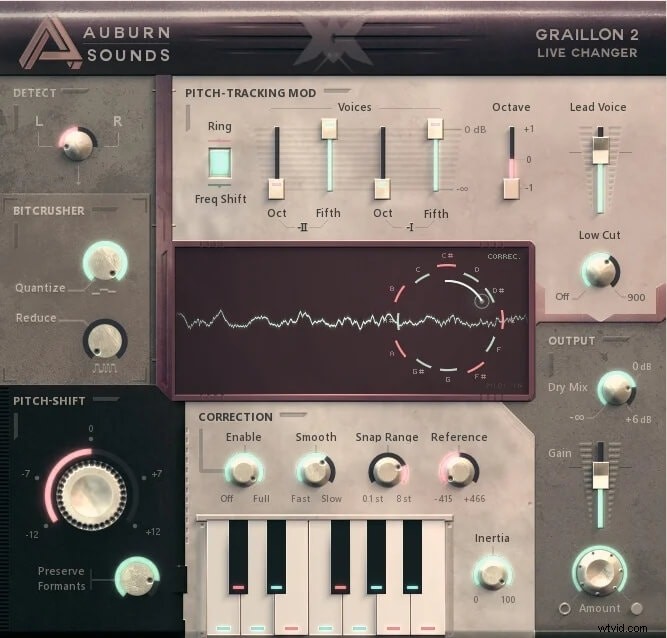
Graillon offers creative pitch‑modulation tools beyond basic tuning. Advantages:
- Low latency (23 ms) for live performance.
- High‑quality pitch shifter and robotic voice options.
- Built‑in bit‑crusher for a lo‑fi aesthetic.
- Cross‑platform compatibility.
- Simple interface suitable for beginners.
- Full edition with advanced features available.
Installing and Using GSnap in Audacity
Follow these steps to add GSnap to your Audacity workflow:
- Download GSnap – Visit GVST GSnap page and click Download GSnap. Choose the version that matches your OS.
- Extract the ZIP – After download, right‑click the ZIP file and select Extract here. Copy the resulting GSnap.dll file.
- Copy to Audacity Plugins Folder – Locate your Audacity installation’s Plug‑ins folder and paste GSnap.dll inside.
- Enable in Audacity – Open Audacity, go to Effect → Add/Remove Plug‑Ins. Find GSnap in the list and click Enable. Restart Audacity if prompted.
- Configure Settings – After enabling, open GSnap from the Effect menu. Adjust pitch‑shift tolerance, speed, and other parameters to match your recording’s key and tempo.
For a visual walkthrough, consult the GSnap tutorial for Audacity.
Conclusion
Whether you’re recording a home‑studio track or polishing a live performance, autotune plugins bring professional‑grade pitch correction to Audacity at no cost. GSnap, MAutoPitch, and Graillon each offer unique strengths, so experiment to find the best fit for your workflow.
For more advanced audio editing and seamless video integration, consider Filmora, a user‑friendly video editor that also handles audio with powerful tools.