
Audacity is a free, open‑source audio editor that runs on Windows, macOS, and Linux. Its lightweight design, multi‑track support, and plugin compatibility make it a favorite among musicians, podcasters, and voice‑over artists.
In this guide, we’ll walk you through how to transform your voice with Audacity—from simple pitch adjustments to full character voices. Whether you’re recording a podcast, creating a voice‑over, or just having fun, these techniques will help you achieve the exact sound you want.
1. Using a Voice‑Changer Plugin with Audacity
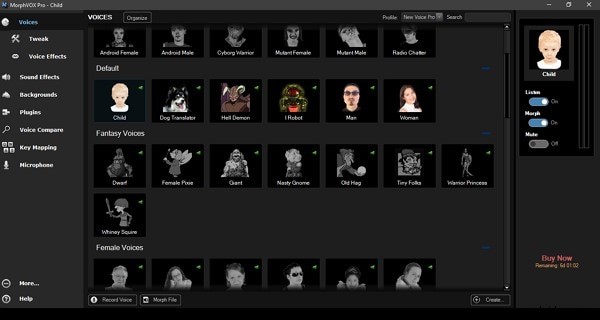
Many voice‑changer applications, such as AV Voice Changer, MorphVOX, Voicemod, and Clownfish, can be integrated into Audacity as audio input sources. Here’s how:
- Download and install your chosen voice‑changer software on your PC.
- Launch the voice‑changer and select the desired voice effect (baby, animal, celebrity, etc.).
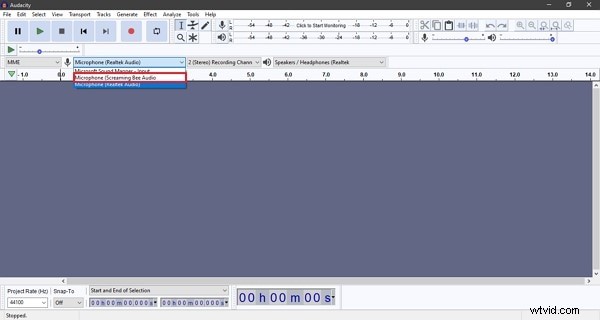
- Open Audacity. Click the microphone icon in the toolbar, then choose your voice‑changer from the dropdown list.
2. Changing Pitch Without Altering Tempo
Audacity’s “Change Pitch” effect lets you shift the pitch while preserving the track’s tempo, making it ideal for voice transformations.
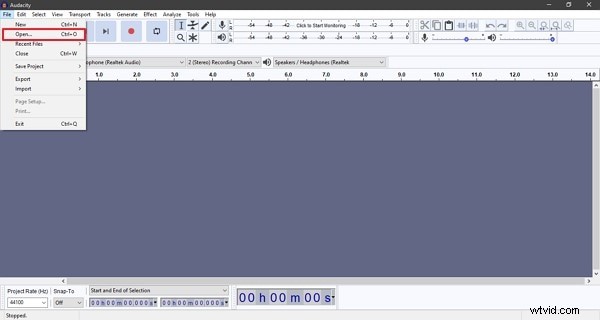
- Launch Audacity and either record audio or open an existing file via File > Open.
- Select the portion of the track you want to edit (drag the mouse or click the track name for the entire file).
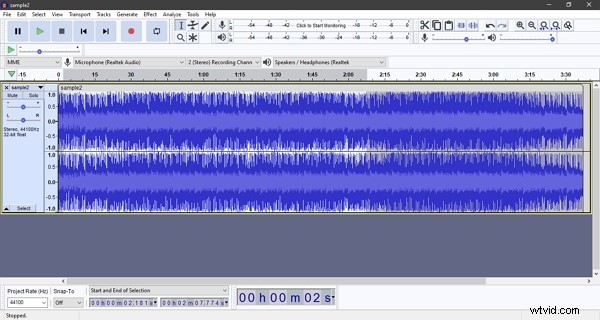
- Navigate to Effect > Change Pitch. Adjust the sliders or enter a percentage to shift the pitch.
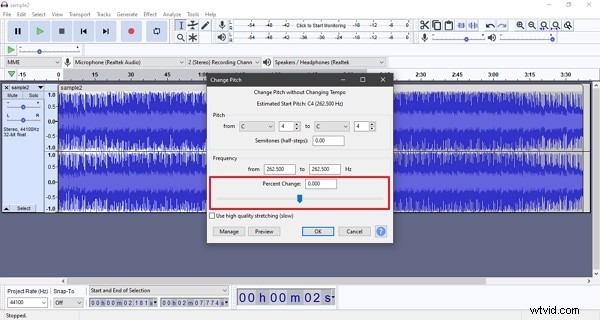
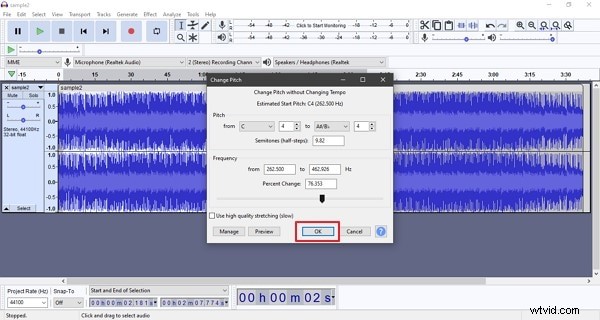
- Preview the result, then click OK to apply. You can also modify tempo separately if desired.
3. Converting a Male Voice to Female
Shifting a male voice to a higher pitch can create a convincing female voice. The process is similar to any pitch adjustment:
- Open or record your audio in Audacity.
- Select the relevant track or section.
- Choose Effect > Change Pitch. Increase the pitch value until the voice sounds feminine. Keep previewing until satisfied.
- Click OK and save your file.
4. Creating a Robot Voice
By layering echo and pitch changes, Audacity can produce a robotic timbre. Follow these steps:
- Record or import your audio into Audacity.
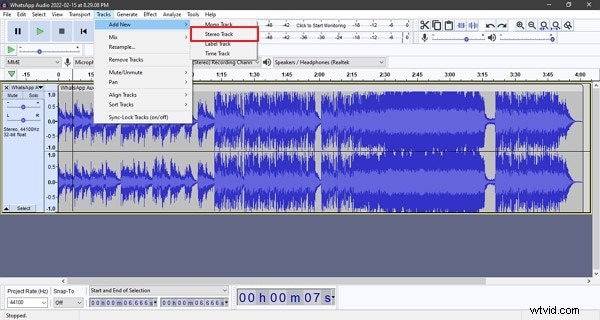
- Convert the track to stereo: Tracks > Add New > Stereo Track, then copy‑paste your audio into the new track.
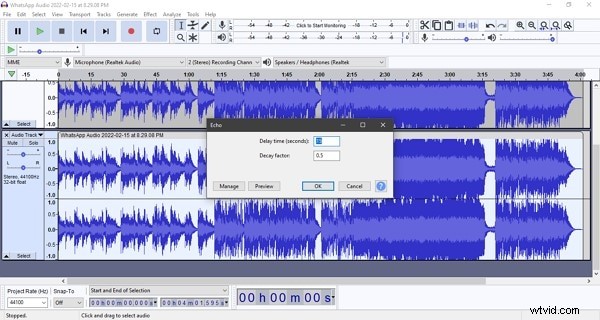
- Apply Effect > Echo. Set a short delay (e.g., 0.1‑0.2 s) to add the robotic echo.
- Adjust pitch to a slightly lower range: Effect > Change Pitch and preview.
- Optionally, tweak tempo with Effect > Change Tempo (use a negative value to slow the rhythm).
- When the sound meets your expectations, apply the changes and export the file.
Bottom Line
Audacity is more than just an audio editor—it’s a versatile voice‑changer that can transform any voice into robots, characters, or entirely different genders. The software’s extensive effect library ensures you can experiment until you achieve the perfect sound.
Want to take your audio further? Try Wondershare Filmora Video Editor, which offers advanced video editing and a rich sound library for sound effects, titles, and transitions. 
Try It Free for Windows 7 or later (64‑bit). 
