
When recording protected videos, you may usually face a black screen. It is mainly because of the DRM protection. The DRM protection is used to protect copyrighted works. Considering the related regulations, it's not advised to record protected apps as it can lead to a violation of regulations. However, what if you want to record it for personal use? For that, this post offers two methods on how to screen record protected videos.
| Workable Solutions | Step-by-step Troubleshooting |
|---|---|
| 1. Screen Record Protected Videos via Recording Software | The most helpful method to record protected videos is to find a recorder that allows recording them...Full steps |
| 2. Record Protected Videos with an External Phone Camera | It's a low-cost method as you don't need to purchase screen recorders. However, the quality of recordings...Full steps |
How to Screen Record Protected Videos - 2 Methods
So, how to screen record on apps that don't let you? It's not easy to find a solution to record protected videos. Not many recorders can achieve this function, while you can follow this part to learn the effective methods.
How to Record Protected Videos via EaseUS RecExperts
If you don't want to see any black screen when recording, try some functional screen recorders like EaseUS RecExperts. It also allows choosing the audio resources, like the internal and external audio. Therefore, you can easily capture the screen with audio. Meanwhile, choose the output formats like MP4, MKV, AVI, MOV, etc.
Besides, it can use the schedule recording to record your video automatically. You can choose the start time and when to end the task. Also, you can record the full screen or custom screen as you like. Moreover, to record the screen in GIF, this software can make it as well. The whole capturing process is easy and suitable for beginners.
Key Features:
- Screen record Netflix and other apps without a black screen
- Capture the video shows with app sound
- Streaming video recorder on Windows and Mac
- Take screenshots for DRM protected videos
- Able to record YouTube video with a simple clicks
Now, click the button below to download this streaming video recorder with no registration!
Here is a list of steps for recording protected videos via EaseUS RecExperts:
Preparation:
- Browsers to open the protected videos
- Installed EaseUS RecExperts
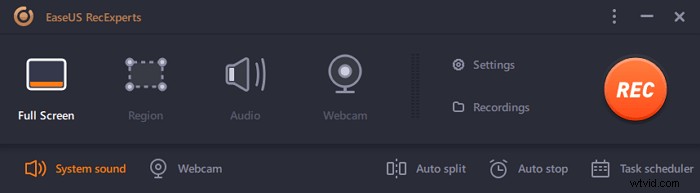
Step 1. Launch EaseUS RecExperts on your computer. The first option, "Full Screen", can help you capture everything on your screen. If you play the streaming video in full-screen mode, this is suitable for you.
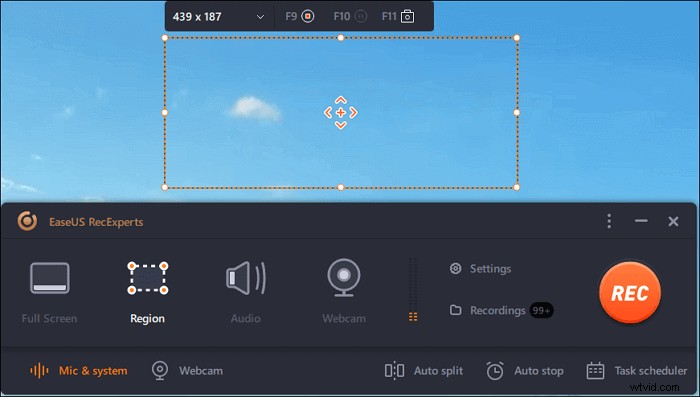
Step 2. If you play the streaming video in a window, it would be better to select the "Region" option to record only the specific area.
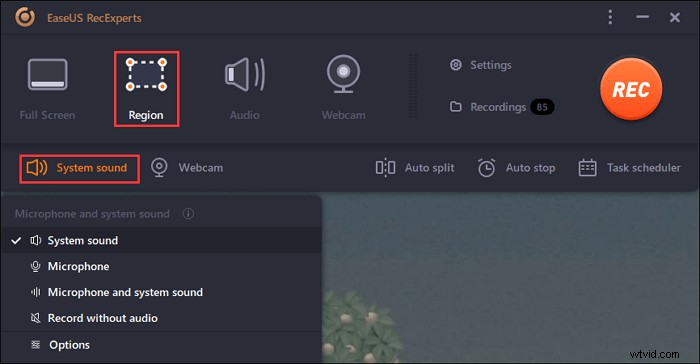
Step 3. Ensure that you are in "Region" mode. Then, click on the button in the bottom right-hand corner to select a suitable sound source and adjust the volume. After that, click on the "REC" button to start recording.
Step 4. There will be a floating toolbar on your screen when you are recording the video. The two buttons on it can help you pause or stop the recording.
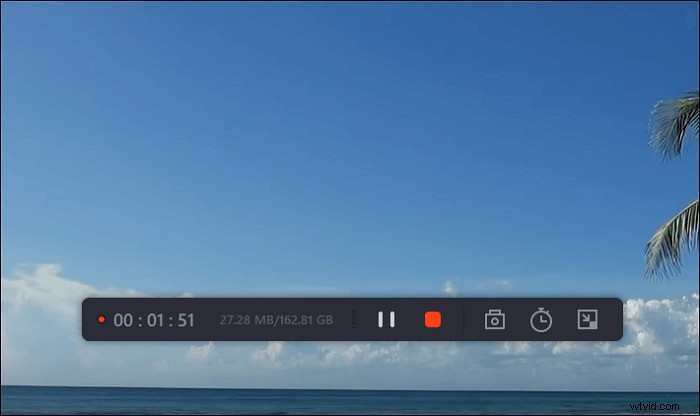
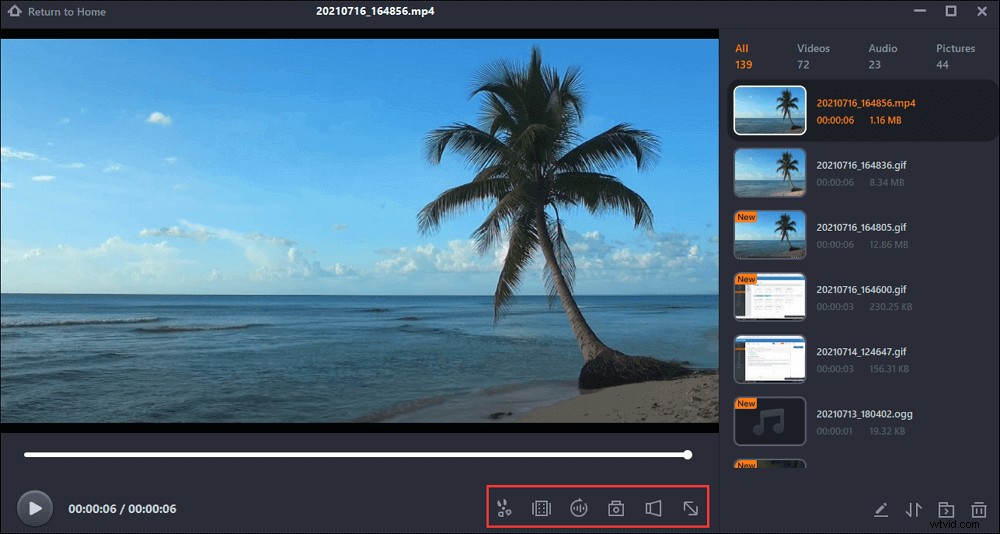
Step 5. If you click on the red stop button, the recording will be ended, and the captured video will be saved on your computer. When the built-in media player pops up, you can view the recording and use tools to trim it, extract audio from it, or add an opening and ending part.
Also, if you want to learn how to take a screenshot of DRM videos, just follow the below guide. It will take a screenshot without notification. If you choose EaseUS RecExperts, it saves your images in PNG format.
How to Take a Partial Screenshot on Windows
Taking a snapshot for videos can be easy when you choose a helpful screenshot tool. Also, some screenshot tools allow taking snapshots without notification. Therefore, you can read this......

How to Screen Record Protected Videos with External Phone
This method is free as you don't need to buy any recording software from the market. You only need to prepare an external phone with a camera. When trying this method, the recordings will never show a black screen.
It's a low-cost method. However, when using this method, ensure the background and light are in good condition. Also, you need to control the noises to ensure the quality of the recording.
Preparation:
- Computers or phones to play the protected videos
- Another phone with a camera to record protected videos
Record DRM protected videos via external phone:
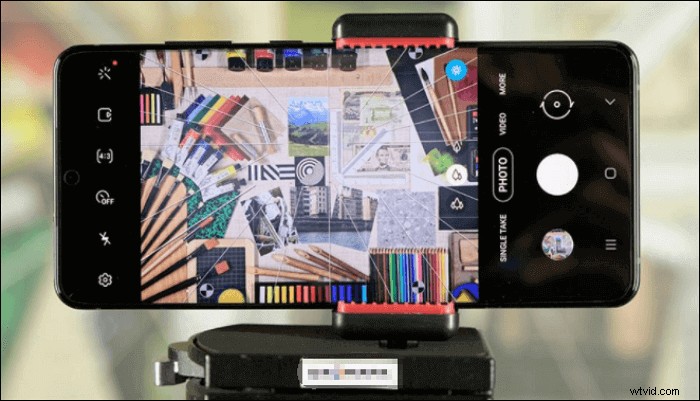
Step 1. Prepare one external phone with a camera to record the videos. Fix the camera on the tripod. Also, adjust the recording angle to ensure it captures the complete screen.
Step 2. After changing the camera position, you can start recording. Remember to perform the protected videos.
Step 3. Once done, turn off the protected videos and your phone camera.
What is Screen Protected Video?
If the screen recording is blocked, you may face screen-protected videos. So, what are screen protected videos? Usually, videos like Nexflix shows and Amazon Prime videos are under DRM protection because of the copyrighted laws. Protected videos aren't advised for commercial use. If you record and share them online for commercial use, it will lead to a violation of the law.
FAQs About How to Screen Record Protected Videos
Here are some frequently asked questions gathered from the public.
1. How can I record a protected video on my computer?
Some streaming platforms have the cloud DVR function to record this video. If not, try screen recording software that allows this function. Unblocked recorders like EaseUS RecExperts are able to record screen protected videos on the computer. However, it doesn't work for commercial recording. You can only use it for personal use.
Also, this screen recorder helps on how to record Zoom meeting without permission.
2. Why is the website black when you screen record?
It's possible that you face screen-protected videos. When the videos are under DRM protection, you will see a black screen once you use other recorders to record them.
3. Can I screen record copyrighted video?
For copyright laws consideration, you can not screen record these DRM protection videos. Some people record them for commercial use, it can be regarded as a violation of the copyright law.