
Looking to elevate your video projects with truly professional‑grade audio? Wondershare Filmora now supports a vastly expanded library of VST3 plugins, including industry standards such as iZotope Ozone, FabFilter, and Valhalla. This comprehensive guide walks you through the simple installation steps for these Filmora VST plugins, essential troubleshooting tips, and best practices to unlock the full potential of high‑end sound design in your edits.
What is a VST Plugin?
VST, or Virtual Studio Technology, is a standard introduced by Steinberg in 1996 that enables software to process audio through plug‑ins. These plug‑ins can be virtual instruments (VSTi) or audio effects such as reverbs, compressors, and equalizers. By emulating traditional studio gear with digital signal processing (DSP), VST plugins have become indispensable tools in modern music and audio production.

Types of VST3 Plugins
VST3 is the latest version of the VST standard, offering enhanced performance and flexibility over its predecessors. Key categories include:
| Category | Function | Common Use Cases | Example Plugins |
| EQ (Equalizer) | Adjusts frequency balance | Tone shaping, voice clarity | FabFilter Pro‑Q, TDR Nova |
| Compressor | Controls dynamic range | Vocal leveling, compression | Waves SSL Comp, DC1A |
| Limiter | Caps peak levels | Mastering, peak prevention | Waves L2, Ozone Maximizer |
| Gate (Noise Gate) | Mutes silent background parts | Silence cleanup, environment control | ReaGate, FabFilter Pro‑G |
| Reverb | Simulates spatial reflections | Adding space and realism | Valhalla Room, Pro‑R |
| Delay | Creates echo/repeat effects | Rhythmic effects, sound design | EchoBoy, Timeless 3 |
| Saturation / Distortion | Adds warmth or grit | Analog/tube simulation | RC‑20, Decapitator |
| Noise Reduction | Removes hiss and background noise | Enhancing audio clarity | iZotope RX, Waves X‑Noise |
| Pitch Correction | Corrects or modifies pitch | Auto‑tune vocals, effects | Auto‑Tune, Melodyne |
| Metering | Visual monitoring of audio | Mixing and loudness control | SPAN, Youlean Loudness Meter |
| Synth VSTi | Generates synthesized sounds | EDM, ambient music | Serum, Sylenth1, Massive X |
| Sampler VSTi | Plays audio sample files | Drum kits, vocals, scoring | Kontakt, TX16Wx |
| Drum Machine VSTi | Specialized for drums and beats | Rhythm production | Addictive Drums, Battery 4 |
| Piano VSTi | Emulates acoustic piano | Pop, classical, solo | Keyscape, Addictive Keys |
| Orchestral VSTi | Simulates orchestral instruments | Film scoring, game music | BBC Symphony, EastWest |
| Vocal Synth VSTi | Synthesizes vocals or choirs | Electronic vocals, virtual choir | Vocaloid, Emvoice One |
|
Show More Show Less |
How to Use VST3 Plugins in Filmora: Full Guide to Setup & Applying Effects
Wondershare Filmora’s expanded support for third‑party VST3 audio effect plugins allows creators to achieve true industry‑standard sound mixing and mastering within their video projects. The platform now supports renowned professional suites, including:
- Mastering & Mixing Suites: iZotope Ozone 11 (including Dynamic EQ, Maximizer), FabFilter Pro‑Q, Pro‑L, Pro‑R, etc.
- Reverb & Delay: Valhalla Room, Valhalla Shimmer, Valhalla Supermassive.
- Noise Reduction: CrumplePop Complete Series (WindRemover, AudioDenoise, EchoRemover).
- Voice Processing: Xvox Series (Comp, DS, Pro).
- Other Essentials: OTT, TDR Kotelnikov, LoudMax, Melodyne.
For the best experience, always use the latest version of Wondershare Filmora (Version 14.7.12 and above). Future releases will broaden VST3 compatibility even further.
 Secure Download
Important Notice on Filmora Plugin Compatibility
- Filmora does not support VSTi (virtual instrument) plug‑ins.
- It supports 64‑bit third‑party VST3 audio effect plug‑ins on both Windows and macOS.
- Plugin support may vary by Filmora version and operating system. Always use the latest version (Version 14.7.12+).
- Wondershare does not provide technical support for third‑party plug‑in issues.
How to Install VST3 Plugins on Your Computer: Step‑by‑Step Guide
Installing VST3 plug‑ins is essential for expanding your audio editing toolkit. Follow these straightforward steps to download, install, and confirm your plug‑ins are recognized by Filmora.
Step 1 – Download the Plug‑in
Download the VST3 installer from the developer’s official website or a trusted source. Choosing reputable providers ensures compatibility and security.

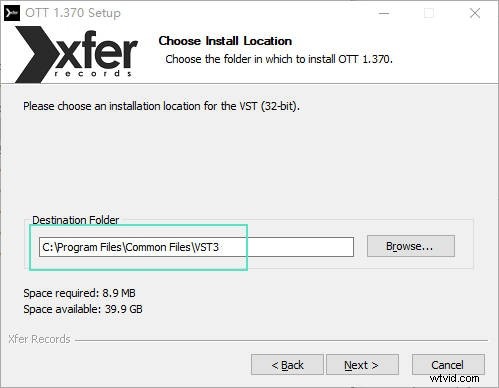
Step 2 – Choose the Correct Installation Path
To guarantee Filmora detects your plug‑ins, install them in the default system directories:
- Windows:
C:\Program Files\Common Files\VST3 - macOS:
/Library/Audio/Plug‑Ins/VST3/

Tip: Installing all plug‑ins in the system’s default folder avoids recognition issues that can arise from custom paths.
Run the installer, select the correct VST3 folder during setup, and complete the process. Verify that a file with the .vst3 extension resides in the default directory.
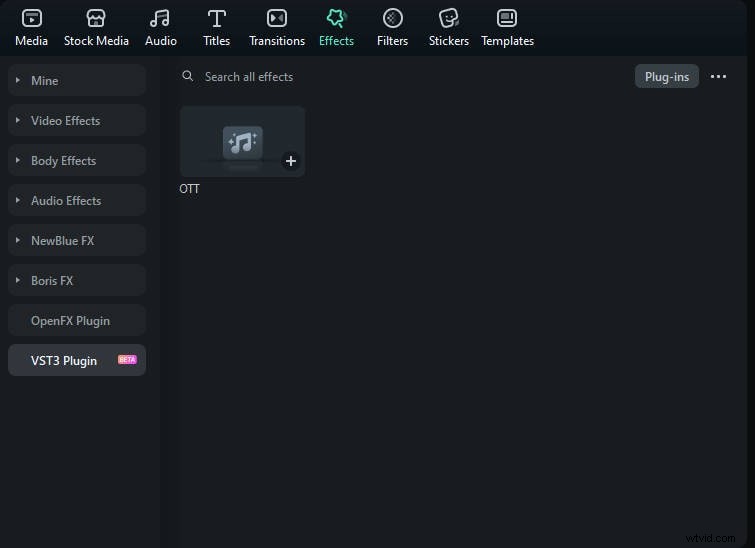
After installation, open Filmora and locate your plug‑ins under Effects – VST3 Plugin.
How to Troubleshoot VST3 Plug‑in Issues
Why isn’t the VST3 plug‑in being recognized?
- Confirm the plug‑in is a 64‑bit VST3 format.
- Verify installation in the correct directory.
- Restart Filmora to trigger a rescan.
Note: Only certain VST3 plug‑ins are currently supported for scanning. Unsupported plug‑ins can be reported to customer service for potential future support.
Is the plug‑in causing lag or crashes?
- Temporarily remove plug‑in files and relaunch Filmora.
- Check if the plug‑in supports Filmora’s default sample rates (44.1 kHz or 48 kHz).
- Enable one plug‑in at a time to isolate conflicts.
Why is the plug‑in producing abnormal sound or no audio?
- Ensure the plug‑in is properly activated.
- Check compatibility with the audio track’s channel format (mono vs. stereo).
- Try an alternative plug‑in for comparison.
Usage Tips and Limitations
- While Filmora’s expanded VST3 support bridges video editing and professional audio processing, complex mixing workflows may still benefit from dedicated DAWs such as Pro Tools or Ableton Live.
- Use Filmora’s VST Plugin Manager to efficiently load and manage complex plug‑in chains, especially from suites like FabFilter and Ozone 11.
- Avoid overloading projects with high‑CPU plug‑ins or lengthy chains to maintain smooth performance.
Conclusion
Filmora’s evolving VST3 plug‑in support offers a powerful way to elevate audio quality in video projects. By understanding installation paths, supported formats, and performance considerations, creators can harness the full potential of professional plug‑ins within the Filmora environment.

Filmora – AI Video Editing App & Software Best tool for creating videos anywhere for all creators! Simplify every step of video editing, from pre‑processing to finalization, with Filmora AI.