
Google Pixel delivers exceptional performance, yet its default ringtones can feel generic. For users looking to add personality, there are proven resources and tools to help you choose or create the perfect tone.
Below we share three trusted websites for downloading high‑quality Google Pixel ringtones, a step‑by‑step guide to craft your own using Wondershare Filmora, and how to set the finished ringtone on your device.
Let’s dive in.
In this article
-
- Zedge
- MoboCup
- ProKerala
- How to Make a Custom Google Pixel Ringtone Using Filmora
- Bonus: Setting a Personalized Ringtone on Google Pixel
Websites to Find Google Pixel Ringtones
After extensive research and personal testing, these three sites consistently offer the widest selection of free and premium tones for Google Pixel users.
Zedge
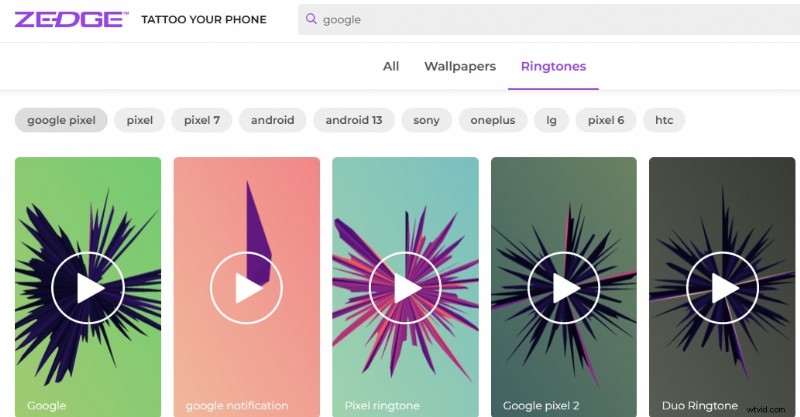
Zedge hosts a vast library of free and paid Google ringtones. Download the app for iOS or Android to apply tones to contacts or as alarm notifications.
Richness & Access
Popular creators upload high‑resolution ringtones. No signup is required; downloads start after a brief 10‑second delay.
Categories
- Duo
- Carbonate
- Meet Chat
- Adventure
- Ping
- GPay
MoboCup
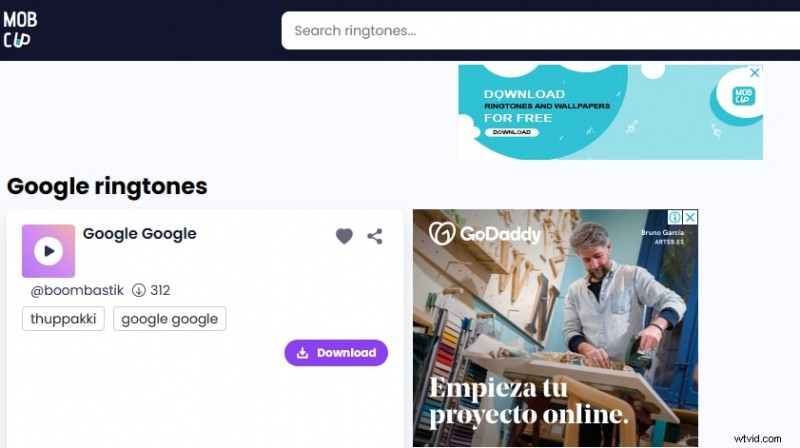
MoboCup offers viral Google Pixel ringtones at no cost and includes social sharing options.
Richness & Access
The platform boasts a dedicated Android app with over ten million downloads, making navigation straightforward and providing step‑by‑step customization guides.
Categories
- Google Pixel Phone
- Google Rap
- Google Voice Alert
- OK Google
- Scream
- GPay
- Meet Notification
ProKerala
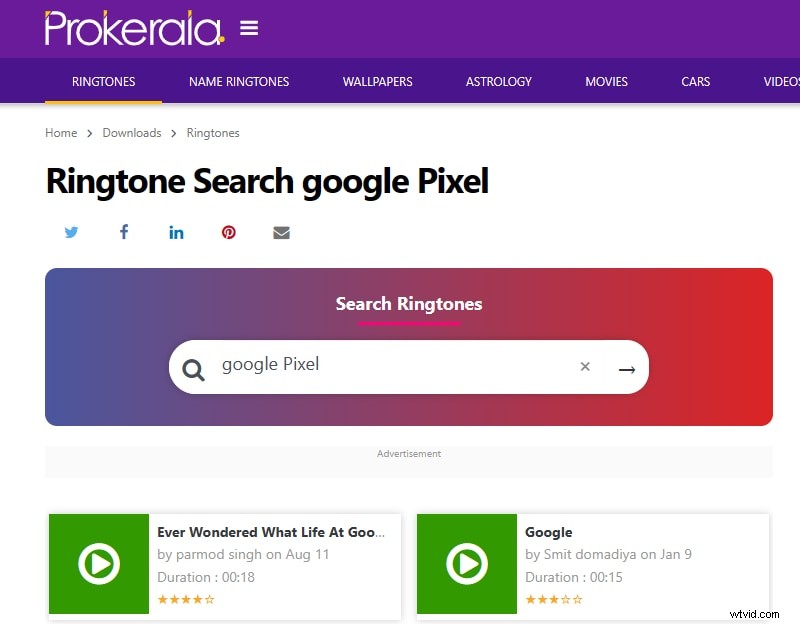
ProKerala is a favorite for free ringtones that feature a like/dislike system and community voting to verify authenticity.
Richness & Access
The site offers a smooth, interruption‑free download experience.
Categories
- Sound Effects
- Instrumental
- Viral Google BGM
- Google Beats
- Google Trending
How to Make a Custom Google Pixel Ringtone Using Filmora
If you can’t find exactly what you want, creating a personalized ringtone is straightforward with Wondershare Filmora’s latest version. Filmora’s intuitive interface, audio‑detach, silence detection, and ducking features make it an excellent choice for beginners and pros alike.
-
Open your PC browser, navigate to the Wondershare Filmora website, and download the latest desktop version. For mobile users, Filmora is available on both iOS and Android.
-
Launch Filmora and click “Screen Recorder” from the main menu. Navigate to a video platform (e.g., YouTube) and select a track you’d like to turn into a ringtone. Press the red button to record and use F9 to stop. The captured clip will appear in your Filmora project folder.

-
Drag the recorded video onto the Timeline Panel. Right‑click the clip and choose “Detach Audio” to extract the audio track.
-
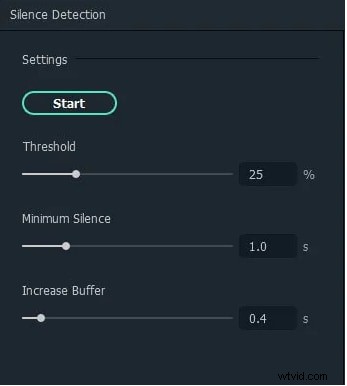
Right‑click the audio file, select “Detect Silence”, and adjust the Threshold, Minimum Silence, and Buffer sliders. Click Start to automatically remove silent sections.
-
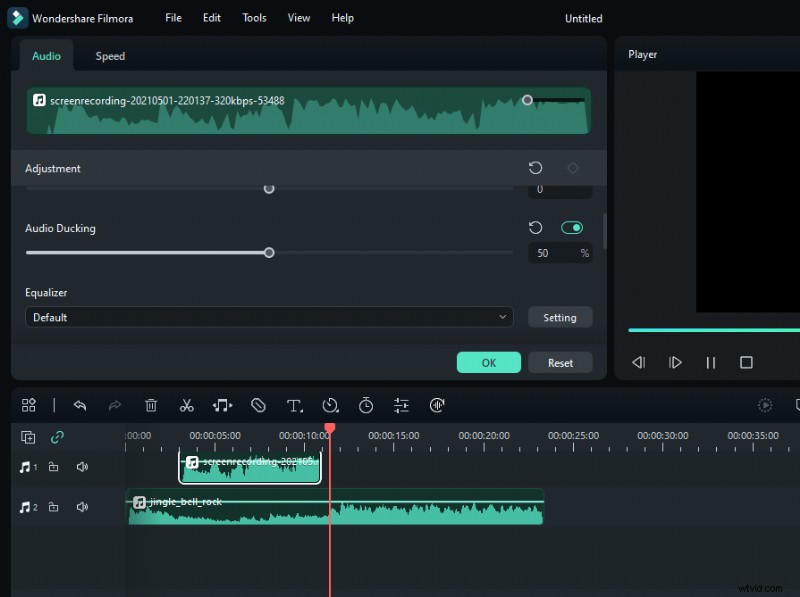
To blend two tracks, right‑click one audio, choose “Adjust Audio”, enable Audio Ducking, and set the desired intensity. Click OK to apply.
-
Trim the track to the desired length by dragging the double‑arrow handles and clicking Split to remove excess portions.
-
Click “Create” and then Export to save the finished ringtone to your PC. Transfer the file to your Pixel via USB if you’re using a desktop.
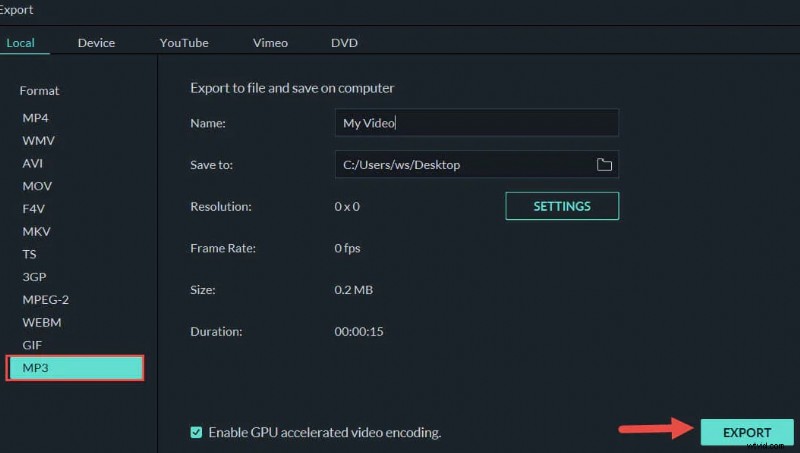
With your custom tone ready, proceed to the next section to set it on your device.
Bonus: Setting a Personalized Ringtone on Google Pixel
Set the Ringtone for All Calls
-
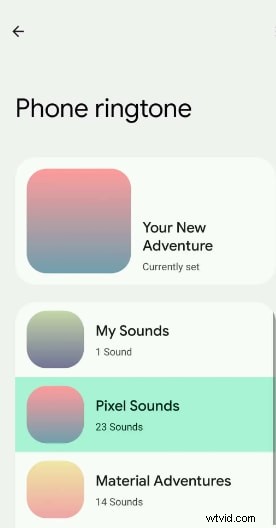
Open Settings → Sounds & Vibration → Phone Ringtone.
-
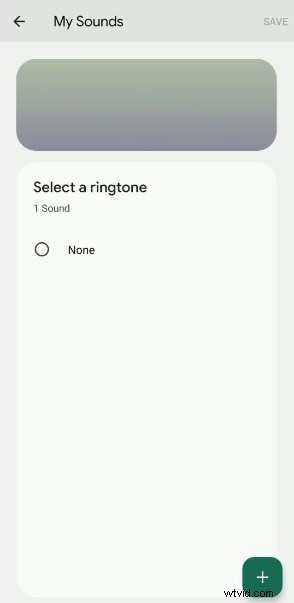
Tap My Sounds and press the + button at the bottom.
-
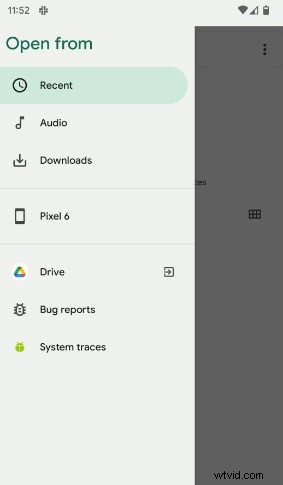
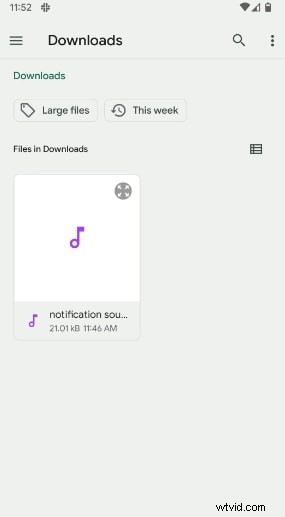
Select Downloads and locate the Filmora‑created ringtone.
-
Tap the file and press Save to apply it as your default ringtone.
Assign a Custom Tone to a Specific Contact
-
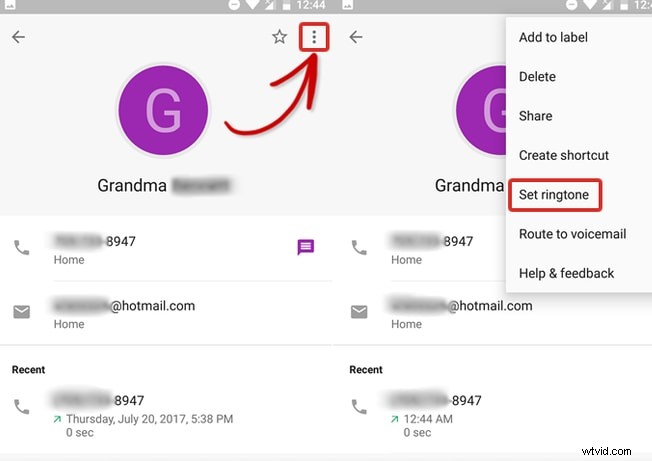
Open the Contacts app, select a contact, tap the three‑dot menu, and choose Set Ringtone.
-
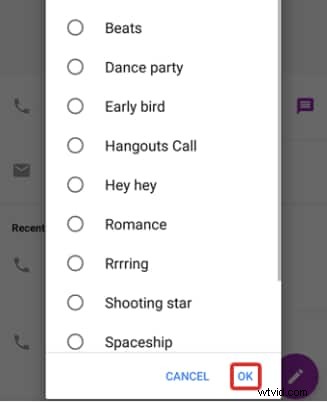
Select your custom ringtone from the list and confirm with OK.
Conclusion
Whether you prefer a ready‑made tone from a reputable site or a bespoke ringtone crafted in Filmora, you now have clear instructions to personalize your Google Pixel experience. Follow the steps above, and let every call reflect your style.
Happy ringing!