
Apple AirPods deliver premium sound, but a soft or muffled output can quickly erode confidence in the investment. A low volume can stem from device settings, battery status, or even the audio file itself. Below is a step‑by‑step, evidence‑based approach to restoring full volume to your AirPods.
Filmora Audio Recorder
- Record system audio
- Capture microphone input
- Adjust recording volume
- Simultaneously record screen and webcam
Solution 1: Increase the Device Volume
The most common cause is a low volume setting on the device connected to your AirPods. Whether you’re using an iPhone, iPad, or Mac, make sure the device volume is at its maximum before you adjust the AirPods themselves.
Manually
Press the volume‑up button on your iPhone until the on‑screen indicator reaches the top. Also, verify that the volume within the specific app (e.g., YouTube, Spotify) is high. Even if the device volume is maxed, a low app volume will still reduce the output on the AirPods.
Using Siri
First‑generation AirPods: Double‑tap the stem to activate Siri and say “Raise volume.”
Newer AirPods: Say “Hey Siri, increase volume by 50%.”
Solution 2: Disable Low‑Power Mode
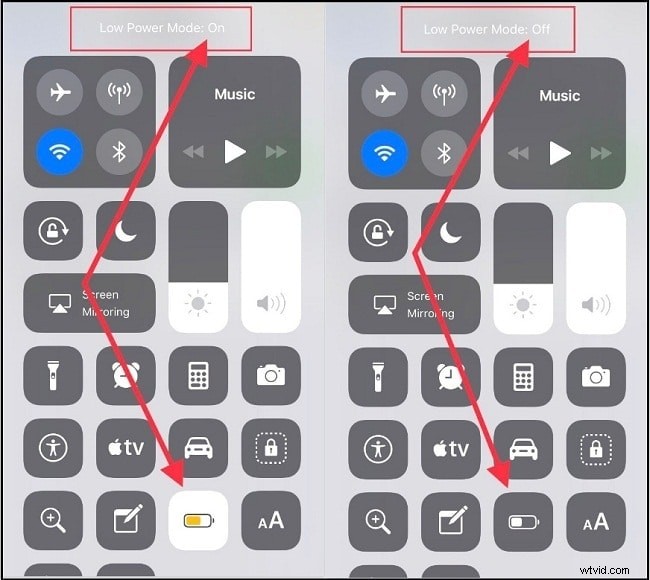
When the iPhone battery falls below 20%, Low‑Power Mode throttles several functions, including audio output. Navigate to Control Center or Settings > Battery and toggle Low‑Power Mode off. Also, ensure your AirPods are adequately charged, as a low battery can cap output.
Solution 3: Verify Audio Balance
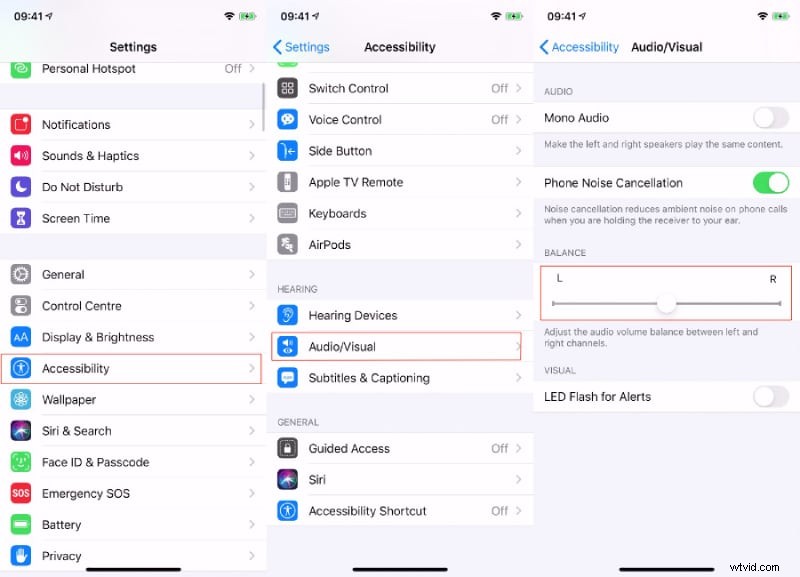
Uneven volume between left and right ears may appear as a soft sound. Adjust the balance setting to center:
- Open Settings > Accessibility > Audio/Visual.
- Slide the Balance control to the middle.
- Play a track to confirm balanced output.
Solution 4: Increase Headphone Volume Limit
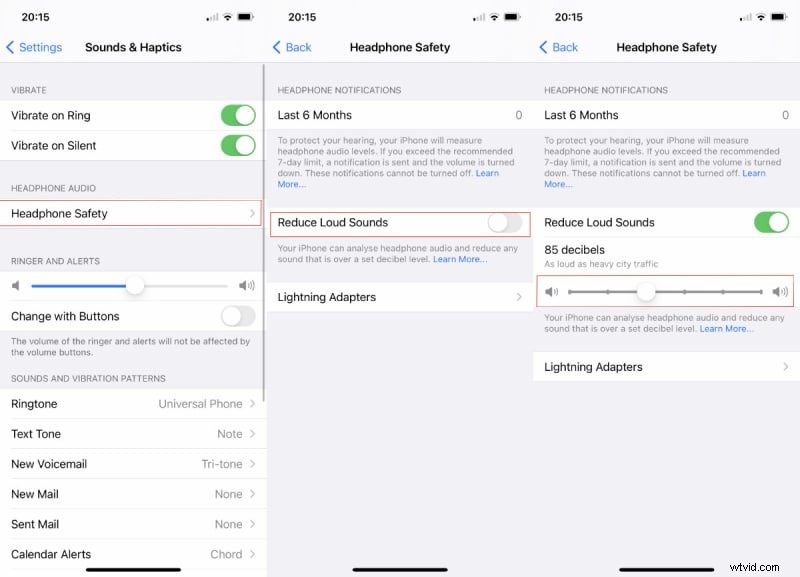
iOS imposes a safety limit to protect hearing. To raise the cap, go to Settings > Sounds & Haptics > Headphone Safety, enable “Reduce Loud Sounds,” and slide the maximum volume to a higher level.
Solution 5: Re‑Pair Your AirPods
Connection hiccups can degrade audio. To reset the link:
- Confirm both devices are sufficiently charged.
- Restart iPhone and AirPods.
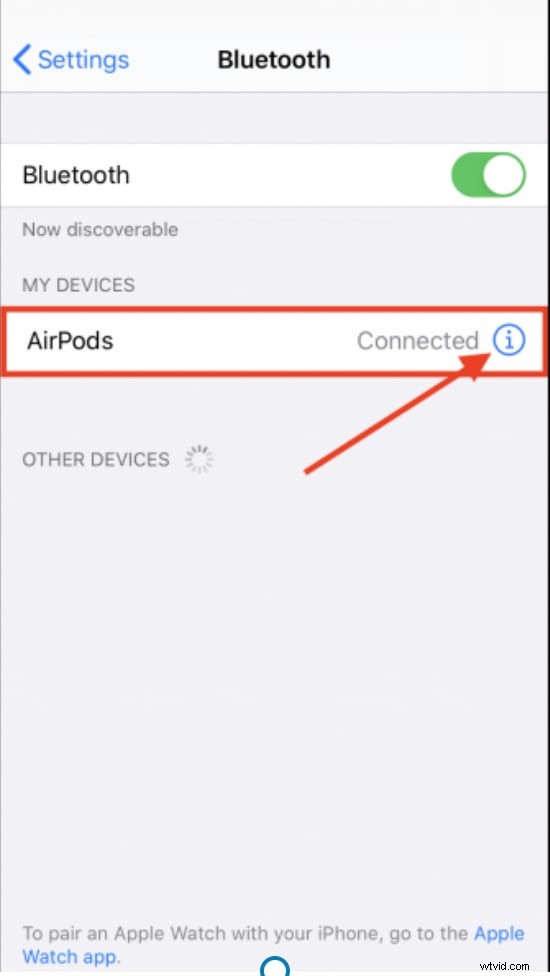
- In Settings > Bluetooth, tap the “i” icon next to your AirPods and select “Forget This Device.”
- Play audio through the iPhone speaker and set volume to zero.
- Bring the AirPods close to the iPhone, enable Bluetooth, and re‑pair them.
- Test by gradually raising volume to the maximum.
Solution 6: Optimize AirPods Pro Settings
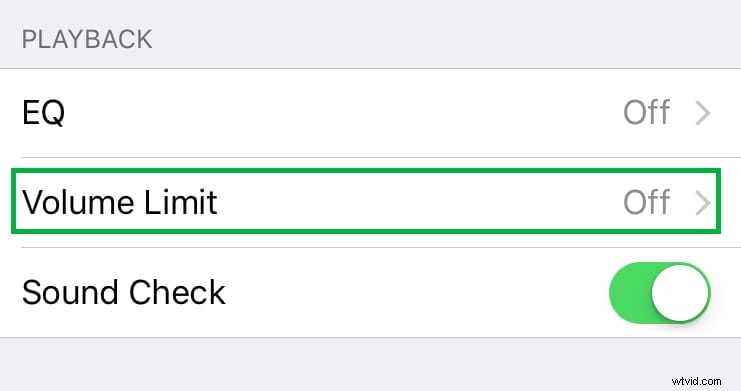
AirPods Pro offer additional customization. In Settings > Music, tap EQ and choose a powerful preset such as Bass Booster to enhance low‑frequency output. Also, ensure the Volume Limit toggle is off to remove any imposed ceiling.

Conclusion
Follow these expert‑approved steps to restore full volume to your AirPods. If the issue persists, it may be due to a defective unit—contact Apple Support or visit an Apple Store for a diagnosis. For media files that are inherently quiet, consider using Wondershare Filmora to amplify audio before playback.