
In 2026, personalized stickers have become a creative staple across messaging apps, social media, and everyday décor. Whether you’re looking to highlight a cherished memory or add a touch of personality to your digital conversations, converting a photo into a sticker is easier than ever with the right tools.
Below you’ll find a clear, step‑by‑step walkthrough for three popular methods—Canva, the built‑in iPhone feature, and the versatile Filmora suite—plus a quick comparison to help you choose the best option for your needs.
Method 1: Create a Sticker with Canva (Online)
Canva remains the go‑to platform for users who want a fast, web‑based solution. The process involves a simple background removal and export to a transparent PNG.
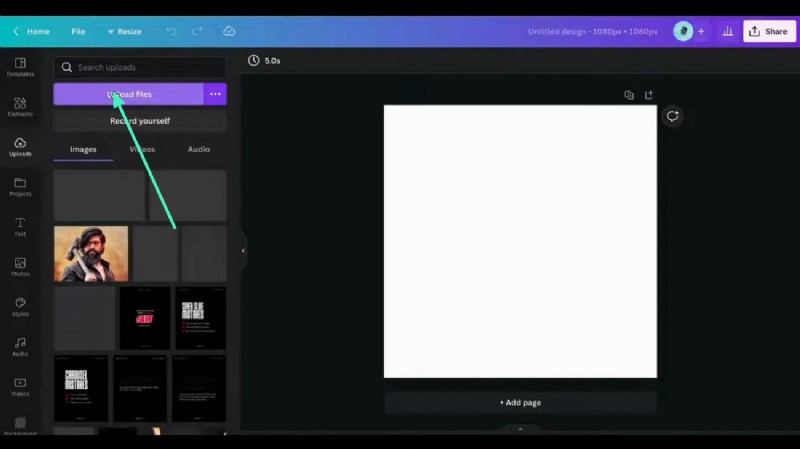
- Upload your photo by clicking Upload files on the left panel.
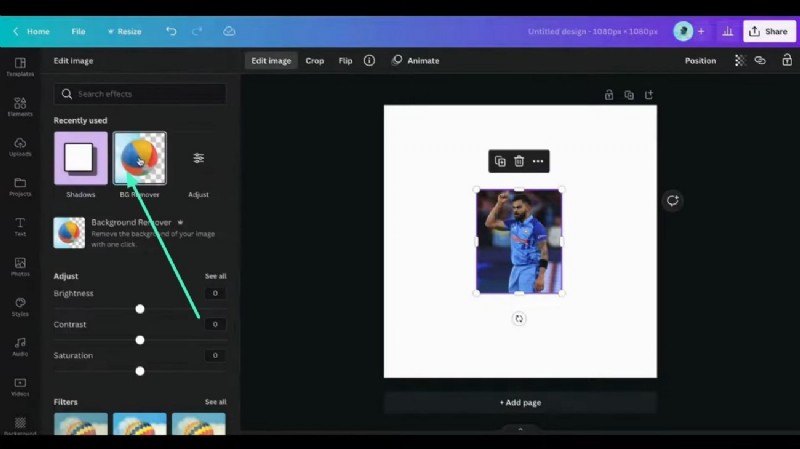
- Select the photo and click Background Remover to isolate the subject.
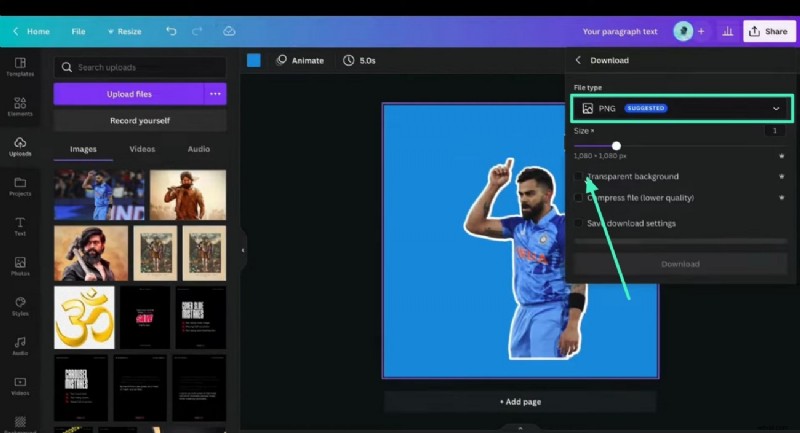
- Export as a transparent PNG:
- Click Share → Download.
- Choose PNG and tick Transparent background.
- Download the file.
Tips for High‑Quality Stickers
- Start with a high‑resolution image (at least 1080 × 1080 px).
- Use bold, high‑contrast colors to ensure visibility on any background.
- Trim the edges tightly to avoid unwanted transparent borders.
- Add a 0.5‑mm bleed to prevent white edges when printed.
Canva Limitations
- Maximum canvas size is 6000 × 4000 px, which may limit very large stickers.
- Automatic compression can reduce sharpness; double‑check the preview before export.
- Advanced vector editing is limited—ideal for simple designs only.
- Reliance on a stable internet connection; performance may drop on slow networks.
Method 2: Use the Built‑In iPhone Sticker Tool
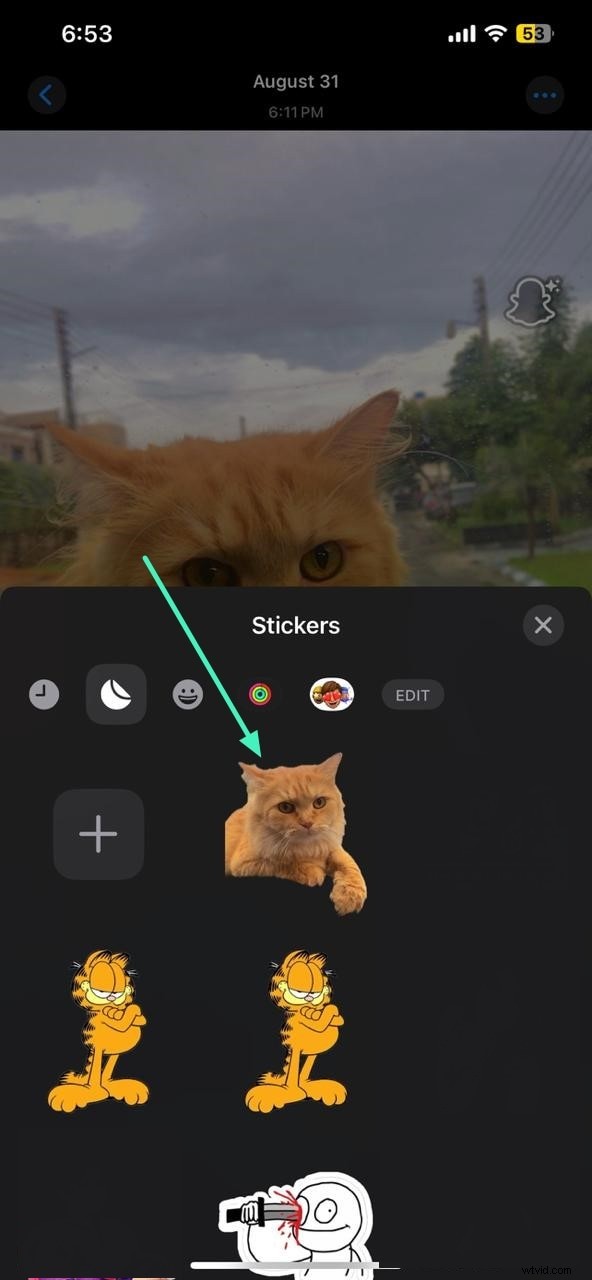
iPhones (iOS 15+) allow you to transform photos into stickers directly from the Photos app, which can then be shared via Messages, Notes, or any app that supports the sticker format.
- Open the photo, tap the Share icon, and select Add Sticker.
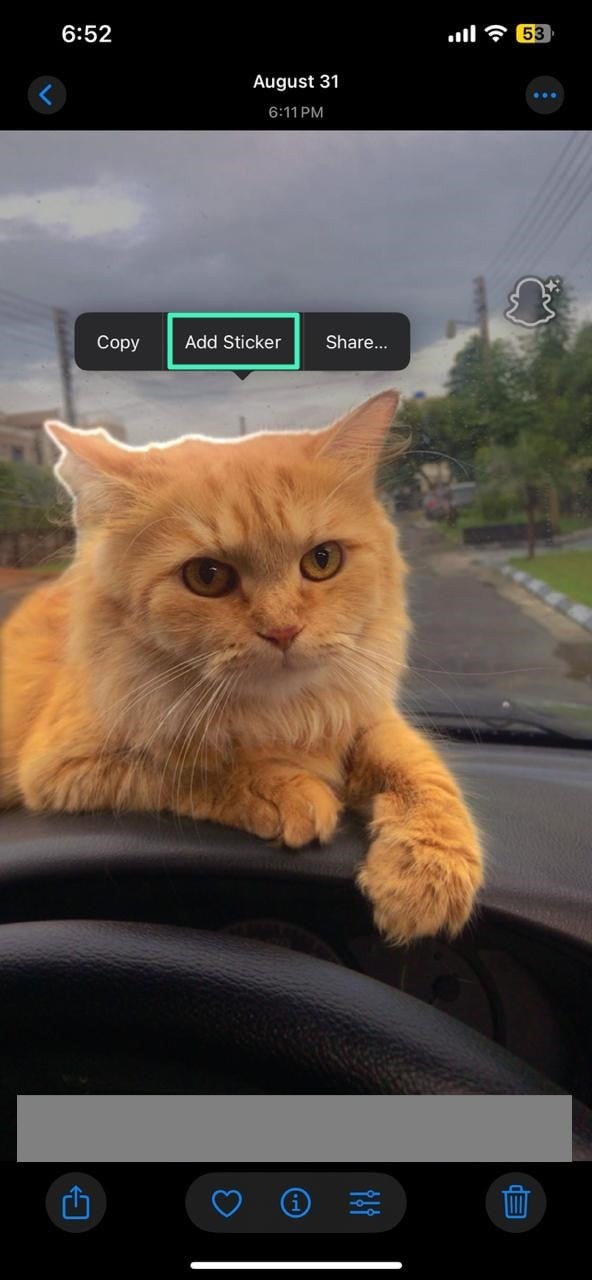
- Navigate to Messages or Notes, tap the Sticker icon, find your new sticker, and send it.
Limitations of iPhone Stickers
- Background cutout is automated and may leave rough edges.
- Only supported on newer iPhone/iPad models.
- Editing options are minimal; no ability to adjust colors or add effects.
- One sticker can be created at a time—bulk creation is not possible.
Method 3: Filmora Mobile App (Android/iOS)
Filmora’s AI‑powered Smart Cutout offers precise background removal and a suite of editing tools, ideal for users who want more control without leaving their phone.
- Create a new project and import your photo. Then tap Smart Cutout.
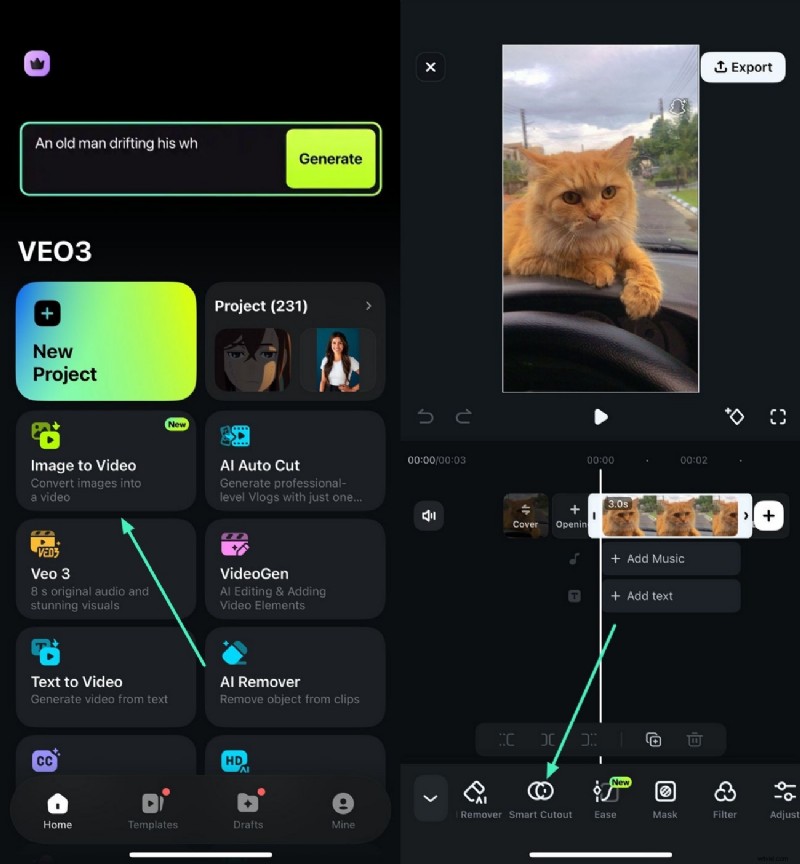
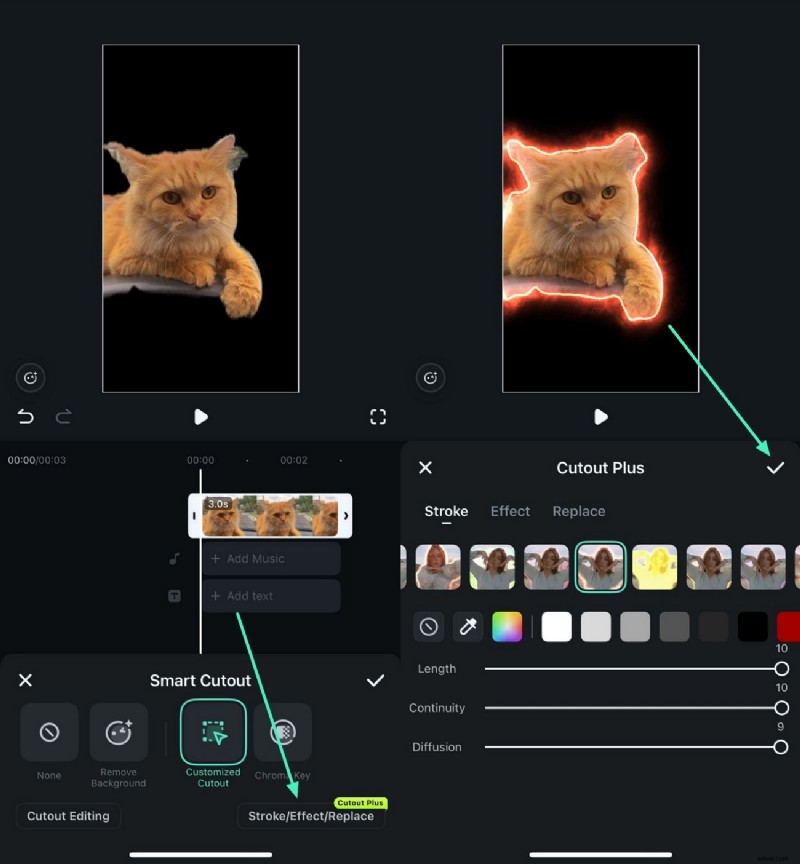
- Draw a custom selection around the subject and confirm with the tick icon to remove the background.

- Apply a stroke or other effects from the Stroke/Effect/Replace menu.
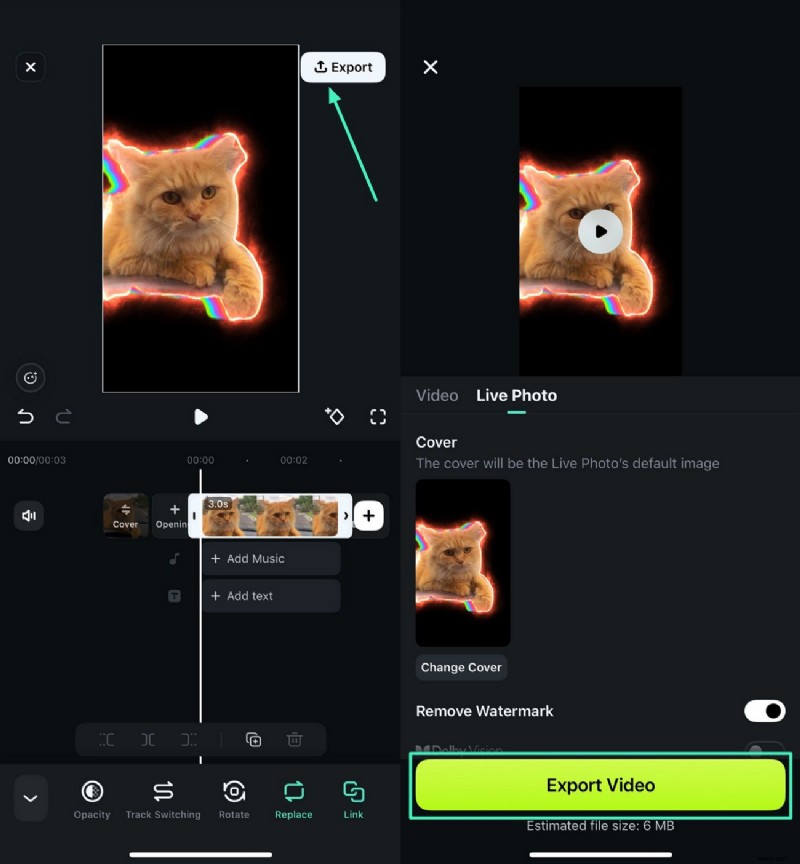
- Export as a Live Photo or PNG:
- Tap Export → enable Live Photos (or PNG for web use).
- Save to your device.
Method 4: Filmora Desktop (Windows/macOS)
For users who require advanced customization—such as AI‑generated stickers, color correction, and auto‑enhance—Filmora’s desktop version provides a comprehensive toolkit.
- Launch Filmora and start a new project.
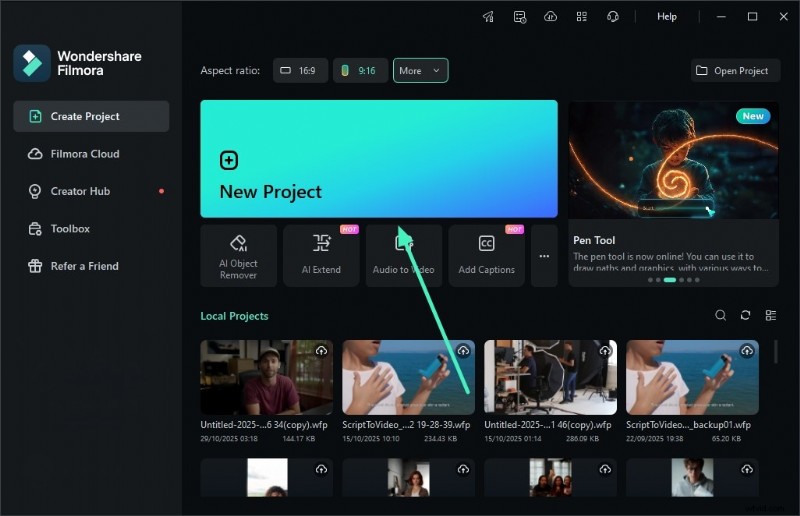
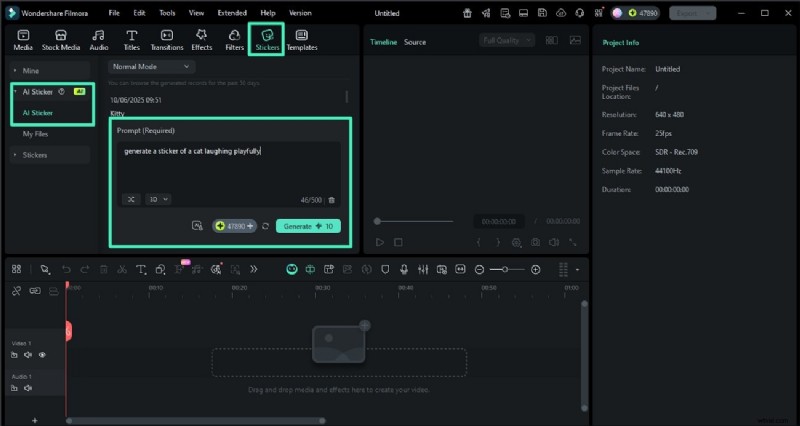
- Navigate to Stickers → AI Stickers, enter a prompt, and choose a style. Click Generate.
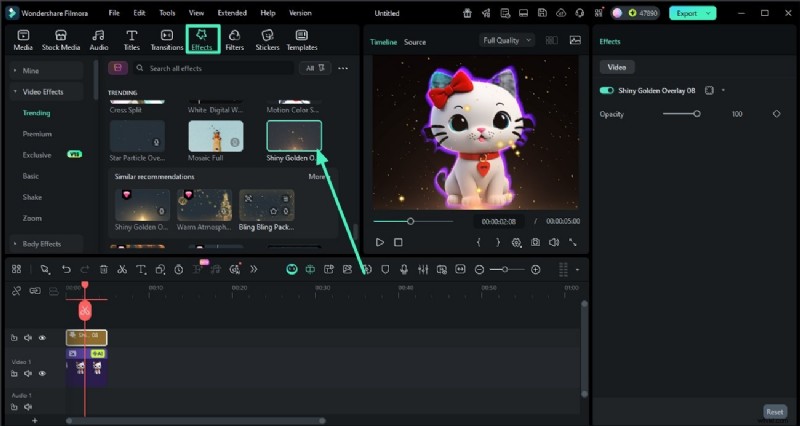
- Add the sticker to the timeline, then open the Effects library to apply visual enhancements.
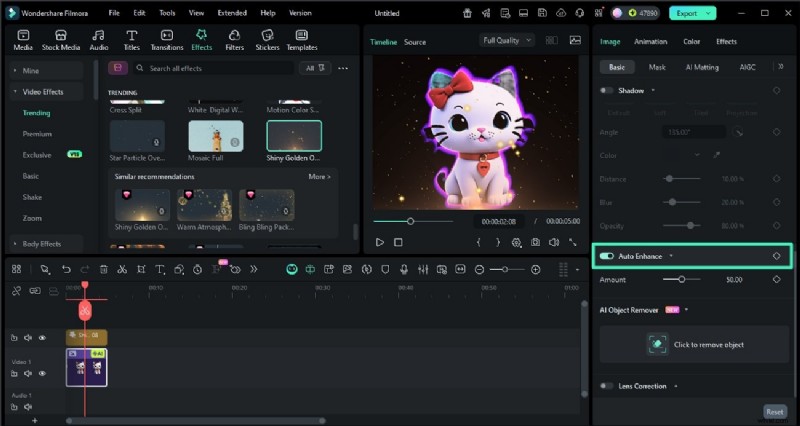
- Enable Auto Enhance in the Basic panel to sharpen details automatically.
- Adjust color parameters (Temperature, Tint, Vibrance) under the Color panel for a polished look.
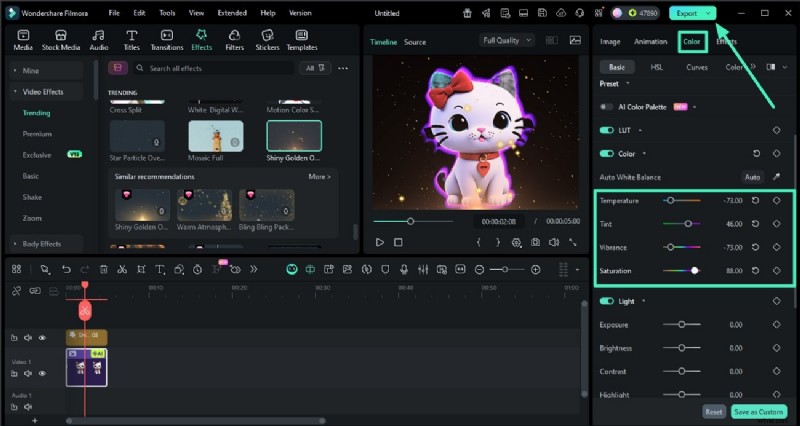
- Export as a PNG sequence (transparent background) via the Export window.
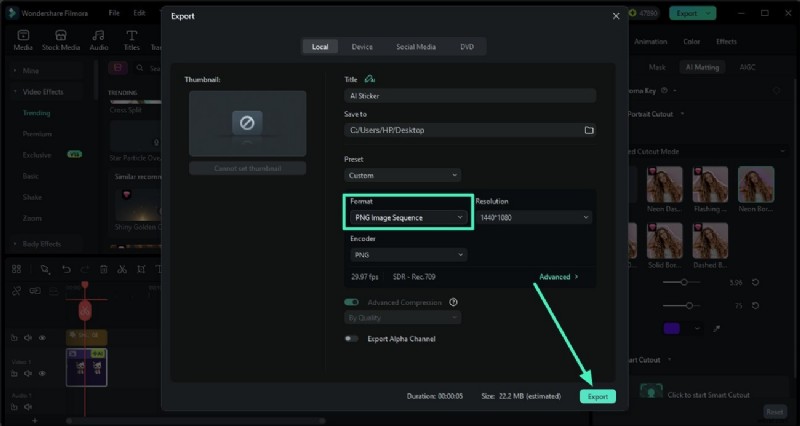
Example exported sticker:

Why Filmora Stands Out
Filmora combines manual precision with AI acceleration, giving users the flexibility to craft professional‑grade stickers regardless of skill level.
Comparison Table
| Tool | Canva (Online) | iPhone (Built‑in) | Filmora (Mobile/ Desktop) |
| Platform | Web | iOS | iOS/Android, Windows, macOS |
| Sticker Creation | Basic background removal | Automated cutout | Manual + AI Smart Cutout |
| Customization | Moderate | Minimal | Extensive (effects, AI, color) |
| Export Options | PNG, JPG, PDF | Sticker format for iMessage | PNG, JPG, GIF, MOV, MP4, Live Photo |
| Editing Tools | Basic photo editor | None beyond cutout | Advanced editing suite |
Conclusion
Whether you prefer a quick online fix, a native iPhone shortcut, or a feature‑rich editing suite, there’s a method that fits every workflow. For the highest quality and creative freedom, Filmora remains the most versatile choice—offering AI assistance, manual refinement, and multi‑format export to ensure your stickers look great wherever they’re used.